ActiveCampaign Integration Guide
What the AI can do
The Newo AI Agent integrates with ActiveCampaign so your AI can act as a CRM intake and follow-up assistant during live conversations.
Once connected, the AI agent can:
- create or update a contact in ActiveCampaign from the caller's name, email, and phone
- apply an intent-based tag to the contact at the end of the conversation
- enroll an existing contact into an ActiveCampaign automation
- create a sales deal in the CRM pipeline for qualified inquiries
- auto-register Canvas scenarios and custom tools on publish
- sync tags, automations, and deal stages from ActiveCampaign into Newo settings during setup
In plain terms: the AI collects lead details in conversation, writes them into ActiveCampaign, and can trigger the next CRM action without a human opening the CRM.
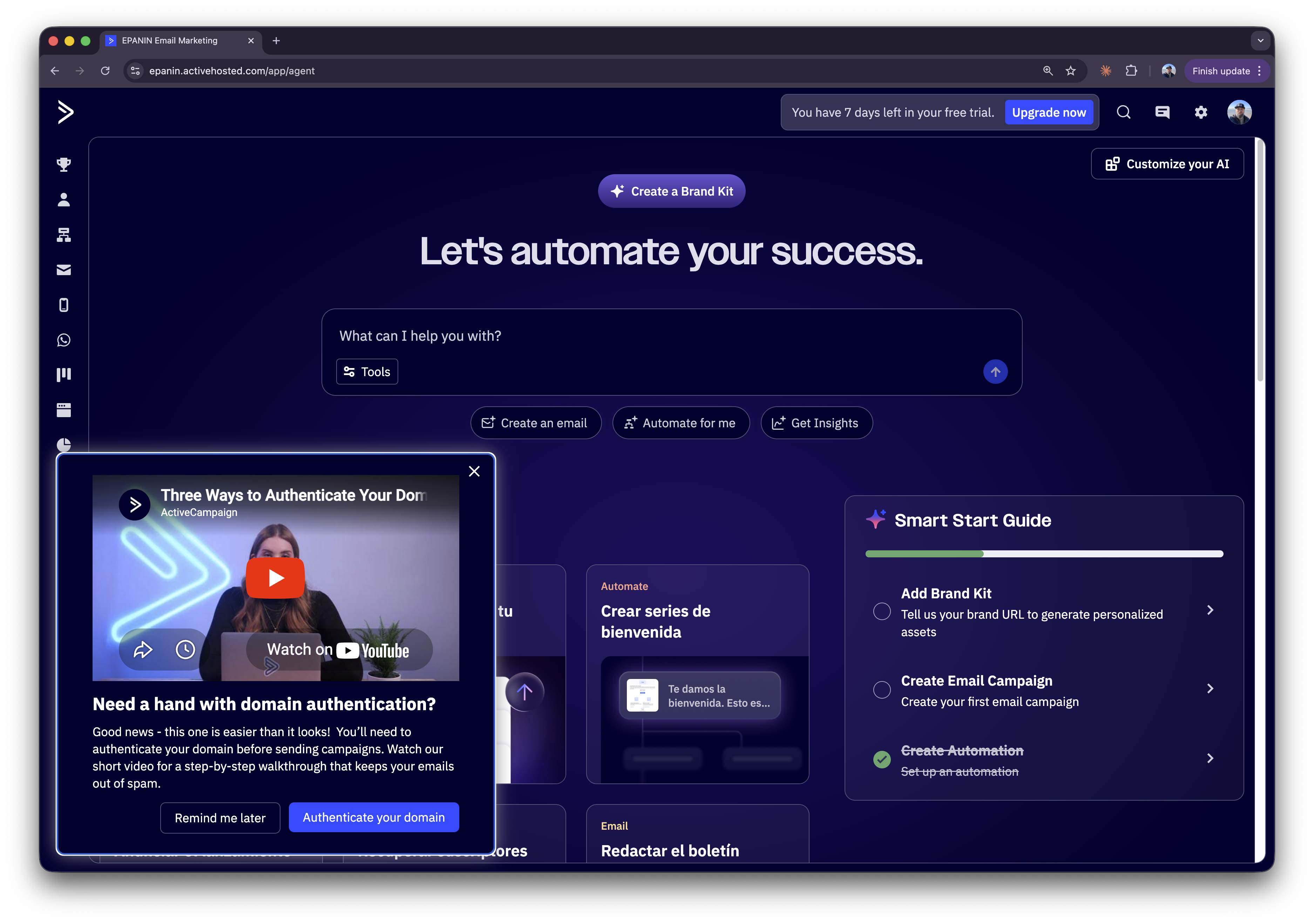
Figure S01. ActiveCampaign home screen before opening account settings.
Before You Start
Make sure you have:
- an ActiveCampaign account with API access
- permission to view Settings → Developer
- access to the Newo project builder for your project
- permission to edit attributes and run Publish All
You will need:
- API URL from ActiveCampaign
- API Key from ActiveCampaign
Important: this integration uses ActiveCampaign API v3 over the shared
httpconnector. The API URL can be stored either as the full.../api/3path or as the account base URL; the integration appends/api/3when needed.
Setup
Create the Newo project
If this project already exists in Newo Builder, skip this subsection and continue with the integration-specific settings below.
- In Newo Builder, open the projects list and click Create Project (or Create New Project from the top-right menu).

- Fill IDN and Title. The exact names do not matter; use any clear names your team will recognize.
- In Registry, choose the release channel:
- staging — the newest module fixes appear here first. Use it when you need the latest fix, but expect possible unfinished changes.
- production — the final stable version for live projects.
- In Module, select the module for this integration.
 5. Leave Module version on Latest version unless support tells you to pin a specific version, then click Create.
3.1 Get Credentials in ActiveCampaign
- Log in to ActiveCampaign.
- Open Settings → Developer.
- Copy your API URL.
- Copy your API Key.
The API URL usually looks like https://your-account.api-us1.com/api/3.
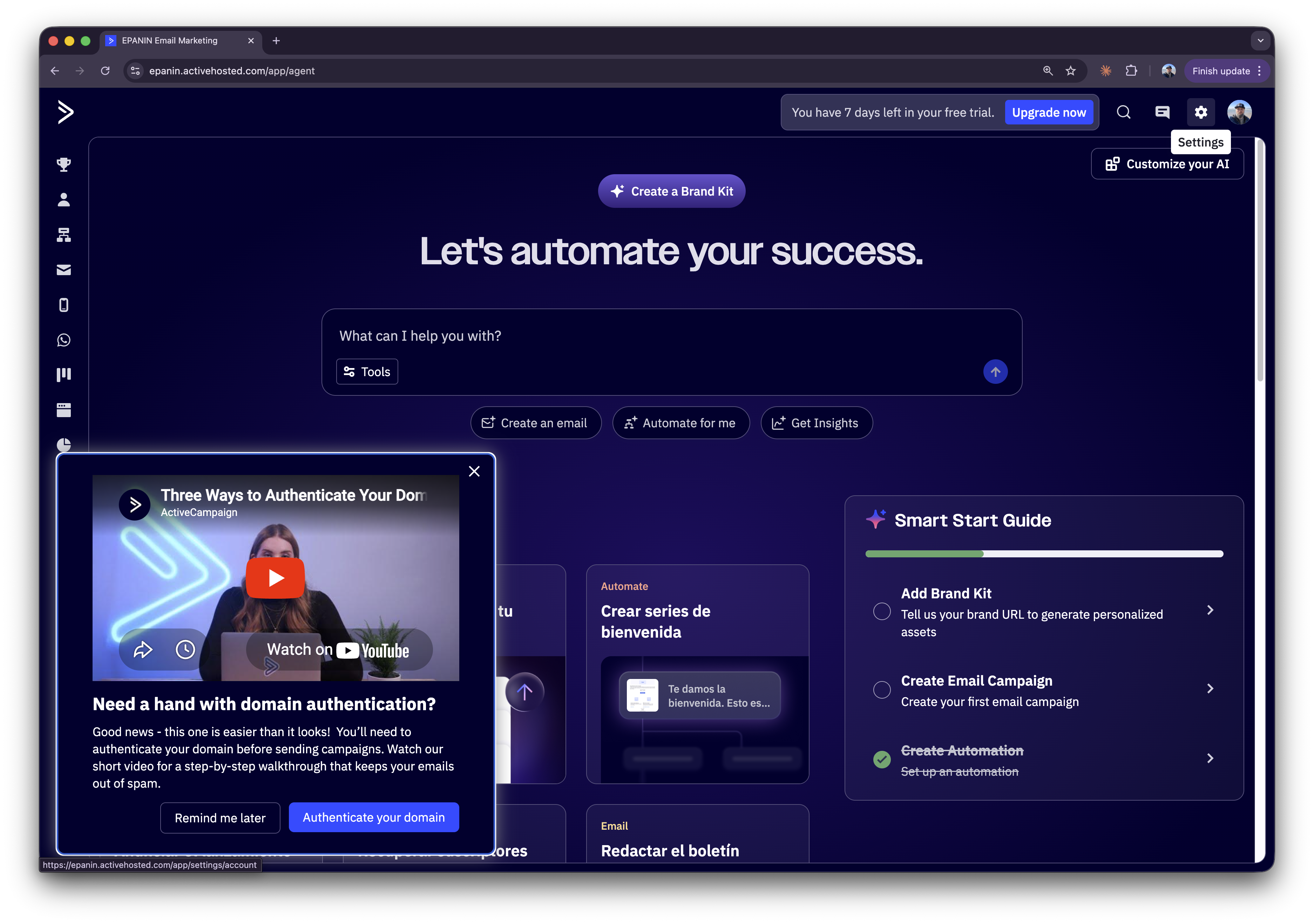
Figure S02. Open ActiveCampaign settings from the top-right corner.
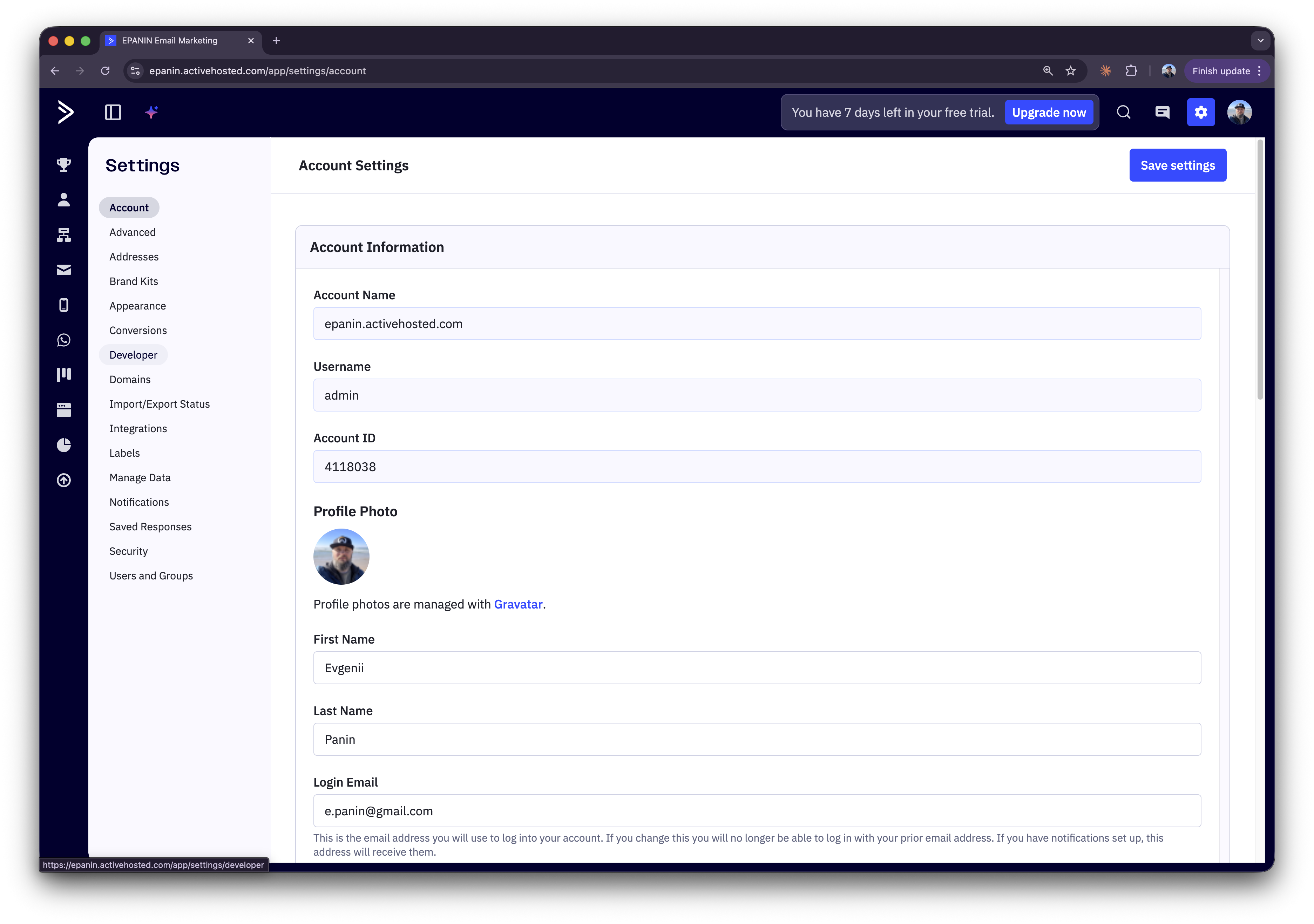
Figure S03. Settings screen with the sidebar where the Developer section is located.
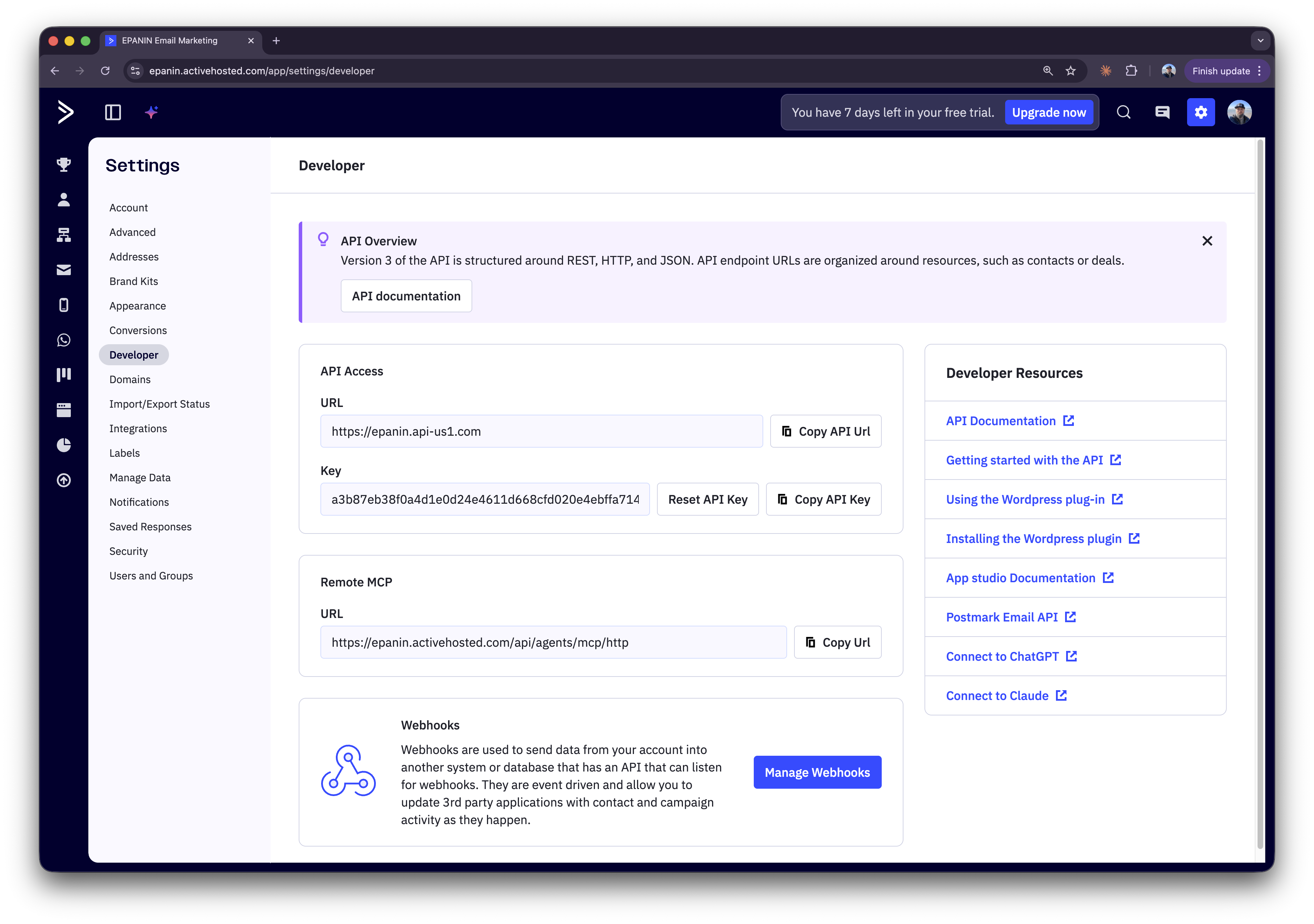
Figure S04. Copy the API URL and API Key from Settings → Developer.
3.2 Connect in Newo
- Open your project in Newo and go to Builder → Attributes.
- Find the Activecampaign Settings section.
- Fill in the following fields:
| Setting | What it does | Required |
|---|---|---|
API URL (activecampaign_base_url) | Base URL for ActiveCampaign API v3 | Yes |
API Key (activecampaign_api_key) | API token sent as Api-Token header | Yes |
- Click Save.
- Click Publish All.
What happens after Publish:
- Newo creates the
activecampaign_connectorconnection if it does not exist - Newo creates an internal
setup_persona_idused for custom tool registration - Newo registers four custom tools in ConvoAgent:
activecampaign_create_update_contactactivecampaign_tag_contactactivecampaign_add_to_automationactivecampaign_create_deal
- Newo syncs tags from the lookup request
- Newo syncs automations from the lookup request
- Newo syncs deal stages from the lookup request
- Newo stores synced data in customer attributes for later use
3.3 Advanced Runtime Settings
These attributes are read by the flows but are not created automatically in SetupFlow. If you want to influence behavior, add them manually in Builder:
| Setting | What it does | Required |
|---|---|---|
Automation Name (project_attributes_setting_automation_name) | Intended default automation label for enrollment messaging | No |
Deal Title (project_attributes_setting_deal_title) | Overrides the default generated deal title | No |
Tag Map (project_attributes_setting_activecampaign_tag_map) | JSON map of synced tag names to ActiveCampaign IDs | Auto-filled on publish |
Automation Map (project_attributes_setting_activecampaign_automation_map) | JSON map of synced automation names to IDs | Auto-filled on publish |
Default Stage ID (project_attributes_setting_activecampaign_default_stage_id) | First synced stage ID saved during setup | Auto-filled on publish |
Current implementation note:
Automation Nameis stored in flow context and used in user-facing confirmation text, but the enrollment flow currently fetches all automations and uses the first returned automation instead of filtering by that name.
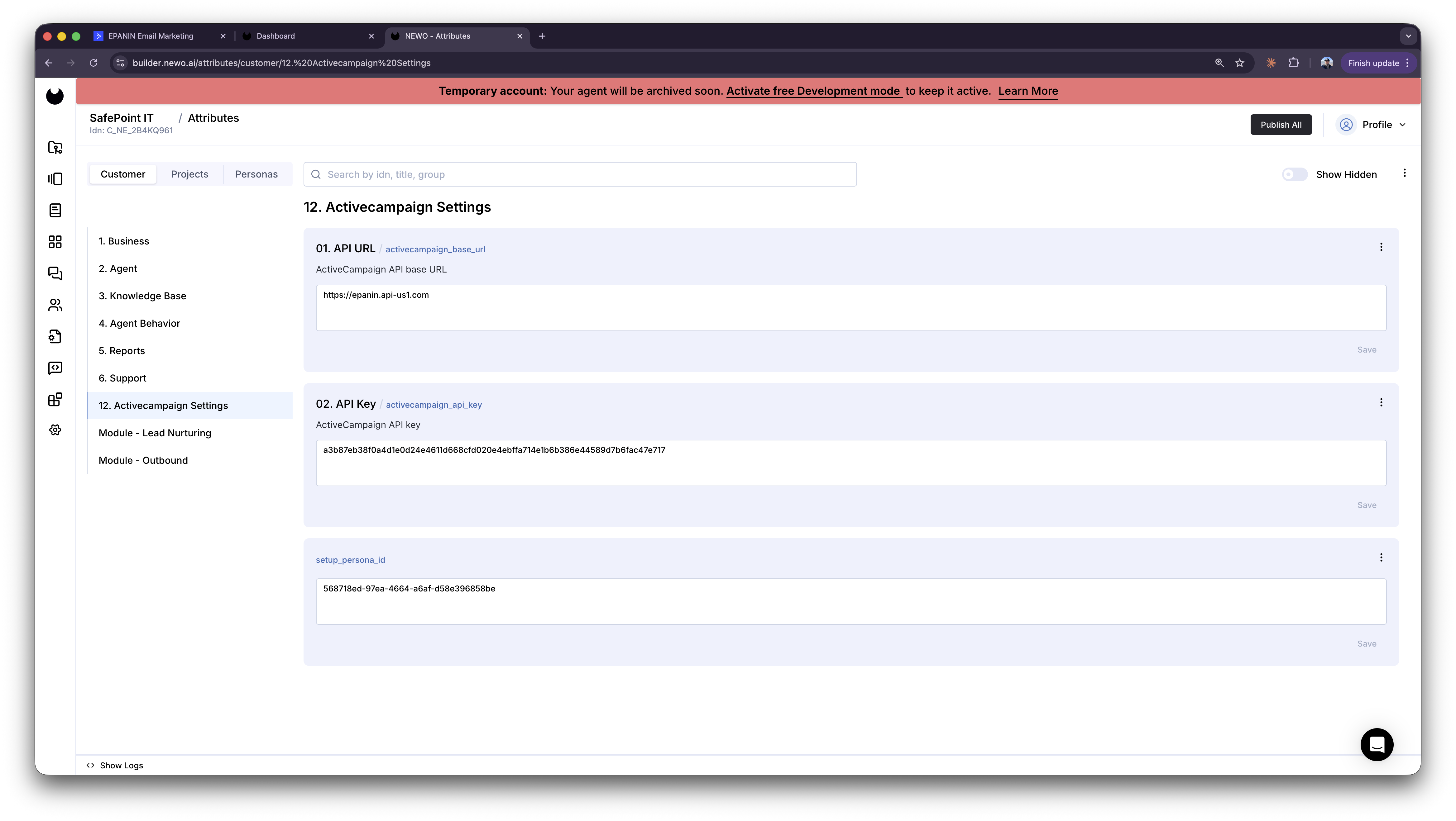
Figure S05. Newo Builder attributes for ActiveCampaign credentials and post-publish setup persona.
What the AI can do
4.1 Create or Update a Contact
When the conversation reaches the code phrase "Let me save your contact information now.", the integration:
- reads
user.name - reads persona
email - reads persona
phone - splits full name into first and last name
- calls ActiveCampaign the create/update request
You will see in ActiveCampaign: a new or updated contact record.
You will see in Newo: persona attribute activecampaign_contact_id is saved after success.
4.2 Tag a Contact by Intent
At wrap-up, the integration can label the contact based on conversation intent. The current heuristics are:
callback-requestedif memory mentionscallbackorcall me backnew-leadif memory mentionsnewplusleadorcustomer- otherwise
interested
The flow:
- searches the contact by email via the lookup request
- creates the contact first via the create/update request if no contact exists
- searches tags via the lookup request
- links the tag via the create/update request
You will see in ActiveCampaign: the contact gets a new contact-tag association.
4.3 Enroll a Contact into an Automation
When the conversation reaches the code phrase "Let me set up your follow-up sequence now.", the integration:
- looks up the contact by email via the lookup request
- loads automations via the lookup request
- uses the first returned automation
- enrolls the contact via the create/update request
You will see in ActiveCampaign: the existing contact is added to an automation.
Important limitation: this flow does not create a missing contact. If the email does not match an existing contact, the integration still continues but may try to enroll an empty contact ID. In practice, you should run contact sync first or ensure the contact already exists.
4.4 Create a Sales Deal
When the conversation reaches the code phrase "Let me create a deal for your inquiry now.", the integration:
- looks up the contact by email via the lookup request
- creates the contact first via the create/update request if needed
- loads stages via the lookup request
- chooses the first returned stage
- builds a deal payload and sends the create/update request
Deal value is inferred from conversation memory by scanning for numbers over 100, and currency is always usd.
You will see in ActiveCampaign: a new deal connected to the contact.
Current implementation note: deal owner is hardcoded to
"1"inCreateDealFlow, not taken from a customer attribute.
4.5 Auto-Setup Canvas Scenarios
On canvas build, the integration inserts library content for:
- introduction
- gather name
- gather phone
- gather email
- finish conversation
- capture contact scenario
- add to automation scenario
- create deal scenario
This lets the conversation layer trigger the custom tools using explicit code phrases rather than generic booking tools.
5. How the Integration Works
How to test that everything works
6.1 After Setup
After clicking Publish All, confirm:
- the
activecampaign_connectorexists -
project_attributes_settings_platform_toolscontains four ActiveCampaign tools -
project_attributes_setting_activecampaign_tag_mapis populated -
project_attributes_setting_activecampaign_automation_mapis populated -
project_attributes_setting_activecampaign_default_stage_idis populated
6.2 Test Contact Sync
- Start a test conversation.
- Give the agent a name, phone number, and email.
- Trigger the contact-save scenario.
- Verify in ActiveCampaign that the contact exists or was updated.
- Verify persona attribute
activecampaign_contact_idis set.
6.3 Test Tagging
- Use a conversation that clearly contains callback or lead intent.
- Let the conversation reach the finish procedure.
- Verify the contact was found or created.
- Verify a tag association appears on the contact in ActiveCampaign.
6.4 Test Automation Enrollment
- Make sure the contact already exists in ActiveCampaign.
- Make sure at least one automation exists.
- Trigger the follow-up sequence scenario.
- Verify the contact is enrolled in an automation.
6.5 Test Deal Creation
- Start a sales inquiry conversation.
- Mention a budget such as
$1200or1500 per month. - Trigger the deal-creation scenario.
- Verify the contact exists.
- Verify a new deal appears in ActiveCampaign with a value and stage.
6.6 If Something Does Not Work
- confirm both
activecampaign_base_urlandactivecampaign_api_keyare filled in - confirm the API URL belongs to the correct account
- republish after changing any credentials
- verify the user has persona
emailbefore tag, automation, or deal flows - verify ActiveCampaign already has automations configured if enrollment is expected
- verify at least one deal stage exists if deal creation is expected
- check whether the flow hit
activecampaign_api_error
FAQ
Q: Does this integration support OAuth?
A: No. The current implementation uses only API URL + API Key and sends requests through the shared http connector.
Q: What happens on Publish All?
A: The integration creates its connector, creates an internal setup persona, registers four custom tools, and syncs tags, automations, and deal stages from ActiveCampaign.
Q: Does automation enrollment create a missing contact automatically?
A: No. AddToAutomationFlow only searches by email and then continues to automations. If the contact is missing, enrollment may fail or target an empty contact ID.
Q: How does the tag get chosen?
A: The current code uses simple keyword heuristics on memory. It maps to callback-requested, new-lead, or falls back to interested.
Q: How is the automation selected?
A: The current flow fetches the lookup request and uses the first returned automation. The configured automation_name is not yet used as an API filter.
Q: How is the deal stage selected?
A: The flow fetches the lookup request and uses the first returned stage. The synced default stage attribute is stored during setup but is not read back by CreateDealFlow.
Q: Who becomes the deal owner?
A: Right now the owner is hardcoded to "1" in CreateDealFlow, so production use should verify that user ID is valid in the target ActiveCampaign account.