Unitify Condo Integration
Connects Unitify Condo (the property-management ERP at eu.unitify.com) with the Newo AI agent so residents can open maintenance tickets, check ticket status, hear updates from the property team, update or close their requests, submit and read utility meter readings, check unpaid balances, leave quality-control feedback on completed work, and stay in the loop on currently-valid building announcements — entirely by voice or chat, no front-desk required.
What the AI can do
- Identify the resident by phone. On every conversation the agent matches the caller's phone against the Unitify resident registry and silently loads the resident's profile (name, building, apartment, contact id) so the rest of the dialog is personalised.
- Enrich the agent's prompt with building context. On identification the integration pulls the property's structured address (city / district), type (
building/village), unit count, the resident's section + floor (resolved fromproperty.map), and the property-management company's contacts — and injects them into a<BuildingInfo>prompt section so the agent can speak naturally about "your 14-floor building" or refer the resident to the УК's phone. - Enrich the agent's prompt with equipment / services context. A combined query pulls active meters (with
place, tariffs, verification dates), open billing account number (л/с), building services / mini-apps available at the address (intercom / ISP / parking / CCTV apps viaB2CAppProperty), active building incidents (so the agent knows "your building currently has no hot water until 18:00" before the resident reports it), and optional operator notes per property. Result lives in a<UnitEquipment>section. - Open a maintenance ticket when a resident reports a problem (leak, broken appliance, doorbell, lighting, common-area issue). The agent picks the right classifier from the building's catalog and marks emergency vs routine.
- Auto-add a dispatcher hint when the resident reports a ceiling leak (suspected upstairs source). The LLM extractor flags
suspected_source: above, and the integration posts an internal organization-channel note on the new ticket suggesting the dispatcher inspect the unit above (section + floor + 1). No second ticket is created, no message is sent to the upstairs resident. - Dedup-check against open tickets on the property before creating a new one. A combined query pulls every OPEN ticket on the resident's property that does NOT belong to them (УК / dispatcher / technician / neighbor tickets in the last 7 days by default) into an
<OpenPropertyTickets>prompt section. Before firingunitify_create_service_request_tool, the agent compares the resident's complaint against this section — when there's a topical match, it surfaces the existing ticket number + status and asks whether the resident still wants to file a separate one. Cross-resident PII (apt / phone) is paraphrased away; only ticket number + status + category are quoted. - Read recent tickets back to the resident with the latest building-team update inlined — so the resident can ask "когда придёт мастер?" and hear the planned visit window without waiting on hold.
- Update / close / cancel a ticket with topical disambiguation. Distinguishes close (resolved) from cancel (withdrawn), refuses to re-cancel a ticket that is already in a terminal status.
- Read meter values the building has on file (cold water, hot water, electricity).
- Submit fresh meter readings dictated by the resident ("холодная 12345, горячая 8901, электричество 22334") — the agent extracts each value, matches it to the right meter for the unit, and writes them to Unitify in one round-trip.
- Send a technician note (
unitify_send_internal_message_tool). Two-channel chat — the agent reads both resident-channel and organization-channel comments via<ResidentChatHistory>+<InternalChatHistory>(rebuilt from the full ticket transcript on every inbound) and posts internal notes back to the technician (schedule confirmations, escalation requests, resident answers) without exposing them to the resident. - Receive ticket comments via tenant-wide polling so that when a technician posts a note to the resident or organization channel, the agent reacts to it on the next polling tick (60 s by default) — including auto-creating a Newo persona for residents that contacted via the mobile app first and posting outbound replies as
createTicketComment(type: resident)on the api/webhook actor. - Surface administrator NewsItems at session start. On every successful resident identification the integration fetches currently-valid
NewsItems (isPublished: trueANDvalidBeforein the future or null) for the tenant and injects them into a<RecentAnnouncements>section the agent mentions naturally on the next turn. Replaces the prior polling-push design — every fresh session sees an up-to-date snapshot regardless of session-timeout state. - Quality-control feedback on completed work.
unitify_submit_quality_control_toolrecords resident rating + speed / quality markers + free-text comment as Condo'squalityControlValue/qualityControlAdditionalOptions/qualityControlCommentfields. Triggered by Scenario 13 — the agent asks for the rating, the resident answers, the agent says the trigger phrase «Записываю вашу оценку прямо сейчас», the tool fires. Open-only readback (terminal-status tickets are filtered out of inline lists, kept only in<ServiceRequestResult>for explicit lookup). - Unpaid balance lookup — two tools:
unitify_check_unpaid_summary_tool(total only) andunitify_check_unpaid_details_tool(breakdown). Module-flagged:unitify_enable_unpaid_invoices(Invoice module) andunitify_enable_unpaid_billing_receipts(BillingReceipt module). Both default off; the agent never spams the breakdown unprompted. - Service-account authentication (default) or OAuth 2.0. Default
service_account(CondoauthenticateUserWithPassword— operator pastes a building-manager email + password and the integration manages the access token). OAuth 2.0 authorization-code flow is also supported when the tenant prefers per-app credentials. One automatic retry on 401 /AUTHENTICATION_ERRORcovers both modes. - Auto-handoff to human when the caller's phone is not in the registry (transfers the call to a 24/7 dispatcher line or relays the request to a managed mailbox).
Not in scope
- Payments and invoicing creation. Read-side unpaid balance is shipped (see above), but the agent does not create invoices on launch — Unitify's Acquiring module is not provisioned on the launch tenant.
- Smart-access / guest passes. The smart-access module is not deployed on the launch tenant.
- First-class smart-building entities (Intercom / CCTV / Elevator as discrete objects). In the public Condo schema these surface only through
B2CAppProperty(mini-apps) — agent sees them as a list of available services, not as devices it can control.
These can be re-enabled in a future release once the corresponding Unitify modules are provisioned.
Features at a glance
| Feature | Included |
|---|---|
| Identify resident by phone (silent lookup) | ✅ |
Building-context enrichment (<BuildingInfo> section + persona attrs) | ✅ |
Equipment / services enrichment (<UnitEquipment> section + persona attrs) | ✅ |
| Create maintenance ticket | ✅ |
| Pick the right ticket classifier from the building's catalog | ✅ |
| Mark emergency vs routine | ✅ |
| Auto-internal-note when resident reports a ceiling leak (suspected upstairs source) | ✅ |
Cross-contact dedup against open tickets on the property (<OpenPropertyTickets> section + Scenario 2 gate) | ✅ |
| Read recent tickets back to the resident | ✅ |
| Read the latest building-team update per ticket ("когда мастер?") | ✅ |
| Update an existing ticket (append details / escalate urgency) | ✅ |
| Close / cancel a ticket (with disambiguation by topic) | ✅ |
| Auto-resume cancel when caller asked to close pre-identification | ✅ |
| Refuse to cancel a ticket that is already closed / cancelled (idempotency) | ✅ |
| Quality-control feedback on completed tickets | ✅ |
| Read latest meter readings | ✅ |
| Submit fresh meter readings (multi-value in one turn) | ✅ |
Send technician note (unitify_send_internal_message_tool) | ✅ |
| Tenant-wide TicketComment polling (auto-create personas for mobile-app residents) | ✅ |
Session-start NewsItem fetch (<RecentAnnouncements> rebuilt on every identification) | ✅ |
| Unpaid balance lookup — summary + details (Invoice + BillingReceipt modules) | ✅ |
| Service-account auth (default) + OAuth 2.0 authorization-code flow | ✅ |
| Automatic token refresh / re-auth on 401 | ✅ |
| Auto-recognise voice / chat channel and route to the right transport | ✅ |
| Auto-handoff to human on registry miss (call transfer / email) | ✅ |
| Create invoices / payment links | ❌ (Acquiring module not provisioned) |
| Smart-access guest passes | ❌ (Smart-access module not provisioned) |
| Auto-publish announcements from technician notes | ❌ (removed in 2.0.21 — see Changelog) |
| Reschedule a ticket directly | ❌ (cancel + create) |
Scenarios
The integration ships with eight editable scenarios on the canvas. Operators tweak them in Newo Builder; the agent picks up the changes on the next Publish All.
What gets added on Publish All
| Intent (canvas label) | Scenario (canvas heading) |
|---|---|
| Identify Resident in Unitify | Scenario 1: Identify Resident in Unitify |
| Create Service Request in Unitify | Scenario 2: Create Service Request in Unitify |
| Check Service Request Status in Unitify | Scenario 3: Check Service Request Status in Unitify |
| Update Service Request in Unitify | Scenario 4: Update Service Request in Unitify |
| Cancel Service Request in Unitify | Scenario 5: Cancel Service Request in Unitify |
| Read Meter Values in Unitify | Scenario 11: Read Meter Values in Unitify |
| Submit Meter Readings in Unitify | Scenario 12: Submit Meter Readings in Unitify |
| Submit Quality Control Feedback in Unitify | Scenario 13: Submit Quality Control Feedback in Unitify |
Operational note (please read before upgrading).
- These intents and scenarios are a reference implementation — they were tuned against the launch tenant and live test runs.
- They are fully editable in the canvas UI. You can rewrite scenario steps, change the agent's tone, add clarifying questions, etc.
- Future integration updates will NOT overwrite an intent or scenario you have edited. To pull the newer shipped defaults, delete your edited copy from the canvas and run Publish All — the original is restored from the integration's library, and you re-apply your tweaks on top of the newer baseline.
Scenario 1 — Identify Resident in Unitify
Always runs first. Until the resident is identified the agent does nothing else.
- Read the Identification panel. If it already shows Status: identified, briefly read the profile back (name + building + apartment + "is that right?") and ask how you can help.
- If the panel is empty or Status: awaiting_phone, ask the resident for the phone number registered in the building system, in E.164 format (
+998…). Ask only for the phone — never name, address, apartment, building, or email. - Once the resident gives the phone, on the very next reply say (in the resident's language): "Recording your phone and checking the resident registry, one moment…" / "Записываю ваш номер и проверяю реестр жильцов, минуту…". The phrase MUST be present-tense, first-person — past-tense / passive wording will not trigger the lookup.
- While Status: lookup_in_progress, give the resident a brief reassuring line and stay on this step.
- When the panel flips to Status: identified, paraphrase the profile (name + building + apartment) back, ask "is that right?". On confirmation, pick the appropriate feature scenario based on the request.
- On Status: not_found_in_registry, apologise and hand off to the human manager (transfer call on phone, email on chat).
Trigger phrases (do not edit):
- "Recording your phone and checking the resident registry, one moment…" (or "Записываю ваш номер и проверяю реестр жильцов, минуту…").
Triggered by intent "Identify Resident in Unitify".
Scenario 2 — Create Service Request in Unitify
Runs when a resident reports a maintenance / service issue.
- Identification gate. If the Identification panel is anything other than identified, switch to Scenario 1 and stop.
- Acknowledge the issue and collect clarifying details: location inside the unit, when it started, water / power involved.
- Confirm property and unit (already on the persona — no need to re-ask).
- Reconfirm name and phone.
- Ask the emergency question: "Is this something that needs handling today, or can it wait for the next business day?".
- Read the request back (issue + property/unit + contact + urgency) and ask: "Should I submit this maintenance request now?".
- On confirmation say: "I'm submitting your maintenance request now. Please give me a moment, and I'll get back to you shortly." — the agent files the ticket in Unitify Condo, picks the right classifier from the building's catalog, and reads the new ticket number back to the resident.
Trigger phrases (do not edit):
- "I'm submitting your maintenance request now. Please give me a moment, and I'll get back to you shortly."
Triggered by intent "Create Service Request in Unitify".
Scenario 3 — Check Service Request Status in Unitify
Runs when the resident asks for the status of their requests, or "когда придёт мастер?".
- Identification gate.
- Say: "Let me check on your maintenance requests. Please give me a moment." — the agent fetches the resident's most recent tickets and the latest building-team comment on each.
- Read back every ticket: number, status, the issue description, any urgency flag, and the latest update from the building team if one exists (e.g. "the master will visit between 12:00 and 14:00 tomorrow"). When the resident asks "when's the master coming?" the latest-update line is the answer.
- Offer follow-up: would they like to update or close any of them?
Trigger phrases (do not edit):
- "Let me check on your maintenance requests. Please give me a moment." / "Сейчас проверяю ваши заявки, минуту…".
Triggered by intent "Check Service Request Status in Unitify".
Scenario 4 — Update Service Request in Unitify
Runs when the resident wants to add information to or escalate an existing ticket.
- Identification gate.
- The agent picks the right ticket — by ticket number if the resident named one ("обнови 803"), or by topical match against the ticket details ("обнови ту про кран" → the faucet ticket). When several tickets match a topic, the most-recent non-terminal ticket wins.
- Read the existing ticket back: number, current status, current description.
- Ask: "What would you like me to add to this request?". Capture the resident's wording verbatim.
- Reconfirm: "I will add the following to ticket [number]: '[appended text]'. Should I send this update?".
- On confirmation say: "I'm updating your existing request with these details now. Please give me a moment." — the agent writes the update to Unitify and confirms the new status to the resident.
Trigger phrases (do not edit):
- "I'm updating your existing request with these details now. Please give me a moment." / "Я сейчас обновляю вашу заявку, минуту…".
Triggered by intent "Update Service Request in Unitify".
Scenario 5 — Cancel Service Request in Unitify
Runs when the resident wants to close or cancel an existing ticket.
- Identification gate. If the resident asked to cancel BEFORE identification, the agent first asks for the phone, runs the identification flow, and on the next turn re-confirms the cancellation request before firing.
- The agent picks the target ticket (explicit number or topical match — same rules as Update). Most-recent non-terminal ticket wins on a tie.
- Read the ticket back and ask: "Are you sure you want to close this request?". If the resident wants to add info instead, switch to Scenario 4.
- On confirmation say: "Okay, I'll close that request for you now. Please give me a moment." / "Закрываю вашу заявку прямо сейчас, минуту…".
- The agent confirms the new status. If the ticket was already closed earlier, the agent says so and skips the cancel without errors.
Trigger phrases (do not edit):
- "Okay, I'll close that request for you now. Please give me a moment." / "Закрываю вашу заявку прямо сейчас, минуту…".
Triggered by intent "Cancel Service Request in Unitify".
Scenario 11 — Read Meter Values in Unitify
Runs when the resident asks for their stored meter readings ("какие у меня показания записаны?").
- Identification gate.
- Confirm property and unit if missing.
- Say: "Let me pull up your meter readings. Please give me a moment.".
- Read back per resource type: cold water, hot water, electricity, etc. — current value, unit, and date of last submission.
Trigger phrases (do not edit):
- "Let me pull up your meter readings. Please give me a moment.".
Triggered by intent "Read Meter Values in Unitify".
Scenario 12 — Submit Meter Readings in Unitify
Runs when the resident dictates fresh meter values to be saved.
- Identification gate.
- Confirm property and unit if missing.
- Capture the readings the resident dictates. Read them back verbatim per resource: "cold water 12345, hot water 8901, electricity 22334 — is that right?". Do NOT paraphrase numbers.
- Wait for explicit confirmation. If a value is wrong, update the recap and re-confirm.
- On confirmation say: "I'm submitting your meter readings now. Please give me a moment." — the agent writes all the readings in one round-trip and confirms each saved value back to the resident.
Trigger phrases (do not edit):
- "I'm submitting your meter readings now. Please give me a moment.".
Triggered by intent "Submit Meter Readings in Unitify".
Scenario 13 — Submit Quality Control Feedback in Unitify
Runs when the resident wants to rate the work on a completed / cancelled ticket ("оцените работу мастера", "ставлю хорошо", free-text praise / complaint).
- Identification gate.
- If
last_ticket_idis missing, run Scenario 3 first to populate it. Quality control always targets a specific ticket. - Read the target ticket back (number + brief subject) and confirm it's the one the resident wants to rate.
- Ask the rating question (in the resident's language): "How would you rate the work — good or bad? You can also tell me if it was quick or slow, high-quality or low-quality, and any free comment.". Even when the resident pre-supplies the rating in their very first message, the agent STILL asks again so the next turn carries a clean rating answer.
- Wait for the resident's substantive answer — binary (
good/bad), speed marker (quickly/slowly), quality marker (high-quality/low-quality), free-text praise / complaint, or any combination. If the resident explicitly declines / postpones, skip recording and proceed to Finish Conversation. - On a substantive answer say: "Recording your quality rating now, give me a moment." / "Записываю вашу оценку прямо сейчас, минуту…". The integration's LLM extractor pulls the rating + markers + free-text from the conversation memory and writes them to Condo's
Ticket.qualityControlValue/qualityControlAdditionalOptions/qualityControlCommentfields. - Short thank-you on success (≤ 12 words). Do NOT re-ask, do NOT paraphrase the rating back at length.
Trigger phrases (do not edit):
- "Recording your quality rating now, give me a moment." / "Записываю вашу оценку прямо сейчас, минуту…".
Triggered by intent "Submit Quality Control Feedback in Unitify".
Customizing the agent
For every scenario:
- ✅ Anything outside the trigger phrases is safe to reword (clarifying questions, tone, examples).
- ❌ Trigger phrases (in italics in each scenario above) are the literal phrases that fire the integration's actions. If you change them, the integration stops responding.
- ❌ Do not delete the intent on the canvas — without the intent, the scenario is never selected.
- ↩️ To restore the shipped scenario, delete your edited copy and run Publish All — the original is re-published from the library.
Setup
Create the Newo project
If this project already exists in Newo Builder, skip this subsection and continue with the integration-specific settings below.
- In Newo Builder, open the projects list and click Create Project (or Create New Project from the top-right menu).

- Fill IDN and Title. The exact names do not matter; use any clear names your team will recognize.
- In Registry, choose the release channel:
- staging — the newest module fixes appear here first. Use it when you need the latest fix, but expect possible unfinished changes.
- production — the final stable version for live projects.
- In Module, select the module for this integration.
 5. Leave Module version on Latest version unless support tells you to pin a specific version, then click Create.
A step-by-step walkthrough is below. Two halves: first, decide which authentication mode to use; second, configure Newo.
1. Choose an authentication mode
The integration supports two authentication modes — pick one before the first publish.
| Mode | When to pick it | What you paste into Newo |
|---|---|---|
service_account (default, recommended) | Tenant gave you a building-manager email + password that the integration may use as a long-lived service identity. No app registration needed. | Service Account Email + Service Account Password (hidden) |
oauth | Tenant prefers per-app credentials and you've registered an OAuth 2.0 application on the Unitify developer portal. | OAuth Client ID (hidden) + OAuth Client Secret (hidden) + a one-time OAuth Authorization Code |
Both modes share the same retry-on-401 path; token rotation is fully automatic afterwards. Pick service_account unless your security policy mandates OAuth.
1a. Service-account mode (recommended)
Nothing to register on Unitify's side — you just need a Condo user account on the target tenant with rights to create tickets, read meters, write organization-channel comments, and submit quality control. The building-manager account already used by УК staff usually has the right permissions.
Note for the next step:
- The email of the building-manager Condo account.
- The password of the same account.
- The GraphQL endpoint URL for your tenant — default for the EU production cluster is
https://eu.unitify.com/admin/api; sandbox / regional clusters differ.
That's it — skip section 1b and go to 2. Configure the integration in Newo.
1b. OAuth 2.0 mode (alternative)
Use this only when the tenant requires per-app credentials. You'll register an OAuth 2.0 application on Unitify's developer portal, get a Client ID + Client Secret, and do a one-time authorization-code consent.
-
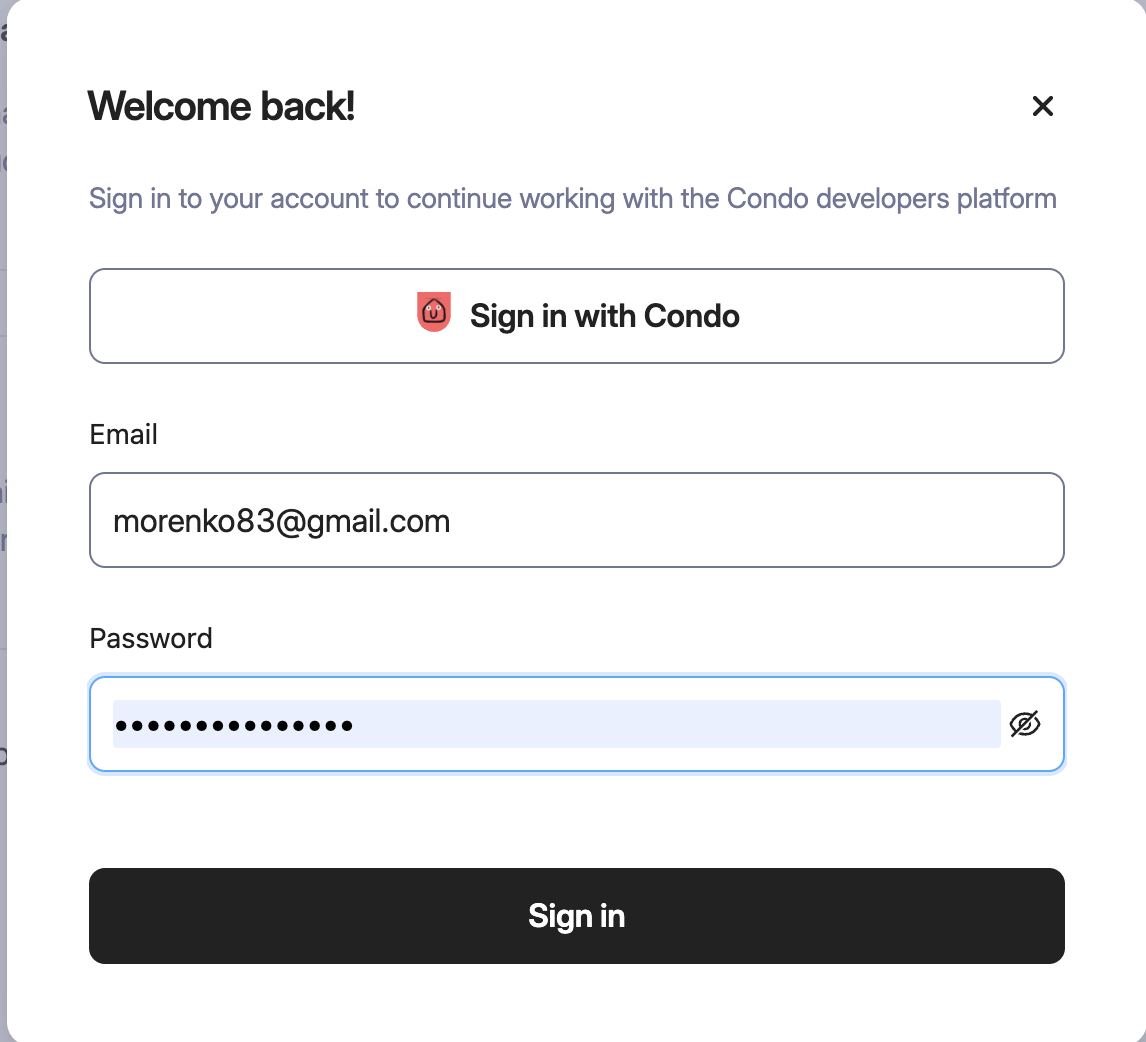
Open the Unitify developer portal and sign in with the building-manager account that has rights to create tickets, read meters, and write comments.
-
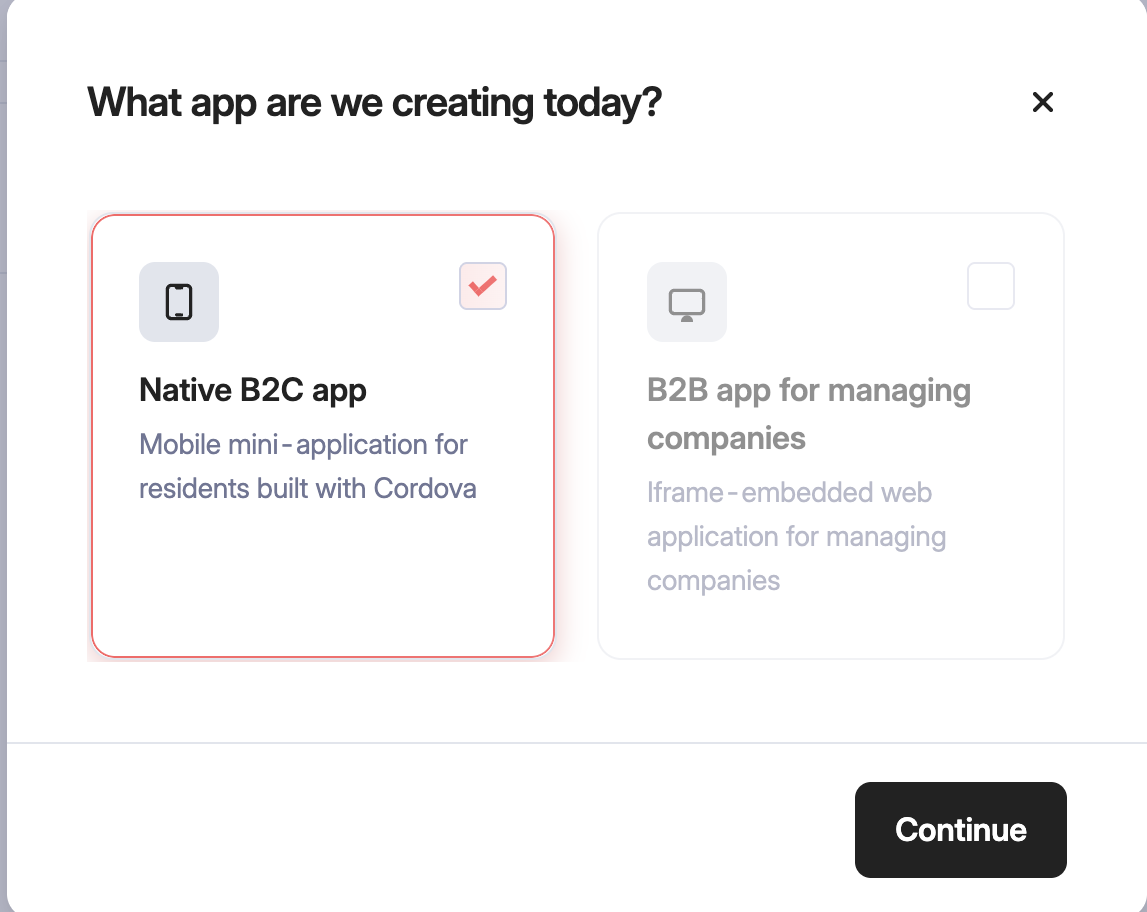
Open My apps on the left side menu, then click Create mini-app. In the dialog, select Native B2C app and click Continue.
-
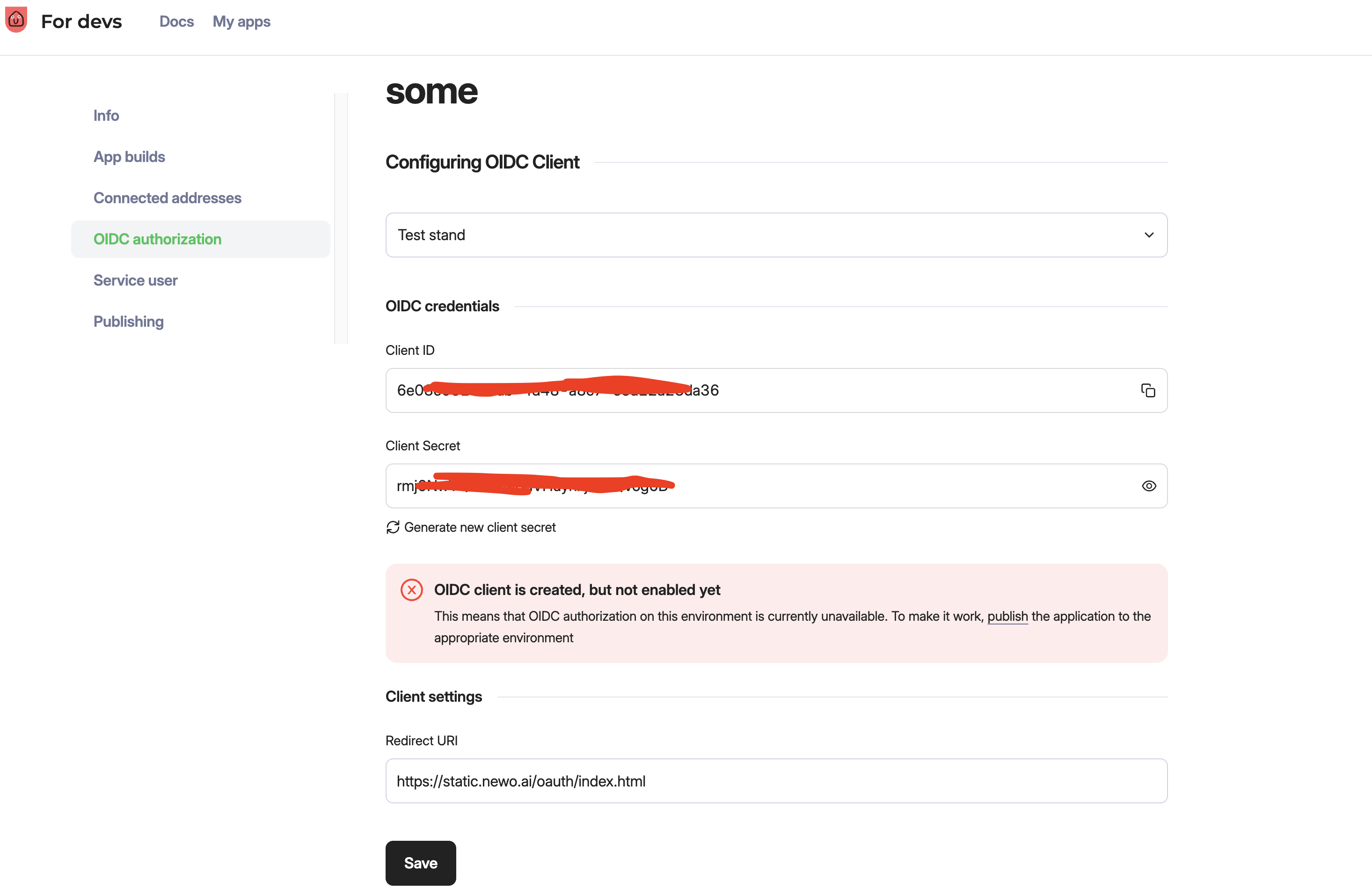
Fill in the new-app form:
- What shall we call the new app? — anything readable, e.g.
Newo Voice Agent. Residents never see this. - Choose OIDC authorization in the left side menu and click Create.
- Fill Redirect URI — paste exactly:
https://static.newo.ai/oauth/index.html. This is the Newo-hosted helper page that captures the OAuth code after consent. Click Create. - The portal now displays the Client ID and Client Secret. Copy both and store them safely, then click Save.
- What shall we call the new app? — anything readable, e.g.
-
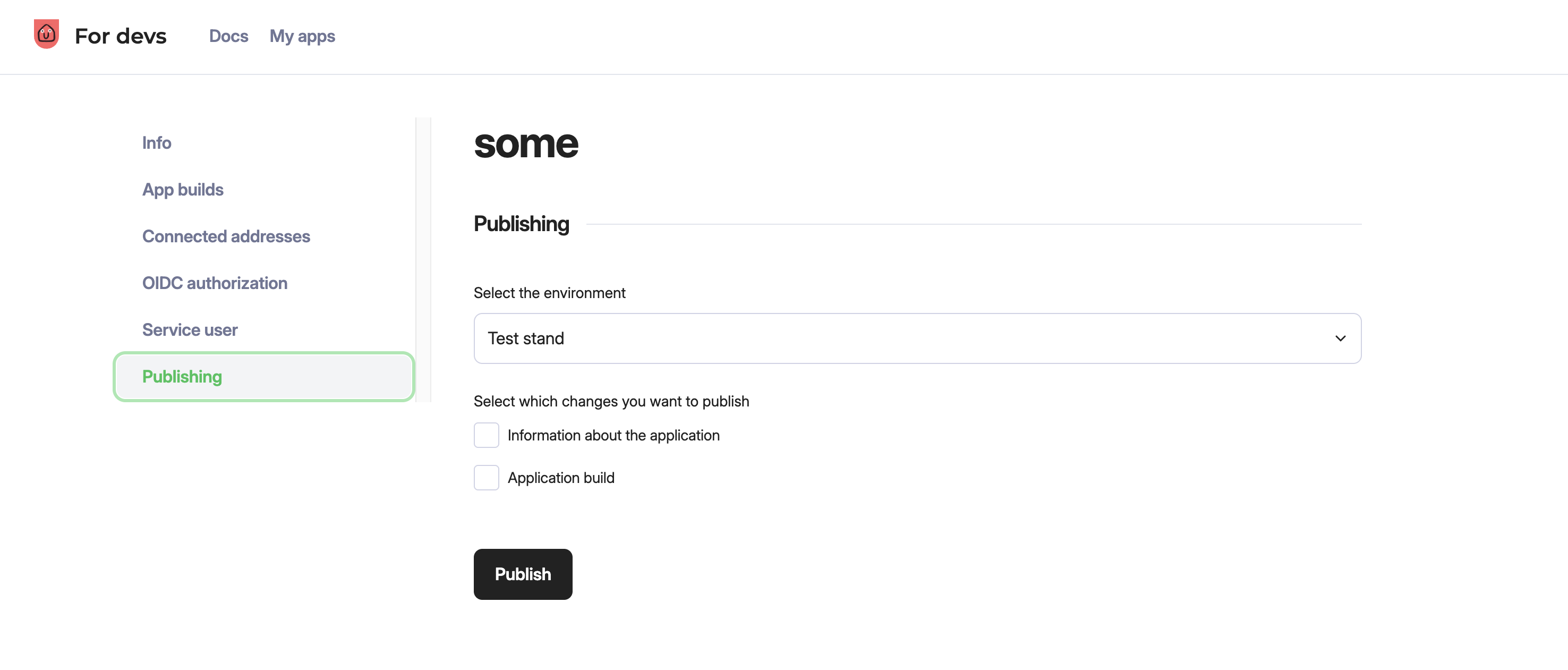
Choose Publishing on the left side menu and click Publish so the application becomes usable.
-
Note for the next step:
- Paste the Client ID into Newo as OAuth Client ID (hidden).
- Paste the Client Secret into Newo as OAuth Client Secret (hidden).
- Confirm the GraphQL endpoint URL for your tenant (default
https://eu.unitify.com/admin/api).
2. Configure the integration in Newo
-
Open the project in Newo Builder and find the Module - UnitifyIntegration attribute group.
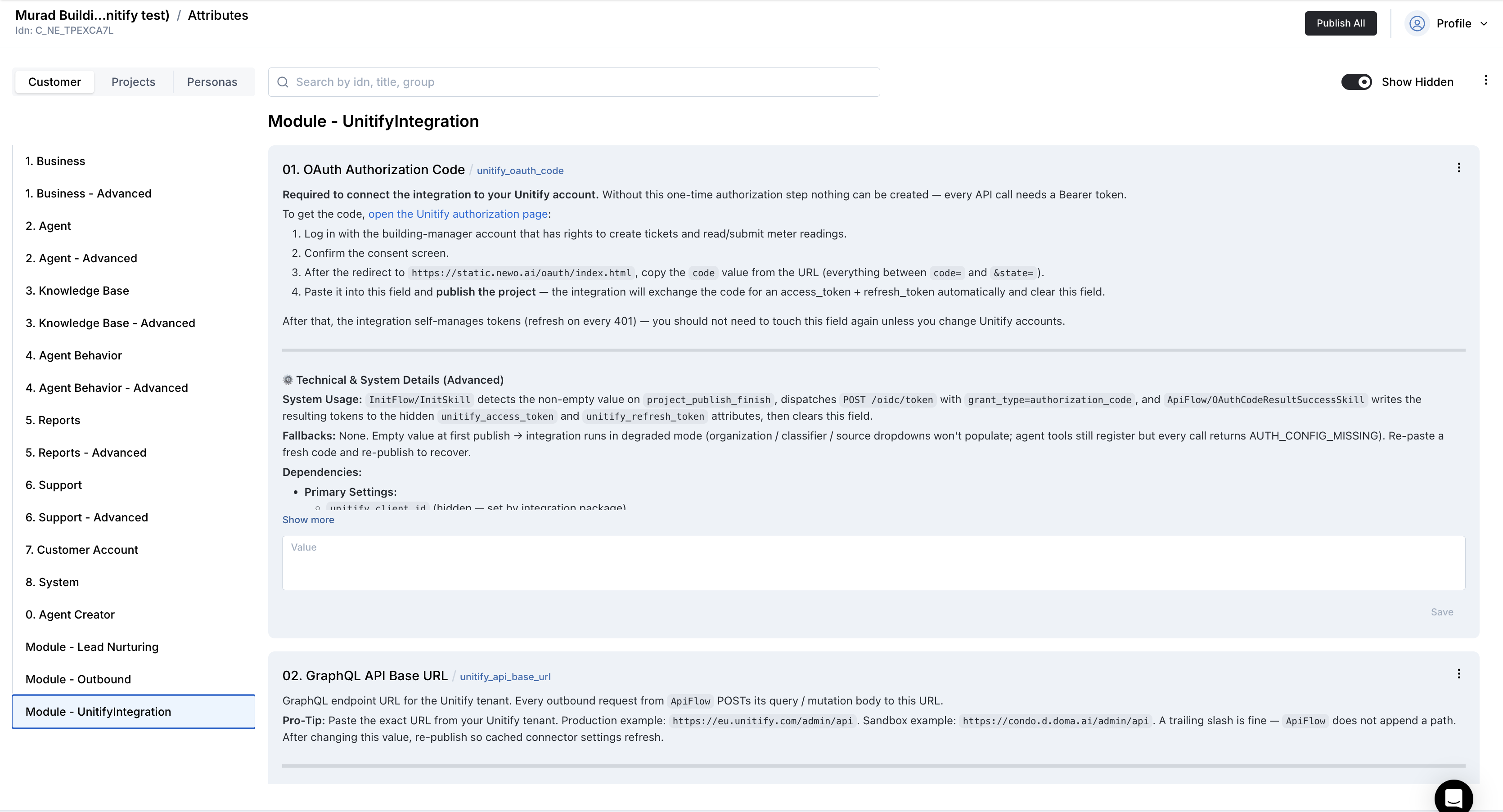
-
Pick the auth mode in Authentication Mode (
unitify_auth_mode) —service_account(default) oroauth. -
Fill GraphQL API Base URL (default
https://eu.unitify.com/admin/api; change only for sandbox / regional clusters). -
Paste the credentials for the mode you picked:
If
service_accountmode:- Service Account Email ← email of the Condo user.
- Service Account Password (hidden) ← password of the same user.
That's it for credentials — skip step 5 (OAuth-only) and click Publish All.
If
oauthmode:- OAuth Client ID (hidden) ← Client ID from Unitify.
- OAuth Client Secret (hidden) ← Client Secret from Unitify.
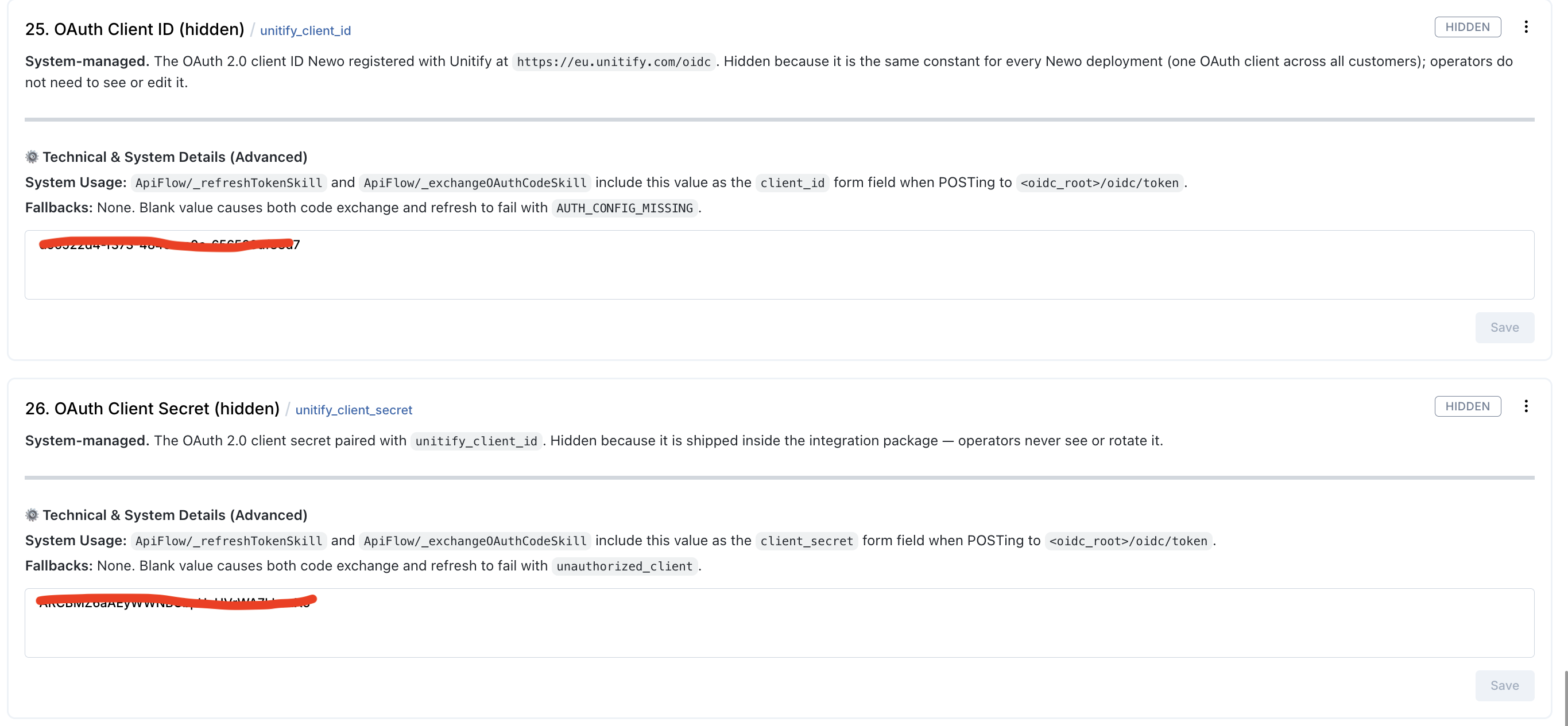
-
(OAuth mode only) Complete the one-time consent step.
Click Publish All once after pasting the Client ID / Secret. The integration builds the Unitify authorization URL and inlines it into the description of the OAuth Authorization Code setting. Open that setting, click the link, sign in with the building-manager account on the Unitify portal, and confirm the consent screen. Unitify redirects you to
https://static.newo.ai/oauth/index.html?code=…&state=…. Copy thecode=…value, paste it into the OAuth Authorization Code field in Newo, click Save, then Publish All again. The integration exchanges the code for access + refresh tokens, stores them hidden, and clears theOAuth Authorization Codefield. After this you should never need to touch this field again — token rotation happens automatically on 401.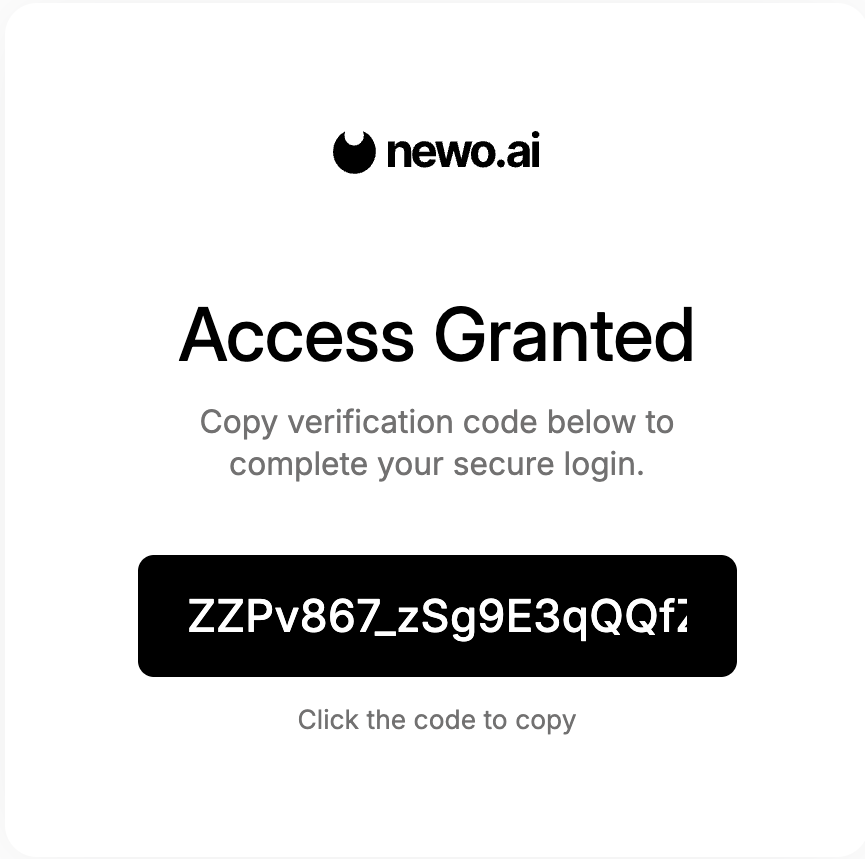
-
Click Publish All. On this publish (regardless of auth mode) the integration:
- Authenticates against Unitify (service-account login or OAuth exchange — depending on mode), stores the access token in the hidden
unitify_access_tokenattribute, and cachesunitify_authenticated_user_idfor downstreamuser.connect.idwrites. - Provisions all the operator-facing settings.
- Auto-discovers the building's reference data:
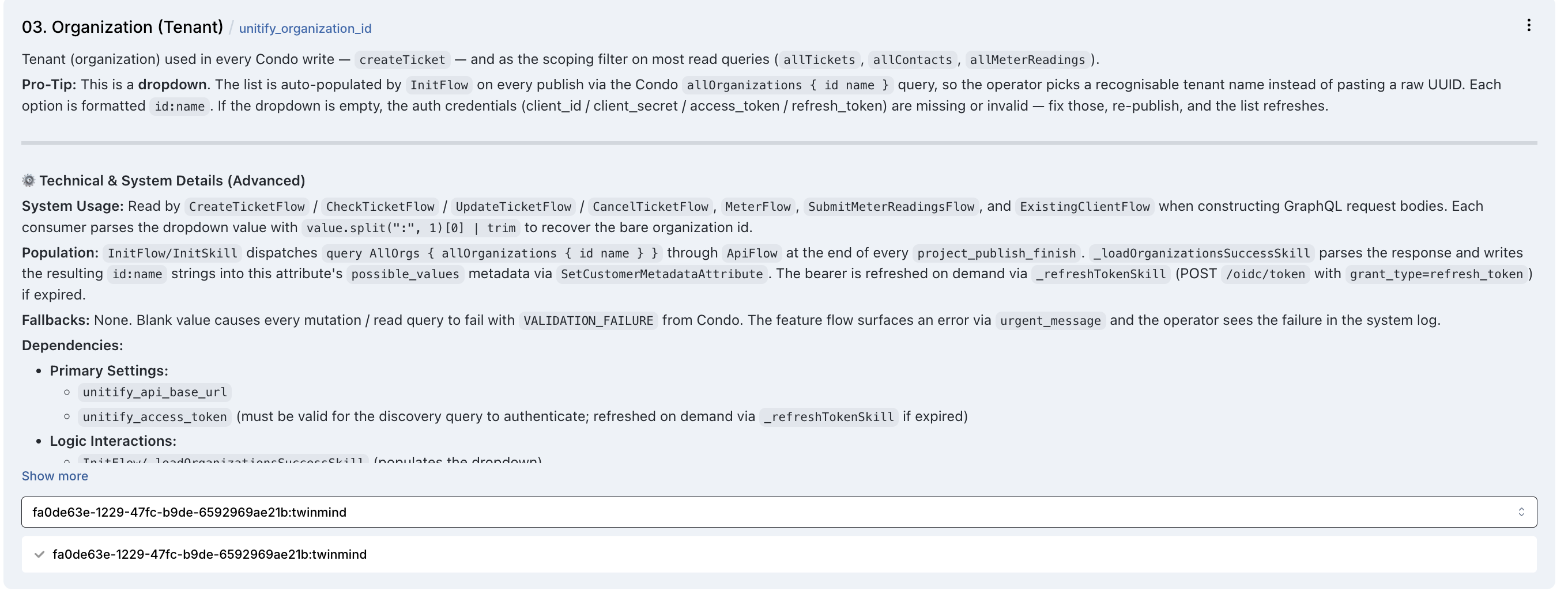
- Organization (Tenant) — populated as a dropdown of
id : namevalues pulled fromallOrganizations. - Hidden caches — ticket statuses, ticket sources, meter-reading sources, classifiers (so the agent can pick the right one without an extra round-trip on every ticket).
- Organization (Tenant) — populated as a dropdown of
- Authenticates against Unitify (service-account login or OAuth exchange — depending on mode), stores the access token in the hidden
-
Pick your tenant from the Organization (Tenant) dropdown and click Publish All one more time. This is the last publish required for the first install.
The agent is now ready to take a real conversation. Place a test chat message ("the doorbell isn't working — open a request") to confirm.
3. Optional — review the feature toggles
Every feature can be turned on or off independently. Defaults are sensible, but operators commonly review:
| Setting (UI label) | What it gates | Default |
|---|---|---|
| Auto-Setup Canvas Scenarios | Publishes the seven scenarios + their intents on first install. Disable only when you maintain a fully custom canvas. | on |
| Create Service Request Feature | Master on/off for opening tickets. | on |
| Check Request Status Feature | Master on/off for the status read-back (and the latest-update relay). | on |
| Cancel / Close Ticket Feature | Master on/off for ticket cancellation. | on |
| Update Service Request Feature | Master on/off for appending details to tickets. | on |
| Meter Readings Feature | Master on/off for reading stored meter values. | on |
| Submit Meter Readings Feature | Master on/off for accepting fresh meter values. | on |
Disable a feature → its custom tool stops being offered to the agent and the corresponding scenario goes idle. Re-enable + Publish All to bring it back.
How to test that everything works
After the third publish, run these mini-checks in the Newo test chat (or by calling the agent's number).
- Identification. Say: "Hi, what apartment am I in?" The agent asks for your phone in E.164 format. Reply with a phone you registered in Unitify Condo. Within a few seconds the agent reads back your name + building + apartment.
- Create a ticket. Say: "The doorbell isn't working, please open a request." After the identity readback the agent asks clarifying questions, says "I'm submitting your maintenance request now…", and reads back a brand-new ticket number. Verify in Unitify Condo: the ticket appears under your contact, with a sensible classifier.
- Check status + latest update. In Unitify Condo, add a resident-type comment on a ticket (e.g. "the master will visit at 12:00–14:00 tomorrow"). Then in a new chat, after identification, ask "когда придёт мастер?". The agent says "Let me check…" and then reads back the ticket list with the latest update line per ticket.
- Update a ticket. Say: "Add to ticket 808 that it's gotten worse — water on the floor." After identification + readback the agent says "I'm updating your existing request now…" and confirms the new ticket details. Verify in Unitify Condo: the ticket's
detailsfield now contains the appended text. - Cancel a ticket. Say: "Close the request about the doorbell — neighbour will fix it." After identification + readback + the resident's confirmation the agent says "Закрываю вашу заявку прямо сейчас, минуту…" and confirms the closed status. Verify in Unitify Condo: the ticket moves to a Closed / Canceled status.
- Submit meter readings. Say: "I want to submit my meter readings — cold water 12345, hot water 8901, electricity 22334." The agent reads the values back, asks for confirmation, says "I'm submitting your meter readings now…", and confirms each saved value. Verify in Unitify Condo: new MeterReading records appear under your unit with the dictated values.
- Read meter values. In a fresh session, say "What are my latest meter readings?". After identification the agent reads back per-resource current values + their date.
If a step fails, the most common fix is to repaste the OAuth Client ID + Secret + run the OAuth-code flow again, then Publish All.
Customisation cheat-sheet
What you can fine-tune without touching code:
- Scenarios on the canvas. Reword steps, add clarifying questions, change tone. Keep the trigger phrases verbatim (see each scenario block above).
- Feature toggles. Disable / enable any of the seven features per the table above.
- Manager handoff targets. Set Manager Phone Number (handoff target) for voice transfers and Manager Email (handoff target) for chat handoffs — used when the caller's phone is not in the registry.
- Default property fallback. Default Property ID (optional) — only set this for single-building tenants where address ambiguity is impossible. Leaving it blank is the safer default.
- Sender fingerprint. Sender Fingerprint — what shows up on every Unitify mutation in the audit log. Default
newo-unitify-integrationis fine; override only if your Unitify ops team asks for a tenant-specific tag. - Ticket status overrides (advanced). The integration auto-discovers the tenant's
Open/Closed/Cancelledstatus records viaallTicketStatuses. If your tenant has multiple records of the same kind (e.g.Closed — ResolvedvsClosed — Withdrawn) and you want the agent to use a specific one, paste its UUID into the corresponding Ticket Status Override field. Otherwise leave blank and let auto-discovery pick.
Frequently asked questions
Q. Does the agent ever charge the resident? No. Payments are intentionally not in scope on the launch tenant — the Acquiring module is not provisioned. The agent only opens / updates / cancels tickets and reads or submits meter values.
Q. Two residents share one phone number — what happens? Unitify resolves a single contact per phone. If two residents share, the agent uses whichever profile the registry returns (typically the primary contact). The agent reads back the profile so the caller can correct course (or hand the call to a human) before any ticket is created.
Q. The resident says "когда придёт мастер?" but the team has not commented yet — what does the agent say? The agent reads the ticket back and explicitly says "no resident updates yet" on that ticket. Operators can drop a one-line comment in Unitify Condo any time; the next status check picks it up automatically.
Q. What if the resident is not in the registry?
The agent apologises and routes to a human — call transfer (transfer_call_tool) on phone, email (send_email_tool) on chat. Targets come from the Manager Phone Number / Manager Email settings.
Q. The resident wants to update an old, closed ticket — what happens? For Update / Cancel, the integration prefers the most-recent non-terminal match by topic. So "обнови про кран" lands on the active faucet ticket, not the closed one from last month. If the resident genuinely means a specific older ticket, they can name it by number ("обнови 803").
Q. The resident dictates meter readings but a meter is not registered for the unit — what happens? The agent tries to write what it can and reports back per-resource: which readings were saved, which were rejected, and why. It then re-asks for the rejected values or routes the resident to a human.
Q. What happens if the OAuth tokens expire or are revoked? The integration auto-refreshes on every 401 using the refresh token — no operator action needed. Only if both tokens are revoked (e.g. the building-manager account was disabled in Unitify) does the operator have to repaste a fresh OAuth Authorization Code.
Q. We added a new ticket classifier in Unitify Condo. When does the agent see it? On the next Publish All — the integration re-fetches the classifier index on every publish.
Q. Can the agent answer policy questions ("what's the after-hours emergency line?")? Those come from the Business Context on the canvas, not from Unitify. Edit that block to surface tenant-specific policy.
Q. Can I run two Unitify tenants from one Newo project? One tenant per integration instance. To serve two tenants, deploy two Newo projects.
Limitations
- Reschedule is not a separate operation — the resident cancels the open ticket and the team opens a new one when needed.
- Invoice creation / payment-link generation — intentionally not shipped on the launch tenant; can be re-enabled when Unitify provisions the Acquiring module. Read-side unpaid balance is supported via the two
unitify_check_unpaid_*tools. - Smart-access guest passes — intentionally not shipped on the launch tenant; can be re-enabled when Unitify provisions the matching module.
- Per-property / per-section announcement scoping — service-account tokens lack permission on
NewsItem.scopes, so the integration treats every publishedNewsItemas organization-wide and surfaces it to every identified resident. OAuth tokens regain the per-property / per-section filter automatically. - Auto-publish announcements from technician notes — the
AnnouncementSyncFlowfeature was removed in 2.0.21 (never used in production, latent race on the idempotency map). To re-introduce, restore the flow and the 6 customer attributes from git history. - Single tenant per integration instance.
- Phone-only identification. The agent does not fall back to name / address / email lookup — Unitify uses phone as the primary key for residents. If a resident's phone is wrong in Unitify, fix it in Unitify Condo first.
All settings reference
Every attribute the integration adds to the Module - UnitifyIntegration group in Newo Builder. Operators typically only touch the rows marked ✅; ⚠️ rows are advanced (hidden by default, edit only when troubleshooting); 🔒 rows are managed automatically and should not be edited by hand.
| Name | Description | Required | Default | Hidden | Edit |
|---|---|---|---|---|---|
unitify_auth_mode | Authentication mode — service_account (default, Condo authenticateUserWithPassword) or oauth (authorization-code flow). | Yes | service_account | No | ✅ |
unitify_service_account_email | Service-account email when unitify_auth_mode = service_account. | Conditional | (empty) | No | ✅ |
unitify_service_account_password | Service-account password (hidden) when unitify_auth_mode = service_account. | Conditional | (empty) | Yes | ✅ |
unitify_oauth_code | One-time OAuth authorization code returned by Unitify after consent. Cleared automatically after the first successful exchange. | Conditional | (empty) | No | ✅ |
unitify_api_base_url | GraphQL endpoint URL for the Unitify tenant (e.g. https://eu.unitify.com/admin/api). | Yes | https://eu.unitify.com/admin/api | No | ✅ |
unitify_organization_id | Tenant (organization) selected for every Unitify mutation. Auto-populated as a dropdown after the first successful auth. | Yes | (empty) | No | ✅ |
unitify_sender_fingerprint | Audit-log identifier written into every Unitify mutation. Override only if your Unitify ops team asks for a tenant-specific tag. | No | newo-unitify-integration | No | ✅ |
unitify_default_property_id | Optional fallback Property ID used only when the resident does not disclose an address and persona_attributes_unitify_property_id is empty. Leave blank for multi-building tenants. | No | (empty) | No | ✅ |
unitify_manager_phone_number | Phone number to transfer the call to when a caller is not in the Unitify registry. Use full E.164 format. | No (recommended) | (empty) | No | ✅ |
unitify_manager_email | Email address to forward chat conversations to when a chat user is not in the registry. Should be a managed inbox. | No (recommended) | (empty) | No | ✅ |
unitify_setup_scenarios | Publishes the Unitify scenarios + intents on every publish. Disable only if you maintain a fully custom canvas. | No | on | No | ✅ |
unitify_enable_create_ticket | Master on/off for opening maintenance tickets. | No | on | No | ✅ |
unitify_enable_check_ticket | Master on/off for reading the resident's tickets and the latest building-team updates back to them. Also gates the tenant-wide TicketComment polling timer. | No | on | No | ✅ |
unitify_enable_cancel_ticket | Master on/off for closing / cancelling tickets. | No | on | No | ✅ |
unitify_enable_update_ticket | Master on/off for appending details to existing tickets / escalating urgency. | No | on | No | ✅ |
unitify_enable_internal_message | Master on/off for the technician-internal-note tool (unitify_send_internal_message_tool). When off the tool is a no-op. | No | on | No | ✅ |
unitify_polling_interval_seconds | TicketComment + NewsItem tenant polling interval. 15 / 30 / 60 / 120. | No | 60 | No | ✅ |
unitify_enable_news_polling | When on, the tenant polling timer also fetches new NewsItem rows and routes them to affected resident personas (<RecentAnnouncements> section). | No | on | No | ✅ |
unitify_enable_quality_control | Quality-control feedback feature (unitify_submit_quality_control_tool). Anti-spam: one ask per ticket via persona_attributes_unitify_quality_control_asked. | No | on | No | ✅ |
unitify_enable_unpaid_invoices | Enables the Invoice module path for the do I have unpaid? lookup. Off by default — operator opts in per tenant. | No | off | No | ✅ |
unitify_enable_unpaid_billing_receipts | Enables the BillingReceipt module path for the do I have unpaid? lookup. Off by default. | No | off | No | ✅ |
unitify_enable_building_context | Pre-fetches building data (type, structured address, unitsCount, resident's section / floor from property.map, organization contacts) and injects it into <BuildingInfo>. | No | on | No | ✅ |
unitify_enable_upstairs_leak_note | When suspected_source == above is extracted from a new ticket, auto-post an organization-channel hint to the dispatcher. Does NOT create a second ticket and does NOT contact the upstairs resident. | No | off | No | ✅ |
unitify_enable_equipment_context | Pre-fetches active meters + open billing account + B2C mini-apps + active building incidents and injects into <UnitEquipment>. | No | on | No | ✅ |
unitify_enable_property_hints | Adds TicketPropertyHint operator notes into the equipment section. Off by default — opt-in per tenant since not every УК maintains hints. | No | off | No | ✅ |
unitify_enable_open_property_tickets_context | Pre-fetches every OPEN ticket on the resident's property that does NOT belong to them (cross-contact). Used by Canvas Scenario 2 Step 2.5a as a dedup gate before firing unitify_create_service_request_tool. Ticket details are truncated to 80 chars in the prompt section to limit cross-resident PII bleed. | No | on | No | ✅ |
unitify_open_property_tickets_window_days | Look-back window (in days) for the cross-contact open-tickets query. Enum 1 / 3 / 5 / 7 / 10 / 14. | No | 7 | No | ✅ |
unitify_ticket_status_open_id | Optional override for the TicketStatus UUID used when opening a new ticket. Blank → auto-discovery picks the first record of type = open. | No | (empty) | No | ⚠️ |
unitify_ticket_status_closed_id | Optional override for the TicketStatus UUID used when the resident says close. Blank → auto-discovery. | No | (empty) | No | ⚠️ |
unitify_ticket_status_canceled_id | Optional override for the TicketStatus UUID used when the resident says cancel. Blank → auto-discovery. | No | (empty) | No | ⚠️ |
unitify_extract_phone_instructions | HIDDEN operator-tunable LLM prompt for the phone extractor. Empty → built-in default. | No | (empty) | Yes | ⚠️ |
unitify_extract_create_ticket_instructions | HIDDEN operator-tunable LLM prompt for the create-ticket extractor. Empty → built-in default. | No | (empty) | Yes | ⚠️ |
unitify_extract_update_ticket_instructions | HIDDEN operator-tunable LLM prompt for the update-ticket extractor. | No | (empty) | Yes | ⚠️ |
unitify_extract_cancel_ticket_instructions | HIDDEN operator-tunable LLM prompt for the cancel-ticket extractor. | No | (empty) | Yes | ⚠️ |
unitify_extract_internal_message_instructions | HIDDEN operator-tunable LLM prompt for the technician-note extractor. | No | (empty) | Yes | ⚠️ |
unitify_extract_quality_control_instructions | HIDDEN operator-tunable LLM prompt for the quality-control extractor. | No | (empty) | Yes | ⚠️ |
unitify_extract_meter_readings_instructions | HIDDEN operator-tunable LLM prompt for the meter-readings extractor. | No | (empty) | Yes | ⚠️ |
unitify_enable_meters | Master on/off for reading stored meter values. | No | on | No | ✅ |
unitify_enable_submit_meters | Master on/off for accepting fresh meter readings dictated by the resident. | No | on | No | ✅ |
unitify_ticket_classifier_index | Hidden cache of the tenant's ticket classifiers. Auto-populated on every publish; do not edit by hand. | No | [] | Yes | 🔒 |
unitify_ticket_sources_index | Hidden cache of the tenant's ticket sources (call / messenger / e-mail / etc). Auto-populated on every publish. | No | [] | Yes | 🔒 |
unitify_meter_reading_sources_index | Hidden cache of the tenant's meter-reading sources. Auto-populated on every publish. | No | [] | Yes | 🔒 |
unitify_contact_persona_map | Hidden cache mapping Condo Contact.id → Newo persona_id. Used by the tenant polling timer and webhook handler to route incoming TicketComments to the right Newo session. | No | {} | Yes | 🔒 |
unitify_last_tenant_poll_cutoff | Hidden watermark — ISO timestamp of the newest TicketComment seen by the polling timer. Reset to "" to force a full re-scan. | No | (empty) | Yes | 🔒 |
unitify_last_news_cutoff | Hidden watermark. Legacy from the polling-push design; not used after 2.0.19 (NewsFlow fetches a fresh snapshot per session). Safe to ignore. | No | (empty) | Yes | 🔒 |
unitify_contact_ticket_persona_map | Hidden cache mapping <contact_id>::<ticket_id> → persona_id for per-ticket persona isolation in polling and webhook dispatch. | No | {} | Yes | 🔒 |
unitify_recent_sent_comment_ids | Hidden de-dup list of comment IDs the integration itself just posted (so polling does not echo them back as inbound). | No | [] | Yes | 🔒 |
unitify_authenticated_user_id | Customer-wide id of the integration's authenticated user (required by Condo for user.connect.id on createTicketComment / createNewsItem). Auto-managed. | Yes | (empty) | Yes | 🔒 |
unitify_access_token | Bearer token used for every Unitify GraphQL request. Auto-managed (refreshed on every 401 / AUTHENTICATION_ERROR). | Yes | (empty) | Yes | 🔒 |
unitify_refresh_token | OAuth refresh token. Auto-rotated by the integration. OAuth mode only. | Conditional | (empty) | Yes | 🔒 |
unitify_client_id | OAuth 2.0 Client ID from the Unitify developer portal. OAuth mode only. | Conditional | (empty) | Yes | ✅ |
unitify_client_secret | OAuth 2.0 Client Secret from the Unitify developer portal. OAuth mode only. | Conditional | (empty) | Yes | ✅ |
unitify_redirect_uri | OAuth redirect URI registered with the Unitify app. Newo-hosted helper page; do not change. | Conditional | https://static.newo.ai/oauth/index.html | Yes | 🔒 |
Common errors and recovery
**"Publish All" fails with an authentication error
Likely cause. The OAuth Client ID, Client Secret, or one-time code is wrong, or the building-manager account does not have permission for the tenant.
Recover:
- In Newo Builder, open OAuth Client ID (hidden) and OAuth Client Secret (hidden). Re-copy them from the Unitify developer portal and paste again — make sure no leading / trailing whitespace.
- Re-do the consent step on the Unitify portal and copy a fresh
code=…value from the redirect URL. - Paste the code into OAuth Authorization Code and click Publish All.
Verify. The OAuth Authorization Code field is automatically cleared after a successful exchange, and the Organization (Tenant) dropdown is populated.
Organization (Tenant) dropdown is empty after Publish All
Likely cause. Tokens are missing or the OAuth code was already consumed.
Recover: repeat the OAuth-code paste step in Setup → 2. Configure in Newo, then Publish All again.
Agent stops opening tickets after I edited a scenario
Likely cause. The trigger phrase was reworded.
Recover: open the affected scenario on the canvas and restore the trigger phrase exactly as quoted in the Scenarios section above. Click Publish All. To roll back to the shipped baseline, delete the scenario from the canvas and Publish All — the original is restored from the integration's library.
Resident is not in the Unitify registry on every call
Likely cause. The phone format does not match what Unitify stores. Unitify stores clientPhone with the leading +; if a previous integration wrote phones without the +, the lookup misses.
Recover: in Unitify Condo, normalise the resident's phone to E.164 with a leading +, and ensure the contact record's phone matches what the carrier passes for that resident.
Agent says "no resident updates yet" after the team commented in Unitify
Likely cause. The comment was added with type = organization (internal). The agent only relays comments with type = resident.
Recover: in Unitify Condo, switch the comment type from organization to resident (or post a new resident-type comment) so it is visible to the agent.