Odoo Integration
Connects Odoo with the Newo AI agent so callers and chat visitors can look up their account, check upcoming appointments, book or reschedule meetings, get a price quote, and open service requests — all without a human on the line.
Time to first success: ~15 minutes if you already have an Odoo instance and an admin user. ~30 minutes if you still need to create the Odoo account and pick a plan that allows external API access.
Before You Start
Make sure you have:
- an active Odoo account on the Custom pricing plan (for odoo.com SaaS) or any self-hosted Odoo (Community or Enterprise); the One App Free and Standard SaaS plans block the external API.
- admin access to the Odoo console — you'll need it to open the user list and generate an API key.
- a dedicated or existing Odoo API user with the rights to create calendar events, sales orders, and CRM leads. Every appointment, lead, and note created from the agent will be attributed to this user.
- access to the Newo Builder for your project, with permission to edit project settings and click Publish All.
What the AI can do
- Identify the caller from their phone number. The agent pulls the customer's profile from Odoo before doing anything else, so it can tailor every reply.
- Check available time slots. The agent reads the calendar and reads back open slots without checking the team's screen. If your Odoo Appointments app is configured, it can also use appointment types to pick the right duration, staff member, and available windows.
- Choose the right appointment type. You can write a simple matching rule for how the agent should map a caller's request to Odoo appointment types. If you leave it blank, the agent chooses from the appointment type names and the conversation, and asks the caller when the choice is ambiguous.
- Book a meeting. The agent confirms the slot, the purpose, and creates the calendar event in Odoo. Appointment types are an enhancement on top of calendar booking; the base booking path still works even when Odoo Appointments is not installed.
- Reschedule a meeting. The agent finds the existing meeting and moves it to a new time the customer accepts.
- Cancel a meeting. The agent finds the existing meeting and cancels it after explicit confirmation.
- Check existing appointments. The agent reads back upcoming appointments for the caller's profile.
- Prepare a quote. The agent captures product needs and generates a price quote from the catalog.
- Open a service request. The agent captures the caller's product or service inquiry as an Odoo CRM opportunity for staff follow-up.
- Write CRM follow-up notes and tasks. When enabled, the integration can add conversation summaries and staff follow-up tasks to the relevant Odoo CRM record.
Features at a glance
| Feature | Included |
|---|---|
| Caller identification by phone | ✅ |
| Availability lookup | ✅ |
| Booking creation | ✅ |
| Appointment type matching for Odoo Appointments | ✅ |
| Reschedule existing booking | ✅ |
| Cancel existing booking | ✅ |
| Price quoting | ✅ |
| Service request creation (CRM leads) | ✅ |
| CRM conversation notes and follow-up tasks | ✅ |
| Plain Odoo Calendar booking when Appointments is unavailable | ✅ |
| Order status, order notes, or returns | ❌ (not published by the current Odoo canvas setup) |
| Checking, updating, or cancelling existing CRM service requests | ❌ (current CRM flow creates the inquiry for staff follow-up) |
| Multi-database routing inside one Odoo instance | ❌ (one database per Newo project) |
| Replacing Odoo Calendar with a separate public Appointments booking page | ❌ (the agent books Calendar events; appointment types enrich those events when available) |
| Real-time order tracking events (webhooks) | ❌ (current canvas has no order lookup flow) |
Setup
Create the Newo project
If this project already exists in Newo Builder, skip this subsection and continue with the integration-specific settings below.
- In Newo Builder, open the projects list and click Create Project (or Create New Project from the top-right menu).

- Fill IDN and Title. The exact names do not matter; use any clear names your team will recognize.
- In Registry, choose the release channel:
- staging — the newest module fixes appear here first. Use it when you need the latest fix, but expect possible unfinished changes.
- production — the final stable version for live projects.
- In Module, select the module for this integration.
 5. Leave Module version on Latest version unless support tells you to pin a specific version, then click Create.
A step-by-step walkthrough is below. Newo screenshots are referenced
where applicable; place them under
documentation/integrations/odoo/screenshots/.
1. Prepare your Odoo account
1a. Make sure your Odoo plan allows the external API
External API access on odoo.com SaaS requires the Custom pricing plan. The 15-day free trial includes API access; after the trial expires you must be on the Custom plan to keep the integration working. Self-hosted Odoo (Community or Enterprise) has no plan restriction.
1b. Note your instance URL and database name
- The instance URL is the address you log in to, e.g.
https://mycompany.odoo.com. - The database name is the subdomain on odoo.com SaaS (e.g.
mycompany), or the name you typed when creating a self-hosted database.
How to verify: open your Odoo URL in a browser; you should land on the database picker or directly in the dashboard.
1c. Pick (or create) the user the agent will act as
The agent acts as a real Odoo user — every appointment, lead, and note created from the agent will be attributed to that user. Either pick an existing admin user or create a dedicated API user with the rights to create calendar events, sales orders, and CRM leads.
1d. Optional: configure Odoo Appointments appointment types
Calendar booking works without the Odoo Appointments app. If your business uses Appointments, create the appointment types you want the agent to understand before the first Publish All — for example Product Demo, Financing Consultation, Intake Call, or Service Visit.
When appointment types are available, the agent can use their duration, staff assignment, and availability windows while still creating the final booking in Odoo Calendar.
2. Get your Odoo credentials
The integration uses an Odoo API key (not a password). API keys are long-lived and can be revoked individually without changing the user's password.
Generate an API Key (only supported method)
-
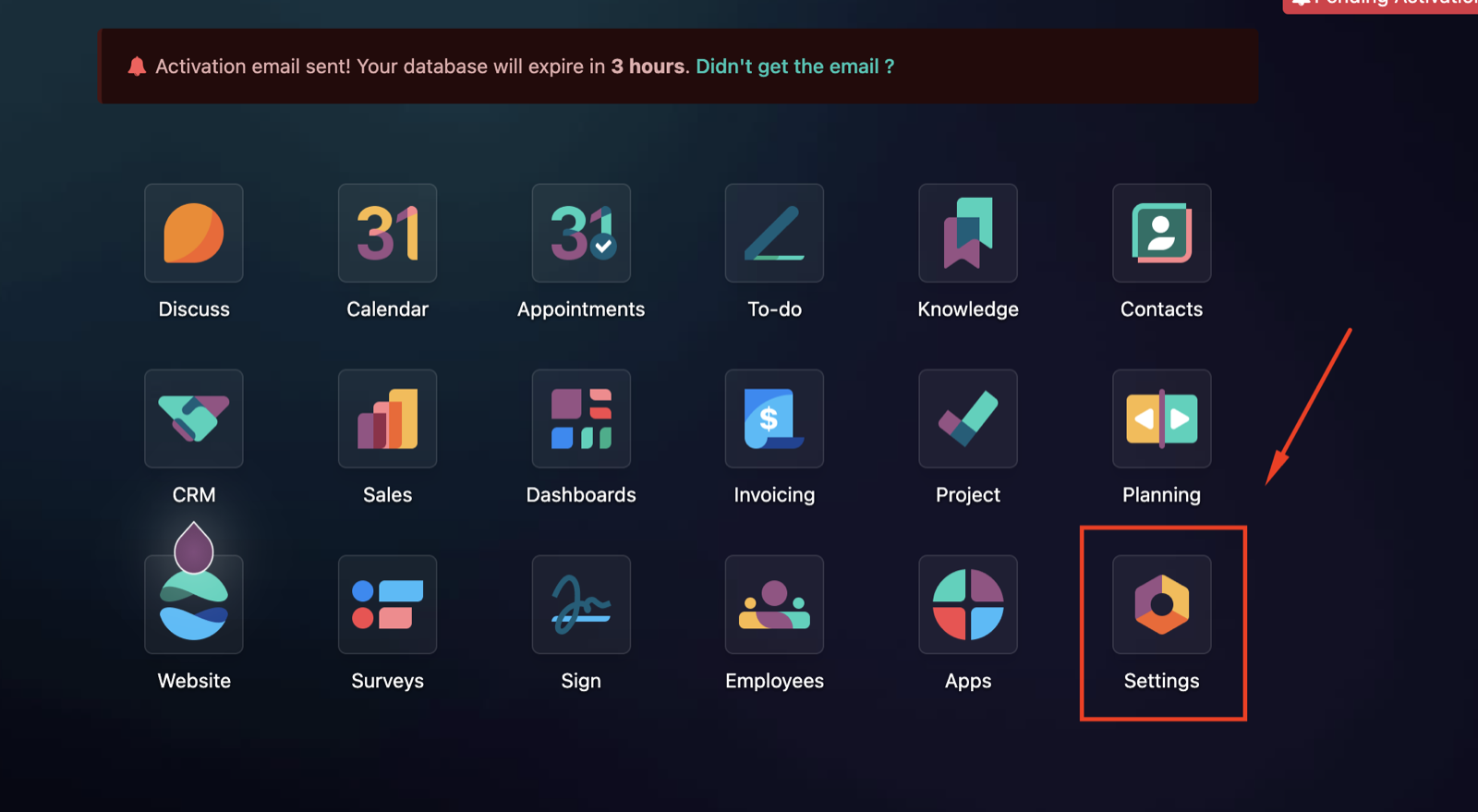
Log in to your Odoo instance and open the Settings app from the apps grid.
-
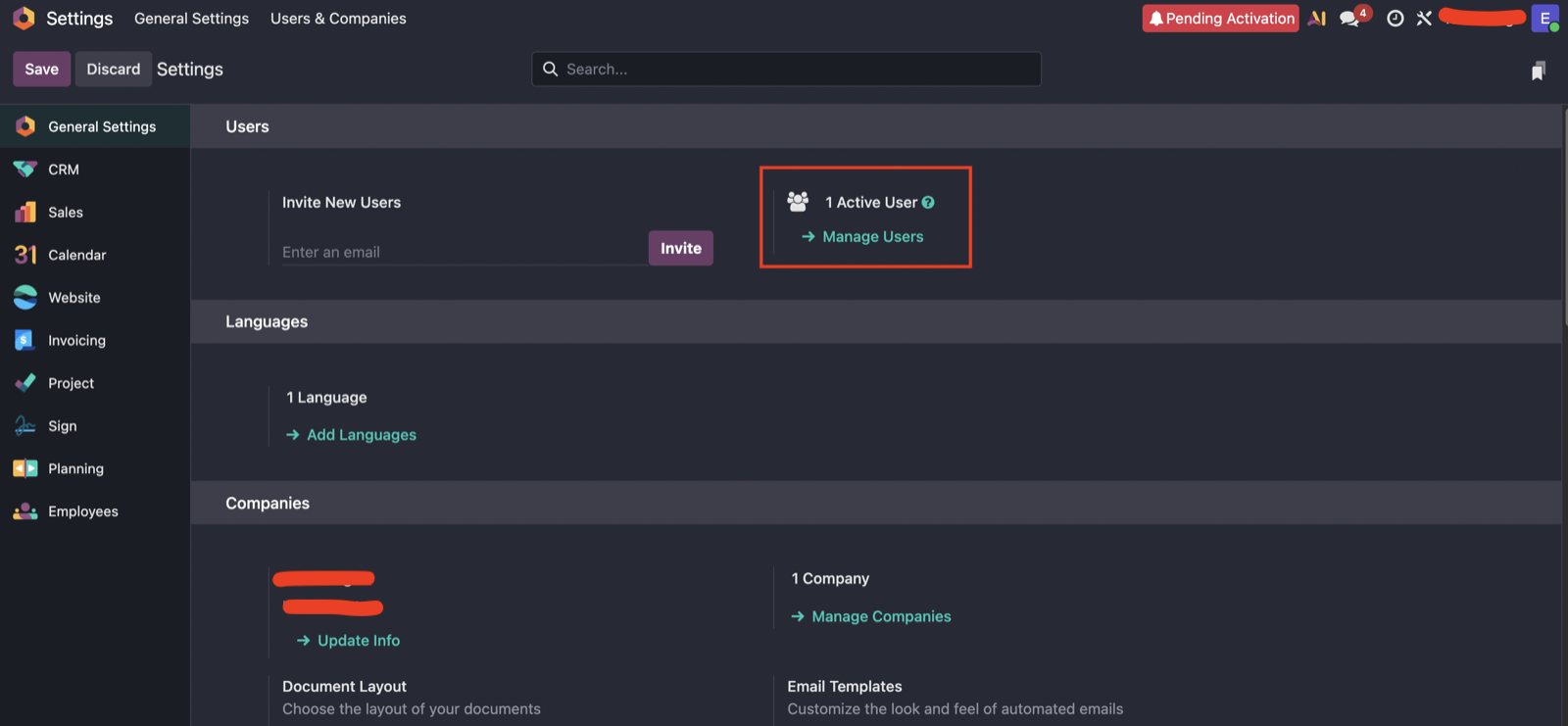
On the General Settings page, in the Users section, click Manage Users.
-
From the user list, click the user the agent will act as.

-
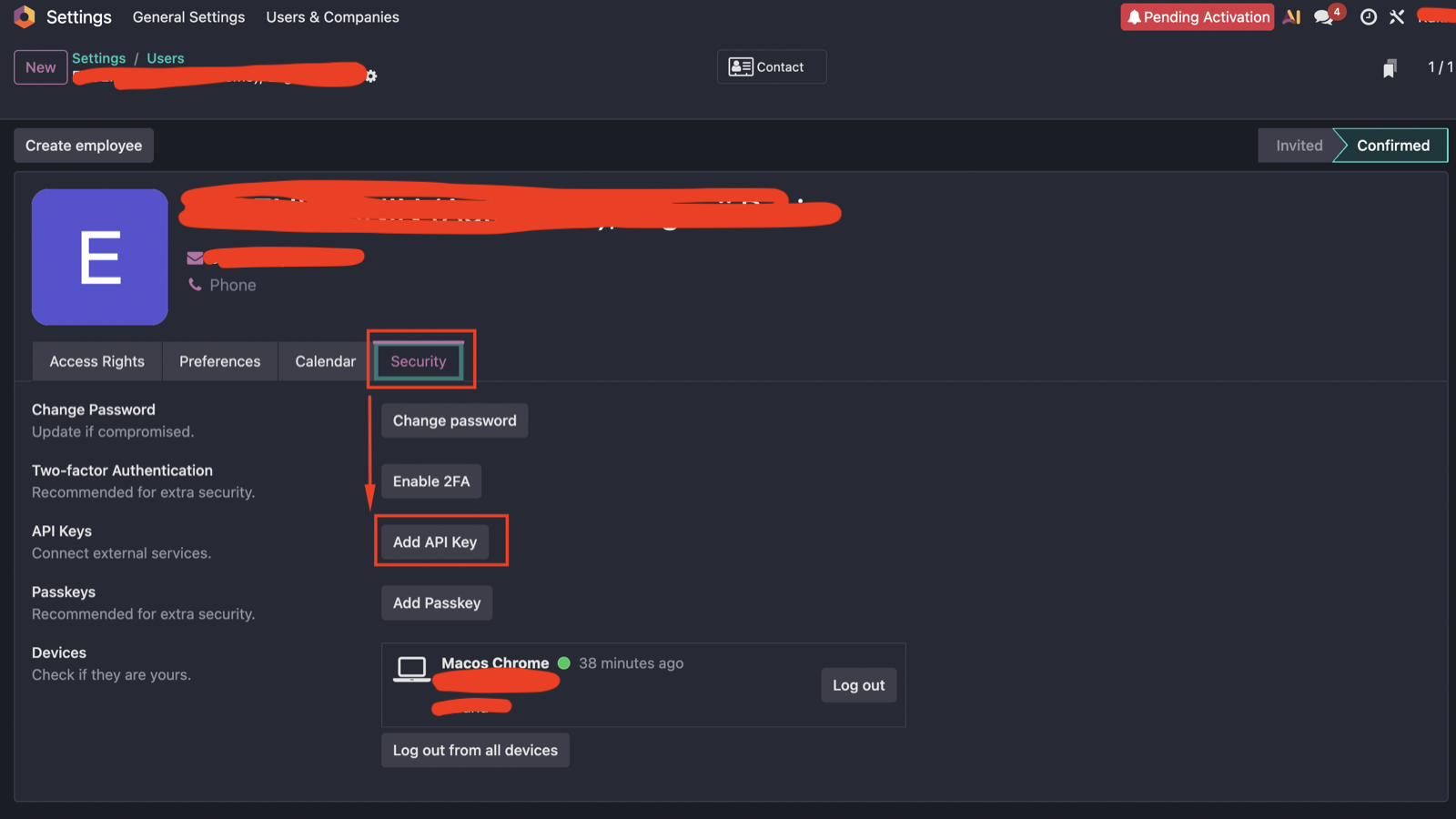
Open the Security tab and click Add API Key.
-
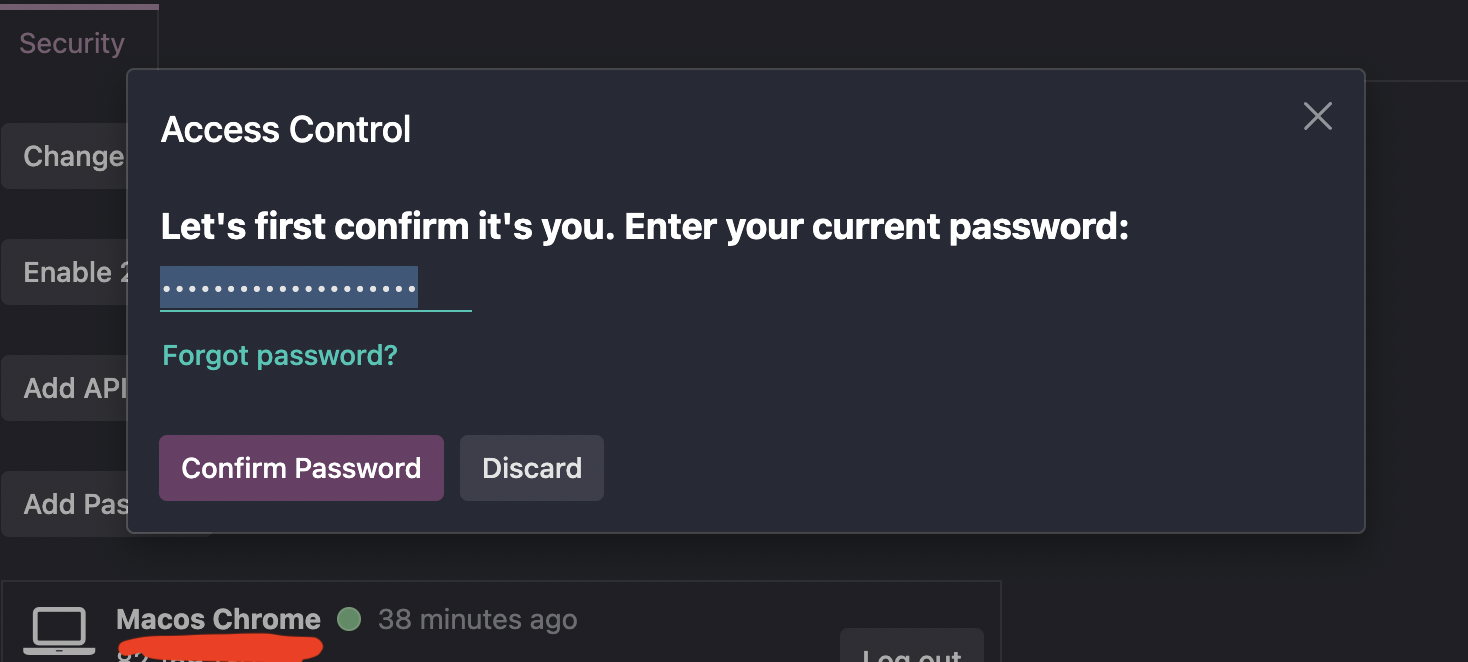
Confirm your password in the Access Control dialog and click Confirm Password.
-
In the New API Key dialog, enter a description (e.g.
Newo) and pick a duration. Click Generate key.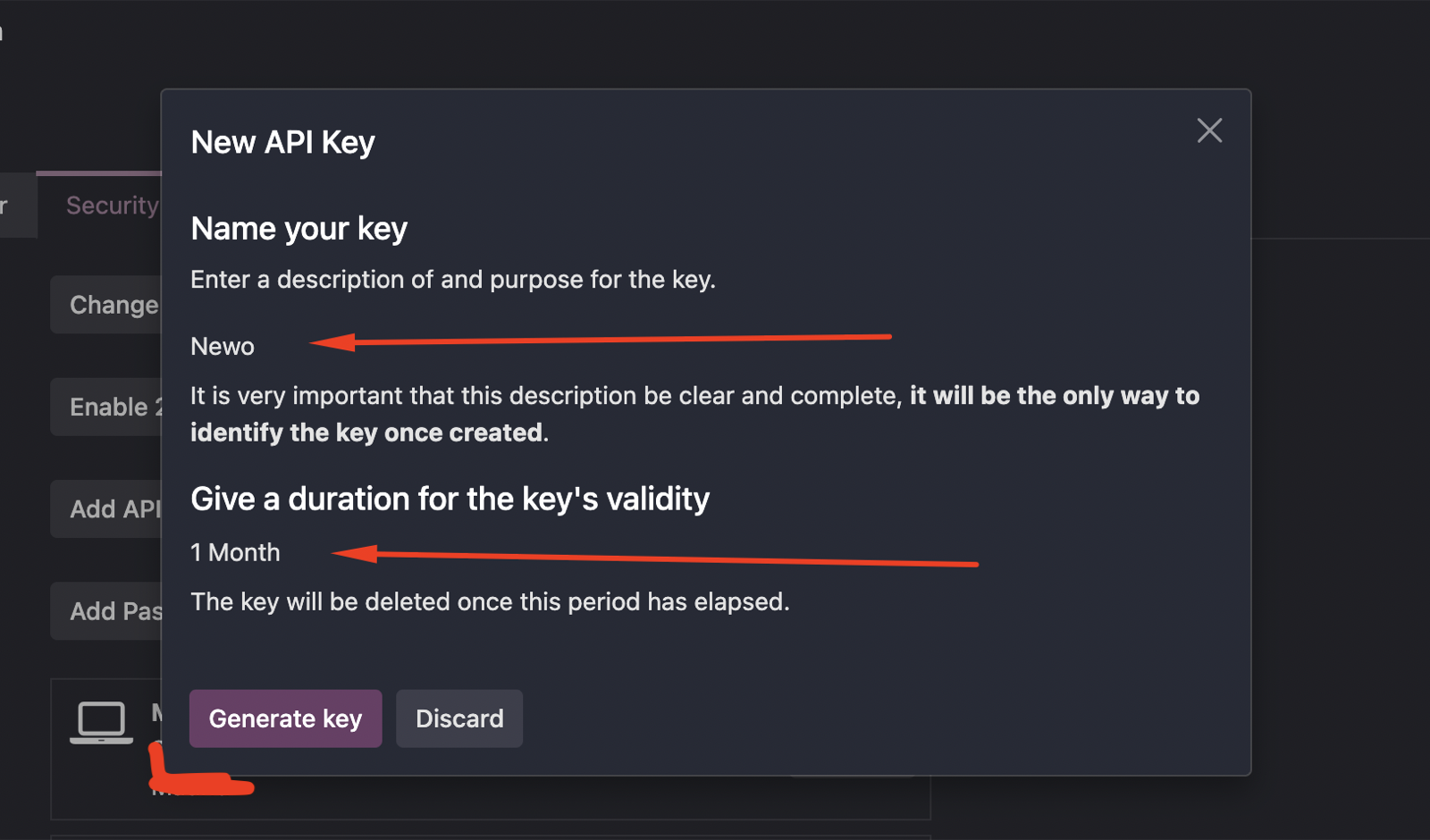
-
Copy the key from the API Key Ready dialog and click Done!. Odoo shows the key only once — store it securely before closing this dialog.
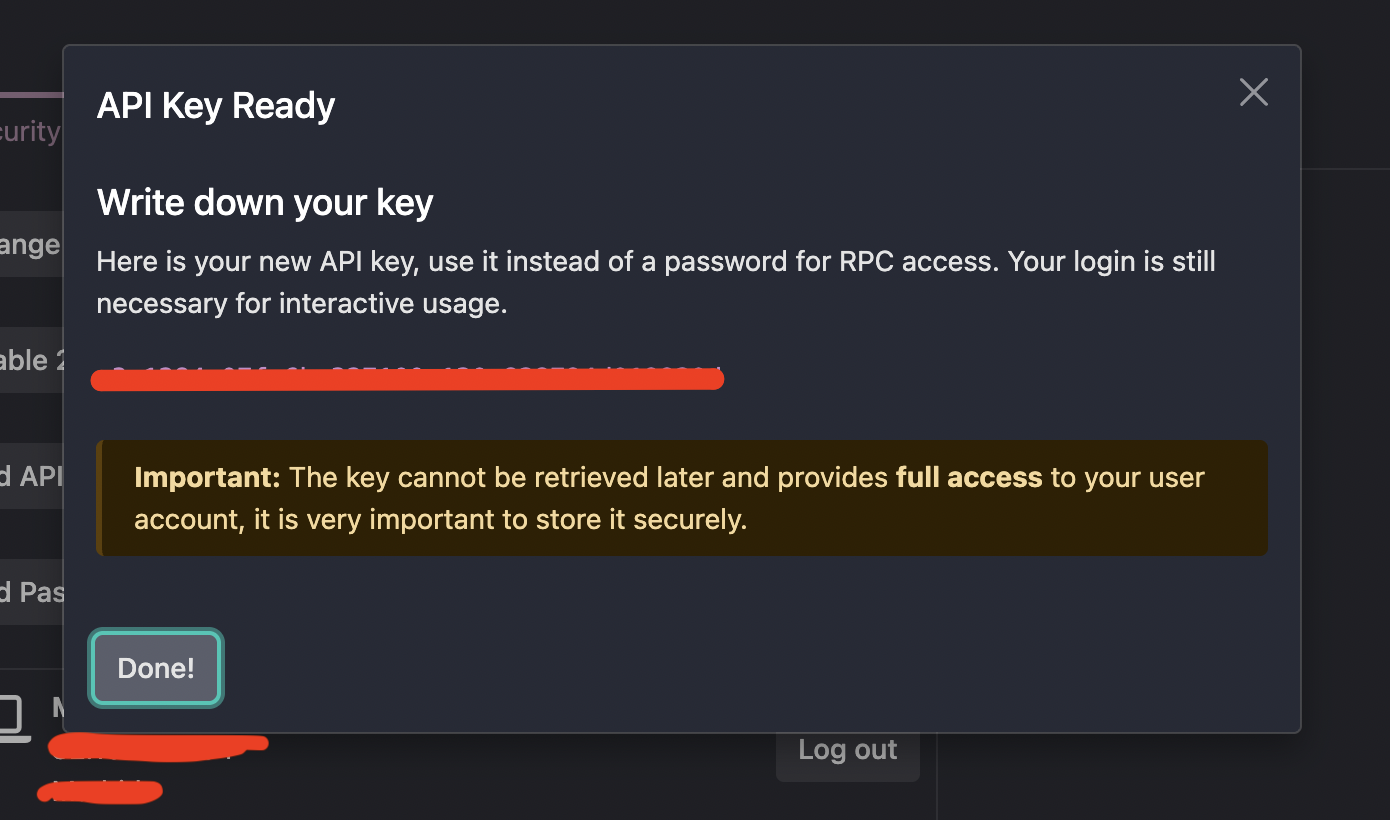
Important: if you lose the API key, generate a new one. Odoo cannot show an existing key again.
Note on duration. Odoo lets you set an expiry on the API key (1 month, 3 months, 1 year, or no expiry). Pick a duration that matches your security policy — when the key expires, the integration stops working until you generate a new one and paste it into Newo Builder.
3. Configure in Newo
- Open the project in Newo Builder and find the Module - Odoo group of settings.
- Paste your Odoo URL into Base URL (the full
https://mycompany.odoo.com, no trailing slash). - Paste the API user's email into Username.
- Paste the key from step 2 into API Key.
- If your Odoo uses a custom domain or a database name that is not the first part of the Odoo URL, paste the exact database name into Odoo Database. Leave it blank for standard Odoo setups.
- Click Publish All.
- (Optional) review the scheduling settings:
| Setting | Purpose | Default |
|---|---|---|
| Enable Calendar Automation | Lets the agent check, book, reschedule, cancel, and look up calendar appointments. | on |
| Use Odoo Appointment Types | Lets the agent use Odoo Appointments appointment types when setup discovers them. | on |
| Appointment Type Matching Instructions | Optional rule for choosing an appointment type from the conversation. Leave blank for AI reasoning. | blank |
| Calendar Owner | Odoo calendar the agent checks and books against. Review this when multiple users can take appointments. | auto-selected |
| Default Appointment Duration | Fallback duration when no selected appointment type provides one. | 30 minutes |
| Send Odoo Calendar Invites | Whether Odoo sends its own calendar emails when the agent creates or changes an appointment. | off |
| Enable Sales Quote Creation | Lets the agent prepare Odoo Sales quotations from the product catalog. | on |
| Enable CRM Inquiry Capture | Lets the agent save product or service inquiries as Odoo CRM opportunities. | on |
| Write CRM Conversation Notes | Adds a conversation summary to the related CRM record after CRM-handled sessions. | on |
| Create Staff Follow-Up Tasks in CRM | Creates a staff follow-up activity when human review is needed. | on |
4. Hit Publish All
After Publish All, the integration takes care of the rest:
- Verifies your credentials by authenticating against your Odoo instance.
- Resolves the internal user ID and database name from your credentials.
- Detects whether Calendar, Sales, CRM, and Appointments are available in this Odoo instance.
- Loads Odoo appointment types when the Appointments app exposes them.
- Registers the action promises the agent will listen for.
- Publishes the canvas scenarios and intents (existing customizations are preserved).
How to verify:
- ✅ The 6 intents listed in the Scenarios section appear in your canvas library.
- ✅ The 6 scenarios listed in the Scenarios section appear in your canvas library.
- ✅ If you use Odoo Appointments, Use Odoo Appointment Types is on and the agent can see the appointment types after setup.
- ✅ A test chat that asks "can I book a meeting?" gets the agent to continue into the scheduling scenario and use the documented availability action promise.
If any of those checks fails, jump to Common errors and recovery below.
How to test that everything works
Before going live, run through this checklist on a demo contact in your Odoo account.
Test caller identification
- Make sure a contact exists in Odoo with a phone number you can reproduce in a test session.
- Start a test chat or call session.
- Provide the same phone number.
- The agent should reply with "Let me pull up your account..." and address the caller by name in the next reply.
Test availability and booking
- Ask: "Can I book a meeting for next week?".
- Provide the phone number from the previous test when asked.
- Pick a meeting purpose and rough time window.
- The agent says "Let me check what we have available for you..." and reads back open slots from the API user's calendar.
- Pick one slot.
- The agent says "I am booking your appointment now..." and confirms.
- Open Odoo → Calendar — a new event appears for the test contact at the chosen time, on the API user's calendar.
Test appointment type matching (if you use Odoo Appointments)
- Make sure Odoo has at least two appointment types with clear names, such as Product Demo and Financing Consultation.
- In Newo Builder, optionally fill Appointment Type Matching Instructions with a rule such as: "If the caller asks about financing, choose Financing Consultation; if they ask for a demo, choose Product Demo."
- Ask: "Can I book a product demo next Tuesday afternoon?".
- The agent should check availability using the matching appointment type. If the request is ambiguous, it should ask which appointment type the caller prefers instead of guessing.
- Book the slot and open Odoo → Calendar. The event should show the appointment type in the event details. In Odoo tenants that support native appointment-type links on calendar events, the event is also linked to that appointment type.
Test appointment lookup
- Ask: "Can you check my upcoming appointments?".
- Provide the phone number from the previous test.
- The agent says "Let me check your appointment details..." and reads back the meeting created in the previous test.
Test reschedule
- Ask: "Can you move that meeting to a different time?".
- The agent says "Let me check what we have available for you..." and offers new slots.
- Pick a new slot.
- The agent says "I am rescheduling your appointment now..." and confirms.
- Open Odoo → Calendar — the event time is now the new slot.
Test cancellation
- Ask: "Cancel my upcoming meeting".
- Confirm explicitly when the agent reads back the meeting and asks "cancel that one?".
- The agent says "I am cancelling your booking now...".
- Open Odoo → Calendar — the event is gone or marked as cancelled.
Test service request creation (if you use Odoo CRM)
- Ask: "I need help with something — can you log a request?".
- Provide the phone number and a short request description.
- The agent says "Let me create a service request for you..." and confirms.
- Open Odoo → CRM — a new lead appears for the test contact with the request description.
Scenarios
The integration ships with 6 editable scenarios on the canvas. Operators can tweak them in Newo Builder; the agent picks up the changes on the next Publish All.
What gets added on Publish All
The first Publish All adds the following intents and scenarios to your project library:
| Intent | Scenario |
|---|---|
| Odoo Calendar: Schedule a Meeting | Odoo Calendar: Schedule a Meeting via Agent |
| Odoo Calendar: Cancel a Meeting | Odoo Calendar: Cancel a Meeting via Agent |
| Odoo Calendar: Reschedule a Meeting | Odoo Calendar: Reschedule a Meeting via Agent |
| Odoo Calendar: Check Appointments | Odoo Calendar: Check Existing Appointments |
| Odoo Sales: Quote Request | Odoo Sales: Quote Generation and Delivery |
| Odoo CRM: Product or Service Inquiry | Odoo CRM: Capture Product or Service Inquiry via Agent |
These are a reference implementation. You can edit any of them in the canvas UI — change wording, add steps, translate, adjust the tone — and the agent will use your edited version on the next Publish All.
Updates do not overwrite your edits. Once you edit a scenario or intent in the canvas, future updates of this integration will NOT touch your edited copy. The trade-off: you also won't automatically receive the latest shipped defaults. If you want to pull in newer defaults later, delete your edited copy from the canvas and run Publish All — the original is restored from the integration's library, and you can re-apply your tweaks on top of the newer baseline.
Why action promises matter
Each scenario contains a customer-facing action promise the agent says before the integration does real work in Odoo. The examples below are the reference phrases; equivalent wording is accepted only when it clearly promises the same single action. If you edit a scenario, keep the action promise explicit and do not combine it with another tool action or a new question.
Scenario 1 — Odoo Calendar: Schedule a Meeting via Agent
Runs when a caller asks to book a meeting or appointment.
- Identify the appointment purpose from the conversation or ask one short question.
- If Odoo Appointments exposes multiple appointment types, ask the caller to choose the exact visible type when it is ambiguous.
- Gather preferred date and time.
- Action promise for availability: "Let me check what we have available for you...".
- Read the available slots panel. If it shows ranges, ask for one exact start time and repeat the availability promise.
- Gather name, phone, and email if they are not already known from caller details or the Odoo profile.
- Ask permission to submit the checked available booking.
- Action promise for booking: "I am booking your appointment now...".
- Wait for the booking result panel, then confirm only after success.
Triggered by intent: Odoo Calendar: Schedule a Meeting.
Action promises (keep explicit):
- "Let me check what we have available for you..." — fires the availability lookup and saves the result in the available slots panel.
- "I am booking your appointment now..." — fires the booking creation.
What the agent reads to know the result:
- Caller profile panel — the customer's existing Odoo profile (name, phone, email); populated when the phone number is recognised.
- Appointment types panel — visible Odoo appointment types the agent can offer when the Appointments app is configured.
- Available slots panel — availability result with status
success,unavailable,range_success, orrange_empty. - Booking result panel — booking result with status
loading,success,missing_available_slots,needs_input, orerror.
Safe customization (edit in the canvas UI):
- ✅ Reword greetings and confirmations around the action promises.
- ✅ Add data-collection steps (e.g. ask for meeting topic).
- ✅ Change the tone or language.
- ❌ Remove the steps where the agent promises availability or booking.
- ❌ Mix the availability promise with booking, reschedule, cancellation, quote, or CRM inquiry wording.
Scenario 2 — Odoo Calendar: Cancel a Meeting via Agent
Runs when a caller asks to cancel an existing meeting.
- Gather the caller's phone number.
- Action promise for client lookup: "Let me pull up your account...".
- Action promise for appointment lookup: "Let me check your appointment details...".
- Read back the upcoming meeting and ask explicitly to confirm the cancellation.
- Action promise for cancellation: "I am cancelling your booking now...".
- Wait for the cancellation result panel, then confirm only after success.
Triggered by intent: Odoo Calendar: Cancel a Meeting.
Action promises (keep explicit):
- "Let me pull up your account..." — fires caller identification.
- "Let me check your appointment details..." — fires the existing appointment lookup.
- "I am cancelling your booking now..." — fires the cancellation.
What the agent reads to know the result:
- Caller profile panel — the customer's existing Odoo profile.
- Existing appointments panel — upcoming appointments with status
loading,success,not_found, orerror. - Appointment cancellation result panel — cancellation result with
status
submitting,success, orerror.
Safe customization (edit in the canvas UI):
- ✅ Reword the confirmation prompt.
- ✅ Insert a "are you sure?" extra step.
- ❌ Remove or blur any action promise listed above.
- ❌ Skip the explicit cancellation confirmation step.
Scenario 3 — Odoo Calendar: Reschedule a Meeting via Agent
Runs when a caller asks to move an existing meeting to a new time.
- Confirm the latest user request is to move an existing appointment, not create a new one.
- Gather the caller's phone number.
- Action promise for client lookup: "Let me pull up your account...".
- Action promise for appointment lookup: "Let me check your appointment details...".
- Identify one exact existing appointment to move.
- Gather the replacement date and time.
- Action promise for availability: "Let me check what we have available for you...".
- Ask the caller to confirm the checked available replacement time.
- Action promise for reschedule: "I am rescheduling your appointment now...".
- Confirm the new details only after the reschedule completes.
Triggered by intent: Odoo Calendar: Reschedule a Meeting.
Action promises (keep explicit):
- "Let me pull up your account..." — fires caller identification.
- "Let me check your appointment details..." — fires the existing appointment lookup.
- "Let me check what we have available for you..." — fires the availability lookup.
- "I am rescheduling your appointment now..." — fires the reschedule.
What the agent reads to know the result:
- Caller profile panel — the customer's existing Odoo profile.
- Existing appointments panel — the source of truth for the appointment selected for reschedule.
- Available slots panel — the checked replacement availability.
- Existing appointments panel after reschedule — updated after a successful move to reflect the new appointment time.
Safe customization (edit in the canvas UI):
- ✅ Reword the confirmation steps.
- ❌ Start replacement availability before one exact existing appointment has been selected.
- ❌ Mix reschedule wording into a new-booking request.
Scenario 4 — Odoo Calendar: Check Existing Appointments
Runs when a caller asks about their upcoming appointments without intent to change them yet.
- Ask for the customer's phone number.
- Action promise for client lookup: "Let me pull up your account...".
- Action promise for appointment lookup: "Let me check your appointment details...".
- Read back the upcoming meetings.
Triggered by intent: Odoo Calendar: Check Appointments.
Action promises (keep explicit):
- "Let me pull up your account..." — fires caller identification.
- "Let me check your appointment details..." — fires the appointment lookup.
What the agent reads to know the result:
- Caller profile panel — the customer's existing Odoo profile.
- Existing appointments panel — appointment lookup status and upcoming appointment list.
Safe customization (edit in the canvas UI):
- ✅ Reword how the upcoming appointments are presented.
- ❌ Turn an appointment lookup into availability, booking, cancellation, or reschedule wording in the same action promise.
Scenario 5 — Odoo Sales: Quote Generation and Delivery
Runs when a caller asks for a price quote.
- Ask for the customer's phone number.
- Action promise for client lookup: "Let me pull up your account...".
- Capture the products and quantities the customer needs.
- Ask whether the caller wants a formal quote preview.
- Action promise for quote: "Let me prepare a quote for you...".
- Read the quote result panel. If it needs confirmation, show the preview and ask for approval before creating the quotation.
- Confirm only after the quote result panel reaches success.
Triggered by intent: Odoo Sales: Quote Request.
Action promises (keep explicit):
- "Let me pull up your account..." — fires caller identification.
- "Let me prepare a quote for you..." — fires the quote generation.
What the agent reads to know the result:
- Caller profile panel — the customer's existing Odoo profile.
- Product catalog panel — quoteable Odoo Sales products and service names.
- Quote result panel — quote status:
loading,needs_confirmation,needs_product_clarification,missing_quantity,missing_customer_details,success,cancelled,unavailable, orerror.
Safe customization (edit in the canvas UI):
- ✅ Reword the product capture step.
- ✅ Add extra qualification questions before the quote promise.
- ❌ Claim the quote was created before the quote result panel shows success.
- ❌ Use booking or appointment wording in the quote promise.
Scenario 6 — Odoo CRM: Capture Product or Service Inquiry via Agent
Runs when a caller asks for help, repair, or any task that should be captured as a CRM lead.
- Identify which visible product, service, need, or problem the caller is asking about.
- Gather only missing inquiry and contact details.
- Ask whether the caller wants the inquiry saved for the team.
- Action promise for service request creation: "Let me create a service request for you...".
- Wait for the CRM lead creation panel, then confirm only after success.
Triggered by intent: Odoo CRM: Product or Service Inquiry.
Action promises (keep explicit):
- "Let me create a service request for you..." — fires the lead creation.
What the agent reads to know the result:
- Caller profile panel — the customer's existing Odoo profile.
- Product catalog panel — visible products/services and required qualification details.
- CRM lead creation panel — inquiry status:
in_progress,needs_input,success, orerror.
Safe customization (edit in the canvas UI):
- ✅ Reword the request capture step.
- ✅ Add product-specific qualification questions.
- ❌ Save a separate CRM inquiry when the active request is already a quote or appointment workflow.
- ❌ Claim the request was saved before the CRM lead creation panel shows success.
Trigger phrases reference
| Reference phrase | Fires | Prompt state saved | Scenarios |
|---|---|---|---|
| "Let me pull up your account..." | Caller identification by phone | Caller profile panel | Calendar cancel, reschedule, appointment lookup; sales quote when profile is needed |
| "Let me check what we have available for you..." | Availability lookup | Available slots panel | Schedule, Reschedule |
| "I am booking your appointment now..." | Booking creation | Booking result panel | Schedule |
| "Let me check your appointment details..." | Existing appointment lookup | Existing appointments panel | Cancel, Reschedule, Check Appointments |
| "I am cancelling your booking now..." | Booking cancellation | Appointment cancellation result panel; existing appointments panel refresh | Cancel |
| "I am rescheduling your appointment now..." | Booking reschedule | Existing appointments panel refresh | Reschedule |
| "Let me prepare a quote for you..." | Quote preview / quotation creation | Quote result panel | Quote Request |
| "Let me create a service request for you..." | CRM inquiry creation | CRM lead creation panel | Product or Service Inquiry |
How to use this table. When you edit a scenario on the canvas, keep each action promise clear enough to match the corresponding row. If the agent stops reacting to a feature after editing, this is the first place to check.
Example dialogs
Example 1 — Booking the first available slot (happy path)
Caller: Hi, can I book a meeting for next week? Agent: Sure — could I have your phone number so I can pull up your account? Caller: Yes, +1 555 010 0123. Agent: Let me pull up your account... Agent: Got it, Sophia. What's the meeting about and roughly when works for you? Caller: Tuesday afternoon, project review. Agent: Let me check what we have available for you... Agent: I have Tuesday at 2 PM or 4 PM. Which one would you like? Caller: 2 PM. Agent: I am booking your appointment now... Agent: Booked — Tuesday at 2 PM, project review. You'll see it in your calendar shortly.
Example 2 — Cancelling with explicit confirmation (edge case)
Caller: I need to cancel my Friday meeting. Agent: Sure — your phone number, please? Caller: +1 555 010 0456. Agent: Let me pull up your account... Agent: Let me check your appointment details... Agent: I see one upcoming meeting — Friday at 11 AM, project review. Cancel that one? Caller: Yes please. Agent: I am cancelling your booking now... Agent: Cancelled — Friday at 11 AM, project review. Anything else?
Example 3 — Quote request with approval (edge case)
Caller: Can you send me a quote for three onboarding sessions? Agent: Sure — could I have your phone number first? Caller: +1 555 010 0789. Agent: Let me pull up your account... Agent: I found your profile. I can prepare a quote for three onboarding sessions; should I create the preview now? Caller: Yes. Agent: Let me prepare a quote for you... Agent: The preview is three onboarding sessions at the listed Odoo price. Should I send that quote? Caller: Yes, send it. Agent: Let me prepare a quote for you... Agent: Done — the quote has been prepared and sent for review.
Customizing the agent
The scenarios shipped with this integration are a reference implementation — fully editable in the Newo Builder UI. Common tweaks:
- Translate the agent into another language. Change scenario step wording and confirmation text; keep the action promises clear and tied to one feature at a time.
- Add a manual-confirmation step before booking, cancelling, or quote creation. Insert an extra scenario step asking the customer to confirm before the action promise fires.
- Restore defaults / pull newer defaults after an integration update. If you break a scenario, or you want to pick up the latest shipped version after an integration update, delete your edited copy from the canvas and run Publish All — the original is restored from the integration's library, and you can re-apply your tweaks on top of the newer baseline.
Always preserve: every action promise listed in the Scenarios section above, or an equivalent one-action promise with the same meaning. Reword anything else.
Reminder. Once you edit an intent or scenario, future updates of this integration will not overwrite your edited copy. Plan to revisit the Changelog section after each update and decide whether to merge new defaults into your version.
FAQ
Q. Does the agent need its own Odoo user? Not strictly — but a dedicated API user makes audit trails and permission management cleaner. Every record created by the agent will be attributed to whichever user owns the API key.
Q. How does the agent know which calendar to book in? It books on the selected Calendar Owner. Setup auto-selects a default, but you should review it when multiple Odoo users can take appointments.
Q. Do I need the Odoo Appointments app for booking? No. The base booking feature creates Odoo Calendar events. The Appointments app is optional and adds appointment type matching, duration, staff, and availability-window hints when those are configured.
Q. What should I put in Appointment Type Matching Instructions? Use plain business rules. Example: "If the caller asks about financing, choose Financing Consultation; if they ask for a product demo, choose Product Demo." Leave it blank when appointment type names are already obvious.
Q. What happens if the agent cannot confidently choose an appointment type? It asks the caller which appointment type they prefer. This is intentional; the agent should not guess when several Odoo appointment types could fit.
Q. What happens to my API key when I rotate Odoo passwords? Nothing — API keys are independent of the user's password. Rotate the API key in Account Security > API Keys if you want to revoke it.
Q. The free trial expired. Will the integration still work? Only if you upgrade to the Custom plan on odoo.com SaaS, or self-host. Standard and One App Free plans block external API access.
Q. How does the agent identify a returning customer? By the phone number the caller provides. The agent calls Odoo's contact lookup, then reads back the matching profile.
Q. Can the agent operate on more than one Odoo database from one Newo project? No. One project ties to one database. Run separate Newo projects for separate Odoo instances.
Common errors and recovery
Publish All fails with "Authentication failed"
Likely cause: the API Key in Newo Builder does not match a valid key on the Odoo user, or the Username does not match the user that owns the key.
How to recover:
- Open Odoo → Settings > Users > [API user] > Account Security and confirm the API key is still listed (not revoked).
- Generate a new API key if needed and copy it.
- Paste it into API Key in Newo Builder; double-check Username and Base URL for typos.
- Click Publish All again.
How to verify: the Odoo settings group no longer shows an error banner, and a test chat can continue into an Odoo scenario.
Publish All fails with a connection error
Likely cause: the Base URL is wrong, the Odoo instance is unreachable from Newo, or the URL contains a trailing slash that the integration cannot strip.
How to recover:
- Open the URL in a browser; if Odoo loads, the URL is reachable.
- Remove any trailing
/from Base URL in Newo Builder. - Make sure the URL uses
https://, nothttp://, for production instances. - Click Publish All again.
How to verify: Publish All completes without error; Username and API Key are accepted.
Publish All fails with "database does not exist"
Likely cause: the Odoo URL points to a custom domain, and the database name is different from the public hostname.
How to recover:
- Ask the Odoo administrator for the exact database name, or copy it from Odoo's database selector when it is available.
- Paste that value into Odoo Database in Newo Builder.
- Click Publish All again. When Odoo Database already has a value, setup uses it and does not overwrite it with an auto-detected value.
How to verify: Publish All completes without the database error, and the Odoo settings keep the database name you entered.
The agent does not react when the customer says "book a meeting"
Likely cause: an action promise on the canvas was edited, translated, or combined with another action so it no longer matches what the integration listens for.
How to recover:
- Open the canvas, find the Schedule a Meeting via Odoo scenario.
- Compare each action promise against the Trigger phrases reference table above.
- Restore any missing promise or make it clearly describe one action.
- Click Publish All.
How to verify: repeat "can I book a meeting?" in a test chat — the agent now continues through the scheduling steps and availability promise.
The agent asks which appointment type to use
Likely cause: Odoo has multiple appointment types and the caller's request did not clearly match one of them, or Appointment Type Matching Instructions is empty or too broad.
How to recover:
- Open Newo Builder and review Appointment Type Matching Instructions.
- Add one or two concrete rules that map common caller language to exact Odoo appointment type names.
- Click Publish All.
How to verify: repeat the test request. For example, "book a product demo" should now select the demo appointment type without asking a follow-up question.
"Account not found" for a customer the operator knows exists
Likely cause: the phone number on the Odoo contact does not match the format the caller is using (different country prefix, different spacing, missing leading zero).
How to recover:
- Open the contact in Odoo and check the Phone field.
- Normalise it to the same format the caller uses (international
format with
+is the safest). - Save the contact.
How to verify: repeat the call (or test chat) — the agent now finds the customer.
The API Key was rotated — agent stopped responding
Likely cause: the previous API key was revoked or replaced in Odoo, but the new one is not in Newo Builder yet.
How to recover:
- Generate the new API key in Odoo if it doesn't exist yet.
- Paste it into API Key in Newo Builder.
- Click Publish All.
How to verify: a test chat that triggers any scenario receives the expected agent reply.
Limitations
- One Odoo database per Newo project. Set up separate Newo projects if you need to serve more than one database from one agent.
- No order-management scenarios in the current canvas setup. Odoo Sales is used for quote creation, not order status, order notes, or returns.
- Appointment types are optional. If Odoo Appointments is missing, empty, or not exposed by the tenant's calendar schema, the agent still books a normal Odoo Calendar event using Default Appointment Duration.
- Calendar event remains the booking record. Odoo Appointment types enrich calendar booking; this integration does not replace Calendar with a separate public Appointments booking page.
- Multi-currency catalogue. The agent reads the price in the user's currency configured in Odoo; it does not convert currencies on the fly.
- External API access on odoo.com SaaS requires a paid plan. Free and Standard plans block the integration.
Support handoff notes
When handing off this deployment to support or a partner team, share:
- Authentication method in use — API Key (the only supported method for this integration; no OAuth path).
- Key Odoo identifiers the agent acts against:
- Base URL — the Odoo instance the agent talks to.
- Username — the API user whose calendar receives bookings and whose name is on every CRM lead the agent creates.
- Database name — auto-resolved during the first Publish All; visible in the All settings reference table below.
- Calendar Owner — the Odoo calendar the agent checks and books against.
- Use Odoo Appointment Types and Appointment Type Matching Instructions — whether appointment type matching is active and what business rule guides it.
- Feature toggles — the integration ships everything ON by default. Check the Features at a glance section above for the current scope.
- Whether canvas auto-setup ran — confirm the 6 reference scenarios appear in the canvas library. If they do not, the operator may have disabled the canvas-setup flag before publishing (see the All settings reference table below for the toggle).
- Two most common fixes for any reported issue:
- Re-paste API Key in Newo Builder and click Publish All. Covers expired or rotated keys (the most frequent cause of agent silence).
- Run the Test caller identification step from the How to test section above. The failing step usually points straight at the root cause (auth / contact lookup / canvas drift).
All settings reference
Every setting the integration adds to the Module - Odoo group in Newo Builder. Operators typically only touch rows marked ✅ in the Edit column; rows marked ⚠️ are for admins only, and 🔒 rows are managed automatically by the integration.
| Setting | Attribute IDN | Description | Required | Default | Hidden | Edit |
|---|---|---|---|---|---|---|
| Odoo Base URL | odoo_url | Base URL of your Odoo instance, e.g. https://mycompany.odoo.com. | Yes | (empty) | No | ✅ |
| Odoo Username | odoo_username | Odoo login email of the user the agent acts as. | Yes | (empty) | No | ✅ |
| Odoo API Key | odoo_api_key | API key generated in the user's Account Security tab. | Yes | (empty) | No | ✅ |
| Odoo Database | odoo_database | Odoo database name. Leave blank for auto-detection; fill it for custom domains or non-standard database names. | No | (empty) | No | ⚠️ |
| Calendar Owner | odoo_calendar_user_id | Calendar owner the agent checks and books against. | No | auto-selected | No | ✅ |
| Default Appointment Duration | odoo_default_duration | Default booking length in minutes when the selected appointment type does not provide one. | No | 30 | No | ✅ |
| Enable Calendar Automation | odoo_calendar_appointment_automation_enabled | Enables account lookup, availability, booking, appointment lookup, reschedule, and cancellation action promises; stores results in the caller profile, available slots, booking result, existing appointments, and cancellation result panels. | No | on | No | ✅ |
| Use Odoo Appointment Types | odoo_native_appointments_enabled | Uses discovered Odoo Appointments types when availability is checked; stores appointment type context in the appointment types panel. | No | on | No | ✅ |
| Appointment Type Matching Instructions | odoo_appointment_type_matching_instructions | Optional business rule for choosing an Odoo appointment type from the conversation. | No | (empty) | No | ✅ |
| Send Odoo Calendar Invites | odoo_calendar_send_attendee_notifications_enabled | Lets Odoo send calendar invite/update/cancel emails for AI-created appointments. | No | off | No | ✅ |
| Enable Sales Quote Creation | odoo_sales_quote_enabled | Enables the quote action promise and stores quote progress in the quote result panel. | No | on | No | ✅ |
| Enable CRM Inquiry Capture | odoo_crm_request_capture_enabled | Enables the service-request action promise and stores CRM lead creation progress in the CRM lead creation panel. | No | on | No | ✅ |
| Write CRM Conversation Notes | odoo_crm_auto_note_enabled | Adds a final conversation note to the related CRM record after CRM-handled sessions. | No | on | No | ✅ |
| Create Staff Follow-Up Tasks in CRM | odoo_crm_follow_up_activity_enabled | Creates Odoo CRM follow-up activities when human review is needed. | No | on | No | ✅ |
| Odoo User ID (Auto-loaded) | odoo_uid | Internal Odoo user ID resolved from the credentials at first publish. | No | (empty) | Yes | 🔒 |
| Calendar Module Enabled (Auto-loaded) | odoo_module_calendar_enabled | Auto-loaded flag showing whether Odoo Calendar is installed. | No | (empty) | Yes | 🔒 |
| Sales Module Enabled (Auto-loaded) | odoo_module_sales_enabled | Auto-loaded flag showing whether Odoo Sales is installed. | No | (empty) | Yes | 🔒 |
| CRM Module Enabled (Auto-loaded) | odoo_module_crm_enabled | Auto-loaded flag showing whether Odoo CRM is installed. | No | (empty) | Yes | 🔒 |
| Appointments App Available (Auto-loaded) | odoo_module_appointments_enabled | Auto-loaded flag showing whether usable Odoo Appointments support was discovered. | No | (empty) | Yes | 🔒 |
| Sales Product Catalog Cache | odoo_sales_product_catalog_cache | Auto-loaded saleable product catalog used for quote matching. | No | {} | Yes | 🔒 |
| Sales Order Schema Cache | odoo_sales_order_schema_cache | Auto-loaded Sales schema probe used before linking quotes to CRM opportunities. | No | {} | Yes | 🔒 |
| Appointment Type Catalog Cache | odoo_appointment_type_catalog_cache | Auto-loaded appointment type catalog used for matching, duration, staff, and availability windows. | No | {} | Yes | 🔒 |
| Appointment Event Schema Cache | odoo_appointment_event_schema_cache | Auto-loaded calendar schema probe used to decide which appointment fields can be written safely. | No | {} | Yes | 🔒 |
| CRM Catalog Cache | odoo_crm_catalog_cache | Auto-loaded CRM metadata for lead creation, notes, and follow-up activities. | No | {} | Yes | 🔒 |
| Setup Odoo Canvas | odoo_setup_scenarios | Lets the integration publish the 6 reference scenarios on first publish. Disable when you want full control over canvas content. | No | on | Yes | ⚠️ |
| Setup Persona ID | setup_persona_id | Internal persona used during setup API calls. | No | (blank) | Yes | 🔒 |
Changelog
v2.0.14 — Appointment type matching rules
- Appointment Type Matching Instructions. Operators can now add a plain-language rule for how the agent chooses an Odoo appointment type from the conversation.
- AI fallback when the rule is blank. If no rule is configured, the agent reasons from appointment type names, descriptions, and the caller's request, then asks the caller when several types could fit.
- Calendar booking remains the fallback. If Odoo Appointments or native appointment-type fields are unavailable, the agent still creates a regular Odoo Calendar event and records the appointment type in the event details when one was selected.
v2.0.0 — Custom tools and 6 scenarios
- 6 scenarios shipped on Publish All. Booking, cancellation, reschedule, appointment lookup, quote, and CRM inquiry capture are all editable on the canvas.
- Custom tools replace the standard NAF tools. The agent now fires Odoo features by customer-facing action promise, not by the generic booking tools.
- Phone-number-based caller identification. Every scenario opens with the caller-profile lookup before any business action.