Salesforce Integration
Connects Salesforce CRM with the Newo AI agent so callers and chat visitors can be identified in CRM, saved as new prospects, routed into support cases, followed up by the team, and logged in Salesforce without a human manually copying conversation notes.
Time to first success: about 45-90 minutes if a Salesforce admin is available and your org already allows API access. Plan more time if the org needs a new integration user, permission set review, or the optional Lead conversion setup.
Before You Start
Make sure you have:
- an active Salesforce org with My Domain enabled;
- Salesforce admin access, or a Salesforce admin who can create an External Client App and assign permissions;
- a dedicated Salesforce integration user, not a personal user account;
- permission to create or update Permission Sets in Salesforce;
- access to Newo Builder for the customer project, with permission to edit project settings and click Publish All;
- test Lead, Contact, Account, Case, and Opportunity records if you want to validate every feature before going live.
Required Salesforce permissions
The integration only does what the Salesforce integration user can do. Give that user a dedicated permission set with the permissions you actually plan to enable in Newo.
| Feature in Newo | Salesforce access needed |
|---|---|
| Find Customers | API access plus read access to Leads, Contacts, and Accounts |
| Create Leads | Read/Create/Edit on Leads |
| Update Records | Edit access only on the Lead, Contact, and Account fields the business approves |
| Log Conversations | Activities access, ability to create/edit Tasks, and access to the related parent record |
| Manage Cases | Read/Create/Edit on Cases |
| Create Team Follow-up Reminders | Activities access, ability to create/edit Tasks, and access to the related Lead, Contact, Account, or Case |
| Convert Leads | Lead conversion permission and the optional Salesforce admin setup described below |
| Manage Opportunities | Create/Edit on Opportunities and read access to related Accounts |
| Save Related Records Together | All permissions needed for the Lead, Case, and Task parts you enable |
For Tasks, Salesforce often exposes access through System Permissions rather than a simple Task object permission block. The important permissions are Access Activities, Edit Tasks, field-level access to the Task fields your org uses, and access to the parent record the Task is attached to.
What the AI can do
- Find existing customers. The agent searches Salesforce by phone number and uses the matched Lead, Contact, or Account in the conversation.
- Create duplicate-safe Leads. Before creating a new Lead, the integration checks whether the same phone or email already exists.
- Update approved CRM fields. The agent can update existing Lead, Contact, or Account details only after explicit confirmation.
- Log conversations as Salesforce Tasks. Useful calls and chats can be saved as internal activity notes on the selected CRM record.
- Manage support Cases. The agent can look up open Cases, create new support requests, update a Case, or close a Case after confirmation.
- Create team follow-up reminders. The agent can schedule a contact follow-up for the team, such as a callback, email, message, or proposal follow-up.
- Convert qualified Leads. Optional, Salesforce-admin-enabled feature for converting a Lead into customer records, with an Opportunity when needed.
- Manage Opportunities. The agent can create or update sales Opportunities, including stage, close date, amount, and next step.
- Save related records together. A new prospect, support Case, and follow-up reminder can be saved as one confirmed customer request.
Salesforce data model
Salesforce stays the source of truth. The agent does not create a parallel CRM. It keeps the current conversation anchored to the selected Salesforce record, then writes only the objects that are enabled in Newo and allowed by the Salesforce integration user's permissions.
| When it happens | What the agent does |
|---|---|
| A caller gives a phone number or calls from a known number | Searches Salesforce and classifies the person as an existing customer, existing Lead, registered Contact, matched record, or new prospect |
| A new person asks for sales follow-up | Collects name, phone or email, and reason, checks for duplicates, then creates a Lead only if no existing match is found |
| A customer asks to change stored details | Confirms the exact change and updates only approved fields |
| A support issue is raised | Creates or updates a Case instead of treating every support request as a live-human transfer |
| A follow-up is needed | Creates a team reminder linked to the right person or support Case |
Features at a glance
| Feature | Included |
|---|---|
| OAuth 2.0 Client Credentials setup | Yes |
| Existing External Client App or Connected App reuse | Yes, if the Salesforce admin approves it |
| Find Leads, Contacts, and Accounts by phone | Yes |
| Find customers by email only | No, phone lookup is the supported customer-identification path |
| Duplicate-safe Lead creation | Yes |
| Existing Lead, Contact, and Account updates | Yes, with allowlisted fields only |
| Conversation notes as Tasks | Yes |
| Team contact follow-up reminders as Tasks | Yes |
| Case lookup, creation, update, and close | Yes |
| Opportunity create and update | Yes |
| Lead conversion | Optional, requires Salesforce admin setup before enabling |
| Inbound Salesforce webhooks | No |
| Mock/dev mode in production setup | No |
| Arbitrary custom fields from conversation text | No, custom fields must be approved and configured first |
Setup
Create the Newo project
If this project already exists in Newo Builder, skip this subsection and continue with the integration-specific settings below.
- In Newo Builder, open the projects list and click Create Project (or Create New Project from the top-right menu).

- Fill IDN and Title. The exact names do not matter; use any clear names your team will recognize.
- In Registry, choose the release channel:
- staging — the newest module fixes appear here first. Use it when you need the latest fix, but expect possible unfinished changes.
- production — the final stable version for live projects.
- In Module, select the module for this integration.
 5. Leave Module version on Latest version unless support tells you to pin a specific version, then click Create.
Follow the steps in order. Do the Salesforce setup first, then paste the resulting values into Newo.
1. Prepare your Salesforce org
1a. Confirm My Domain
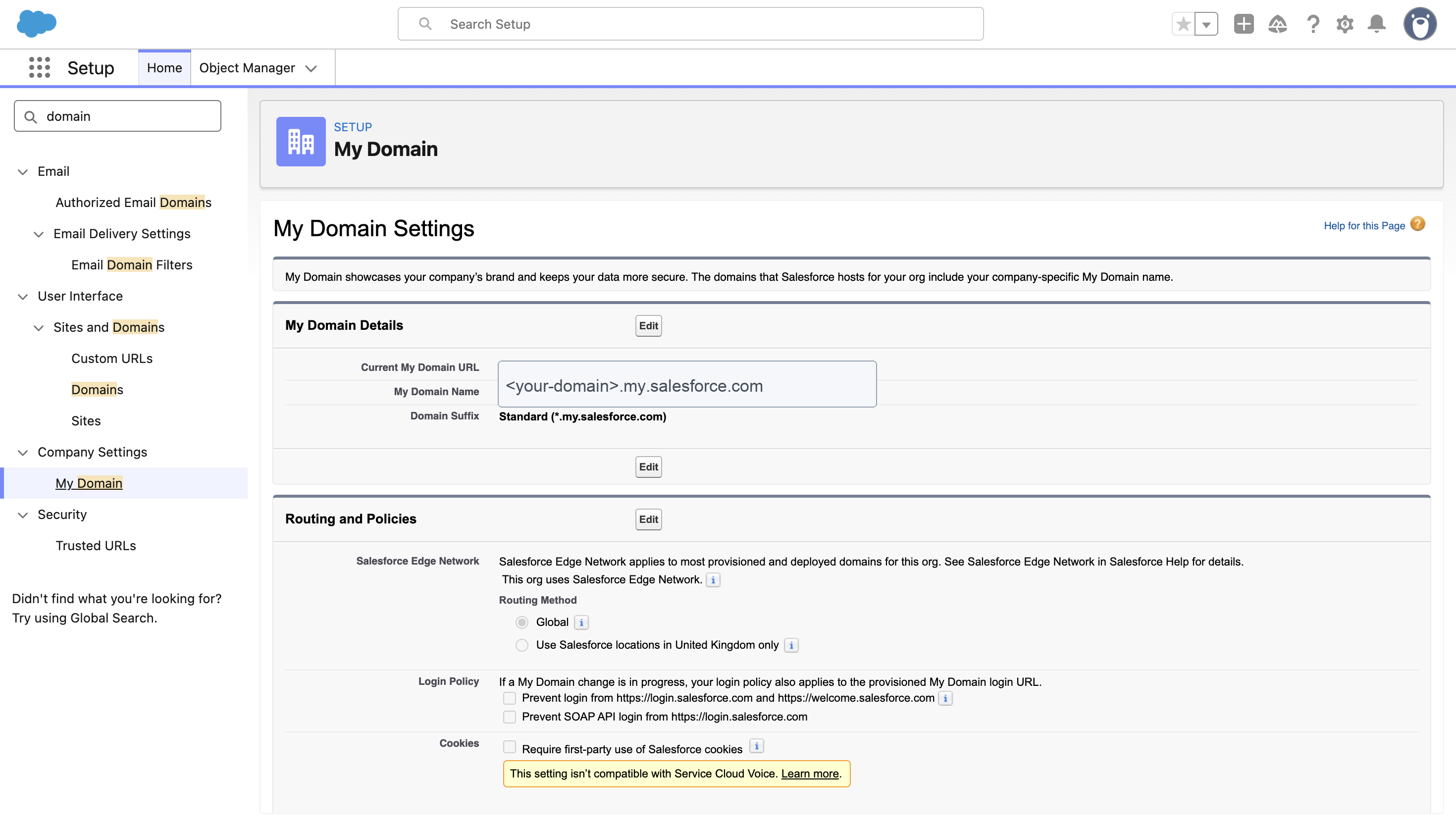
- In Salesforce, open Setup.
- Search for My Domain.
- Copy the active Current My Domain URL. It should look like
https://your-domain.my.salesforce.com. - Do not use
login.salesforce.comas the Base URL in Newo.
1b. Create or choose the integration user
Use a dedicated Salesforce user for the integration. This makes audit logs, ownership, and future credential rotation much cleaner.
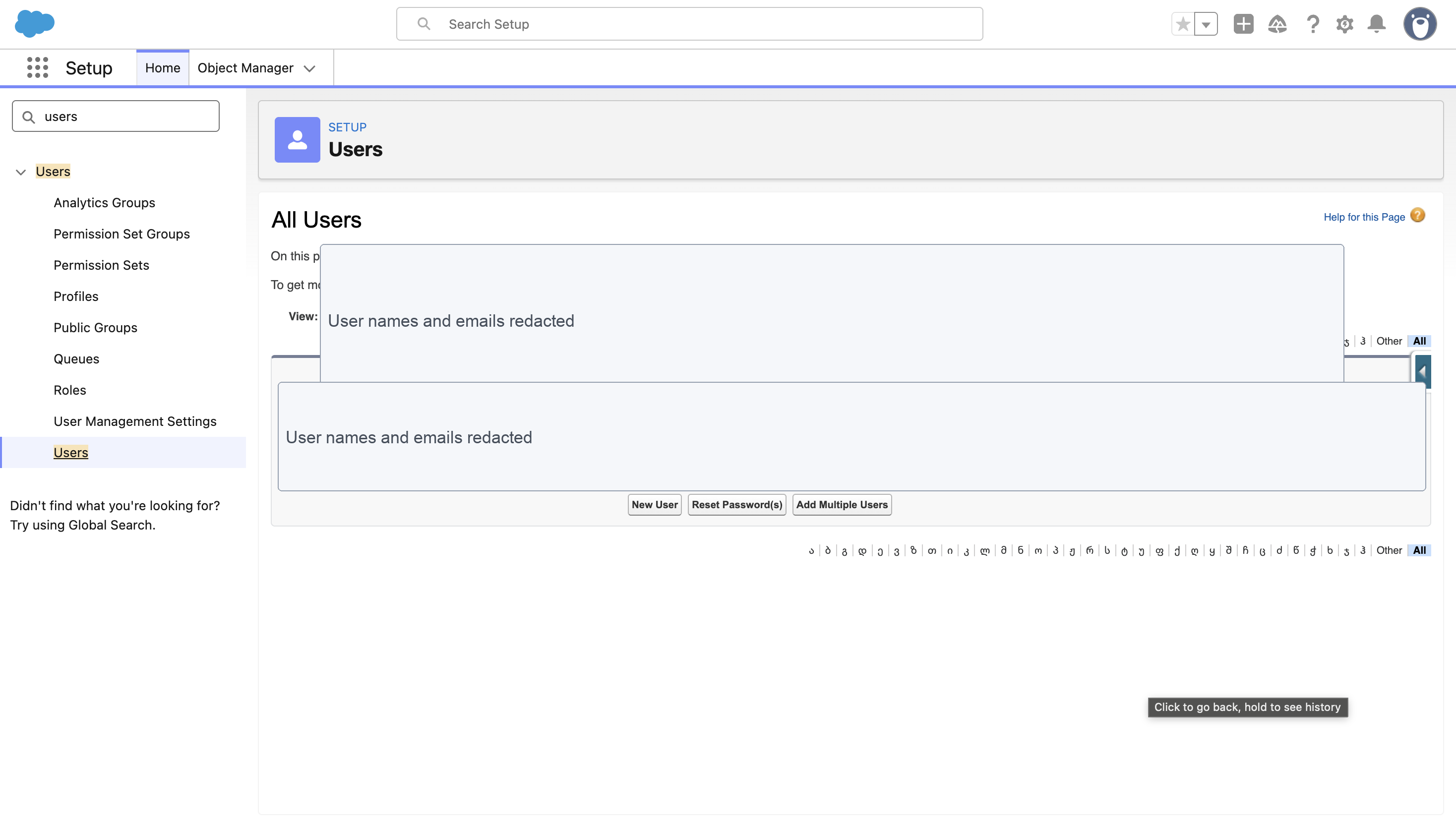
- In Setup, search for Users.
- Create a new user or choose an existing service user.
- Make sure the user is active.
- Assign only the profile and permission sets this integration needs.
1c. Create a permission set
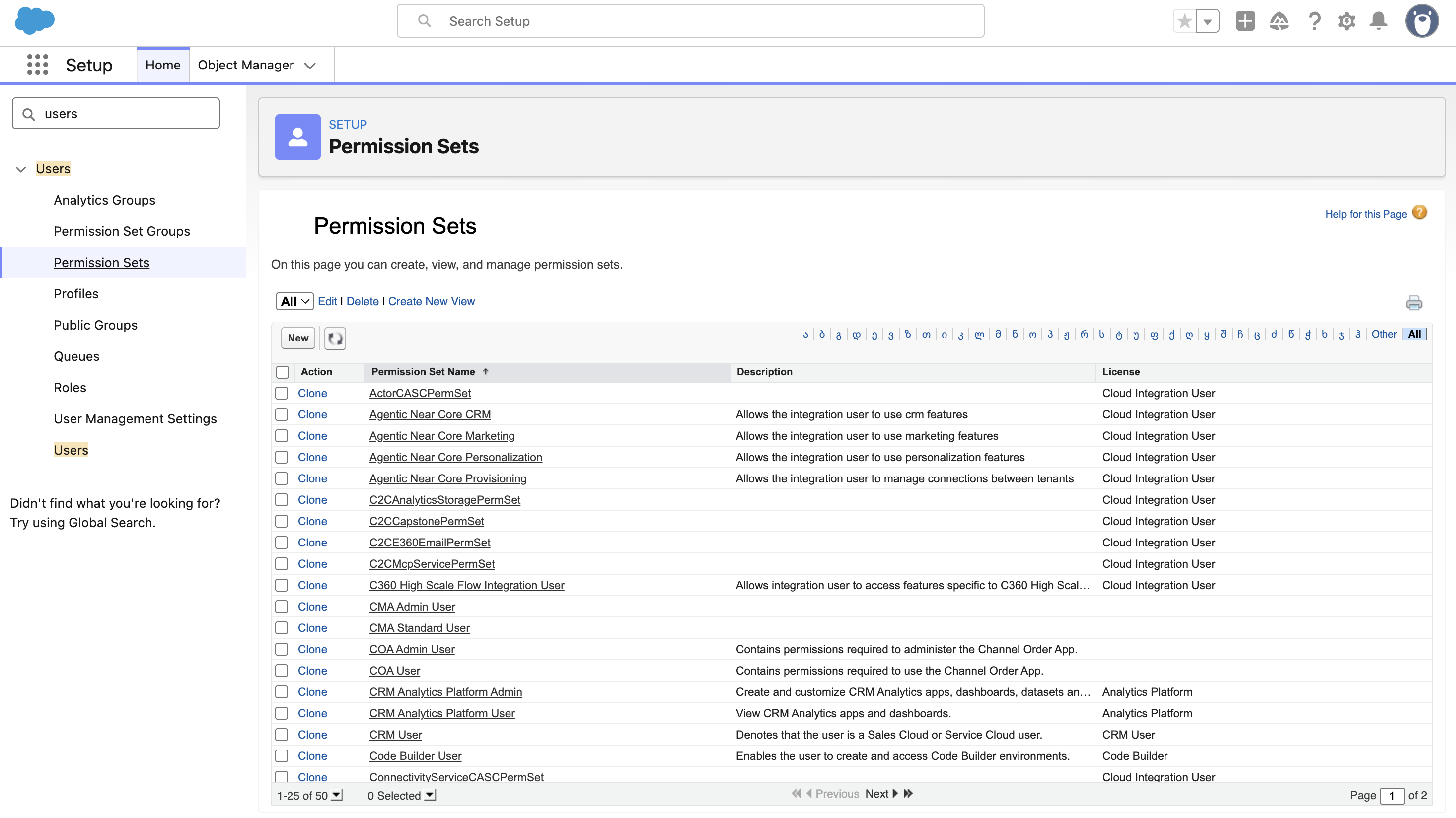
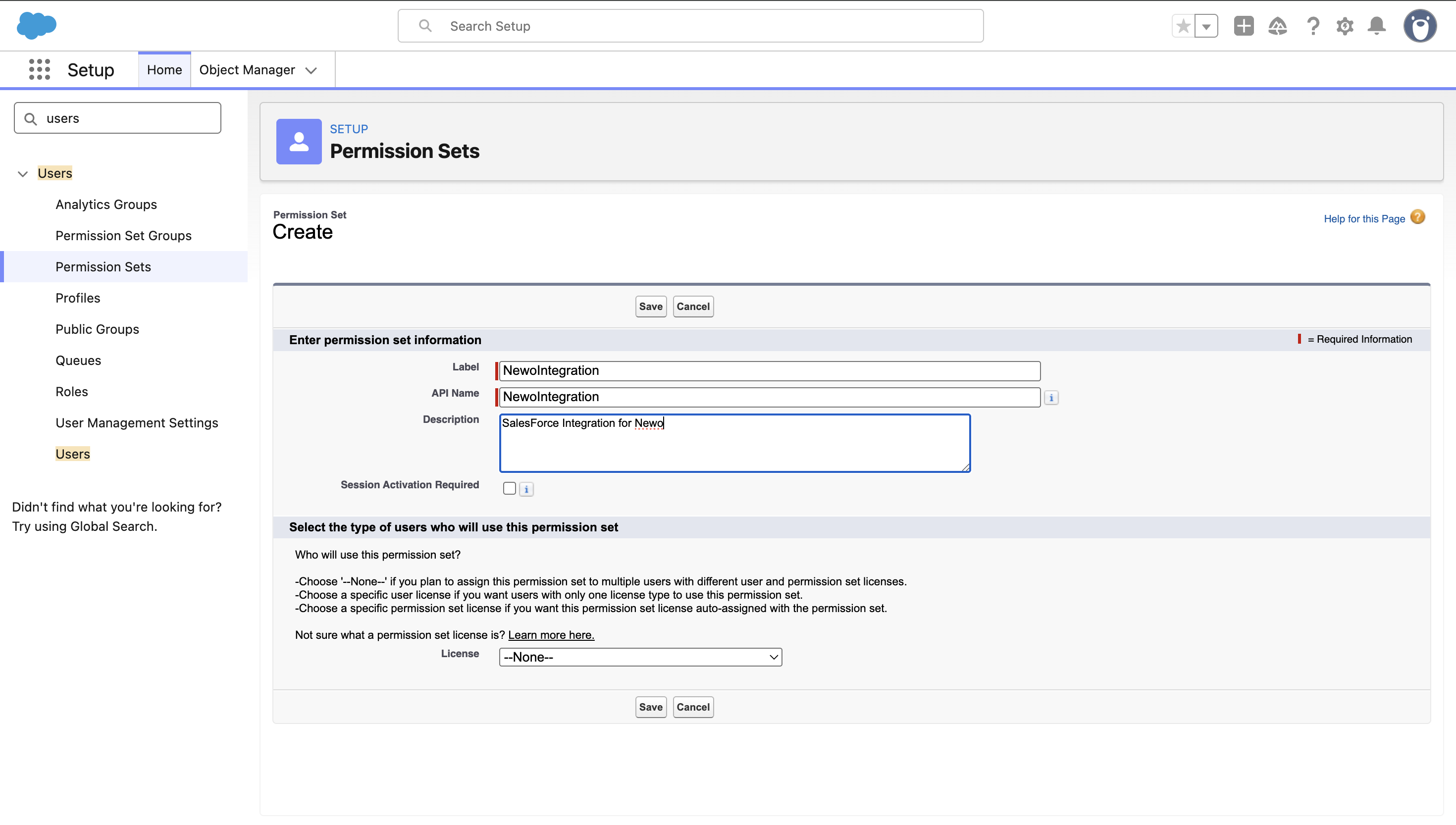
- In Setup, search for Permission Sets.
- Click New.
- Name it something clear, for example
NewoIntegration. - Save it.
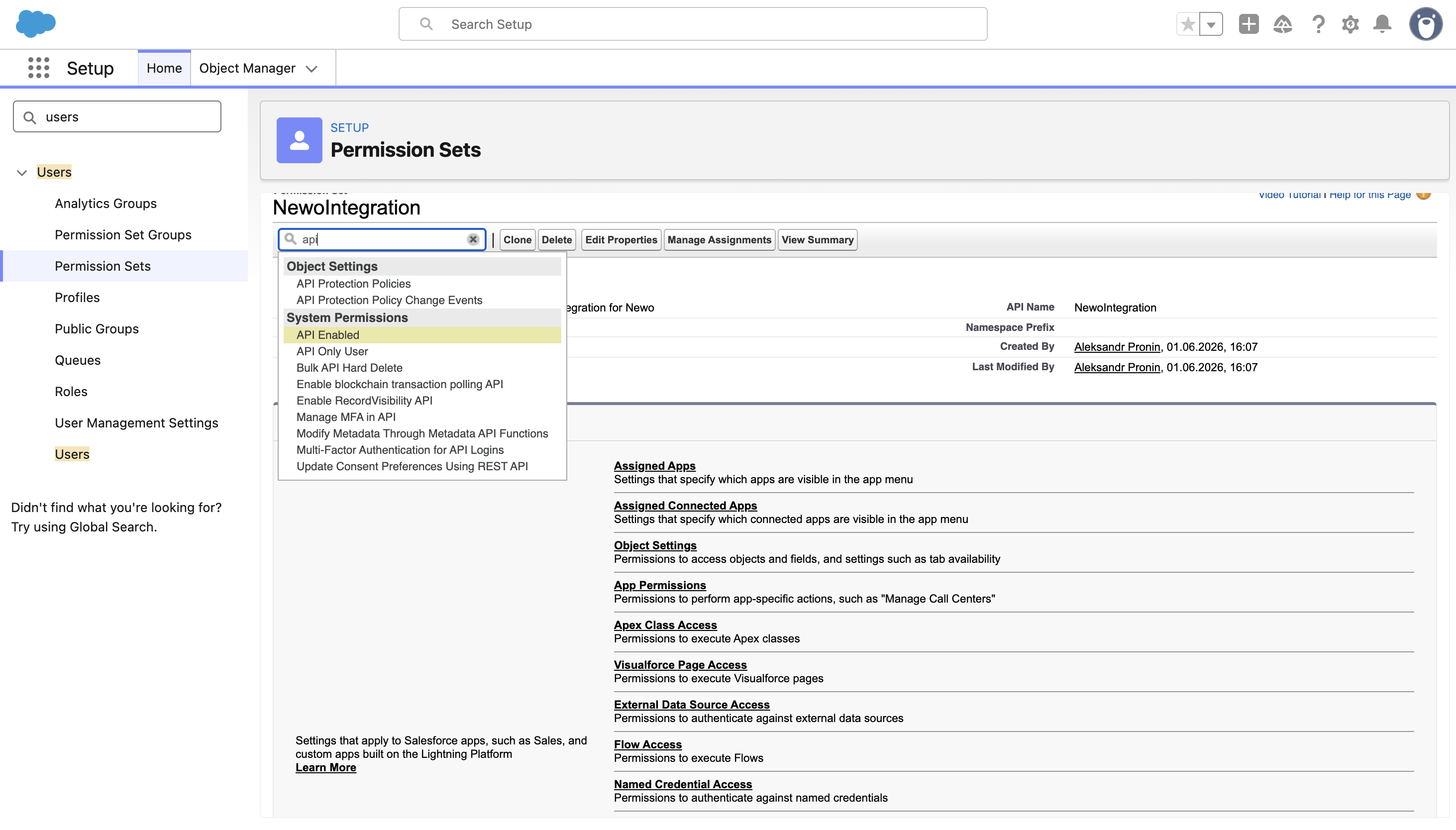
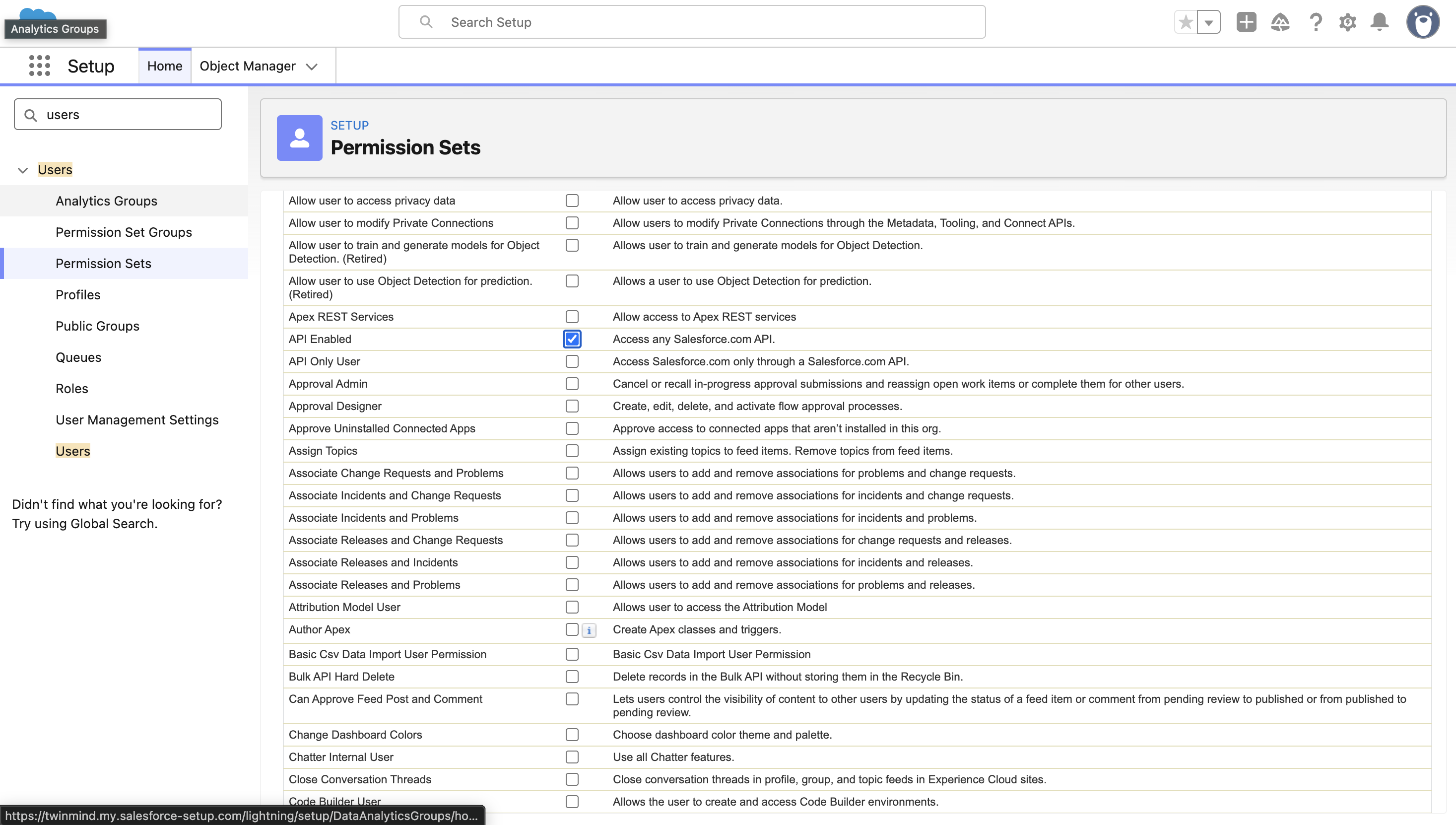
1d. Add system permissions
Open the permission set and review System Permissions.
Minimum baseline:
- API Enabled;
- Access Activities and Edit Tasks if Log Conversations or Create Team Follow-up Reminders will be on;
- Lead conversion permission if Convert Leads will be on;
- any org-specific permissions required by validation rules, record types, or managed packages.
1e. Add object and field access
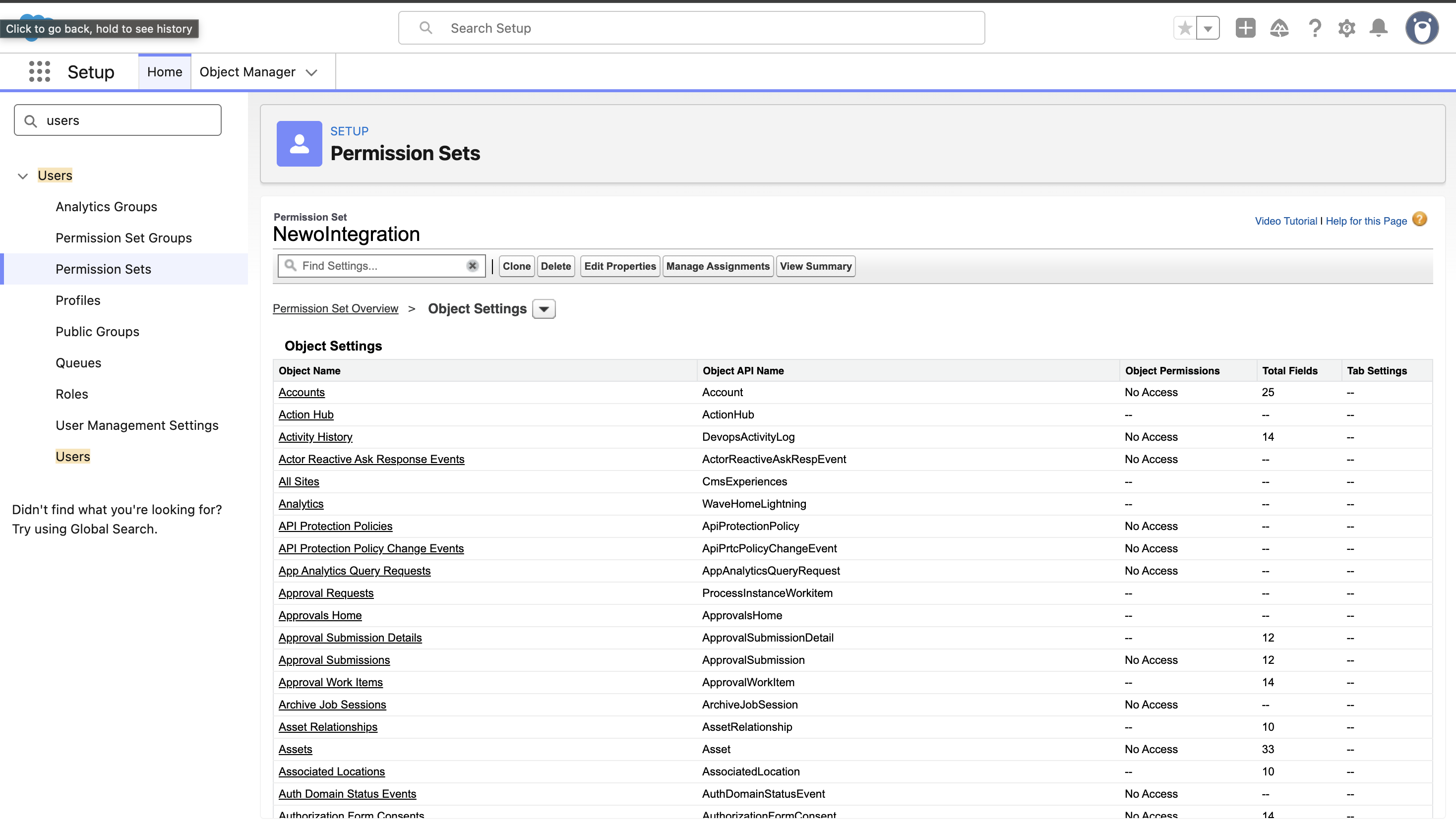
In the same permission set, open Object Settings and grant access for the Salesforce objects you enabled in Newo.
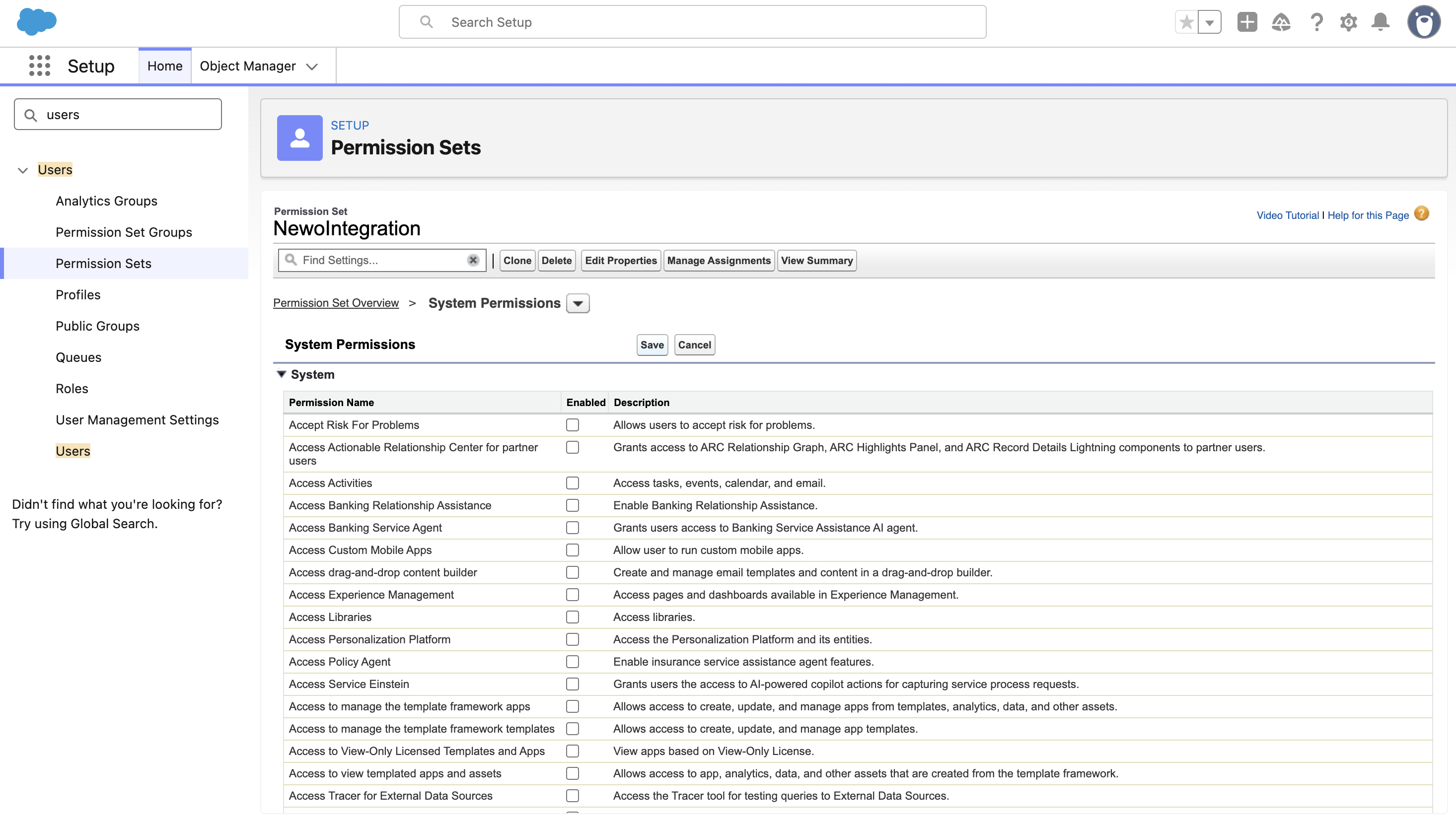
Recommended object access:
| Salesforce object | Minimum access |
|---|---|
| Account | Read; Edit if the agent may update Account details |
| Contact | Read; Edit if the agent may update Contact details |
| Lead | Read/Create/Edit |
| Case | Read/Create/Edit if Case management is enabled |
| Task | Create/Edit for conversation logs and team reminders; also check Task field-level permissions |
| Opportunity | Create/Edit if Opportunity management is enabled |
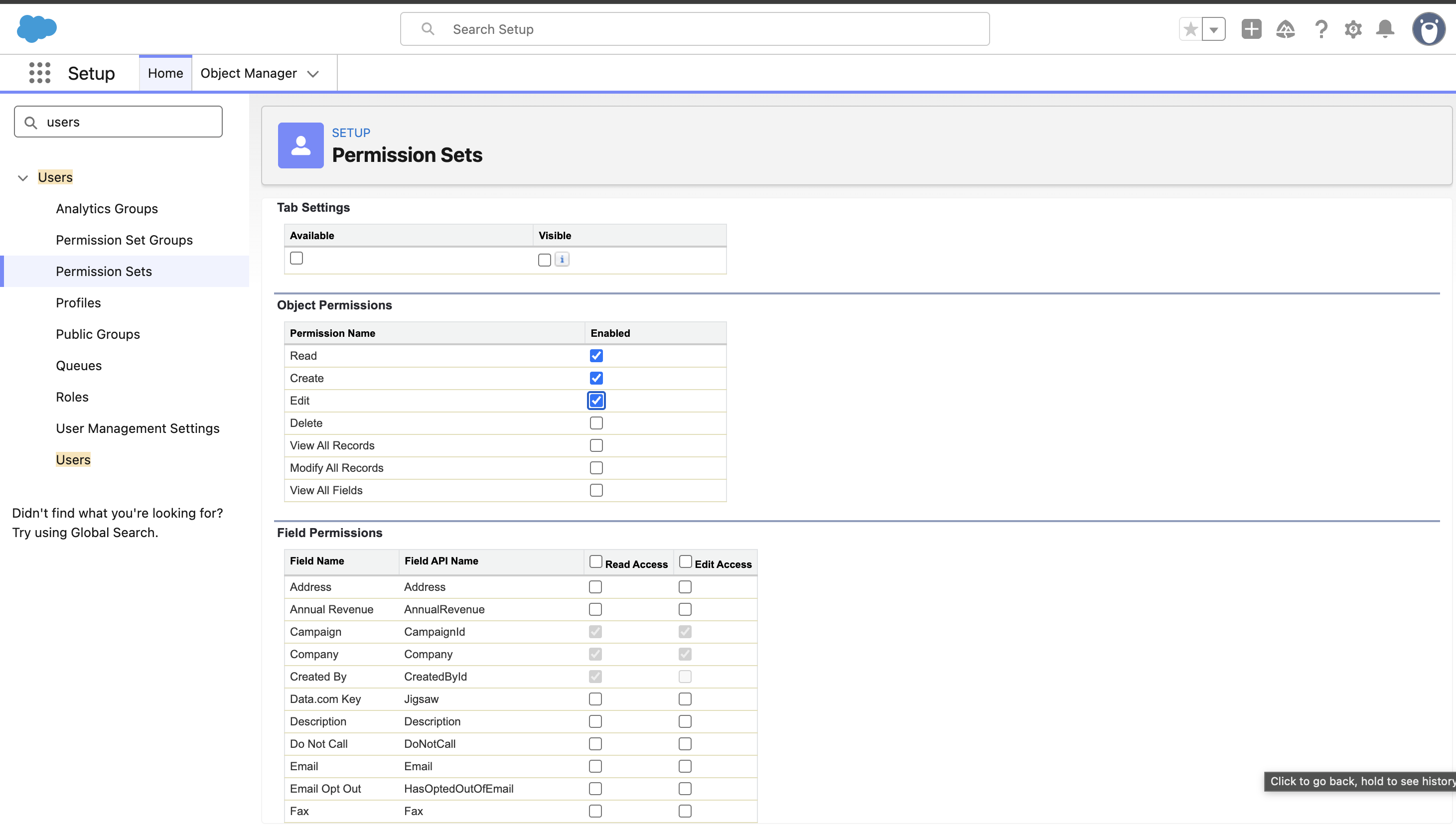
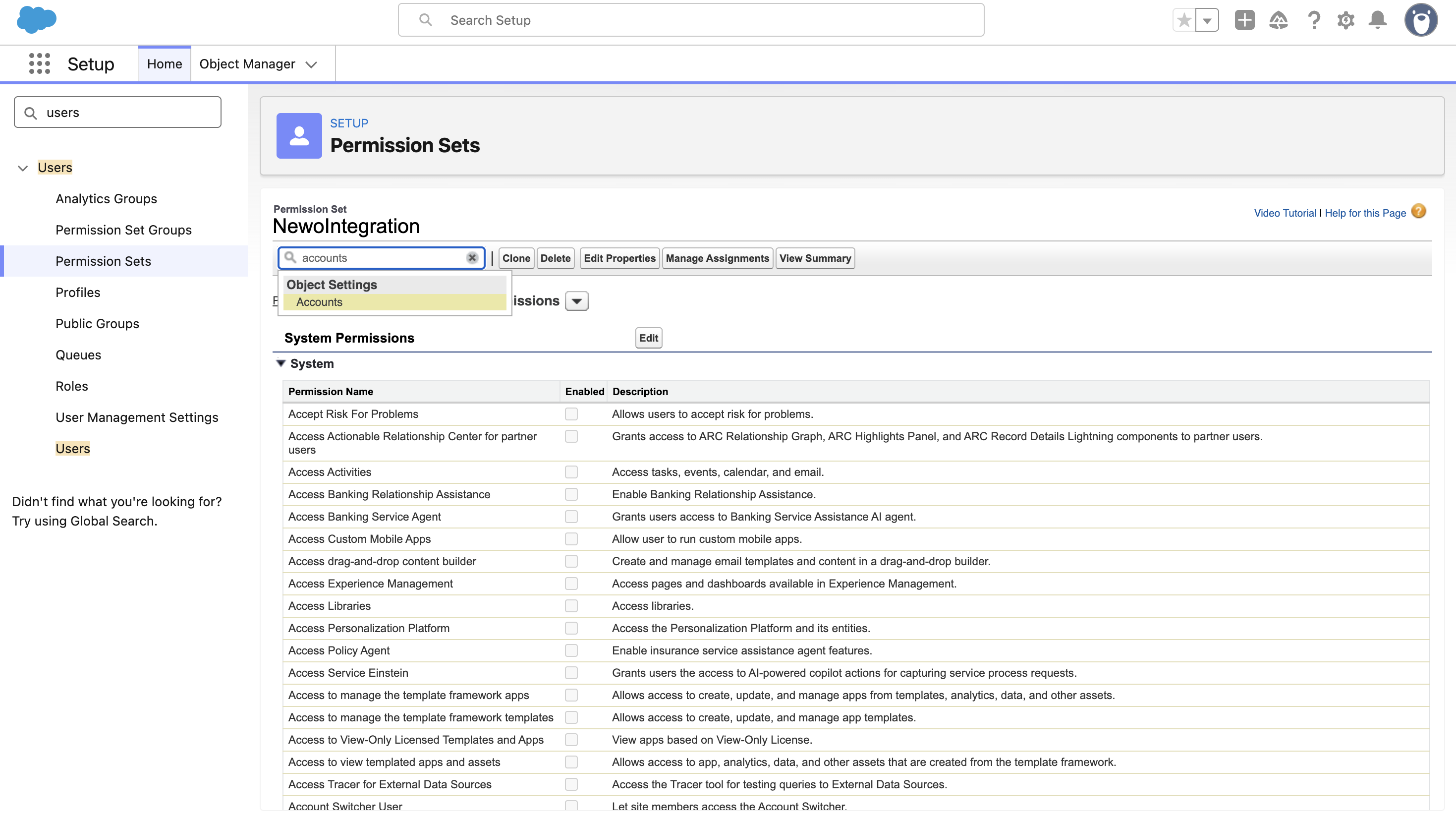
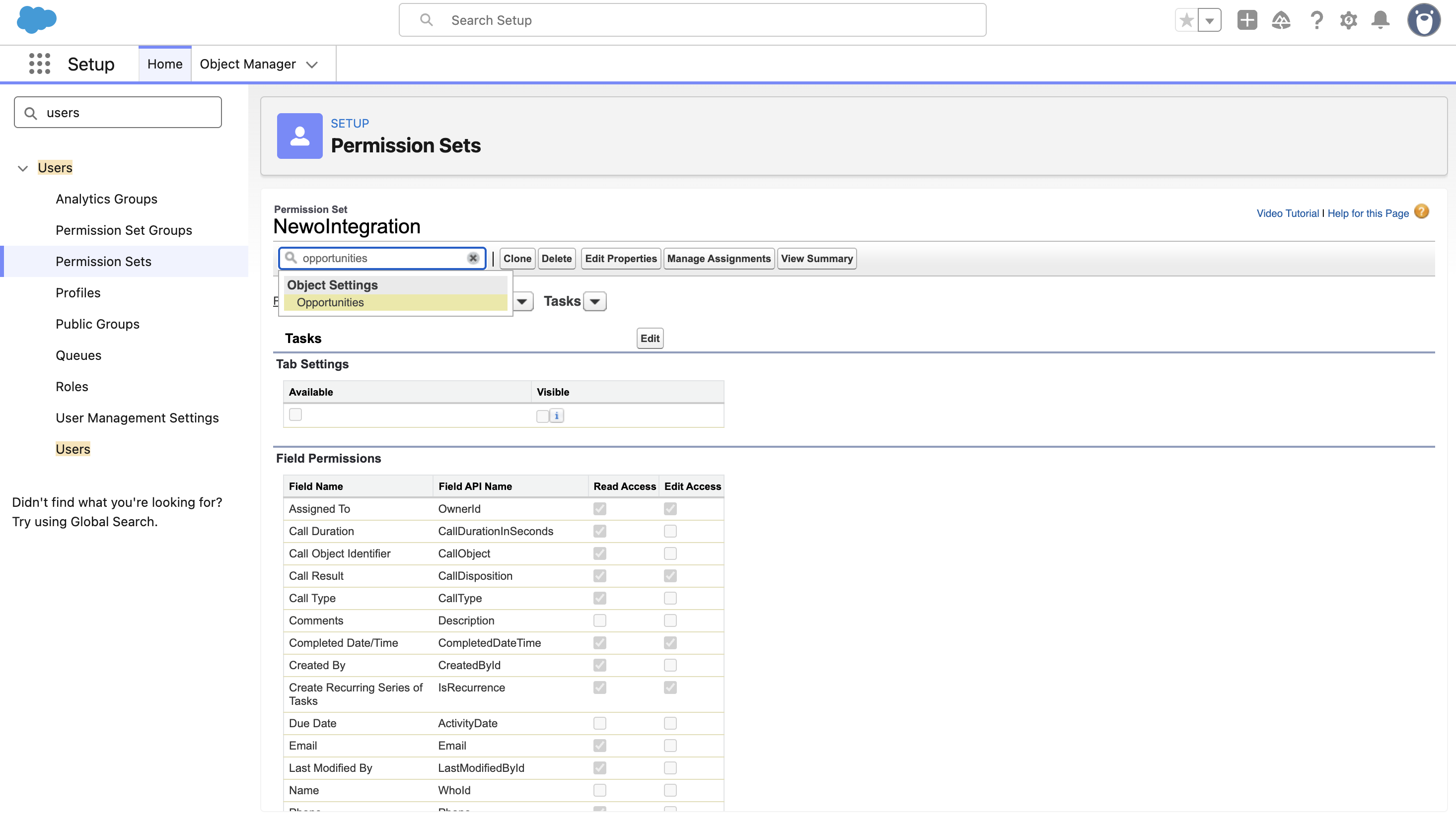
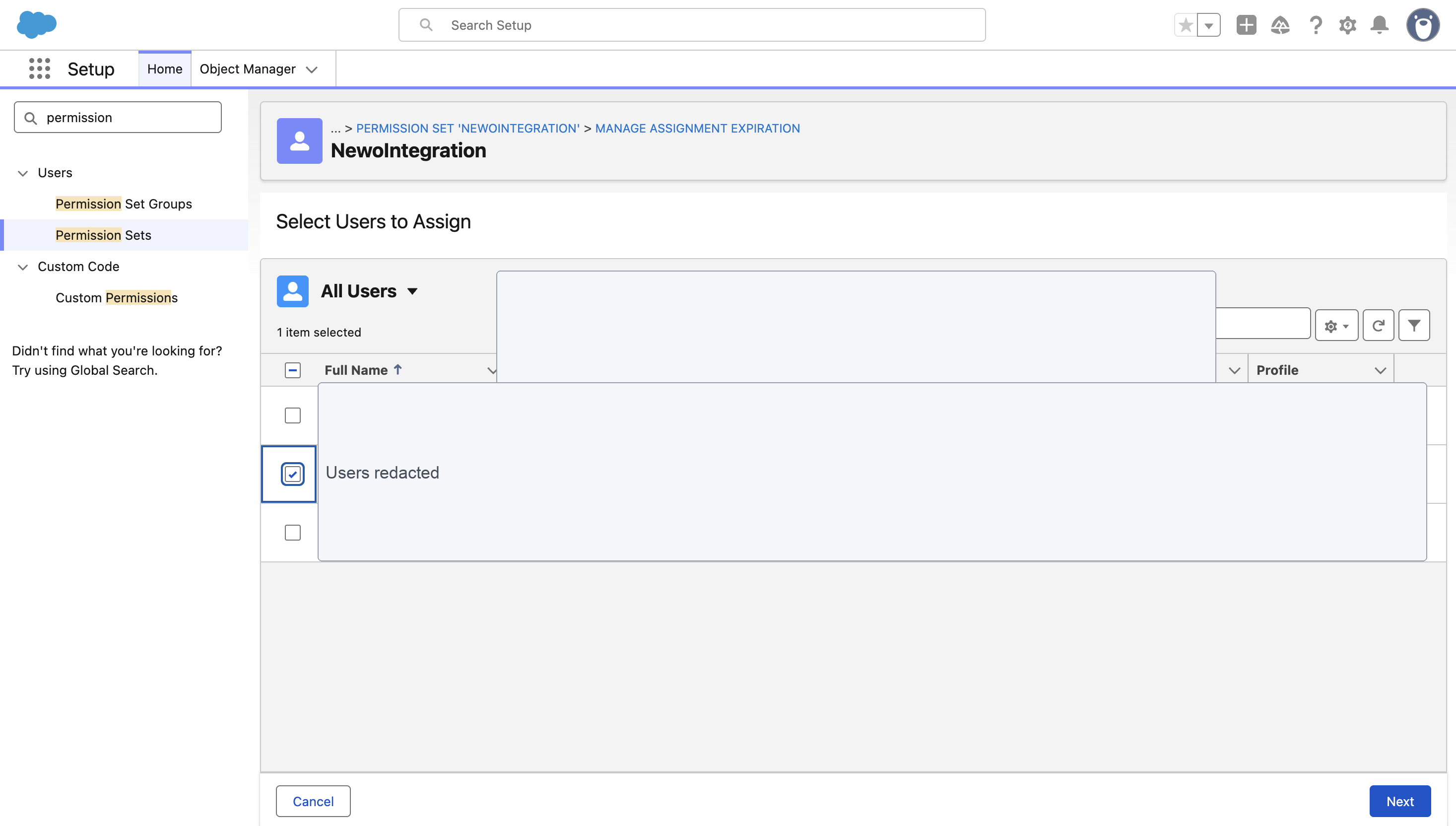
1f. Assign the permission set
- Open the permission set.
- Click Manage Assignments.
- Assign it to the integration user.
- Confirm the assignment completed successfully.
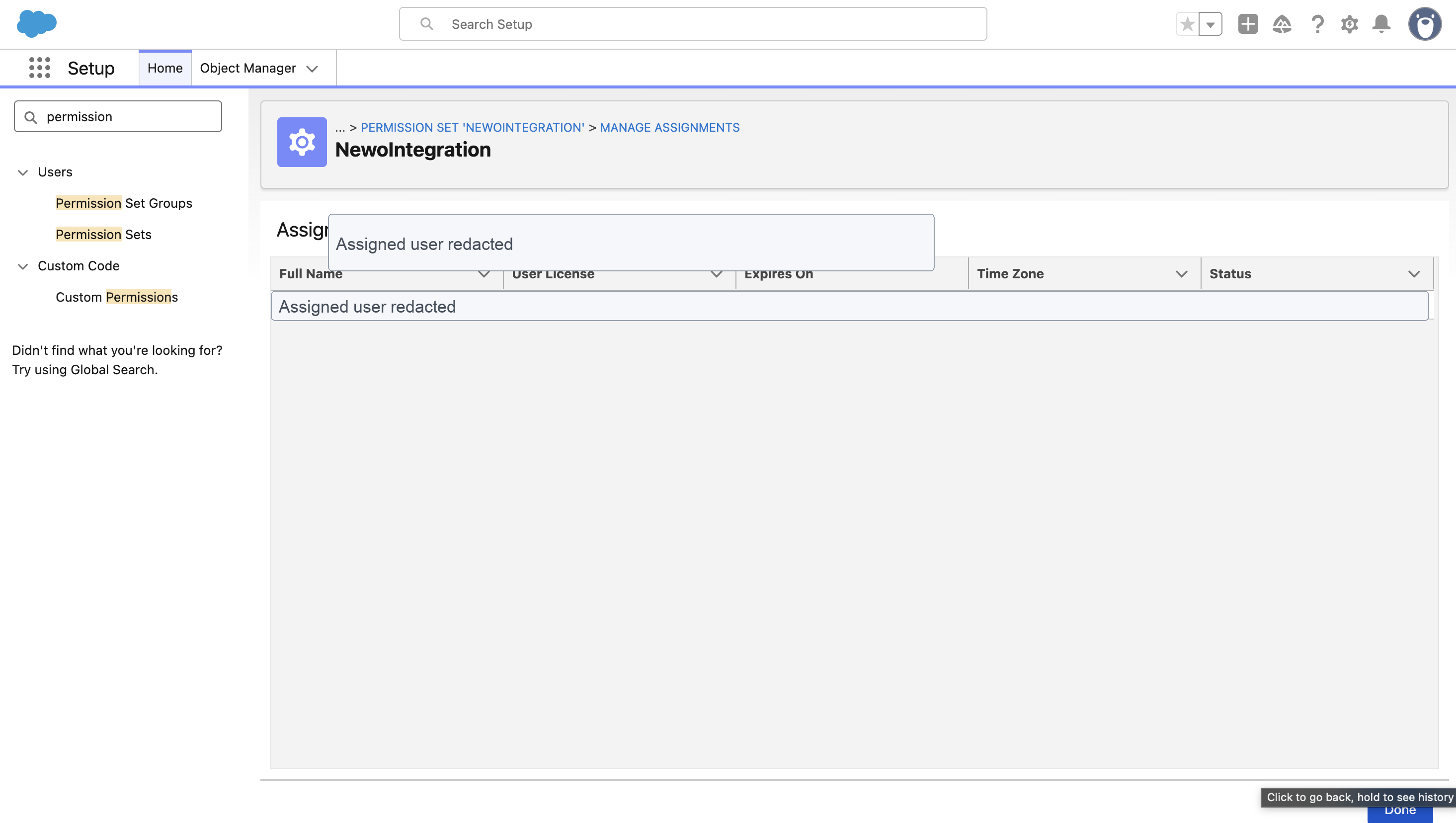
2. Create the Salesforce OAuth app
For new installations, use External Client App with Client Credentials Flow. If the customer already has a compatible Connected App, a Salesforce admin may reuse it, but new installs should prefer the External Client App path shown below.
2a. Open External Client App Manager
- In Setup, search for external client apps.
- Open External Client App Manager.
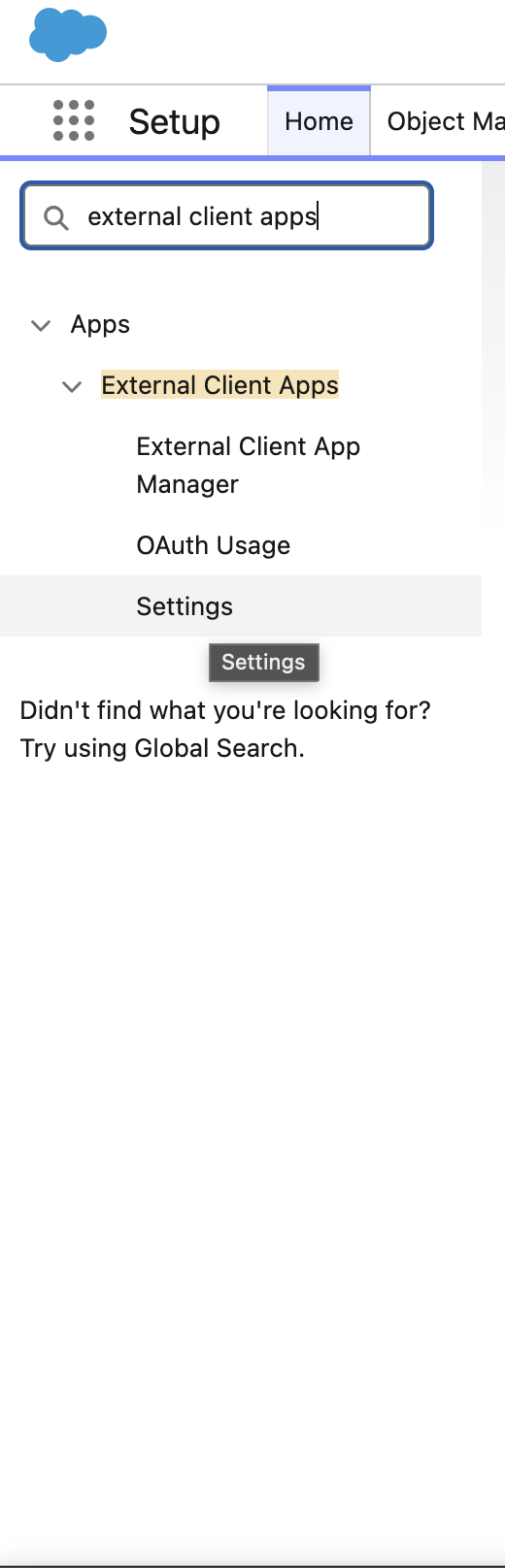
2b. Enable app creation if needed
If the page asks you to allow creation of External Client Apps, enable it in External Client App Settings.
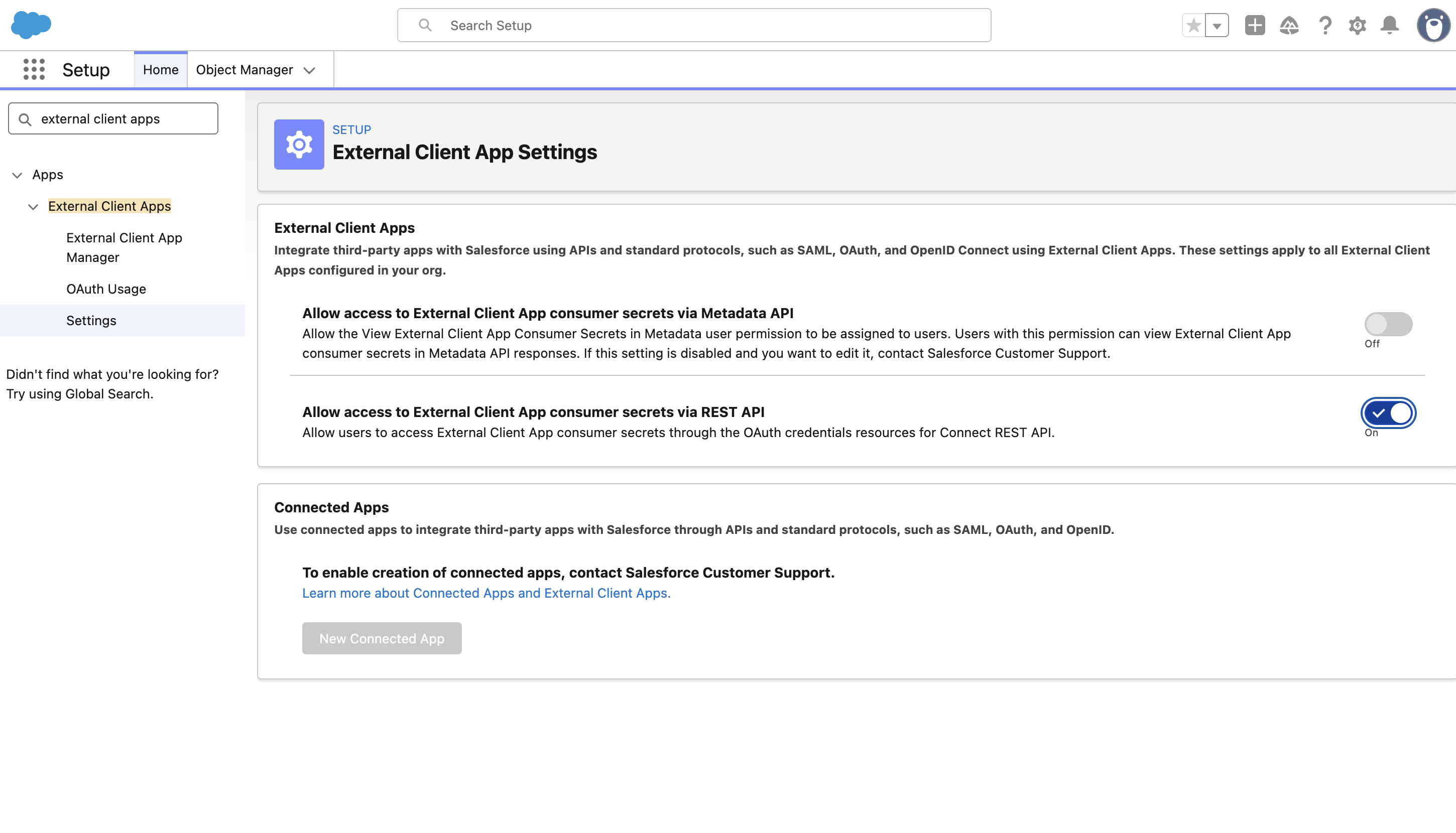
2c. Create the app
- Click New External Client App.
- Enter a clear name, for example
Newo Integration. - Use the integration owner's email address as the contact email.
- Keep the distribution state local unless your Salesforce admin has a different policy.
- Continue to the API/OAuth section.
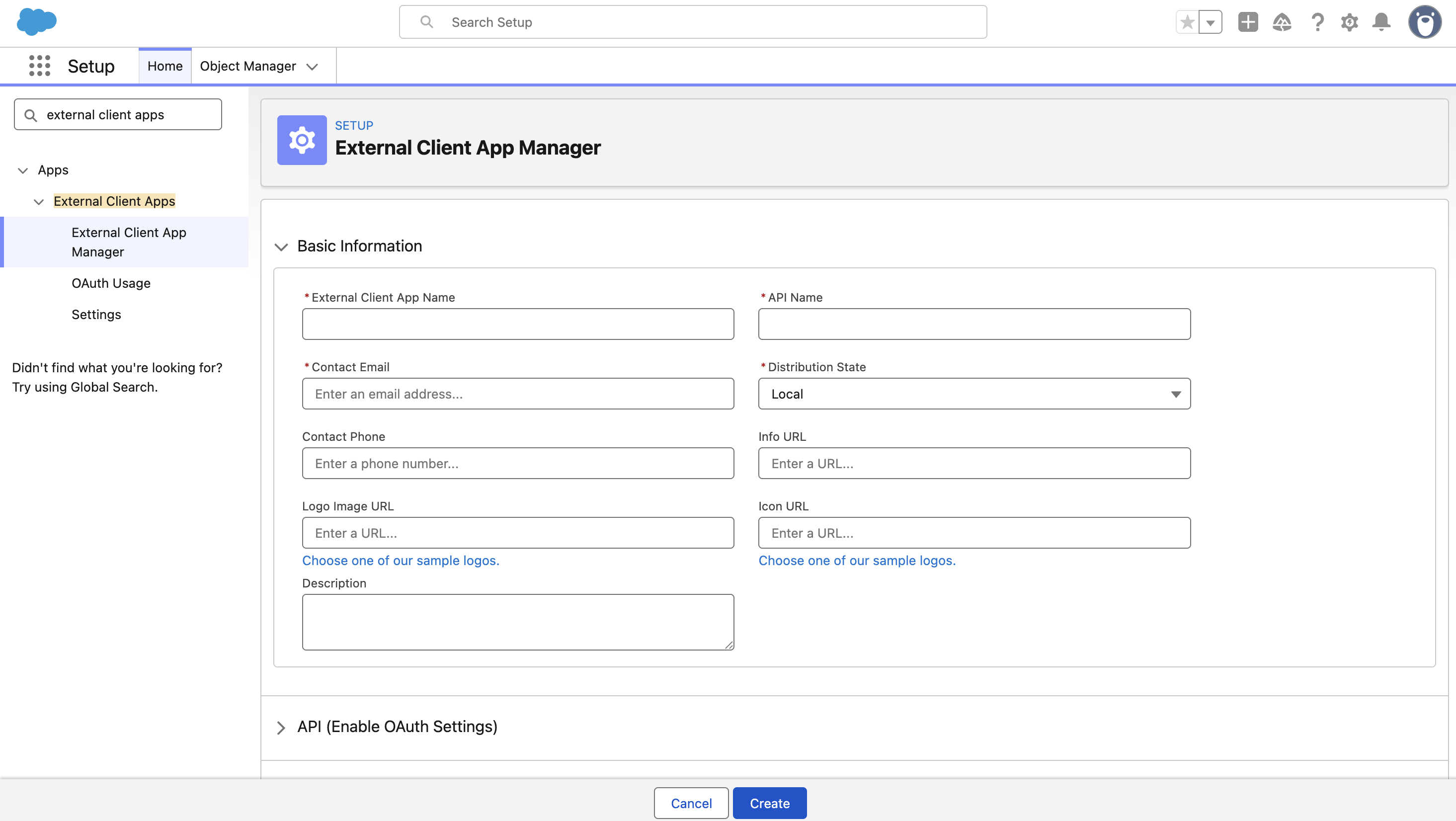
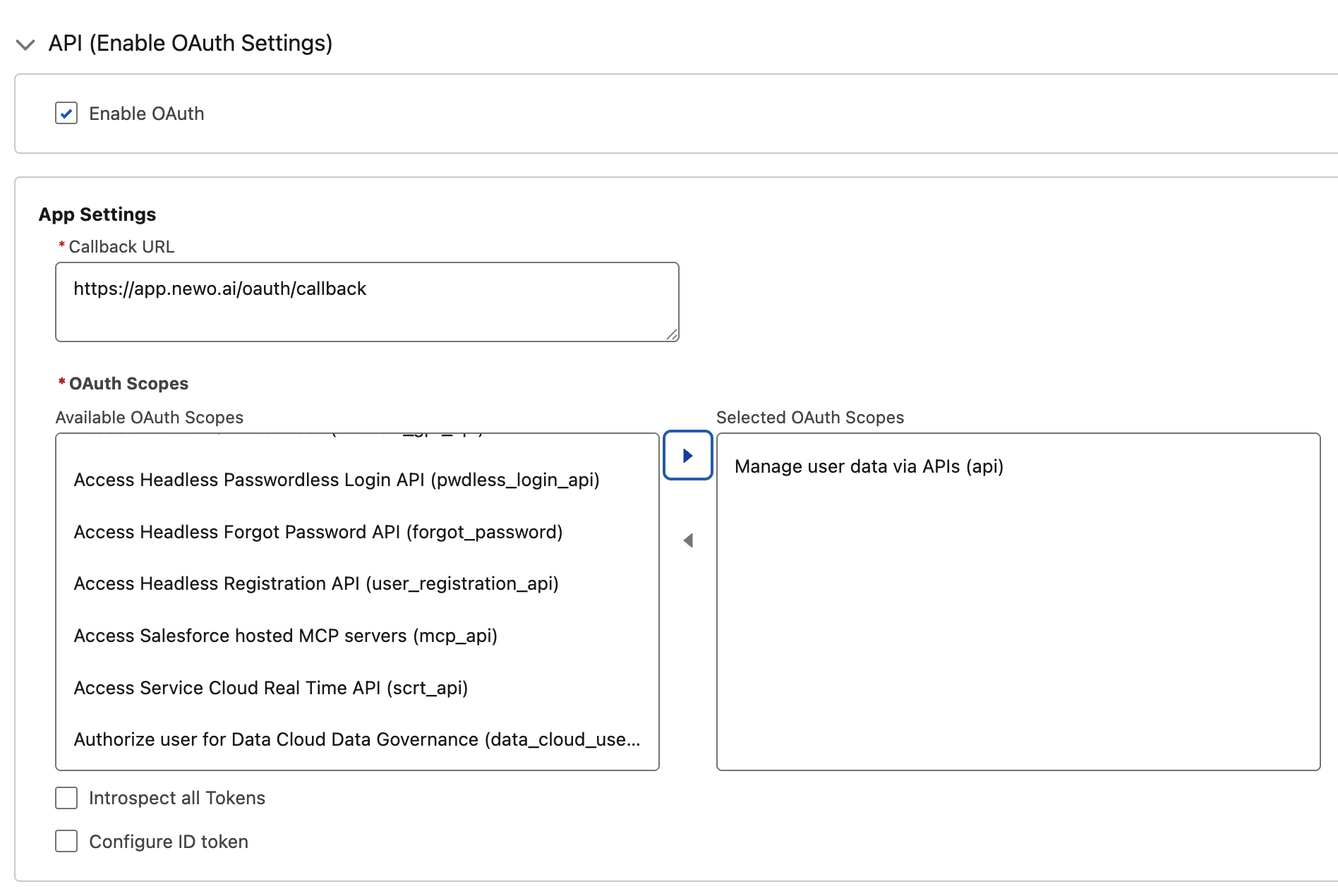
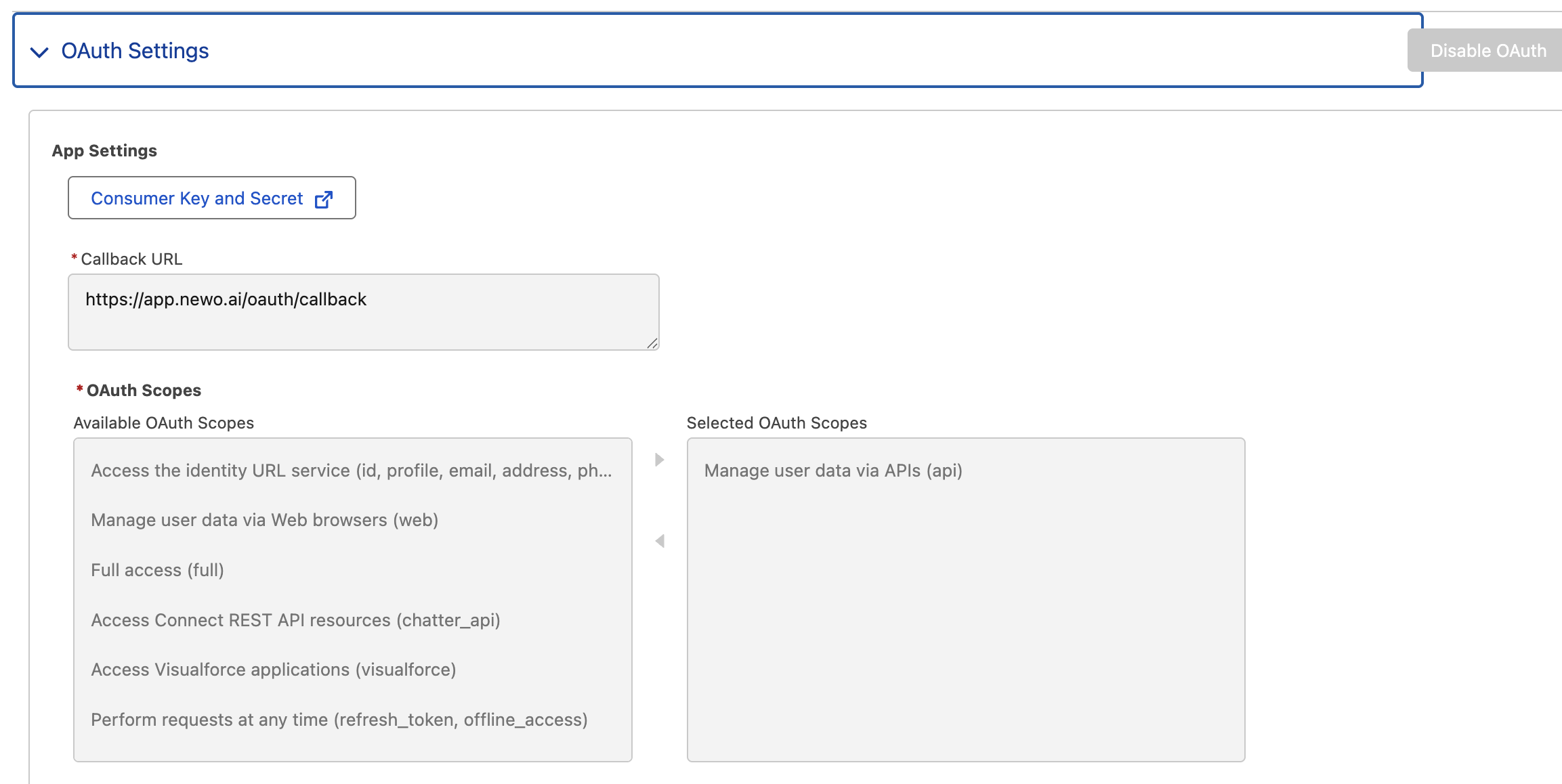
2d. Enable OAuth settings
In the API/OAuth section:
- Turn on Enable OAuth.
- Use a standard callback URL accepted by your Salesforce org. For Client Credentials setup, this value is usually not used during runtime, but Salesforce still requires it on the form.
- Add the OAuth scope Manage user data via APIs.
- Do not add extra scopes unless your Salesforce admin requires them.
- Leave token interception options off unless your security team explicitly requires them.
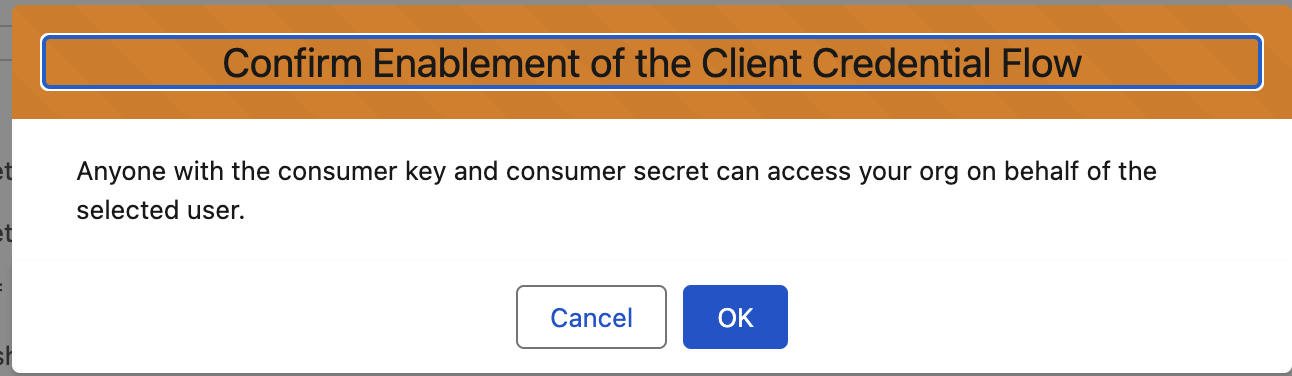
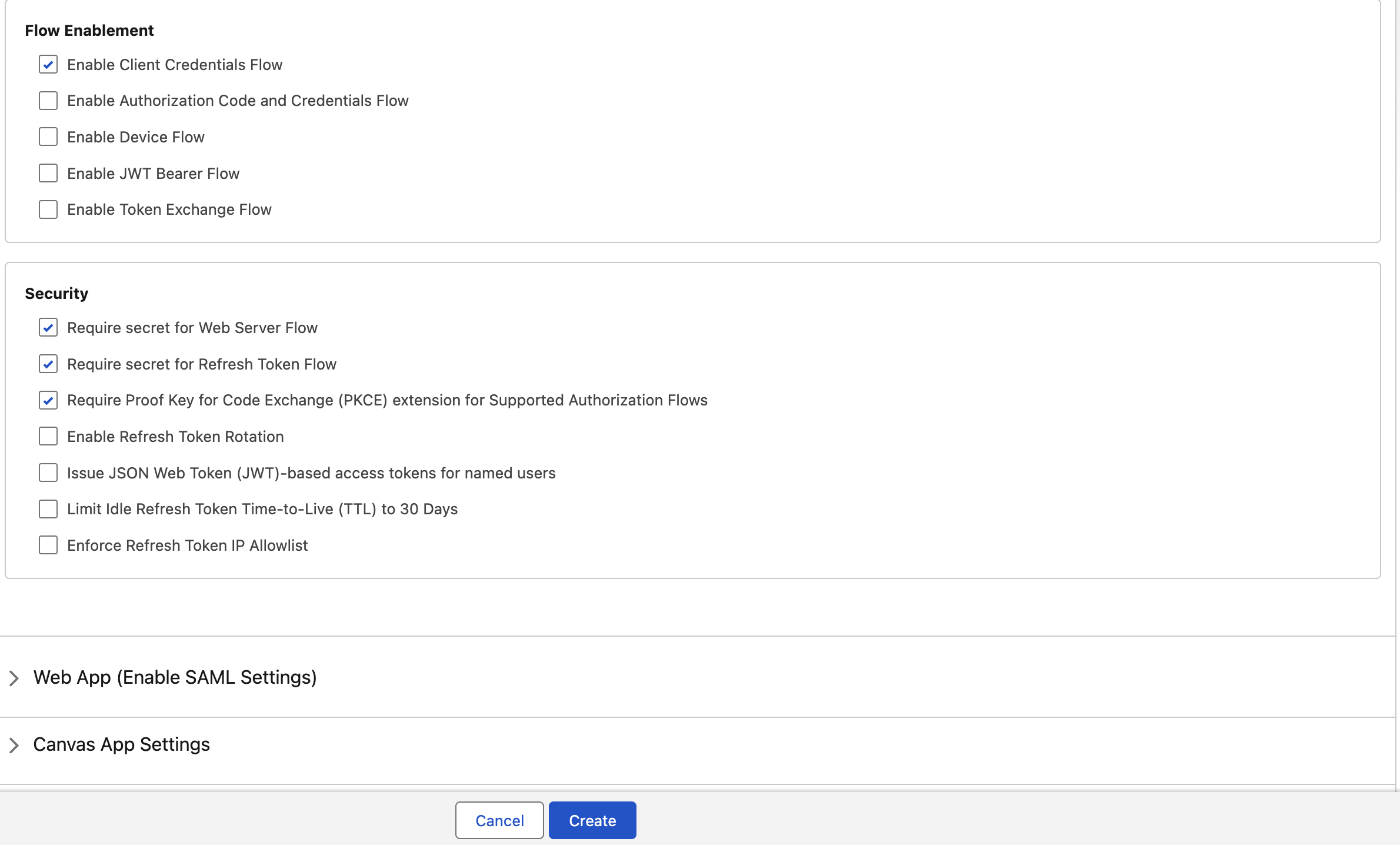
2e. Enable Client Credentials Flow
When Salesforce asks to confirm the Client Credentials Flow, click OK. This flow lets Newo authenticate server-to-server using the Client ID and Client Secret.
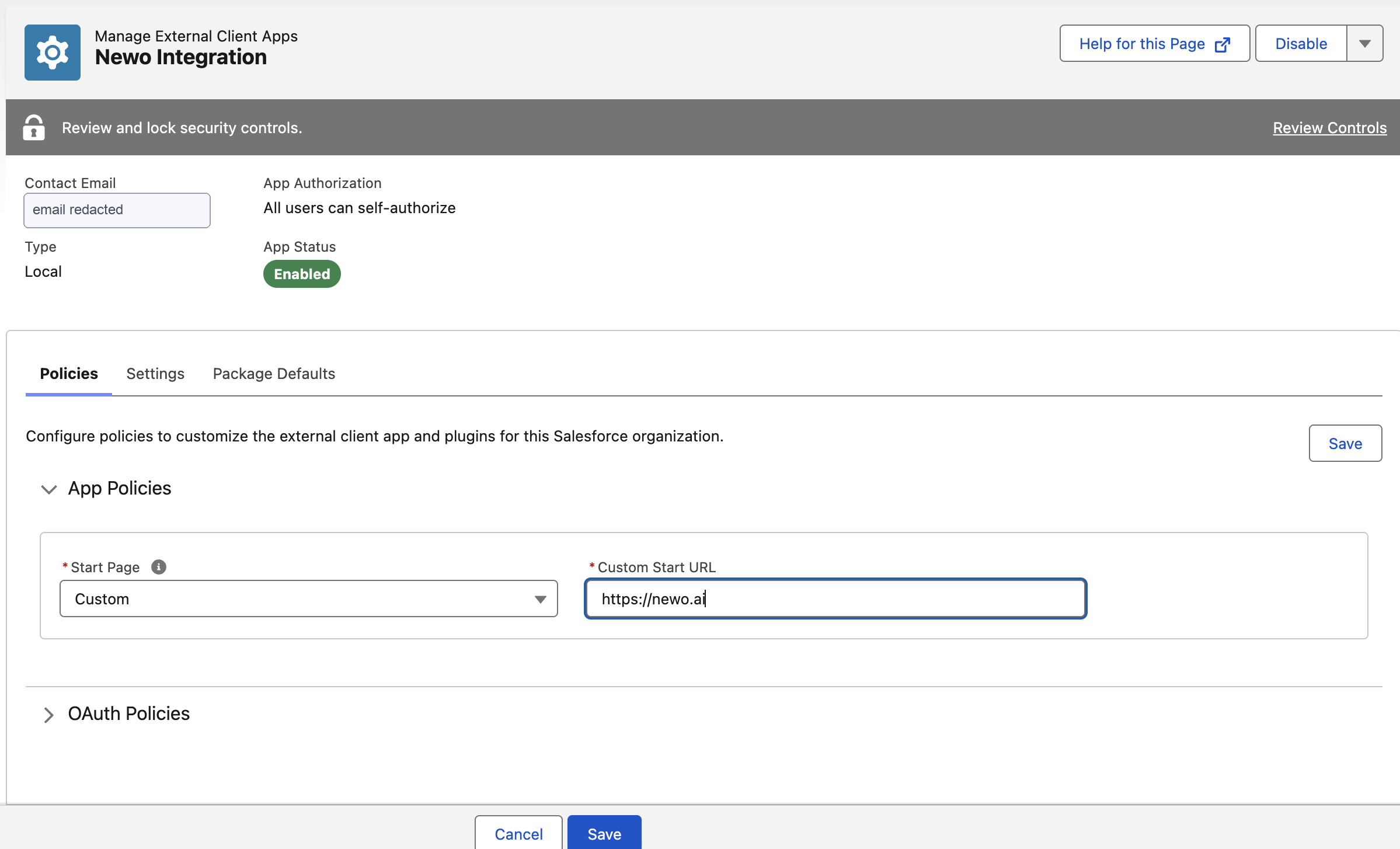
2f. Configure app policies
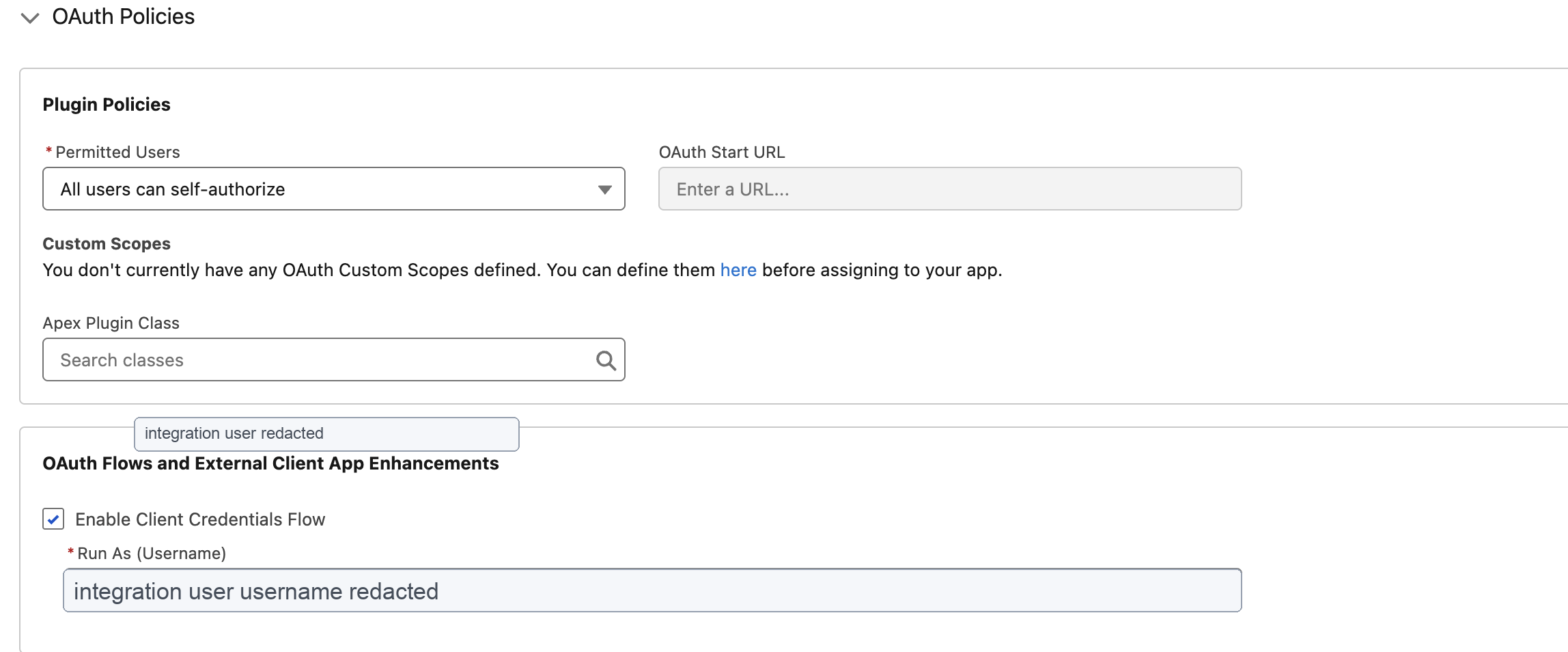
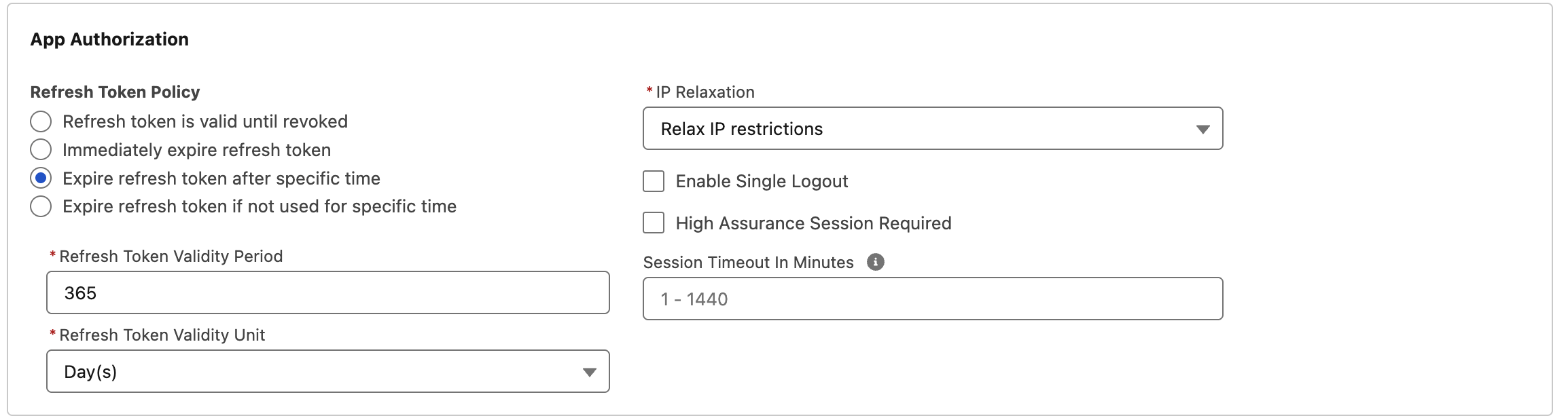
Open the app Policies section.
Recommended policy setup:
- Keep the app enabled.
- Set the start page to your Newo or company URL if Salesforce requires a value.
- Open the OAuth policies.
- Keep permitted users aligned with your org security policy.
- Under the Client Credentials Flow settings, set Run As to the integration user.
- Save the app.
2g. Copy the Client ID and Client Secret
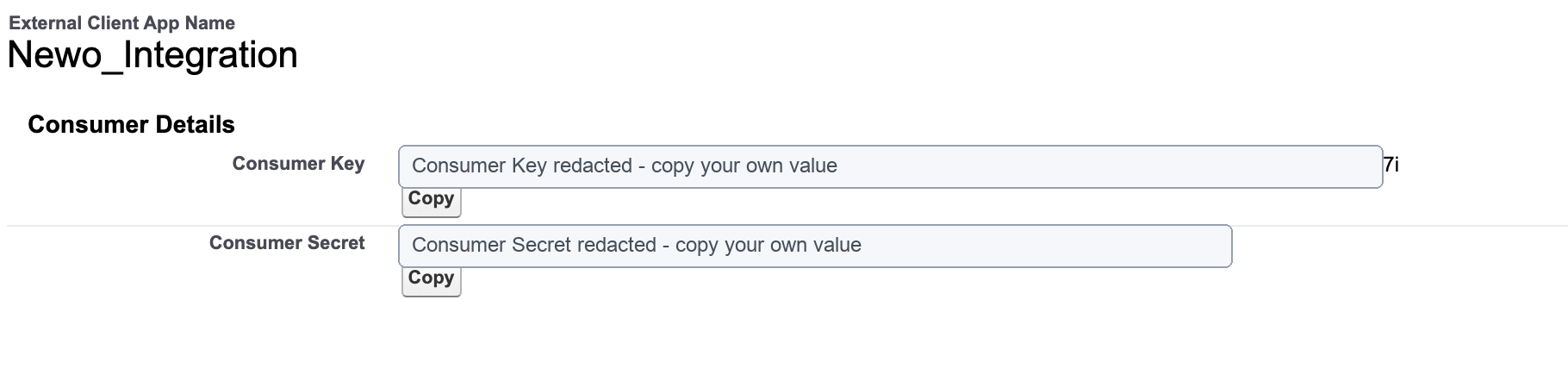
Open the app's consumer details and copy:
- Consumer Key - this is the Client ID in Newo;
- Consumer Secret - this is the Client Secret in Newo.
Treat the secret like a password. Do not paste it in chat, email, or a ticket unless your security process allows it.
3. Configure in Newo
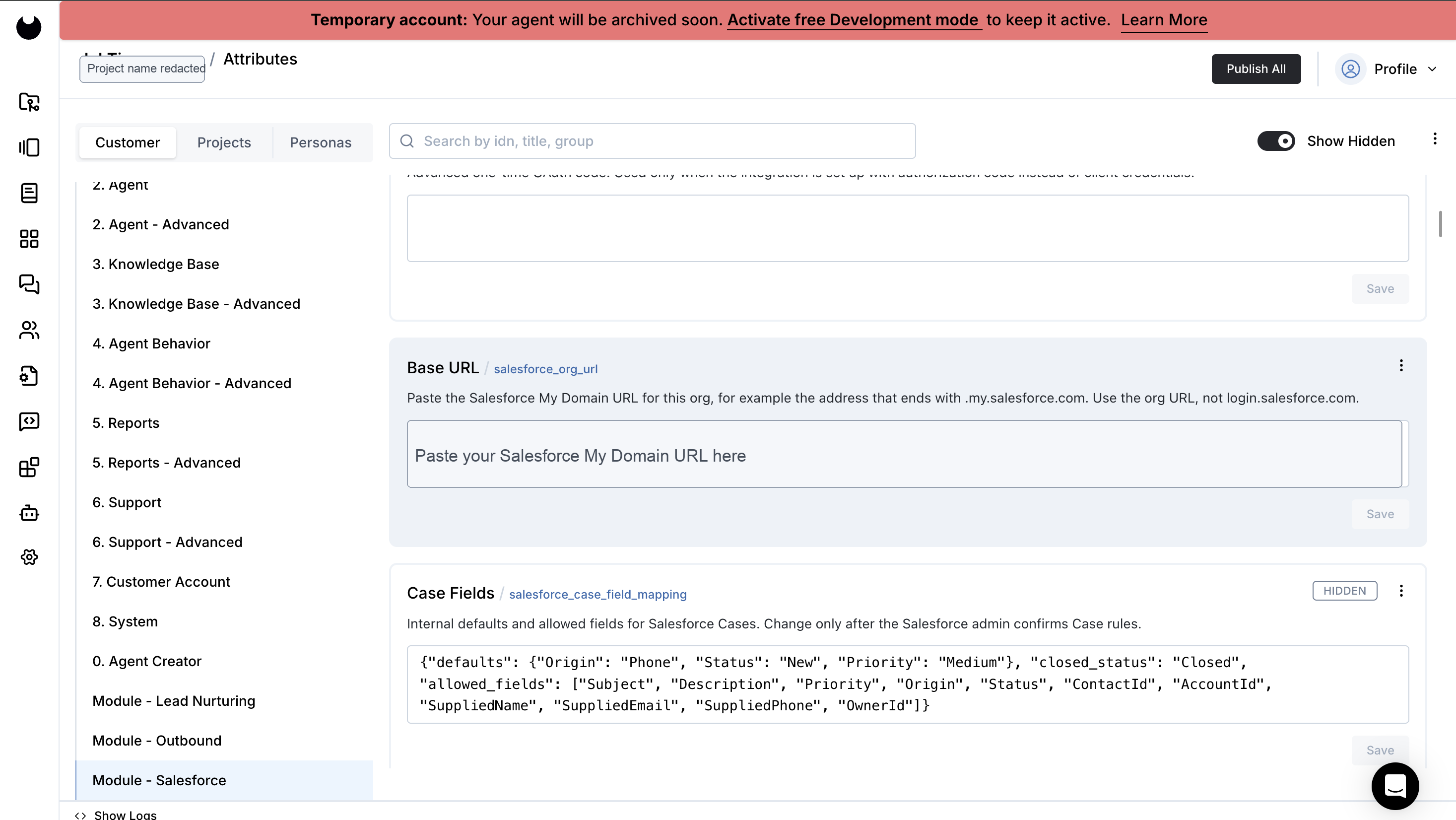
- Open the project in Newo Builder.
- Go to Attributes.
- Select Customer.
- Open the Module - Salesforce group.
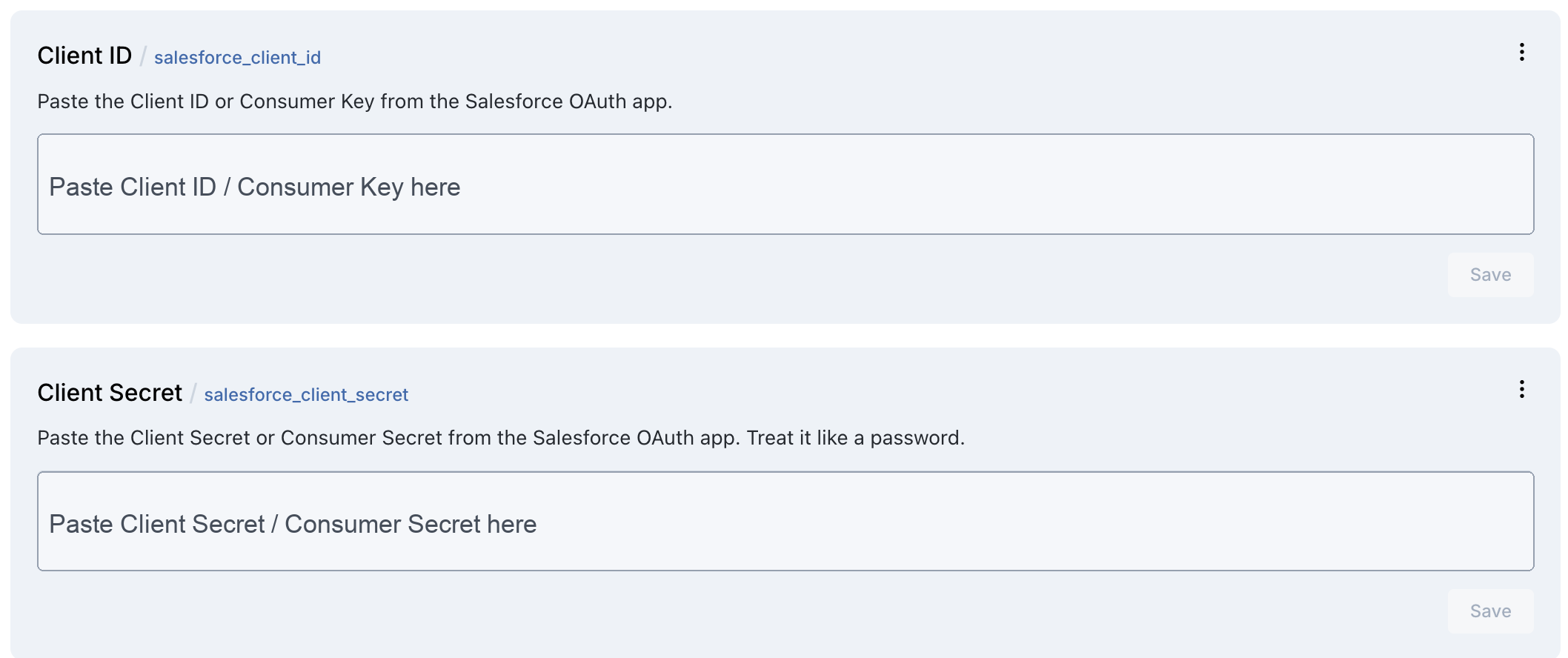
- Fill the visible credential fields:
- Base URL - Salesforce My Domain URL.
- Client ID - Salesforce Consumer Key.
- Client Secret - Salesforce Consumer Secret.
- Review the feature switches and turn off anything the Salesforce admin has not permissioned yet.
- Keep Convert Leads off until the optional Lead conversion setup is complete.
- Click Publish All.
Recommended first-publish switches:
| Setting in Newo | Recommended first value | Why |
|---|---|---|
| Find Customers | On | Most Salesforce scenarios need CRM context |
| Create Leads | On if sales follow-up is in scope | Creates new prospect records after duplicate check |
| Update Records | On only after approved field access is confirmed | Prevents accidental CRM writes before sign-off |
| Log Conversations | On if Task permissions are ready | Saves conversation summaries to activity history |
| Manage Cases | On if Case permissions are ready | Enables support request handling |
| Create Team Follow-up Reminders | On if Task permissions are ready | Creates callback/email/message reminders for the team |
| Convert Leads | Off at first | Turn on only after Salesforce admin installs and tests conversion support |
| Manage Opportunities | On if sales pipeline automation is in scope | Creates or updates sales Opportunities |
| Save Related Records Together | On if the team wants Lead + Case + Task saved together | Useful for complete intake requests |
4. Hit Publish All
After Publish All, the integration takes care of the rest:
- verifies the Salesforce credential path by requesting an access token;
- creates the secure connection Newo uses for Salesforce calls;
- registers the Salesforce actions the agent can trigger from conversation;
- installs the Salesforce reference scenarios and intents on the canvas when the setup switch is on;
- preserves existing edited canvas copies instead of overwriting operator customizations.
How to verify immediately:
- The visible fields Base URL, Client ID, and Client Secret are filled.
- Hidden technical values do not need manual editing.
- The Salesforce scenarios listed below appear in the canvas library.
- A test chat where the customer gives a known phone number makes the agent say "Let me check that for you." and then answer from the Salesforce match.
5. Optional: enable Lead conversion
Turn on Convert Leads only after a Salesforce admin confirms Lead conversion is installed and tested for this org. The admin must make the org expose a Lead conversion action compatible with the integration's expected request and response, then confirm that the integration user can run it.
If this is not installed, keep Convert Leads off. The rest of the Salesforce integration can still work normally.
6. Optional: tune custom fields and routing
Only a technical owner should change hidden Salesforce settings. Common reasons:
- the org requires extra Lead fields;
- the Case status, priority, or origin picklists are customized;
- Opportunity stages or required fields differ from defaults;
- owner or queue routing must write only approved Salesforce owner IDs or queue IDs;
- the org uses custom objects that need explicit support.
After any hidden setting changes, click Publish All and rerun the smoke tests below.
How to test that everything works
Use dedicated QA records. Some tests create or update Salesforce records, so do not run them on real customer data.
Test customer lookup
- In Salesforce, prepare a Contact, Account, or Lead with a unique phone number.
- In a test chat, say: "Can you check my account? My phone number is +14155550101."
- The agent should say "Let me check that for you."
- The next reply should identify the caller context without creating a new record.
Test new Lead creation
- Use a phone/email that does not already exist in Salesforce.
- Say: "I am new here. Please have sales follow up with me. My name is QA New Lead, my phone is +14155550999, my email is qa.salesforce.lead@example.com, and I need pricing."
- The agent should collect or confirm missing details and say "I'll send this to the sales team."
- A new Salesforce Lead should appear only after the duplicate check passes.
Test duplicate prevention
- Use an email or phone already attached to an existing Lead, Contact, or Account.
- Ask the agent to save you as a new Lead.
- The agent should find the existing record and not create a duplicate Lead.
Test record update
- First run customer lookup so the agent has a selected CRM record.
- Say: "Please update my email to qa.updated@example.com."
- The agent should confirm the change and say "I'll update that for you."
- Salesforce should show only the approved field changed.
Test support Case creation
- Say: "Please send this to support. My product has stopped syncing, and I need help today."
- If details are missing, the agent should ask for a short subject or issue description.
- Once confirmed, the agent should say "I'll send this to support now."
- A Salesforce Case should appear with the issue summary.
Test follow-up reminder
- Make sure the caller has a selected customer record or Case.
- Say: "Please ask the team to call me tomorrow about the proposal."
- The agent should say "I'll set up that follow-up."
- A Salesforce Task should be created with a due date and linked target.
Test conversation note
- Run a short test conversation after customer lookup.
- Say: "Please add this as a note on my profile."
- The agent should say "I'll add that note to your profile."
- A completed Salesforce Task should appear as an activity note.
Test Opportunity management
- Use a test Account or a known Opportunity.
- Say: "Create a sales opportunity for the onboarding package, stage Qualification, close date next Friday."
- The agent should confirm the stage and close date, then say "I'll create that sales opportunity."
- Salesforce should show the new Opportunity or the approved update.
Test related-record bundle
- Give the agent a complete intake request that includes prospect details, a support issue, and a team follow-up.
- The agent should confirm the combined request and say "I'll save the full request now."
- Salesforce should show the related records saved together. If one required part is invalid, the agent should not claim partial success.
Scenarios
The integration ships with 10 editable scenarios on the canvas. Operators can tweak them in Newo Builder; the agent picks up changes on the next Publish All.
What gets added on Publish All
The first Publish All adds the following intents and scenarios to your project library:
| Intent | Scenario |
|---|---|
| Customer Record Lookup | Customer Record Lookup |
| New Prospect Capture | New Prospect Capture |
| Customer Details Save | Customer Details Save |
| Customer Record Update | Customer Record Update |
| Conversation Note | Conversation Note |
| Support Case Management | Support Case Management |
| Follow-up Reminder | Follow-up Reminder |
| Prospect Conversion | Prospect Conversion |
| Sales Opportunity Pipeline | Sales Opportunity Pipeline |
| Complete Customer Request | Complete Customer Request |
These are a reference implementation. You can edit wording, add extra questions, translate, or change tone in the canvas UI.
Updates do not overwrite your edits. Once you edit a scenario or intent in the canvas, future integration updates will not touch your edited copy. To pull newer shipped defaults later, delete the edited copy from the canvas and run Publish All again, then re-apply your tweaks.
Why trigger phrases matter
Each scenario contains a short sentence the agent says when it is ready to perform a Salesforce action. That sentence is the trigger phrase for the feature. If you rewrite a scenario, keep the trigger phrases below intact.
Scenario - Customer Record Lookup
Runs when a caller asks whether the business has their account on file, provides a phone number for lookup, or the agent needs CRM context before routing the conversation.
- Check whether Salesforce customer context is already present.
- Use caller ID or the phone number the customer gave. Do not ask for email, username, company, or name when a phone number is already known.
- Trigger lookup with "Let me check that for you."
- Wait for the customer record result.
- Branch as existing customer, registered contact, existing Lead, or new prospect.
Triggered by intent: Customer Record Lookup.
Trigger phrases (do not edit):
- "Let me check that for you." - fires customer lookup.
What the agent reads to know the result:
- Salesforce CRM panel - current customer lookup status, selected record type, selected record name, and whether the caller is a new prospect or existing customer.
Safe customization (edit in the canvas UI):
- Safe: reword the explanation around lookup, add compliance wording, add language-specific greetings.
- Do not: ask for email before phone lookup, remove the lookup step, or rewrite the trigger phrase.
Scenario - New Prospect Capture
Runs when no matching Salesforce record exists and the caller wants sales, service, or follow-up.
- Confirm that a new prospect should be saved.
- Collect only missing details: name, phone or email, and a short reason for follow-up.
- Repeat the details and let the caller correct them.
- Trigger Lead creation with "I'll send this to the sales team."
- Wait until the Lead result is visible before claiming the details were saved.
Triggered by intent: New Prospect Capture.
Trigger phrases (do not edit):
- "I'll send this to the sales team." - fires new Lead creation.
What the agent reads to know the result:
- Salesforce CRM panel - whether lookup found no existing record.
- Salesforce Lead panel - whether the Lead was created, duplicate was found, or Salesforce rejected the save.
Safe customization (edit in the canvas UI):
- Safe: ask for business-specific qualification details before confirmation.
- Do not: promise to save before name plus phone/email plus reason are known, or rewrite the trigger phrase.
Scenario - Customer Details Save
Runs before ending a conversation when another business action already happened but the caller is still not saved in Salesforce.
- Before closing, check whether the caller is a new prospect and whether the conversation already contains name, phone or email, and reason.
- Ask for exactly one missing detail if needed.
- Trigger save with "I'll make sure the team has this."
- Continue to the normal closing path only after the result is known.
Triggered by intent: Customer Details Save.
Trigger phrases (do not edit):
- "I'll make sure the team has this." - fires post-action Lead save.
What the agent reads to know the result:
- Salesforce CRM panel - whether the caller is still a new prospect.
- Salesforce Lead panel - whether details were saved or a duplicate was found.
- Conversation context - the already-confirmed details collected earlier.
Safe customization (edit in the canvas UI):
- Safe: change the closing wording around the save.
- Do not: skip this scenario when the caller is new, or rewrite the trigger phrase.
Scenario - Customer Record Update
Runs when an existing customer asks to change stored details.
- Ensure a Salesforce customer record is selected.
- Confirm the exact field change.
- Trigger update with "I'll update that for you."
- Wait for the update result before confirming.
Triggered by intent: Customer Record Update.
Trigger phrases (do not edit):
- "I'll update that for you." - fires approved record update.
What the agent reads to know the result:
- Salesforce CRM panel - selected record context.
- Salesforce Update panel - update status and returned details.
Safe customization (edit in the canvas UI):
- Safe: require an extra confirmation for sensitive fields.
- Do not: let the agent infer unconfirmed changes or rewrite the trigger phrase.
Scenario - Conversation Note
Runs when a caller asks to save a note or the business wants a conversation summary stored on the selected Salesforce record.
- Ensure a customer record or newly created Lead is selected.
- Confirm that the note should be saved.
- Trigger note creation with "I'll add that note to your profile."
- Confirm only after the note result succeeds.
Triggered by intent: Conversation Note.
Trigger phrases (do not edit):
- "I'll add that note to your profile." - fires conversation note creation.
What the agent reads to know the result:
- Salesforce Interaction Log panel - whether the conversation note was added.
Safe customization (edit in the canvas UI):
- Safe: change when the agent offers to save a note.
- Do not: claim the note is saved before the result panel updates, or rewrite the trigger phrase.
Scenario - Support Case Management
Runs when the caller asks about an open support case, issue, complaint, service request, ticket, or support follow-up.
- Decide whether the caller wants lookup, create, update, or close.
- For a new support issue, collect a subject and issue description.
- Confirm the action.
- Trigger the right action with one of the phrases below.
- Wait for the Case result before summarizing.
Triggered by intent: Support Case Management.
Trigger phrases (do not edit):
- "I'll check your support cases." - fires Case lookup.
- "I'll send this to support now." - fires Case creation.
- "I'll update the case." - fires Case update.
- "I'll close the case now." - fires Case close.
What the agent reads to know the result:
- Salesforce CRM panel - selected customer context.
- Salesforce Case panel - Case lookup, create, update, close, or error result.
Safe customization (edit in the canvas UI):
- Safe: add business-specific support triage questions.
- Do not: route asynchronous support requests to live-agent transfer unless the caller asks for a live human right now, or rewrite trigger phrases.
Scenario - Follow-up Reminder
Runs when the caller asks the team to contact someone later about a prospect, customer, or support case.
- Ensure a customer, Lead, or Case target exists.
- Collect who should be contacted, what the follow-up is about, and the due date when possible.
- Confirm the follow-up details.
- Trigger reminder creation with "I'll set up that follow-up."
- Confirm the reminder and due date only after success.
Triggered by intent: Follow-up Reminder.
Trigger phrases (do not edit):
- "I'll set up that follow-up." - fires team follow-up reminder creation.
What the agent reads to know the result:
- Salesforce Follow-up Task panel - reminder status, target, and due date.
Safe customization (edit in the canvas UI):
- Safe: require due date for every reminder if the business policy demands it.
- Do not: let callers manage arbitrary internal CRM tasks, or rewrite the trigger phrase.
Scenario - Prospect Conversion
Runs when a qualified Salesforce Lead should be converted into customer/account records.
- Ensure the selected record is a qualified prospect or Lead.
- Confirm whether an Opportunity should be created.
- Trigger conversion with "I'll convert this lead now."
- Mention the Opportunity only if the result includes it.
Triggered by intent: Prospect Conversion.
Trigger phrases (do not edit):
- "I'll convert this lead now." - fires Lead conversion.
What the agent reads to know the result:
- Salesforce Lead Conversion panel - conversion status and created customer records.
Safe customization (edit in the canvas UI):
- Safe: require manager confirmation before conversion.
- Do not: enable this scenario until Salesforce admin setup is complete, or rewrite the trigger phrase.
Scenario - Sales Opportunity Pipeline
Runs when the caller or operator asks to create a sales opportunity or update a pipeline stage, close date, amount, next step, owner, or approved custom field.
- Determine whether this is a create or update.
- For create, collect opportunity name, stage, and close date.
- Confirm the pipeline values.
- Trigger create with "I'll create that sales opportunity." or update with "I'll update that sales opportunity."
- Confirm only from the result.
Triggered by intent: Sales Opportunity Pipeline.
Trigger phrases (do not edit):
- "I'll create that sales opportunity." - fires Opportunity creation.
- "I'll update that sales opportunity." - fires Opportunity update.
What the agent reads to know the result:
- Salesforce Opportunity panel - Opportunity creation or update result.
Safe customization (edit in the canvas UI):
- Safe: add stage-specific qualification questions.
- Do not: let the agent infer stages, close dates, owners, or custom fields, or rewrite trigger phrases.
Scenario - Complete Customer Request
Runs when a confirmed request should save multiple related items together, such as prospect details plus a support issue plus a follow-up reminder.
- Confirm that a combined customer request is needed.
- Collect all required details for the prospect, support issue, and follow-up parts.
- Repeat the complete request.
- Trigger the bundle with "I'll save the full request now."
- Confirm only if the whole request succeeds.
Triggered by intent: Complete Customer Request.
Trigger phrases (do not edit):
- "I'll save the full request now." - fires related-record bundle save.
What the agent reads to know the result:
- Salesforce Composite Write panel - whether all requested related records were saved together.
Safe customization (edit in the canvas UI):
- Safe: use this only for high-confidence intake flows where the business wants all-or-none saving.
- Do not: use this for a single simple action, or rewrite the trigger phrase.
Trigger phrases reference
| Phrase (verbatim) | Fires | Scenarios |
|---|---|---|
| "Let me check that for you." | Customer lookup | Customer Record Lookup |
| "I'll send this to the sales team." | Lead creation | New Prospect Capture |
| "I'll make sure the team has this." | Post-action Lead save | Customer Details Save |
| "I'll update that for you." | Existing record update | Customer Record Update |
| "I'll add that note to your profile." | Conversation note | Conversation Note |
| "I'll check your support cases." | Case lookup | Support Case Management |
| "I'll send this to support now." | Case creation | Support Case Management |
| "I'll update the case." | Case update | Support Case Management |
| "I'll close the case now." | Case close | Support Case Management |
| "I'll set up that follow-up." | Team follow-up reminder | Follow-up Reminder |
| "I'll convert this lead now." | Lead conversion | Prospect Conversion |
| "I'll create that sales opportunity." | Opportunity creation | Sales Opportunity Pipeline |
| "I'll update that sales opportunity." | Opportunity update | Sales Opportunity Pipeline |
| "I'll save the full request now." | Related-record bundle save | Complete Customer Request |
Example dialogs
Example 1 - Existing customer lookup
Customer: Can you check my account? My phone number is +14155550101. Agent: Let me check that for you. Agent: I found your customer record. How can I help you today?
Example 2 - New prospect saved without duplicate
Customer: I need pricing and I want sales to follow up. My name is Maya Stone, my phone is +14155550999, and my email is maya@example.com. Agent: I have Maya Stone, +14155550999, maya@example.com, and a pricing follow-up request. Is that correct? Customer: Yes. Agent: I'll send this to the sales team. Agent: You're all set. The team has your details and will follow up.
Example 3 - Support Case instead of live transfer
Customer: Please send this to support. My sync stopped working after the update. Agent: What subject should I use for the support request? Customer: Sync stopped after update. Agent: I will open a support request for "Sync stopped after update" with the issue description you gave. Is that correct? Customer: Yes. Agent: I'll send this to support now. Agent: The support request has been created.
Example 4 - Follow-up reminder
Customer: Please ask the manager to call me tomorrow about the proposal. Agent: I can set a reminder for the team to call you tomorrow about the proposal. Should I do that? Customer: Yes. Agent: I'll set up that follow-up. Agent: Done. The team has a follow-up reminder for tomorrow.
Example 5 - Opportunity update
Customer: Move the onboarding deal to Proposal and set next step to send the quote. Agent: I will update the sales opportunity to Proposal and set the next step to send the quote. Is that right? Customer: Yes. Agent: I'll update that sales opportunity. Agent: The sales opportunity has been updated.
Customizing the agent
The shipped Salesforce scenarios are a reference implementation. Common safe edits:
- Change tone and language. Reword greetings, confirmations, and handoff wording around the trigger phrases.
- Add business qualification questions. For example, add budget, company size, product area, or support severity questions before saving to Salesforce.
- Add stricter confirmations. For record updates, Case close, Lead conversion, and Opportunity changes, you can require explicit yes/no confirmation.
- Restore defaults after an update. Delete the edited scenario from the canvas and run Publish All to restore the shipped library version.
Always preserve: every trigger phrase in the Trigger phrases reference table.
FAQ
Q. Should I use External Client App or Connected App? Use External Client App for new installs. A Salesforce admin may reuse an existing Connected App if it already supports the required server-to-server setup.
Q. Why does Newo ask for Base URL instead of login.salesforce.com? Salesforce token requests should use the org's My Domain URL. That also keeps setup tied to the correct org.
Q. Does the agent search by email? Customer identification is phone-based. Lead duplicate checks can use phone and email before saving a new Lead.
Q. Can the agent write any Salesforce field the caller mentions? No. Writes are restricted to configured and permissioned fields.
Q. What happens if a duplicate Lead exists? The agent should not create a new Lead. It explains that an existing Salesforce record was found and can offer update, note, or follow-up options.
Q. Does the agent transfer every support issue to a human? No. Support issues become Cases unless the caller explicitly asks for a live human right now.
Q. Can I turn features off? Yes. Turn off the matching feature switch in Module - Salesforce and click Publish All.
Q. Do I need Lead conversion enabled? Only if the business wants the agent to convert qualified Leads. Keep it off until Salesforce admin setup is complete.
Q. What should I do when the Client Secret is rotated? Paste the new secret into Client Secret and click Publish All.
Common errors and recovery
Publish All fails after entering credentials
Likely cause: the Base URL is not the org's My Domain URL, the Client ID/Secret pair is wrong, or the External Client App is not enabled for Client Credentials.
How to recover:
- In Salesforce, reopen My Domain and copy the active org URL.
- In Salesforce, reopen the External Client App and confirm Client Credentials Flow is enabled.
- Copy the Consumer Key and Consumer Secret again.
- Paste them into Base URL, Client ID, and Client Secret in Newo.
- Click Publish All.
How to verify: a customer lookup test makes the agent say "Let me check that for you." and then answer from Salesforce context.
The agent says it cannot save a Task or note
Likely cause: the integration user does not have Activities/Task permissions or does not have access to the related parent record.
How to recover:
- In Salesforce, open the integration user's permission set.
- Confirm Access Activities and Edit Tasks are enabled.
- Confirm Task field access and parent object access.
- Republish in Newo.
How to verify: run the conversation note or follow-up reminder test and confirm a Salesforce Task appears.
The agent ignores a Salesforce action after canvas edits
Likely cause: a trigger phrase was rewritten, translated, or removed from the scenario.
How to recover:
- Open the edited scenario in the canvas.
- Compare each action sentence against Trigger phrases reference.
- Restore the phrase exactly.
- Click Publish All.
How to verify: repeat the same test chat and confirm the action runs.
Lead conversion fails or never runs
Likely cause: Convert Leads is on before Salesforce admin setup is complete, or the integration user cannot convert Leads.
How to recover:
- Turn Convert Leads off if conversion is not ready.
- Ask the Salesforce admin to confirm Lead conversion permissions and compatible conversion setup.
- Turn Convert Leads back on only after an admin test succeeds.
- Click Publish All.
How to verify: run a test conversion on a disposable Lead and confirm Salesforce shows the converted customer records.
A Case or Opportunity save is rejected
Likely cause: the Salesforce org has required fields, record types, validation rules, or restricted picklists that are not reflected in the integration settings.
How to recover:
- Ask the Salesforce admin which required value is missing.
- Update the hidden field mapping/defaults with a technical owner.
- Confirm the integration user has access to those fields.
- Republish and rerun the Case or Opportunity test.
How to verify: the same customer phrasing creates or updates the Salesforce record successfully.
Visible credentials are correct, but lookup finds nothing
Likely cause: the test phone is not stored on a Lead, Contact, or Account in the expected format, or the integration user cannot read that object.
How to recover:
- Confirm the test record exists in Salesforce.
- Confirm the phone value is unique enough for a lookup.
- Confirm the integration user's permission set can read the object.
- Rerun lookup with the exact phone number.
How to verify: the agent identifies the test record and does not ask for email first.
Limitations
- Phone is the supported customer lookup key - email-only CRM lookup is not the primary identification path.
- No inbound Salesforce webhooks - the integration acts from conversation-driven requests.
- No arbitrary custom field writes - field mappings and Salesforce permissions must be approved first.
- Lead conversion is optional - it requires Salesforce admin setup before the Newo toggle is turned on.
- Validation rules still apply - if Salesforce requires custom data, configure defaults or mappings before live use.
- The agent is not a general Salesforce admin - it handles customer-facing CRM actions, not arbitrary admin changes.
Support handoff notes
When handing off a Salesforce deployment to support or a partner team, share:
- Salesforce org URL - the My Domain URL used in Base URL.
- Authentication owner - who can rotate the External Client App secret.
- Integration user - the Salesforce user selected as the run-as user.
- Enabled feature switches - especially Convert Leads, Manage Opportunities, and Save Related Records Together.
- Permission set name - the permission set assigned to the integration user.
- Custom mapping decisions - any required Lead, Case, Task, Opportunity, owner, or queue customization.
- Canvas customization status - whether the shipped scenarios are untouched or edited copies.
Most first-line fixes are: re-paste credentials and Publish All, then run the customer lookup smoke test.
All settings reference
Every setting the integration adds to the Module - Salesforce group in Newo Builder. Operators typically only touch rows marked Safe. Rows marked Advanced are for admins or technical owners. Rows marked Auto-managed are written by the integration.
| Name | Description | Required | Default | Hidden | Edit |
|---|---|---|---|---|---|
salesforce_org_url | Salesforce My Domain URL used for authentication and API calls. | Yes | https://your-domain.my.salesforce.com | No | Safe |
salesforce_client_id | Client ID / Consumer Key from the Salesforce OAuth app. | Yes | (empty) | No | Safe |
salesforce_client_secret | Client Secret / Consumer Secret from the Salesforce OAuth app. | Yes | (empty) | No | Safe |
salesforce_enable_record_lookup | Enables Salesforce customer lookup by phone. | No | on | No | Safe |
salesforce_enable_lead_creation | Enables duplicate-safe new Lead creation. | No | on | No | Safe |
salesforce_enable_record_update | Enables approved updates to existing customer records. | No | on | No | Safe |
salesforce_enable_interaction_logging | Enables conversation summaries saved as Salesforce Tasks. | No | on | No | Safe |
salesforce_enable_case_management | Enables Case lookup, creation, update, and close. | No | on | No | Safe |
salesforce_enable_follow_up_tasks | Enables team contact follow-up reminders. | No | on | No | Safe |
salesforce_enable_lead_conversion | Enables Lead conversion after Salesforce admin setup. | Yes, if Lead conversion is in scope | off | No | Safe |
salesforce_enable_opportunity_pipeline | Enables Opportunity creation and updates. | No | on | No | Safe |
salesforce_enable_composite_writes | Enables related Lead, Case, and Task records to be saved together. | No | on | No | Safe |
salesforce_api_version | Salesforce API version used by the integration. | No | v66.0 | Yes | Advanced |
salesforce_oauth_flow | OAuth method, normally Client Credentials. | No | client_credentials | Yes | Advanced |
salesforce_redirect_uri | Redirect URI for authorization-code setup only. | Yes, authorization-code setup only | (empty) | Yes | Advanced |
salesforce_authorization_code | One-time authorization code for authorization-code setup only. | Yes, authorization-code setup only | (empty) | Yes | Advanced |
salesforce_refresh_token | Refresh token cache for authorization-code setup. | No | (empty) | Yes | Auto-managed |
salesforce_access_token | Access token cache. | No | (empty) | Yes | Auto-managed |
salesforce_instance_url | Salesforce instance URL returned by OAuth. | No | (empty) | Yes | Auto-managed |
salesforce_access_token_expires_at | Timestamp used to refresh the access token. | No | (empty) | Yes | Auto-managed |
salesforce_search_objects | Salesforce record types searched during phone lookup. | No | Lead, Contact, Account | Yes | Advanced |
salesforce_allowed_update_fields | Approved fields for customer record updates. | No | built-in JSON | Yes | Advanced |
salesforce_lead_field_mapping | Approved fields for new Lead creation. | No | built-in JSON | Yes | Advanced |
salesforce_task_field_mapping | Task fields used for notes and reminders. | No | built-in JSON | Yes | Advanced |
salesforce_opportunity_field_mapping | Opportunity fields used for pipeline writes. | No | built-in JSON | Yes | Advanced |
salesforce_assignment_mapping | Approved Salesforce owners and queues for routing. | No | empty routing map | Yes | Advanced |
salesforce_default_lead_source | Default Lead Source when the caller does not provide one. | No | AI Receptionist | Yes | Advanced |
salesforce_default_company | Default Company for Leads when company is not provided. | No | Unknown | Yes | Advanced |
salesforce_task_subject | Default subject for conversation-log Tasks. | No | Newo AI conversation | Yes | Advanced |
salesforce_task_status | Default Task status for conversation logs. | No | Completed | Yes | Advanced |
salesforce_task_priority | Default Task priority for conversation logs. | No | Normal | Yes | Advanced |
salesforce_case_field_mapping | Case defaults and allowed fields. | No | built-in JSON | Yes | Advanced |
salesforce_duplicate_lookup_fields | Fields checked before a new Lead is created. | No | built-in JSON | Yes | Advanced |
salesforce_follow_up_task_defaults | Defaults for team contact follow-up reminders. | No | Newo AI follow-up, Not Started, Normal | Yes | Advanced |
salesforce_lead_conversion_apex_path | Salesforce admin-provided Lead conversion path. | Yes, if Convert Leads is on | built-in default | Yes | Advanced |
salesforce_setup_scenarios | Installs Salesforce conversation scenarios during Publish All. | No | on | Yes | Advanced |
salesforce_lookup_extraction_schema | Internal extraction schema for lookup. | No | auto-created | Yes | Auto-managed |
salesforce_lookup_extraction_instructions | Internal extraction rules for lookup. | No | auto-created | Yes | Auto-managed |
salesforce_lead_extraction_schema | Internal extraction schema for Lead details. | No | auto-created | Yes | Auto-managed |
salesforce_lead_extraction_instructions | Internal extraction rules for Lead details. | No | auto-created | Yes | Auto-managed |
salesforce_update_extraction_schema | Internal extraction schema for record updates. | No | auto-created | Yes | Auto-managed |
salesforce_update_extraction_instructions | Internal extraction rules for record updates. | No | auto-created | Yes | Auto-managed |
salesforce_case_extraction_schema | Internal extraction schema for Case details. | No | auto-created | Yes | Auto-managed |
salesforce_case_extraction_instructions | Internal extraction rules for Case details. | No | auto-created | Yes | Auto-managed |
salesforce_follow_up_task_extraction_schema | Internal extraction schema for follow-up reminders. | No | auto-created | Yes | Auto-managed |
salesforce_follow_up_task_extraction_instructions | Internal extraction rules for follow-up reminders. | No | auto-created | Yes | Auto-managed |
salesforce_lead_conversion_extraction_schema | Internal extraction schema for Lead conversion. | No | auto-created | Yes | Auto-managed |
salesforce_lead_conversion_extraction_instructions | Internal extraction rules for Lead conversion. | No | auto-created | Yes | Auto-managed |
salesforce_opportunity_extraction_schema | Internal extraction schema for Opportunities. | No | auto-created | Yes | Auto-managed |
salesforce_opportunity_extraction_instructions | Internal extraction rules for Opportunities. | No | auto-created | Yes | Auto-managed |
salesforce_composite_write_extraction_schema | Internal extraction schema for related-record bundles. | No | auto-created | Yes | Auto-managed |
salesforce_composite_write_extraction_instructions | Internal extraction rules for related-record bundles. | No | auto-created | Yes | Auto-managed |
salesforce_interaction_summary_schema | Internal schema for conversation summaries. | No | auto-created | Yes | Auto-managed |
salesforce_interaction_summary_instructions | Internal rules for conversation summaries. | No | auto-created | Yes | Auto-managed |
setup_persona_id | Internal setup record used to register Salesforce actions. | No | auto-created | Yes | Auto-managed |