TeamLeader Integration
Connects TeamLeader Focus (calendar, tasks, contacts) with the Newo AI agent so callers and chat visitors can ask about availability, book service visits, reschedule, or cancel — entirely by voice or chat, no receptionist required.
What the AI can do
- Check live availability. Open time slots are pulled live from your technicians' TeamLeader calendars.
- Book a service visit. Once the customer picks a slot and gives their details, the agent creates the meeting in TeamLeader (and, optionally, a matching task) — the technician sees it on the calendar immediately.
- Recognise returning customers. When the customer mentions a phone number or email, the agent finds the matching TeamLeader contact and pre-loads their upcoming visits — works even across sessions (a customer who books today and calls tomorrow is recognised on the next call).
- Cancel a visit, even one made on a different day. The agent looks up the customer's upcoming visits in TeamLeader, presents them, and cancels the one the customer points to.
- Reschedule a visit, even from a different session. Same lookup; the agent moves the meeting to the new time and keeps the original duration. If the requested slot is taken it reads back the next 3 days that have openings.
- Route to the right technician. With one default technician the agent always books to that person. With multiple technicians the agent picks the right one for each request — by job title, by team, or by an operator-defined rule (see Multi-technician routing below).
- Handle complaints gracefully. A customer calling to complain is never offered a tool — the agent apologises, takes a message, and lets the operator know there is no booking change to make.
Features at a glance
| Feature | Included |
|---|---|
| Voice + chat (WhatsApp, web, SMS, Telegram, phone) | ✅ |
| Live availability lookup | ✅ |
| Book a service visit | ✅ |
| Cancel a service visit (current session and across sessions) | ✅ |
| Reschedule a service visit (current session and across sessions) | ✅ |
| Recognise returning customers by phone or email | ✅ |
| Disambiguate when the customer has multiple visits — agent asks which one | ✅ |
| Auto-create the contact in TeamLeader during booking | ✅ |
| Reuse an existing TeamLeader contact when phone matches | ✅ |
| Pick the right technician based on the request | ✅ (4 routing modes) |
| Create a TeamLeader task alongside each meeting | ✅ (optional) |
| OAuth 2.0 with automatic token refresh | ✅ |
How the customer hears the slots
The agent always reads slots back as time ranges, e.g. "10 AM to 11 AM", so the caller hears both the start time and the duration. If the customer asks for a specific time the agent confirms with a single sentence ("Yes, May 7 from 10 AM to 11 AM is available"); if it isn't available the agent says so and reads the next three days that have openings.
Multi-technician routing
If your TeamLeader account has more than one bookable technician, you choose how the agent decides which one to use by changing the Employee Selection Strategy setting:
| Mode | When to use it | What the agent matches against |
|---|---|---|
single (default) | One technician handles everything. | Always books to the Default Technician you select in Newo. |
by_function | Each technician has a clear job title in TeamLeader (HVAC Technician, Plumber, Electrician). | The technician's Function field on their TeamLeader profile. |
by_team_name | You organise technicians into TeamLeader Teams (HVAC Field Ops, Plumbing Crew). | The team name the technician belongs to. |
by_config | You want to write the rules yourself in plain text. | Free-text routing rules you paste into Newo (one rule per line). |
The agent reads the customer's request and picks the technician(s) whose function / team / rule matches best. The booking is then placed on that technician's calendar — not on the static default.
Setup
Create the Newo project
If this project already exists in Newo Builder, skip this subsection and continue with the integration-specific settings below.
- In Newo Builder, open the projects list and click Create Project (or Create New Project from the top-right menu).

- Fill IDN and Title. The exact names do not matter; use any clear names your team will recognize.
- In Registry, choose the release channel:
- staging — the newest module fixes appear here first. Use it when you need the latest fix, but expect possible unfinished changes.
- production — the final stable version for live projects.
- In Module, select the module for this integration.
 5. Leave Module version on Latest version unless support tells you to pin a specific version, then click Create.
1. Prepare your TeamLeader account
Most of the work is one-time configuration on the TeamLeader side. The Newo side is just pasting credentials.
1a. Confirm at least one user can take bookings
Open TeamLeader → Settings → Users. Make sure every technician you want the agent to book is active and has:
- a working email address (used for the dropdown in Newo)
- a time zone that matches where they actually work (controls the slot times)
If you only have one user, that's fine — leave Employee Selection Strategy at single and skip the rest of step 1.
1b. Set the Function for each technician (only needed for by_function routing)
Open the technician's profile in TeamLeader and fill in the Function field with their job title — for example HVAC Technician, Plumber, Electrician, Roof Specialist. This is the field the agent matches against when Employee Selection Strategy is by_function.
You can edit it at any time; click Publish All in Newo afterwards so the new function is reflected in the agent.
1c. Create teams (only needed for by_team_name routing)
Open TeamLeader → Settings → Teams.
- Create a team for each pool of work — HVAC Field Ops, Plumbing Crew, Roof Specialists, etc. The name you type here is exactly what the agent matches against, so make it descriptive.
- Add members. Open the team and add every user that should belong to it. A user can be in multiple teams (e.g. a technician who covers both HVAC and Heating Maintenance).
- Pick a team lead. TeamLeader requires every team to have a lead — pick whichever user is the most senior member.
After every team change in TeamLeader, click Publish All in Newo so the new team list is fetched into the agent's settings.
1d. Configure working hours
The agent only offers slots when the technician is normally working. TeamLeader exposes this through the user's availability schedule. To configure it:
- Open TeamLeader → Calendar.
- Click the gear icon in the top-right of the calendar view → Working hours (or in some locales Availability).
- Set the working pattern per technician — typically Mon–Fri 09:00–17:00 with a lunch break.
- Save.
The agent reads this schedule on every availability check, so any change in TeamLeader takes effect on the very next customer turn — no Newo republish needed.
1e. Decide what to create on each booking
The integration can create either a meeting or a task or both for every booking. The recommended default is both — the meeting blocks the technician's calendar slot and the task gives the office a record they can run reports against. You'll select this in step 4 (teamleader_booking_resource_type).
2. Get your TeamLeader credentials
The integration uses OAuth 2.0, so you'll register a private application in TeamLeader's Marketplace.
- Go to https://developer.focus.teamleader.eu/integrations and sign in with your TeamLeader account.
- Click Create integration.
- Pick a name (e.g. Newo AI Agent) and an icon.
- Redirect URI — paste the value Newo gives you in the
https://static.newo.ai/oauth/index.htmlattribute description (it's pre-generated for your project). - Pick the scopes the agent will use:
users(read users + teams)events(create / list / update / delete meetings)todos(create / list / update / delete tasks — only if you'll usetaskorbothmode)contacts(look up and create the customer record)companies(optional, only if you'll route inbound calls to companies)
- Terms of Service URL - https://newo.ai/terms-of-service/
- Privacy URL - https://newo.ai/privacy-policy/
- Countries - any values
- Languages - English
- Short description - AI Receptionist for HVAC: answers calls 24/7, books service visits in TeamLeader
- Long description - any text
- Copy Client ID and Client Secret values
- Save the integration.
3. Create the project in Newo Builder
3a. Create New Project
Sign in to Newo Builder, open your projects list, and click the ⋮ (more) menu in the top-right, then choose Create New Project.

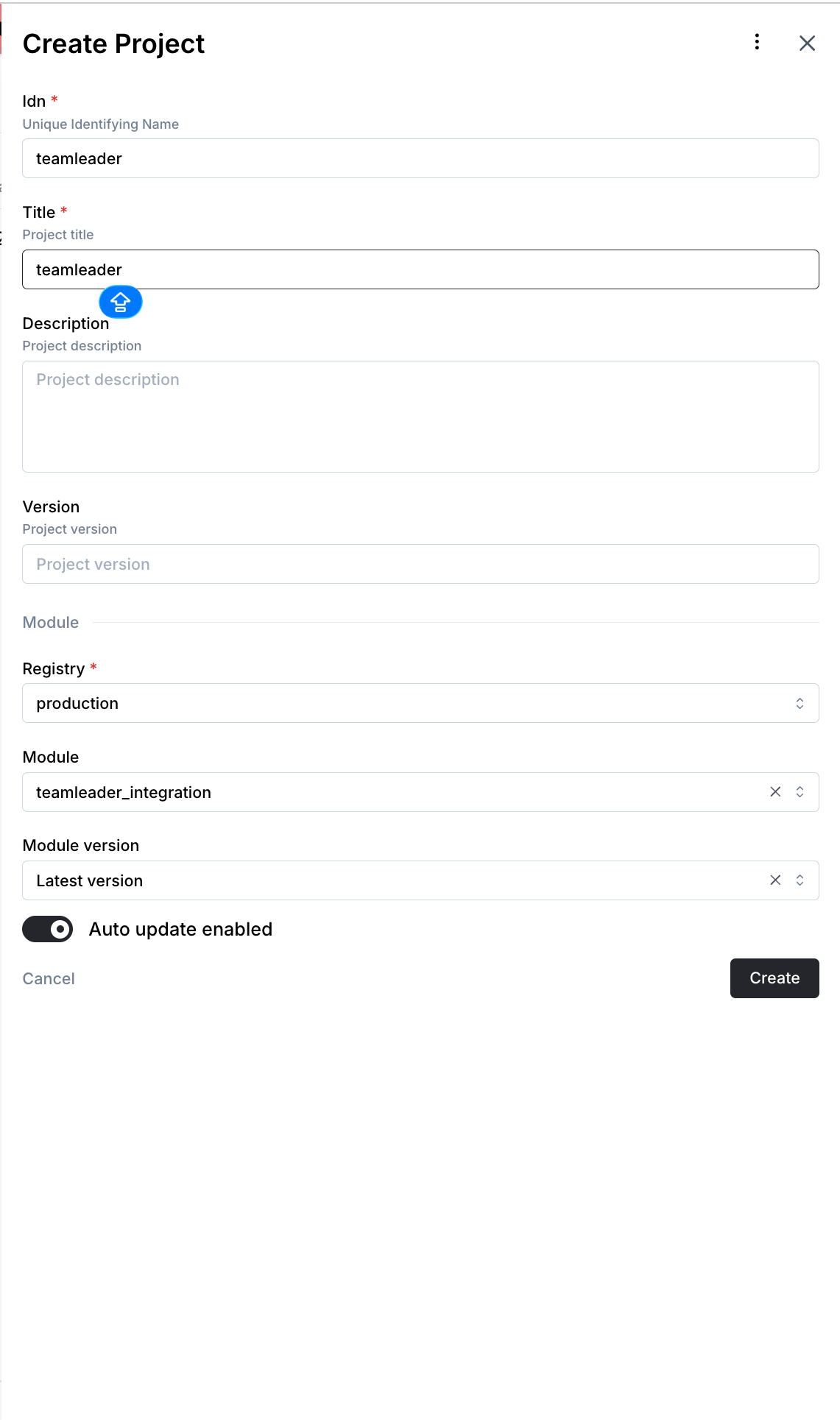
3b. Fill in the project form
In the Create Project panel, set:
- Idn —
teamleader - Title —
teamleader(or any human-friendly name) - Registry —
production - Module —
teamleader_integration - Module version —
Latest version - Auto update — keep enabled
Click Create.
3c. Open the new project
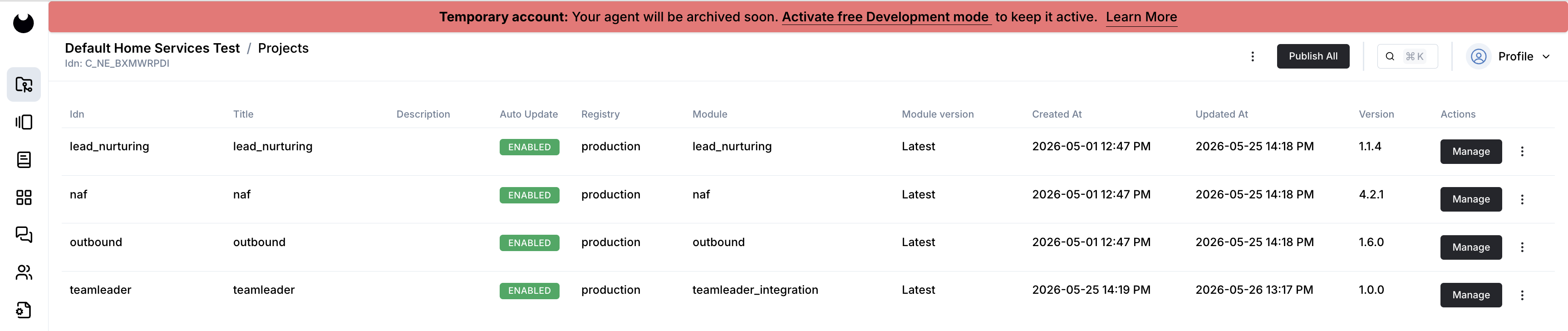
Newo creates the project and shows it in your list. Click Manage (or the ⋮ menu → Edit Project) to open it. The same menu also exposes Force Update Project if you ever need to refresh to the latest module version.
3d. Open the project settings
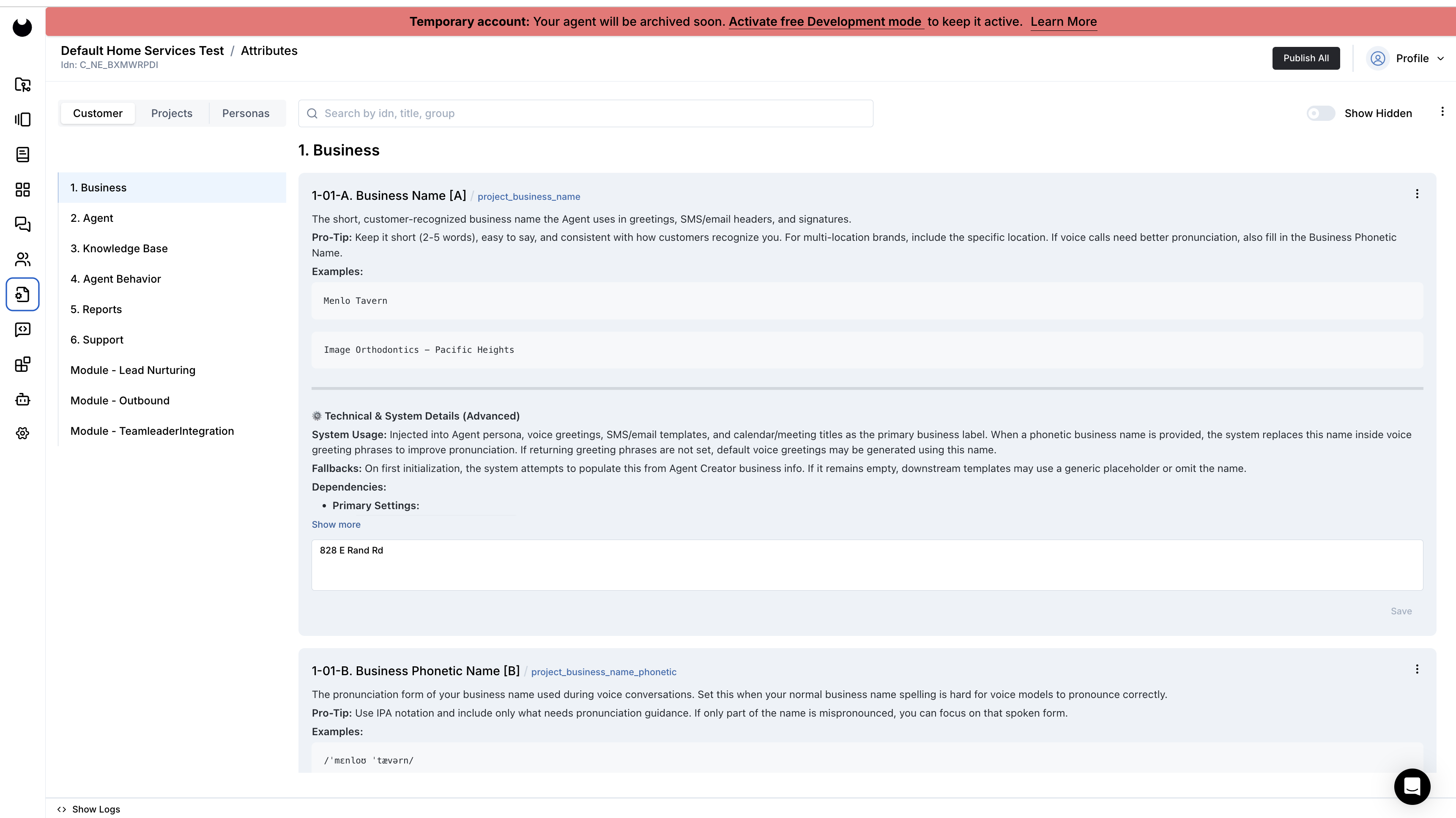
Inside the project, click the Settings (gear-on-document) icon in the left sidebar.
3e. Open the Module - TeamleaderIntegration group
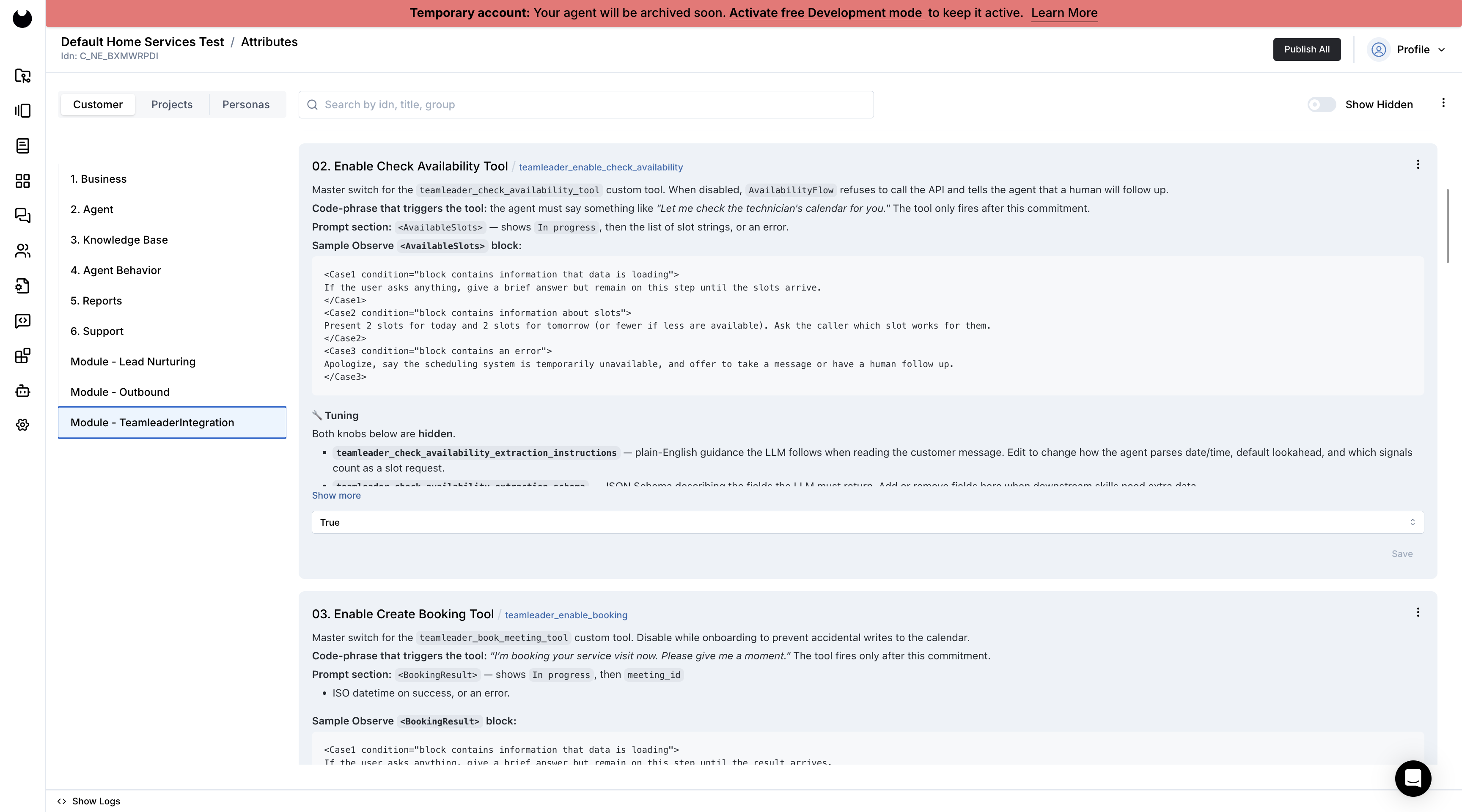
In the settings list, click the Module - TeamleaderIntegration group. This is where every TeamLeader-specific attribute the integration ships with lives.
4. Configure in Newo
4a. Enable Show Hidden
Some setup-critical attributes (TeamLeader OAuth Client ID, Client Secret, and the OAuth refresh / access tokens) are marked hidden so they don't clutter day-to-day operation. Before you can paste the Client ID and Secret, enable the Show Hidden toggle at the top of the settings group — otherwise those two fields will be invisible.
4b. Attribute reference (Module - TeamleaderIntegration)
The table below lists every attribute the operator interacts with during setup, in the same order they appear in Newo Builder. The two hidden Client ID / Client Secret fields appear once Show Hidden is enabled (step 4a).
| # | Attribute (Title in UI) | Idn | Type | Default |
|---|---|---|---|---|
| 01 | TeamLeader OAuth Code (one-time) | teamleader_oauth_code | string | (empty) |
| 02 | Enable Check Availability Tool | teamleader_enable_check_availability | bool | True |
| 03 | Enable Create Booking Tool | teamleader_enable_booking | bool | True |
| 04 | Enable Cancel Booking Tool | teamleader_enable_cancellation | bool | True |
| 05 | Enable Reschedule Booking Tool | teamleader_enable_reschedule | bool | True |
| 06 | Enable Search Meetings Tool | teamleader_enable_search_meetings | bool | True |
| 07 | Enable Customer Lookup | teamleader_enable_contact_lookup | bool | True |
| 08 | Default Technician | teamleader_assignee | enum | (picked from a dropdown after first publish) |
| 09 | Employee Selection Strategy | teamleader_employee_selection_type | enum | single |
| 10 | Custom Employee Mapping (used by 'by_config') | teamleader_by_config_mapping | string | (empty) |
| 11 | Booking Resource Type | teamleader_booking_resource_type | enum | both |
| 12 | Default Meeting Duration (minutes) | teamleader_default_meeting_duration_minutes | number | 60 |
| 13 | Default Country (ISO-3166 alpha-2) | teamleader_default_country | string | BE |
| 14 | Availability Lookahead (days) | teamleader_availability_lookahead_days | number | 14 |
| 15 | TeamLeader OAuth Client ID (hidden) | teamleader_client_id | string | (empty) |
| 16 | TeamLeader OAuth Client Secret (hidden) | teamleader_client_secret | string | (empty) |
4c. Paste the OAuth credentials
- Paste the Client ID from TeamLeader Marketplace (step 2) into
teamleader_client_id(#15). - Paste the Client Secret into
teamleader_client_secret(#16). - (Optional but recommended) review the boolean feature toggles (#02–#07) and the enum settings (#09
teamleader_employee_selection_type, #11teamleader_booking_resource_type). The shipped defaults are sane for HVAC / field-service businesses.
4d. First Publish All — generate the install link
Click Publish All. The integration sets up the technical plumbing and produces an install link in the description of the teamleader_oauth_code attribute (#01).
4e. Click the install link and copy the OAuth Code
Open the install link from the teamleader_oauth_code description. TeamLeader will ask you to allow the integration. Approve, and TeamLeader will redirect you back to the Newo authorization page with a one-time code.
4f. Paste the OAuth Code and Publish All again
Copy the code into teamleader_oauth_code (#01) and click Publish All. The agent will:
- Exchange the code for tokens.
- Pull the active user list and the team list.
- Populate the Default Technician dropdown (#08) with every active TeamLeader user.
- Add the booking / cancel / reschedule scenarios to the canvas.
4g. Pick the Default Technician and Publish All one last time
Pick the Default Technician (#08) from the dropdown and click Publish All one final time.
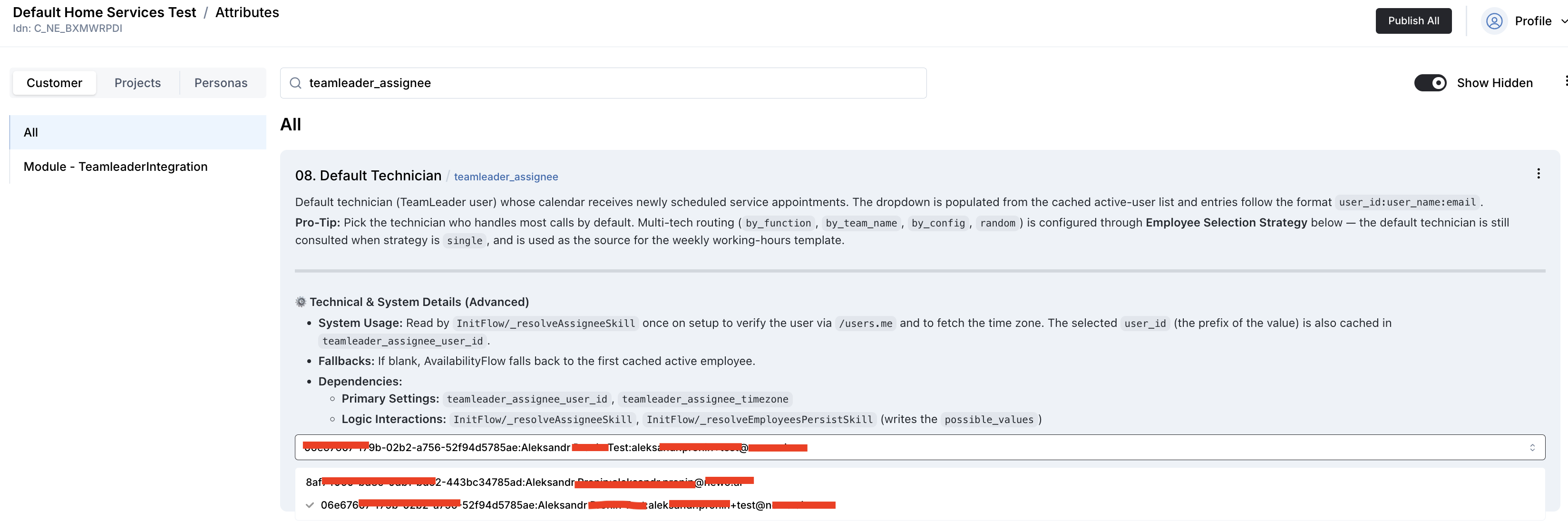
You're live. Place a test chat or call to confirm.
5. Routing rules for by_config (only if Employee Selection Strategy is by_config)
In the teamleader_by_config_mapping attribute, paste one rule per line in this format:
<email>:<full name>:<comma-separated keywords>
Example:
alice@yourco.com:Alice Cooper:HVAC, AC repair, heating, electrical
bob@yourco.com:Bob Builder:Plumbing, sink leaks, pipe repair, drain cleaning
The agent reads the conversation alongside this list and picks up to 3 matching technicians. The exact emails and names of your active users are auto-listed at the bottom of the attribute description on every publish — copy them from there so you don't have to look them up.
You don't need to type user IDs anywhere — the agent resolves them automatically from the live user list.
Returning-customer recognition
When the customer mentions a phone number or email (and at least once on phone-channel calls), the agent:
- Searches TeamLeader contacts for a match (E.164 phone number or email).
- Loads the contact's profile silently in the background.
- Pulls every upcoming meeting attached to that contact.
This means by the time the customer says "please cancel my appointment" the agent already has the visit in front of it — no awkward "what's your booking ID?" question. It also works across sessions: a customer who books today and calls tomorrow is recognised on the second call.
If the customer has more than one upcoming visit the agent reads the list back and asks which one — never guesses.
Customizing the agent
The booking / cancel / reschedule scenarios on canvas are fully editable. Common tweaks:
- Ask for more info during booking. Add steps like "ask for the gate code" or "ask if pets are at home".
- Change the consultation tone. The wording of every scenario can be rewritten as long as the code-phrases and scenario stages below stay intact.
- Restore defaults. If you break a scenario, delete it from the canvas and click Publish All — the original is restored from the integration's library.
Prompt sections — what the agent reads, what the integration writes
The integration speaks to the canvas through five prompt sections. Each one is a slot on the canvas the integration writes into in the background; the scenarios read those slots and react to what's there. Do not rename these sections, do not delete them, and do not write to them by hand. If you remove or rename a section, the agent loses the connection to TeamLeader and the corresponding scenario silently breaks.
| Section | Written by | What it carries | Where it's read |
|---|---|---|---|
<AvailableSlots> | Availability flow after /events.list returns | The list of free service slots for the next few days, plus a status (In progress, success, error, awaiting) | Booking scenario step S3, Reschedule step R3 |
<BookingResult> | Booking flow after /meetings.schedule returns | Status of the most recent booking attempt (success, awaiting: city, error: …) and the resulting meeting id / date / time | Booking scenario step S10 |
<CancellationResult> | Cancellation flow after /meetings.delete returns | Status of the most recent cancel (success, error: …) | Cancellation scenario step C3 |
<RescheduleResult> | Reschedule flow after /meetings.update returns | Status of the most recent reschedule (success, error: …) and the new date/time | Reschedule scenario step R6 |
<ExistingCustomerInfo> | Existing-client lookup after /contacts.list returns | Whether the caller was recognised and a short summary | Greeting / consultation flows, optional acknowledgement at conversation start |
You'll see these section names hardcoded in the scenario bodies on the canvas. They are not something you change — they're the contract between the scenario and the integration's TeamLeader calls.
Scenario stages — keep the order and the code-phrases
Each of the three scenarios is broken into ordered stages (steps). The scenario text is editable, but the stage order and the code-phrases are required for the integration to fire correctly. Editing the wording around them is fine; editing or removing the stages themselves breaks the flow.
Booking — stages S1 → S12
| Stage | What happens | Why it can't be removed |
|---|---|---|
| S1 | Ask the customer to describe the service | Without a service description the agent can't title the booking. |
| S2 | Ask for brand and model (e.g. Carrier 24ABC6) | Goes into meeting description so the technician arrives prepared. |
| S3 | Code-phrase: "Let me check the technician's calendar for you. Please give me a moment." | This phrase fires the availability lookup. Without it <AvailableSlots> stays empty and the booking will never load slots. |
| S4 | Customer picks a slot from the offered list | Anchors the booking to a real free slot. |
| S5 | First and last name | Required by TeamLeader's contact creation. |
| S6 | Phone in E.164 (+44…, +1…) | Required by TeamLeader. Domestic formats are rejected. |
| S7 | Optional in TL but improves the contact record. | |
| S8 | Address — street, city, postal code (all three) | TeamLeader rejects bookings with a missing postal code or city. |
| S9 | Read the full summary back, ask "Can I go ahead and book?" | Customer confirmation gate. |
| S10 | Code-phrase: "I'm booking your service visit now. Please give me a moment." | This phrase fires the booking. Without it meetings.schedule is never called. |
| S11 | Tell the customer what to expect (technician will arrive in window, keep phone available). | UX. |
| S12 | Hand off to Finish Conversation. | Closes the call gracefully. |
Cancellation — stages C1 → C5
| Stage | What happens | Why it can't be removed |
|---|---|---|
| C1 | Code-phrase: "Let me look up your appointment. Please give me a moment." | This phrase fires the meeting lookup. Without it the agent has no list to cancel from. |
| C2 | Reconfirm the target appointment day/time, ask "Are you sure?" | Confirmation gate before the destructive action. |
| C3 | Code-phrase: "Give me a moment, I'll cancel your appointment now." | This phrase fires the cancel. Without it meetings.delete is never called. |
| C4 | Ask if anything else (e.g. "would you like to rebook?") | UX. |
| C5 | Hand off to Finish Conversation. | Closes gracefully. |
Reschedule — stages R1 → R7
| Stage | What happens | Why it can't be removed |
|---|---|---|
| R1 | Code-phrase: "Let me look up your appointment. Please give me a moment." | Fires the meeting lookup. Same phrase as C1 — same purpose. |
| R2 | Confirm the target appointment, ask for the new day and time | Anchors which booking is being moved. |
| R3 | Code-phrase: "Let me check the technician's calendar for you. Please give me a moment." | Fires availability for the new slot. Same phrase as S3. |
| R4 | Customer picks a slot from the offered list | Anchors the reschedule to a real free slot. |
| R5 | Read the reschedule summary back, ask "Can I go ahead?" | Customer confirmation gate. |
| R6 | Code-phrase: "Let me move that appointment to your new time. Please give me a moment." | Fires the reschedule. Without it meetings.update is never called. |
| R7 | Hand off to Finish Conversation. | Closes gracefully. |
Editing rules — what's safe and what isn't
| ✅ Safe to edit | ❌ Don't touch |
|---|---|
| Wording around the code-phrases (e.g. "Sure, let me check that for you. Let me check the technician's calendar for you. Please give me a moment.") | The exact code-phrase text — even a punctuation or capitalisation difference will stop the lookup |
| Adding new questions (e.g. ask for gate code, pet info, allergy notes) between existing stages | Removing or reordering stages |
| Rewording the customer-facing summary in S9 / R5 | The placeholders for <AvailableSlots> / <BookingResult> / <CancellationResult> / <RescheduleResult> / <ExistingCustomerInfo> |
| Adding a new branch ("if the customer is a VIP, do X") | Renaming or deleting the prompt sections from the scenario |
| Translating to another language | Translating the code-phrases themselves — the integration matches them in English. Keep the English phrase, even in a multilingual setup. The agent will speak the rest of the scenario in the customer's language naturally. |
If you accidentally break a scenario, the safest recovery is to delete it from the canvas and click Publish All — the integration's library re-installs the shipped version.
FAQ
Q. Can the customer reschedule in one step? Yes — the agent moves the existing meeting to the new time without cancelling and re-booking. The original meeting ID stays the same so reports stay consistent.
Q. We just promoted Alice from HVAC to Plumbing. When does the agent see it? After the next Publish All, the agent re-fetches the user list and the team list from TeamLeader. The new function or team membership takes effect on the very next customer turn.
Q. Does the agent answer policy questions ("how soon can a technician arrive?", "do you charge a call-out fee?")? Yes — those come from the Business Context on the canvas, not from TeamLeader.
Q. What happens if the customer asks for a slot that's not available? The agent says so plainly and reads the next 3 days that have openings, so the customer can pick another time without going round in circles.
Q. The agent is booking on the wrong technician. Three things to check:
- Employee Selection Strategy matches your setup (
by_functionif you use Function fields;by_team_nameif you use Teams;by_configif you wrote routing rules). - The technician's Function / Team / mapping line is filled in correctly in TeamLeader and contains the keyword the customer is using (e.g.
Plumbingif the customer says "sink leak"). - You clicked Publish All in Newo after the change in TeamLeader.
Q. The customer says "I want to file a complaint" — what happens? The agent recognises that this is not a booking task, apologises, takes a message (name, phone, callback time, what the complaint is about), and lets the customer know a human will follow up. No tool is fired — your TeamLeader stays untouched.
Q. Two customers try to book the same slot. TeamLeader serializes the bookings. The second request comes back with a "slot no longer available" error; the agent apologises and offers the remaining slots from the next three days that have openings.
Q. The OAuth code expired before I could paste it.
Click the install link in the teamleader_oauth_code attribute description again — you get a fresh code every time.
Q. What happens if the access token expires? The integration auto-refreshes on 401 using the refresh token — no manual action needed. If the refresh token itself becomes invalid (e.g. the customer revoked the app in TeamLeader), the agent surfaces a clear "re-authorize required" state in the install status. Re-paste a new OAuth code and Publish All.
Q. Can I run multiple TeamLeader companies on one Newo project? One TeamLeader account per integration instance. To serve a second company, deploy a second Newo project.
Limitations
- Reschedule preserves the original meeting duration unless the customer explicitly asks for a different one (e.g. "move it to Friday at 2 PM and make it 90 minutes").
- Tasks-only mode (
teamleader_booking_resource_type=task) is supported but the search-for-existing-visit feature only knows about meetings, so a task-only booking made in one session may not be found when the customer calls back on a different day. If you rely on cross-session cancellation/reschedule, leave the setting atboth(the default). - One TeamLeader account per Newo project.
- Working hours (configured per user in TeamLeader) are read live on every availability check; break times during a working day are honoured only if the technician's calendar already has an event blocking that time.
Multi-technician routing — choosing the right mode
Quick decision tree:
- We only have one technician, or one person handles everything. →
single. - Each technician has a clear job title (HVAC Tech, Plumber, Electrician). →
by_function. Lowest setup cost — you only fill in the Function field on each user. - We organise people into Teams in TeamLeader (HVAC Field Ops, Plumbing Crew). →
by_team_name. Best when teams already exist for other reasons (rota, reporting). - We want bespoke rules — Alice does HVAC and after-hours emergencies, Bob does plumbing on weekdays only. →
by_config. Most flexible, also the most prose to write.
You can change the mode at any time, click Publish All, and the agent reflects the new behaviour on the next customer turn.
All settings reference
Every attribute the integration adds to the Module - TeamleaderIntegration group in Newo. Operators typically only touch the "Primary" rows; the rest are good out of the box.
Primary (set these during setup)
Listed in the same order they appear in Newo Builder. Hidden attributes (#15, #16) are visible only after enabling Show Hidden.
| # | Attribute (Title in UI) | Idn | Purpose | Default |
|---|---|---|---|---|
| 01 | TeamLeader OAuth Code (one-time) | teamleader_oauth_code | One-time authorization code returned by TeamLeader after the operator clicks the install link. | (empty) |
| 02 | Enable Check Availability Tool | teamleader_enable_check_availability | Master on/off for the live slot lookup. | True |
| 03 | Enable Create Booking Tool | teamleader_enable_booking | Master on/off for booking creation. | True |
| 04 | Enable Cancel Booking Tool | teamleader_enable_cancellation | Master on/off for cancellation. | True |
| 05 | Enable Reschedule Booking Tool | teamleader_enable_reschedule | Master on/off for reschedule. | True |
| 06 | Enable Search Meetings Tool | teamleader_enable_search_meetings | Master on/off for the existing-meetings lookup tool (used by cancel / reschedule). | True |
| 07 | Enable Customer Lookup | teamleader_enable_contact_lookup | Master on/off for the auto-load-contact-by-phone behaviour at conversation start. | True |
| 08 | Default Technician | teamleader_assignee | Dropdown of active TeamLeader users; the one to book by default in single mode and the source of the working-hours template in all modes. | (picked after first publish) |
| 09 | Employee Selection Strategy | teamleader_employee_selection_type | single / by_function / by_team_name / by_config / random. | single |
| 10 | Custom Employee Mapping (used by 'by_config') | teamleader_by_config_mapping | Free-text routing rules (one per line). Used only with by_config. | (empty) |
| 11 | Booking Resource Type | teamleader_booking_resource_type | What to create per booking — meeting, task, or both. | both |
| 12 | Default Meeting Duration (minutes) | teamleader_default_meeting_duration_minutes | Slot length when the customer doesn't specify. | 60 |
| 13 | Default Country (ISO-3166 alpha-2) | teamleader_default_country | Two-letter country code (ISO 3166-1) used on bookings when the customer doesn't say. | BE |
| 14 | Availability Lookahead (days) | teamleader_availability_lookahead_days | Maximum number of days ahead the agent fetches the calendar. The agent voices the first 3 days with openings. | 14 |
| 15 | TeamLeader OAuth Client ID (hidden) | teamleader_client_id | OAuth Client ID from TeamLeader Marketplace. | (empty) |
| 16 | TeamLeader OAuth Client Secret (hidden) | teamleader_client_secret | OAuth Client Secret from TeamLeader Marketplace. | (empty) |
Advanced fine-tuning (hidden by default)
There are advanced settings — labelled Advanced — for admins only in the UI — that let you fine-tune what the agent extracts from the conversation (which date, which time, which duration, which technician). They're hidden by default. Clear a value and Publish All to restore the shipped default.
Internal settings (OAuth tokens, the resolved TeamLeader endpoint, the live employees and teams cache, the slot map for the active call) are managed automatically and never need manual editing.
Troubleshooting
| Symptom | Likely cause | Fix |
|---|---|---|
| Default Technician dropdown is empty after pasting OAuth code. | OAuth exchange failed — usually a wrong Client ID/Secret or the redirect URI doesn't match the one in TeamLeader Marketplace. | Re-check Client ID/Secret. In TeamLeader Marketplace open your private integration → Settings → confirm the Redirect URI matches what Newo gave you. Re-publish. |
| Default Technician dropdown only shows one user but you have several active TeamLeader users. | TeamLeader users marked inactive are filtered out at sync time. | In TeamLeader → Settings → Users, set the missing users to active. Publish All. |
| Booking goes on the wrong technician in multi-tech mode. | Function / Team / Mapping not configured to match the customer's wording, or Employee Selection Strategy still on single. | See FAQ "the agent is booking on the wrong technician". |
| Agent says "the scheduling system is temporarily unavailable" mid-conversation. | OAuth refresh failed — usually because the refresh token was rotated outside Newo (e.g. someone else used the same private app), or the integration was uninstalled in TeamLeader. | Re-paste a new teamleader_oauth_code and Publish All. |
Availability fails with Weekly working schedule feature is not available (403). | The TeamLeader account does not have access to the weekly working schedule / planning feature. Most often this means the account is still on a free plan without an active trial or Planning booster. | Open the TeamLeader dashboard, activate the trial or the package that includes Planning, then retry the availability check. |
| Customer's date/time in TeamLeader looks one day off for tasks. | TeamLeader stores the task's due_on in account-side timezone — the integration already compensates for negative-offset assignee timezones. If you still see a one-day drift, check that the technician's TeamLeader profile has the right time zone set. | TeamLeader → Settings → Users → open the technician → set Time zone. Publish All. |
| Cancel / reschedule doesn't find the visit when the customer calls a day later. | Either the Enable Customer Lookup master switch is off, or the customer is using a phone number that wasn't on the original booking. | Turn on Enable Customer Lookup. Ask the customer for the phone number or email used on the original booking. |
Reschedule moves the meeting but task date stays old for a both booking made before the integration was upgraded. | Bookings made before v2.x don't carry the task-link marker. | Cancel + rebook once to get the new format; from then on reschedule moves both. |
| Two customers booked the same slot within a few seconds. | TeamLeader serialises but the second arrival hits a "slot no longer available" error. | Expected — agent apologises and reads the next 3 days with openings. |
TeamLeader trial / Planning check
If availability checks fail with this API error:
{"title":"Weekly working schedule feature is not available","status":403}
Open the TeamLeader dashboard and confirm that the account has an active trial or a paid package/booster that includes Planning. The dashboard banner should show the current package and active boosters, for example:

After activating the trial or Planning access, run Publish All in Newo and repeat a test availability request.
If you're stuck, contact your Newo onboarding rep with:
- The text of the most recent agent message.
- A screenshot of the
teamleader_oauth_codeattribute description (which shows the install_status). - A screenshot of the TeamLeader Settings → Users page (shows active users, function fields, time zones).