Zendesk Integration
Connects Zendesk Messaging and Zendesk Support with the Newo AI agent so chat visitors can talk to the AI first, then move to a human agent in Zendesk Agent Workspace when needed. The same integration can also create Zendesk Support tickets when the customer needs follow-up instead of a live chat handoff.
Create the Newo project
If this project already exists in Newo Builder, skip this subsection and continue with the integration-specific settings below.
- In Newo Builder, open the projects list and click Create Project (or Create New Project from the top-right menu).

- Fill IDN and Title. The exact names do not matter; use any clear names your team will recognize.
- In Registry, choose the release channel:
- staging — the newest module fixes appear here first. Use it when you need the latest fix, but expect possible unfinished changes.
- production — the final stable version for live projects.
- In Module, select the module for this integration.
 5. Leave Module version on Latest version unless support tells you to pin a specific version, then click Create.
Prepare Zendesk Conversations API
Open Zendesk Admin Center first. From any Zendesk product, click the Zendesk products menu in the top bar, then select Admin Center. You can also open it directly:
https://{subdomain}.zendesk.com/admin/home
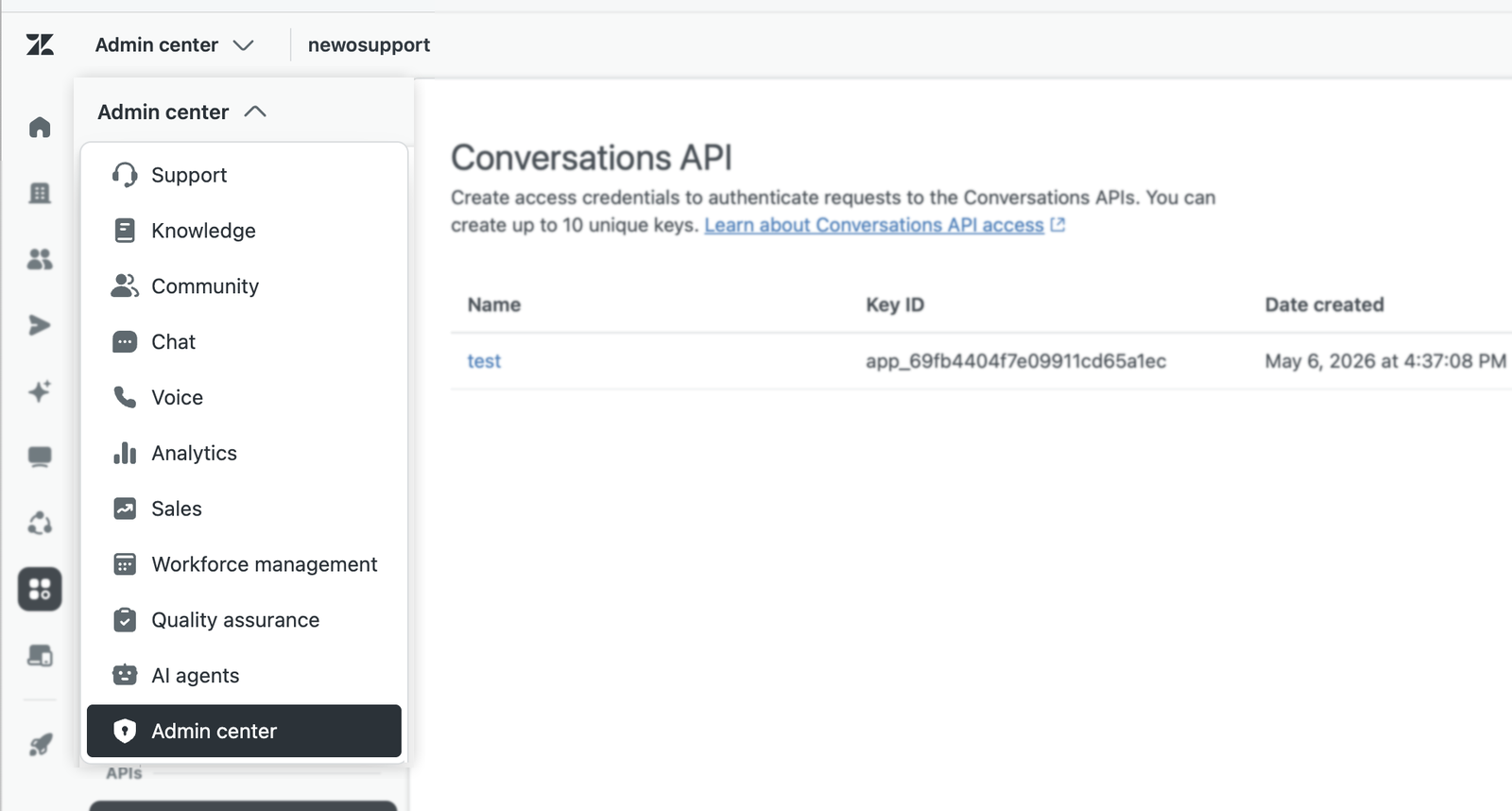
Admin Center reference: Using Zendesk Admin Center.
Then open the Conversations API page:
Admin Center -> Apps and integrations -> APIs -> Conversations API
Create a Conversations API key or open an existing key. This page is separate from the API tokens page in the same APIs menu. Copy these values:
| Zendesk value | Newo setting |
|---|---|
| App ID | Messaging App ID |
| Key ID | Sunshine API Key ID |
| Secret | Sunshine API Key Secret |
Important:
- The App ID is not a secret.
- The Key ID is not enough by itself; Newo also needs the Secret.
- Zendesk shows the Secret only when the key is created, so copy it before leaving the page.
- Store the Secret only in the hidden Newo setting.
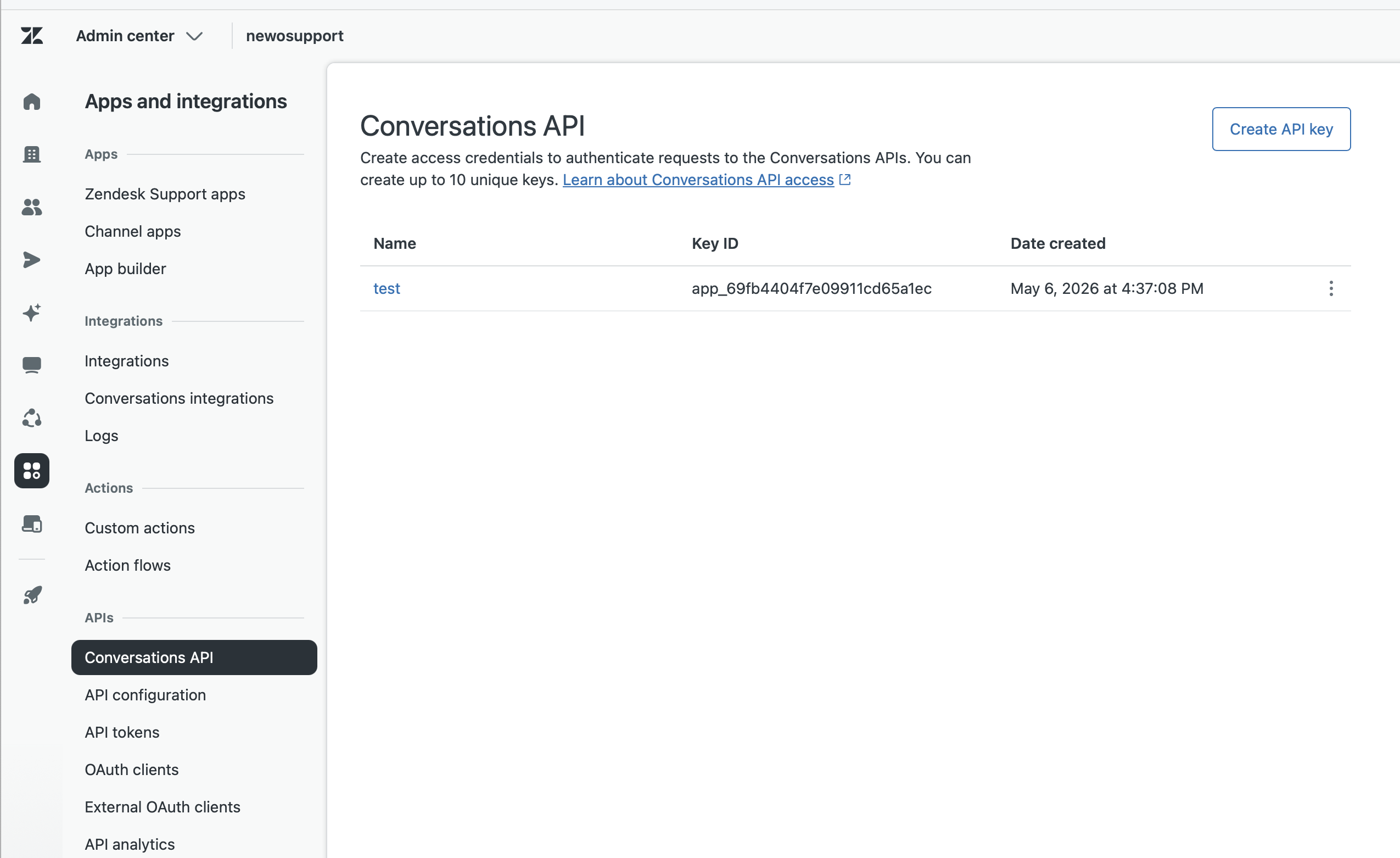
Official reference: Sunshine Conversations API authentication.
Fill Newo Zendesk Settings
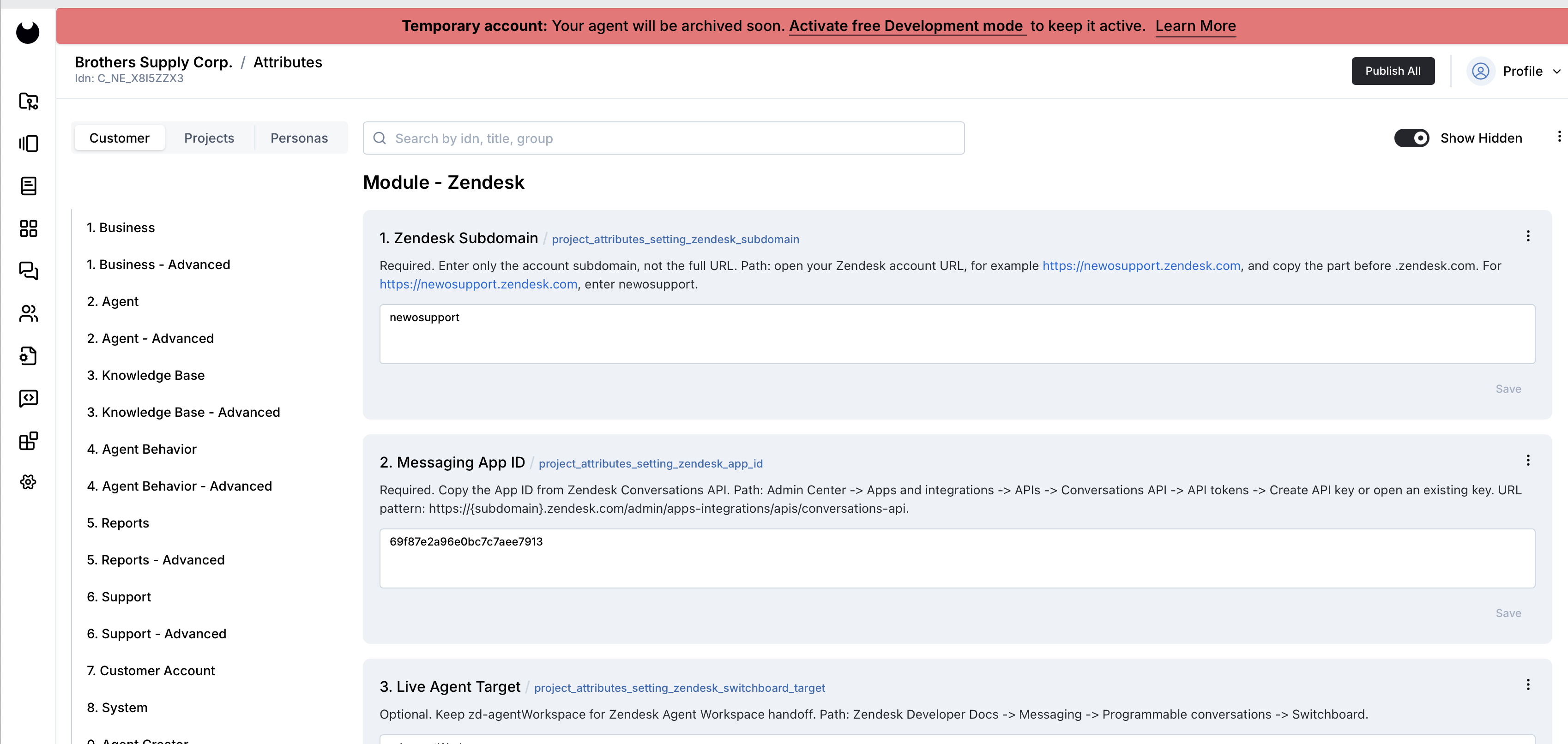
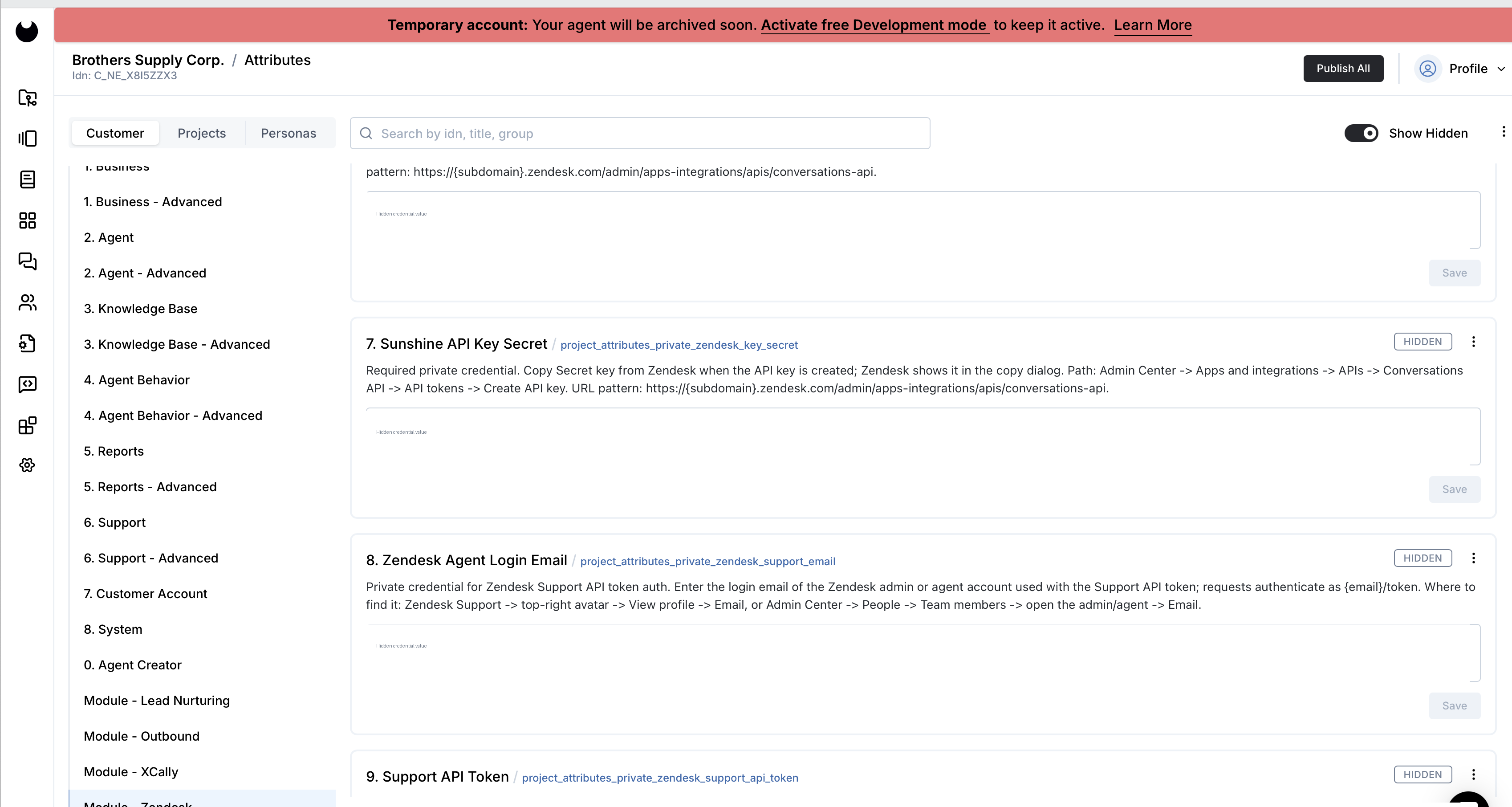
Open Newo Builder, go to project settings, and find the Module - Zendesk group.
Use these values:
| Field | Value |
|---|---|
Zendesk Subdomain | Only the Zendesk subdomain, for example newosupport from https://newosupport.zendesk.com |
Messaging App ID | App ID from Zendesk Conversations API |
Live Agent Target | Keep zd-agentWorkspace |
Add Zendesk Handoff Scenario | True unless you already configured the canvas manually |
Enable Ticket Tools | True only if the AI should create Zendesk Support tickets |
Sunshine API Key ID | Key ID from Zendesk Conversations API |
Sunshine API Key Secret | Secret from Zendesk Conversations API |
Quick check:
| Check | Expected |
|---|---|
| Zendesk Subdomain | Not empty, no https://, no .zendesk.com |
| Messaging App ID | Not empty |
| Live Agent Target | zd-agentWorkspace |
| Sunshine API Key ID | Not empty |
| Sunshine API Key Secret | Not empty |
| Add Zendesk Handoff Scenario | True for first setup |
Enable Zendesk Support Tickets
This section is required only if the AI should open Zendesk Support tickets. If the integration only needs live chat handoff to Zendesk Agent Workspace, leave Enable Ticket Tools as False and skip these credentials.
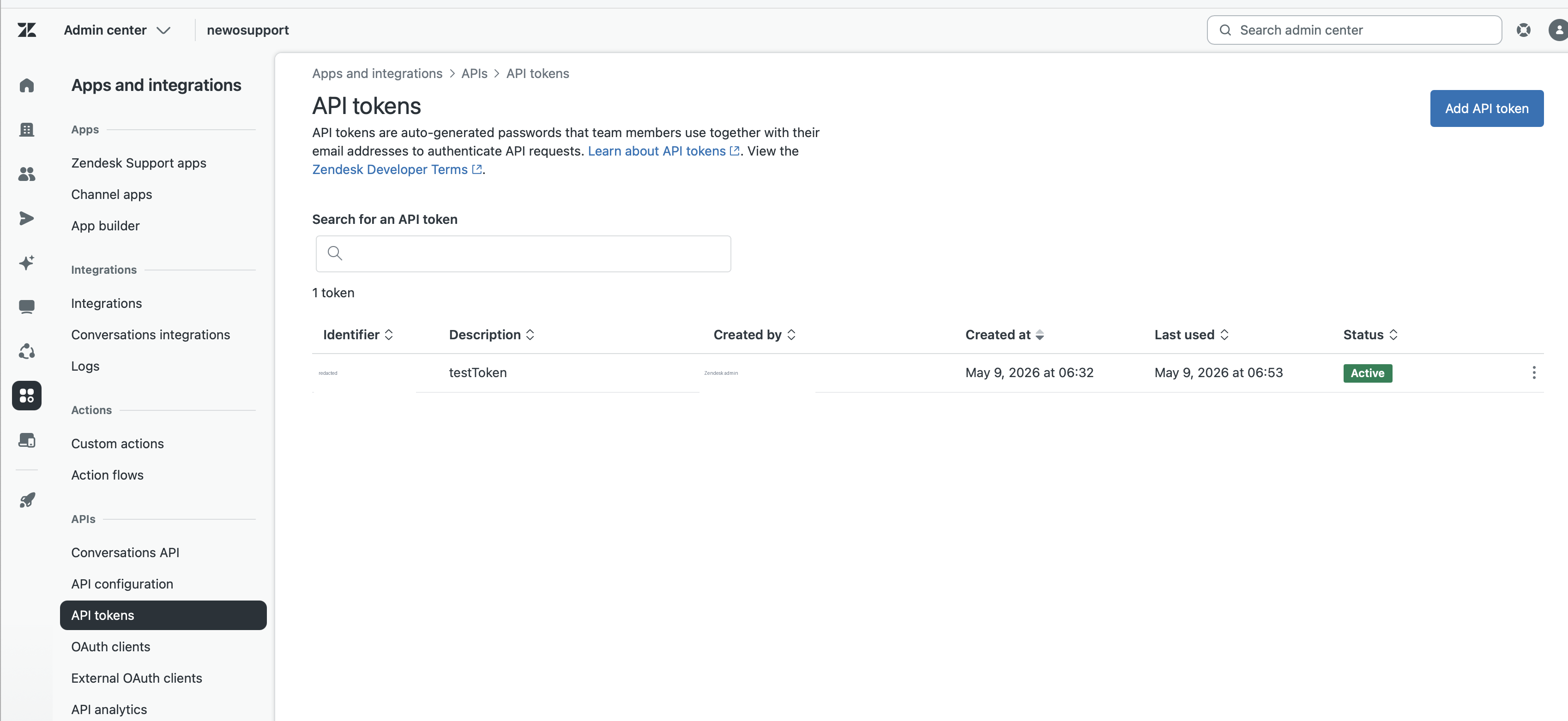
Ticket creation uses the Zendesk Support API, which is separate from Conversations API credentials. The Support API token lives under a different Admin Center menu item:
Admin Center -> Apps and integrations -> APIs -> API tokens
To enable tickets, fill two additional hidden Newo settings:
| Field | Where to get it |
|---|---|
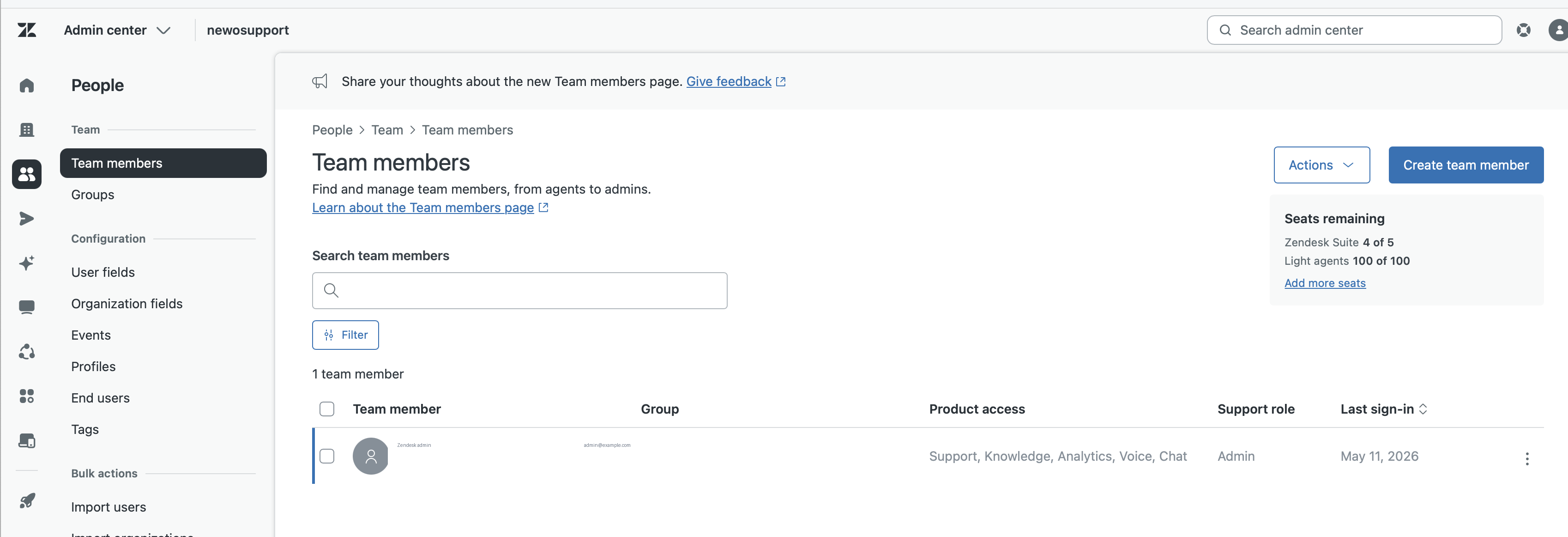
Zendesk Agent Login Email | Zendesk Support -> top-right avatar -> View profile -> Email, or Admin Center -> People -> Team members -> open the admin/agent -> Email |
Support API Token | Admin Center -> Apps and integrations -> APIs -> API tokens -> Add API token |
Important:
- Use an admin or agent email that can authenticate with the Support API token.
- Zendesk Support API token auth uses
{email}/token:{api_token}. - Do not paste the Conversations API Key ID or Secret into
Support API Token;API tokensis a separate Zendesk Support credential page. - If either value is wrong, ticket creation returns
401. - If the customer has an email or phone but no name, the AI should ask for the customer's name before creating the ticket.
Official references:
Publish and Verify Zendesk Setup
Click Publish All in Newo Builder.
After publishing, the Zendesk setup should:
- register the Zendesk custom tools in Newo;
- create or reuse the Newo incoming webhook connector for Zendesk;
- find or create the Zendesk Conversations integration;
- create or update the Zendesk webhook;
- add the default live-agent handoff scenario to the Newo canvas if
Add Zendesk Handoff ScenarioisTrue.
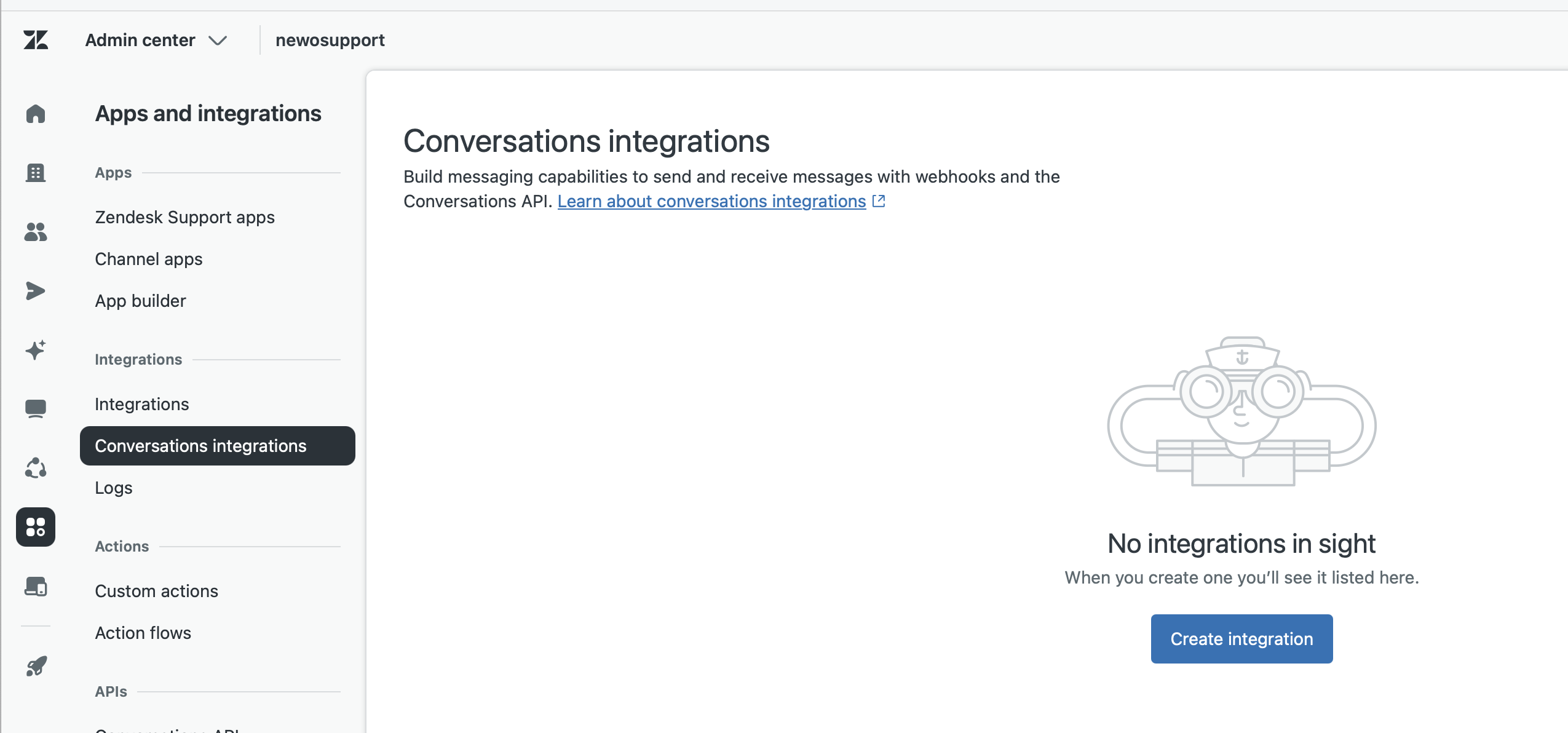
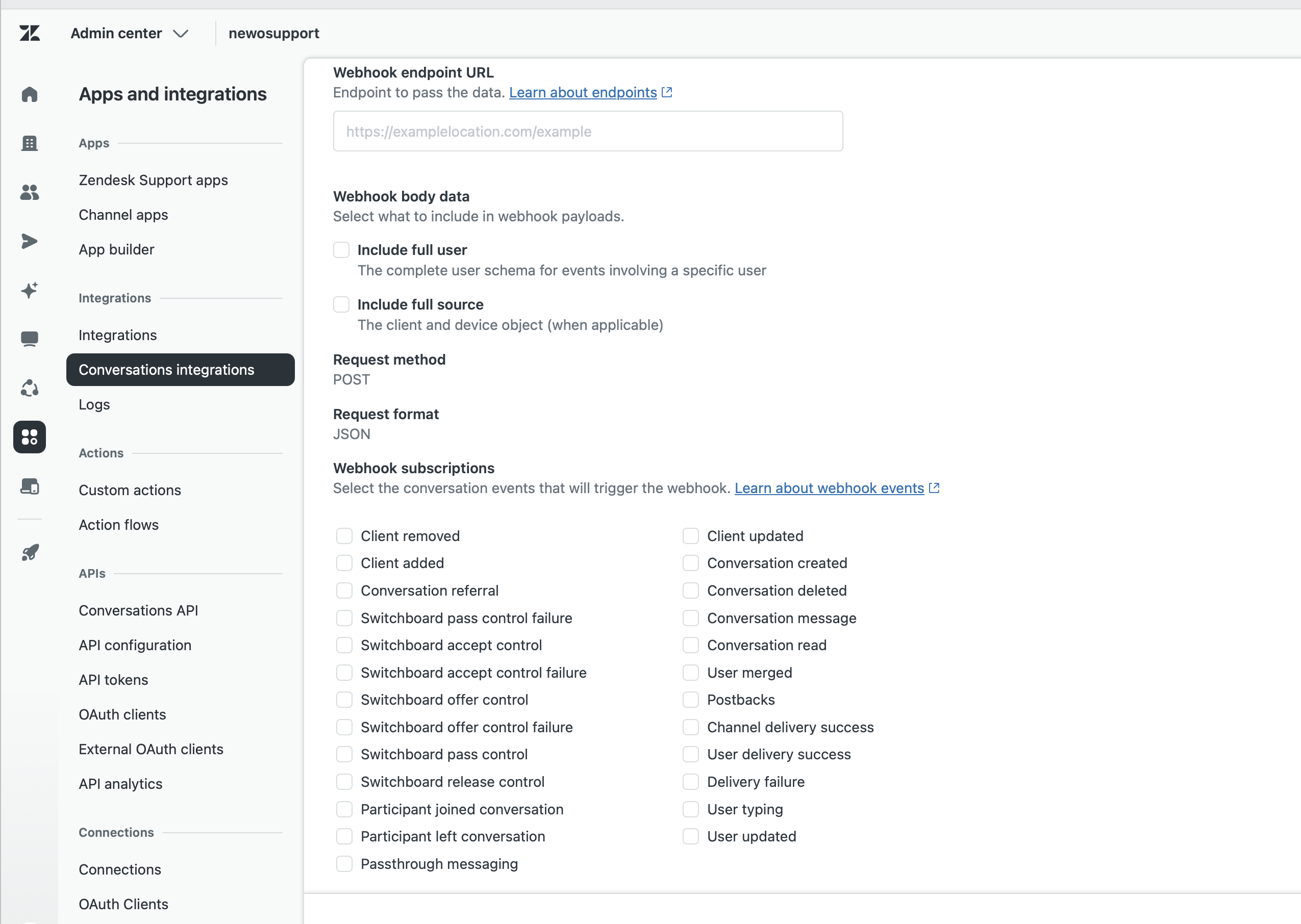
If you want to inspect the Zendesk webhook manually, open:
Admin Center -> Apps and integrations -> Integrations -> Conversations integrations
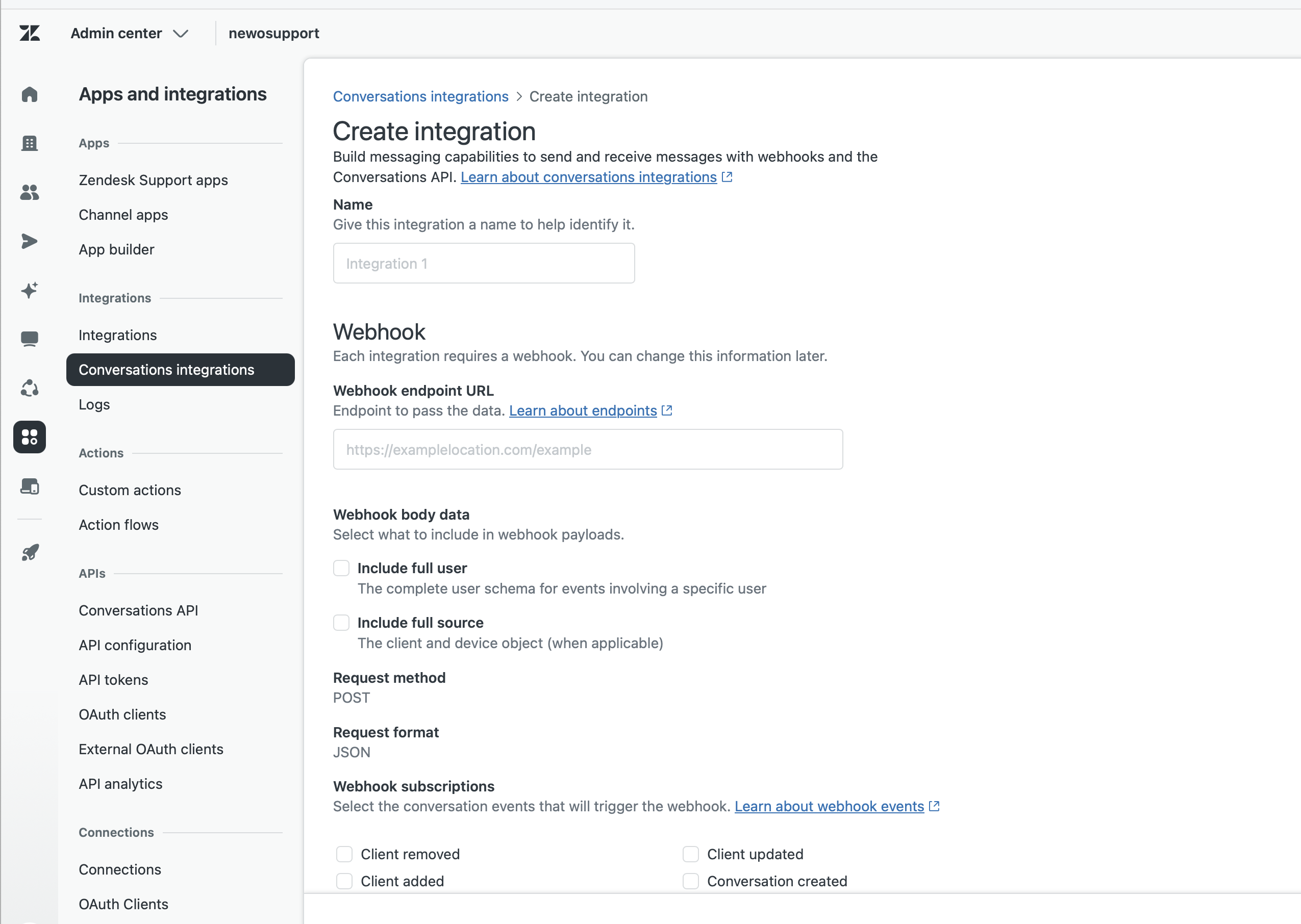
Expected webhook configuration:
| Setting | Expected |
|---|---|
| Request method | POST |
| Request format | JSON |
| Include full user | Enabled |
| Include full source | Enabled |
| Required subscriptions | conversation:message, switchboard:passControl, switchboard:releaseControl |
How to Test
Basic Handoff Test
- Open a fresh Newo chat session.
- Ask for a live operator.
- Confirm the handoff if the AI asks for confirmation.
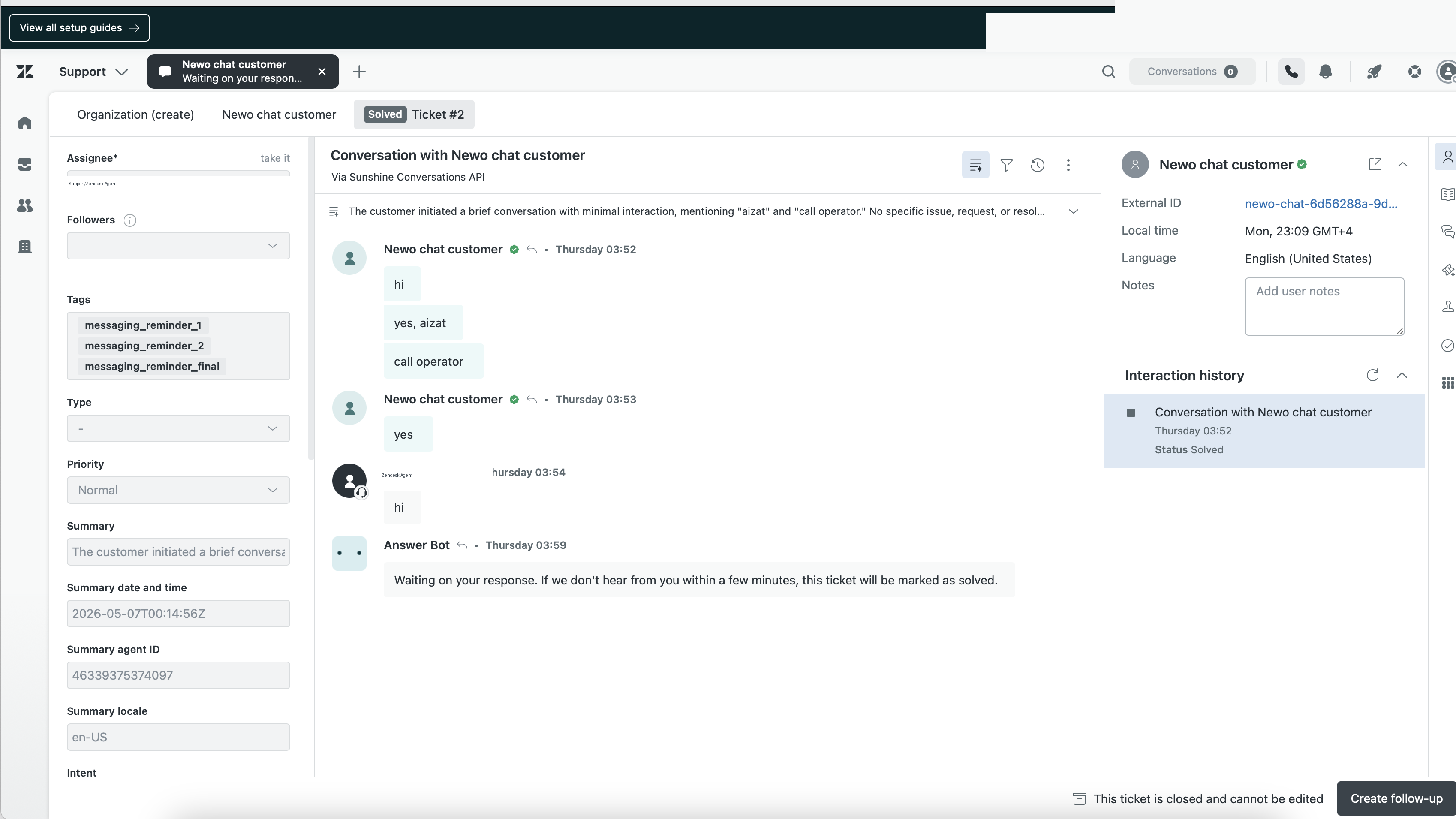
- Verify that a new Zendesk Messaging conversation appears in Zendesk Agent Workspace.
- Reply from Zendesk as an agent.
- Verify that the Zendesk reply appears back in the same Newo chat.
Expected result:
- The customer stays in the Newo chat widget.
- Zendesk receives the conversation.
- Newo stops normal AI follow-up while the human agent owns the conversation.
- Zendesk agent replies return through the Zendesk webhook.
Ticket Creation Test
Use this test only if Enable Ticket Tools is True and the Support API credentials are filled.
- Open a fresh Newo chat session.
- Ask the AI to pass an issue to support for follow-up.
- Provide the customer's name.
- Provide at least one contact method: email or phone.
- Provide the issue summary.
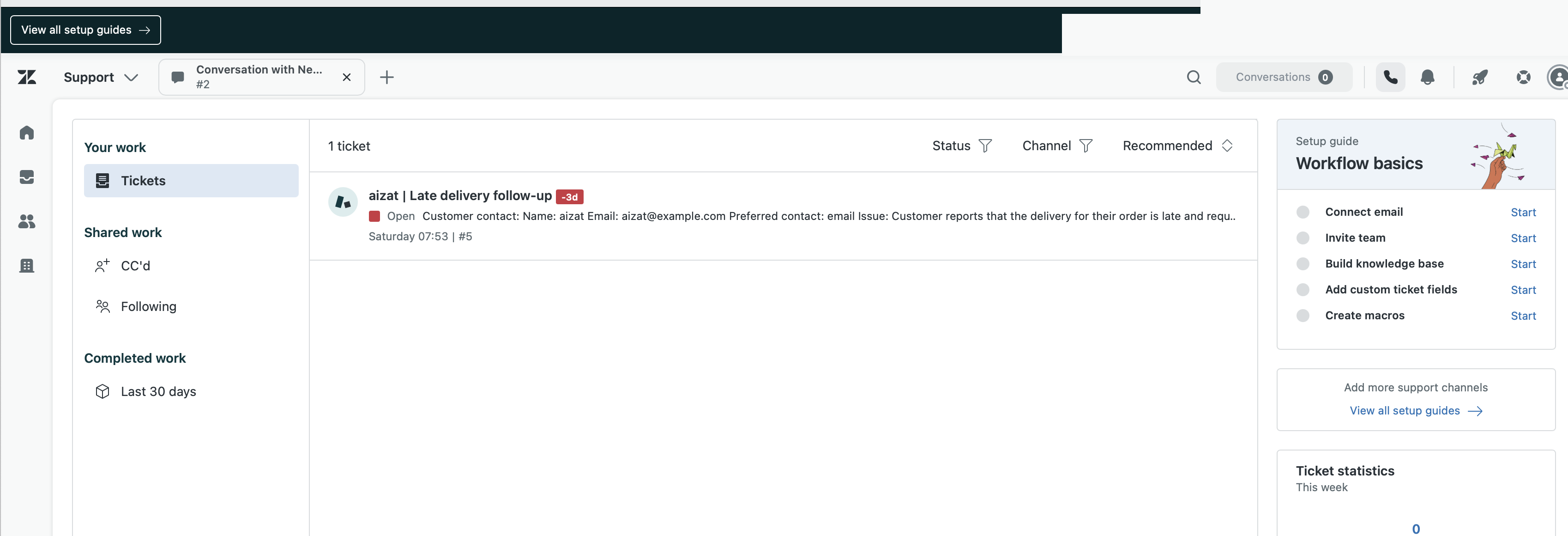
- Verify that a new ticket appears in Zendesk Support.
Example customer message:
Please pass this to your support team. My name is Aizat Valiev.
My email is aizat@example.com. The delivery is late.
Expected result:
- The AI gathers missing name or contact details before creating the ticket.
- Zendesk creates a Support ticket.
- The ticket requester has a name and contact method.
- The ticket comment contains the customer contact details and issue summary.
Where to Look in Zendesk
| What you are checking | Zendesk location |
|---|---|
| Messaging handoff conversation | Zendesk Support -> Agent Workspace -> Conversations or Tickets |
| Created Support ticket | Zendesk Support -> Tickets |
| Conversations API credentials | Admin Center -> Apps and integrations -> APIs -> Conversations API |
| Support API token | Admin Center -> Apps and integrations -> APIs -> API tokens |
| Conversations webhook | Admin Center -> Apps and integrations -> Integrations -> Conversations integrations |