Opera Integration Guide
What the AI can do
The Newo AI Agent integrates with Opera so your AI can act as a hotel reservation assistant for your property.
Once connected, the AI agent can:
- check room availability for requested stay dates and guest counts
- create hotel reservations
- cancel reservations
- reschedule reservations
- securely retrieve an existing reservation when the guest provides the confirmation number and last name
- auto-add default Opera booking scenarios to Canvas
- refresh static room type data in the background
In plain terms: the AI can talk to guests about room availability and bookings while Opera acts as the hotel reservation backend.
Manager Quick View
| Question | Short answer |
|---|---|
| What business problem does this solve? | Lets the AI handle hotel availability, booking, cancellation, reschedule, and secure booking lookup without a human agent doing those actions manually. |
| Who is this for? | Hotels and hospitality teams already using Opera as the reservation system. |
| What is needed before setup? | Opera API credentials plus the exact hotel/property ID. |
| How long does setup usually take? | Usually 10-20 minutes if all credentials are already prepared. |
| How do we know it worked? | Publish All completes successfully and opera_access_token is populated. |
| What should we test first? | Availability, then booking, then secure retrieval. |
Best Fit / Not a Fit
Best fit:
- hotel reservation operations in Opera
- AI-led guest conversations about room availability and reservations
- teams that want one Newo project per hotel/property
Not a fit:
- CRM-heavy workflows
- lead pipeline automation
- caller recognition based only on phone number
- multi-property routing inside one single Opera setup
Before You Start
Make sure you have:
- access to the Newo project builder for your project
- permission to edit project settings and publish
- Opera API credentials from your Opera / Oracle Hospitality administrator
- the exact hotel ID you want this project to use
Who Usually Provides What
| Role | Usually provides |
|---|---|
| Hotel / client team | Opera access approval, hotel ID, operational testing help |
| Opera / Oracle Hospitality admin | Base URL, App Key, Client ID, Client Secret, Enterprise ID, Scope |
| Newo implementer / PM | Newo setup, feature toggles, publish, test plan, go-live validation |
You will need these values before setup:
- Base URL
- App Key
- Client ID
- Client Secret
- Enterprise ID
- Hotel ID
- Scope
Good news: this repository now includes field-level Opera setup screenshots for the core credential fields in Newo, so the guide below can show exactly where each required value goes.
Setup
Create the Newo project
If this project already exists in Newo Builder, skip this subsection and continue with the integration-specific settings below.
- In Newo Builder, open the projects list and click Create Project (or Create New Project from the top-right menu).

- Fill IDN and Title. The exact names do not matter; use any clear names your team will recognize.
- In Registry, choose the release channel:
- staging — the newest module fixes appear here first. Use it when you need the latest fix, but expect possible unfinished changes.
- production — the final stable version for live projects.
- In Module, select the module for this integration.
 5. Leave Module version on Latest version unless support tells you to pin a specific version, then click Create.
3.1 Collect the Required Opera Credentials
Ask your Opera or Oracle Hospitality API administrator for:
| Value | Why it is needed |
|---|---|
| Base URL | The root URL for your Opera API environment |
| App Key | Used in request headers for API access |
| Client ID | Used to obtain the OAuth access token |
| Client Secret | Used to obtain the OAuth access token |
| Enterprise ID | Required request header for Opera authentication |
| Hotel ID | The property the AI will query and update |
| Scope | OAuth scope used during token acquisition |
One property per setup: this implementation is currently designed around a single
opera_hotel_idper Newo project. If you manage multiple hotels, plan one Newo project per hotel unless you intentionally customize the integration.
3.2 Configure Opera in Newo
- Open your project in Newo.
- Go to Builder → Attributes.
- Find the Opera section.
- Fill in:
- Base URL
- App Key
- Client ID
- Client Secret
- Enterprise ID
- Hotel ID
- Scope
- Review the feature toggles:
- Enable Availability Check
- Enable Booking
- Enable Cancellation
- Enable Secure Retrieval
- Automatically Add Default Scenarios to Canvas
- Click Save.
- Click Publish All.
3.3 What Happens After Publish
When you publish:
- Newo validates the target integration ID
- creates or updates connections:
opera_connectoropera_token_connector
- creates or refreshes the setup persona
- injects booking and availability payload schemas into the project
- requests an OAuth access token from Opera
- stores the token in
opera_access_token - registers Opera tools for booking-related actions inside the agent
- optionally auto-adds default Opera scenarios to Canvas
3.4 What “Successful Setup” Looks Like
After setup is complete, you should expect all of the following:
opera_access_tokenhas a non-empty value- the project can run an availability check without authentication errors
- the Opera settings stay saved after refresh
- the booking-related tools are available to the agent
- if Canvas auto-setup is enabled, Opera items are inserted automatically
3.5 Setup Screenshots
Below are the currently available Opera setup screenshots from this repository.
All settings reference
You can find all settings in Builder → Attributes → Opera.
4.1 Connection Settings
| Setting | What it does | Required |
|---|---|---|
| Base URL | Root URL for the Opera API environment | Yes |
| App Key | Sent in Opera request headers | Yes |
| Client ID | Used to obtain the OAuth token | Yes |
| Client Secret | Used to obtain the OAuth token | Yes |
| Enterprise ID | Sent in Opera request headers | Yes |
| Hotel ID | Target property for availability and reservation requests | Yes |
| Scope | OAuth scope for token acquisition | Yes |
| Access Token | Temporary OAuth token stored after setup | Auto-filled |
Field-by-Field Visual Reference
Use these screenshots if you want to match each credential field visually while filling the setup form:
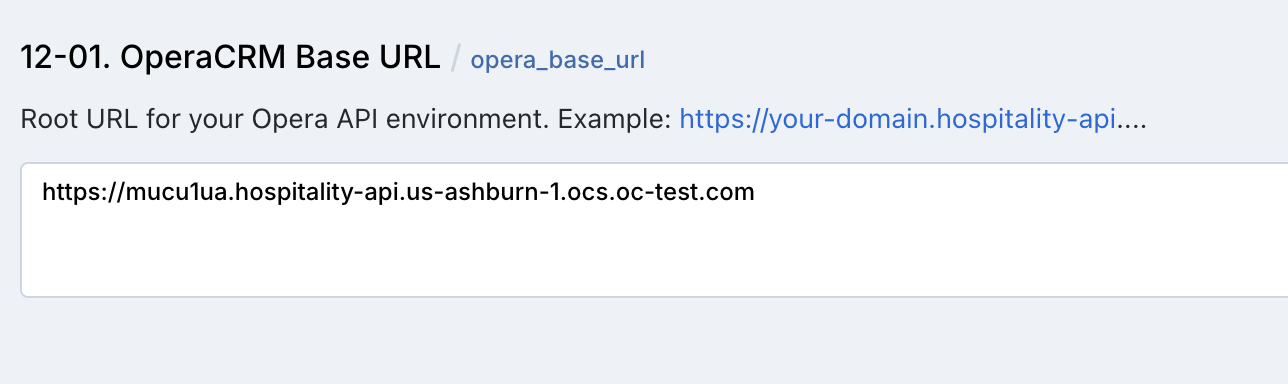
Figure S02-A. Visual reference for the Base URL field.
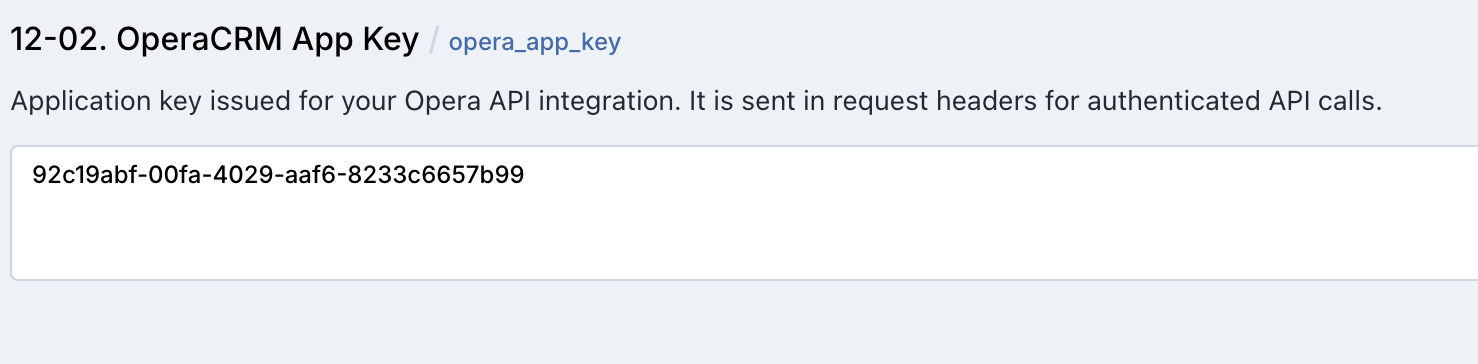
Figure S02-B. Visual reference for the App Key field.
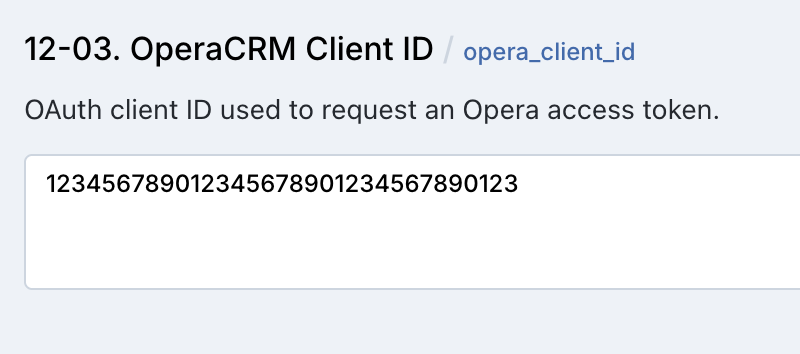
Figure S02-C. Visual reference for the Client ID field.
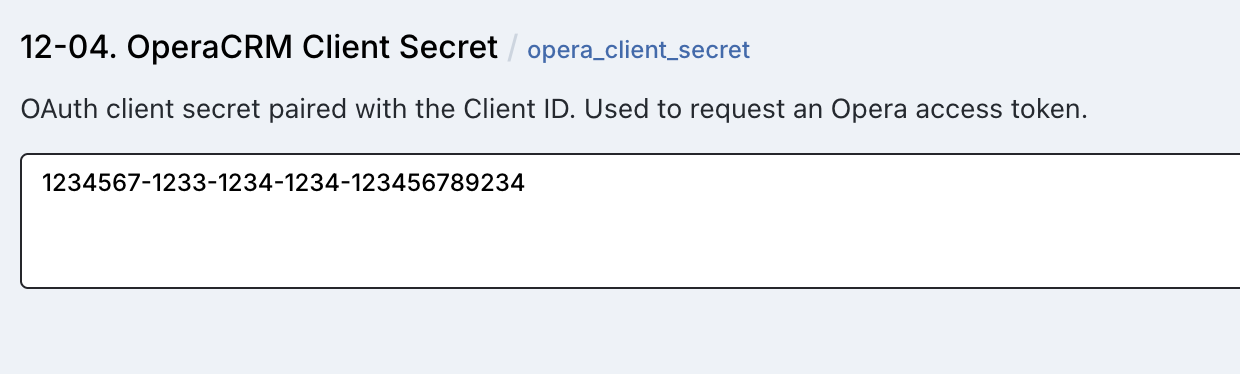
Figure S02-D. Visual reference for the Client Secret field.
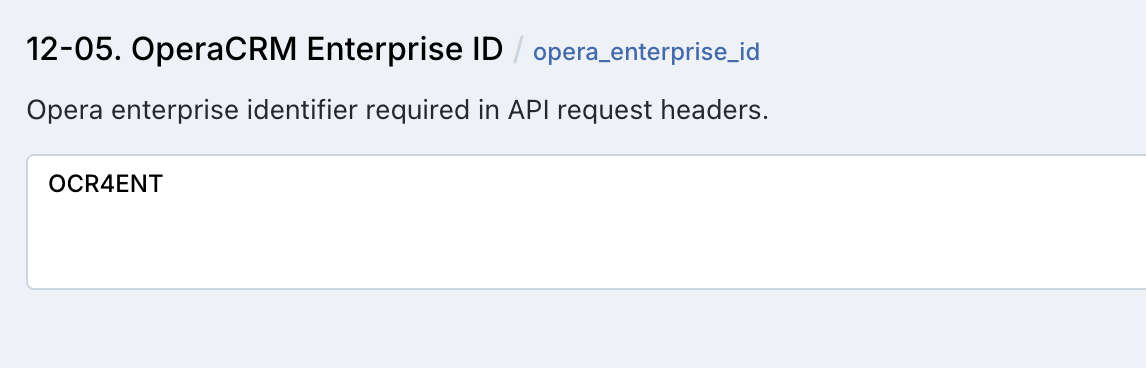
Figure S02-E. Visual reference for the Enterprise ID field.
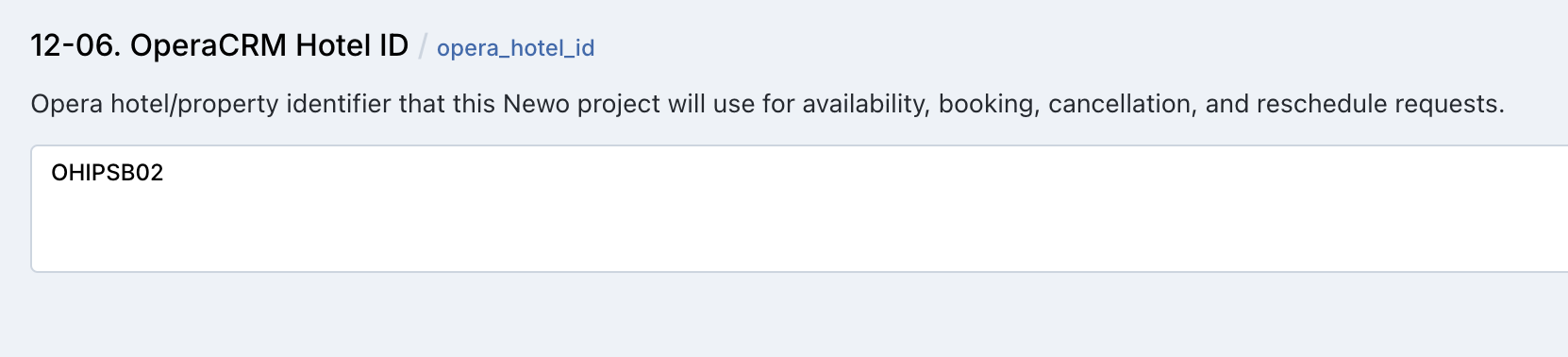
Figure S02-F. Visual reference for the Hotel ID field.
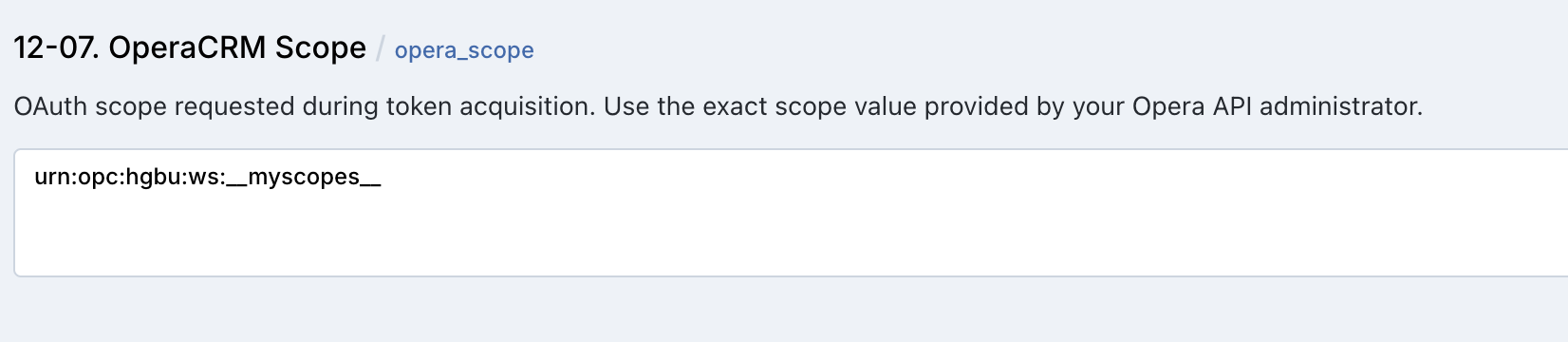
Figure S02-G. Visual reference for the Scope field.
4.2 Feature Toggles
| Setting | Default | What it controls |
|---|---|---|
| Enable Availability Check | On | Allows the agent to check room availability |
| Enable Booking | On | Allows the agent to create reservations |
| Enable Cancellation | On | Allows the agent to cancel reservations |
| Enable Secure Retrieval | On | Allows the agent to retrieve an existing booking after confirmation number + last name verification |
| Automatically Add Default Scenarios to Canvas | On | Adds default Opera conversation building blocks to Canvas |
4.3 Technical / Advanced Settings
| Setting | Default | What it does |
|---|---|---|
| Override SA attributes | On | Re-syncs integration-managed project/superagent metadata during setup |
| Static Data Update Interval | 86400 | Refresh interval for cached static Opera data in seconds |
| Static Data Updated At | Auto | Timestamp of the most recent static data refresh |
| Setup Persona ID | Auto | Persona used during setup and connector-related operations |
What the AI can do
5.1 Check Availability
The AI checks Opera availability for:
- check-in date
- check-out date
- adult count
- child count
The integration calls:
- the lookup request
What the agent receives:
- simplified room/rate options
- dates
- rate plan code
- market code
- total pricing information
5.2 Create a Reservation
The AI can create a reservation after it has:
- stay dates
- adult count
- child count
- guest first name
- guest last name
The integration calls:
- the create/update request
On success, the agent:
- stores booking metadata in the persona
bookings - updates the
BookingSlotsprompt section - sends a confirmation SMS event
5.3 Securely Retrieve an Existing Reservation
Opera does not expose a generic “find guest by phone” flow in this implementation.
Instead, the AI can retrieve an existing reservation only when the guest provides:
- Confirmation Number
- Last Name
The integration:
- extracts those values from the conversation
- calls Opera reservations lookup
- validates the response against the provided confirmation number and last name
- returns booking details to the conversation
This is handled through:
opera_custom_secure_retrieval_event
5.4 Cancel a Reservation
The AI can cancel a reservation when it already has the target reservation ID from context.
The integration calls:
- the create/update request
5.5 Reschedule a Reservation
The AI can update an existing reservation by changing the stay dates for a known reservation.
The integration calls:
- the update request
5.6 Auto-Setup Canvas Scenarios
If Canvas auto-setup is enabled, Opera inserts default items such as:
- cancellation intent
- cancellation scenario
- secure retrieval intent
- secure retrieval scenario
- regular reservation intent
- large group reservation intent
- booking scenario
- supporting procedures for name gathering and date collection
This happens through:
- Canvas setup
SetupLibrarySetupCanvas
5.7 Refresh Static Data
Opera currently refreshes:
- room types
This happens through:
StaticDataFlow
It does not currently provide a full static-data catalog sync for every possible Opera entity.
Features at a glance
| Feature | Supported | Notes |
|---|---|---|
| Check availability | Yes | Uses Opera availability endpoint |
| Create reservation | Yes | Creates reservation in Opera |
| Cancel reservation | Yes | Requires reservation context |
| Reschedule reservation | Yes | Requires reservation context |
| Retrieve existing reservation securely | Yes | Requires confirmation number + last name |
| Recognize returning guests by phone number alone | No | Not implemented in current code |
| CRM sync / lead sync | No | Opera integration is reservation-focused |
| Canvas auto-setup | Yes | Inserts Opera-specific starter scenarios |
| Static room type refresh | Yes | Background refresh supported |
| Multi-property switching in one project | No | One opera_hotel_id per project |
7. Technical Architecture
How to test that everything works
Before going live, run through this checklist on a demo property or test reservation.
Recommended Test Order for Managers
If you only have time for a short acceptance pass, test in this order:
- Availability: proves authentication and hotel targeting work
- Booking: proves write access works
- Secure Retrieval: proves existing reservation lookup works
- Cancellation / Reschedule: proves post-booking lifecycle flows work
8.1 After Setup
After clicking Publish All, confirm:
-
opera_access_tokenis populated - no publish errors appear
-
setup_persona_idexists - feature toggles have the intended values
8.2 Test Availability
- Start a test conversation.
- Ask for availability for specific stay dates.
- Confirm the agent returns room options.
- Confirm
AvailabilitySlotsis populated.
8.3 Test Booking
- Ask the agent to make a reservation.
- Provide stay dates, name, and guest counts.
- Confirm the booking is created in Opera.
- Confirm the persona
bookingslist is updated.
8.4 Test Secure Retrieval
- Ask about an existing reservation.
- Provide the confirmation number and last name.
- Confirm the agent can return the reservation details.
8.5 Test Cancellation
- Use an existing reservation in context.
- Ask the agent to cancel it.
- Confirm the cancellation is reflected in Opera.
8.6 Test Reschedule
- Use an existing reservation in context.
- Ask the agent to move it to new dates.
- Confirm the reservation is updated in Opera.
8.7 Test Canvas Auto-Setup
- Keep Automatically Add Default Scenarios to Canvas enabled.
- Publish the project.
- Confirm Opera scenarios and intents appear in Canvas.
FAQ and Troubleshooting
Why does the agent ask for both confirmation number and last name?
Because secure retrieval in this integration is designed around those two fields. The current code does not support “find reservation by phone number only”.
Why is availability working but booking not creating a reservation?
Check:
- Enable Booking is turned on
- required booking fields are actually present in the conversation
- the Opera API credentials are still valid
Why can’t the agent find an existing reservation?
Most commonly:
- the confirmation number is wrong
- the last name does not match Opera exactly
- secure retrieval is disabled
Do I need to reconnect if credentials change?
Yes. Any time you change Opera credentials:
- update the attributes
- click Save
- click Publish All
- run at least one live test
Does this integration support multiple hotels in one setup?
Not in the current implementation. One project is configured around one opera_hotel_id.
Does Opera auto-sync every room/rate/configuration object?
No. The current static-data refresh is limited and primarily refreshes room types.
10. Manager Rollout Summary
This integration is a good fit if you want the AI to handle:
- stay-date availability questions
- hotel reservation creation
- reservation changes and cancellations
- secure reservation lookup when the guest knows their confirmation number
This integration is not currently positioned as:
- a CRM replacement
- a lead pipeline system
- a guest recognition system based only on caller ID
Recommended rollout order:
- Connect Opera credentials
- Test availability
- Test booking
- Test secure retrieval
- Test cancellation and reschedule
- Review Canvas auto-setup items
- Go live on one hotel first
Go-Live Recommendation
For the cleanest launch:
- start with one hotel only
- keep all core features enabled unless there is a clear business reason not to
- run at least one real booking and one real secure retrieval before launch day
- have a fallback human process ready for the first live shift