FollowUpBoss Integration
What the AI can do
Summary
FollowUpBoss Integration connects FollowUpBoss (real estate CRM for agents and teams) with Newo Platform.
It enables:
- Creating or updating leads in the CRM with auto-deduplication via the create/update request
- Looking up existing contacts by phone number to personalize conversations (lead stage, assigned agent)
- Checking appointment availability by querying existing appointments and computing free slots
- Scheduling appointments for showings, consultations, and meetings
- Cancelling existing appointments
- Automatically logging calls and conversation summary notes to contact records after the session ends
This integration is designed for real estate agents and team administrators who want to capture leads and manage appointments through an AI receptionist (voice or chat).
Common use cases
- When a caller provides their contact info as a new lead → Create lead via the create/update request with source tracking
- When a caller is an existing contact → Look up their profile, display lead stage and assigned agent in the conversation
- When a caller asks about available times → Query existing appointments, compute free 30-min slots in 9-17 window, present options
- When a caller books a time → Create appointment in FUB with person ID and assigned agent
- When a caller cancels an appointment → Cancel via the cancellation request
- When a session ends → Automatically log the AI call and attach a conversation summary note to the contact
Features at a glance
| Feature | Supported | Notes |
|---|---|---|
| Lookup Existing Contact | ✅ | By phone number via the lookup request |
| Create / Update Lead | ✅ | Via the create/update request (auto-deduplicates by phone/email) |
| Check Availability | ✅ | Computes free slots from existing appointments (9-17 window) |
| Book Appointment | ✅ | the create/update request with invitees (person + user) |
| Cancel Appointment | ✅ | the cancellation request |
| Post-Call Log | ✅ | the create/update request with outcome, duration, note (fires on session end) |
| Post-Call Note | ✅ | the create/update request with conversation summary (fires on session end) |
| Appointment Types Catalog | ✅ | Cached at setup via the lookup request |
| Users / Agents Catalog | ✅ | Cached at setup via the lookup request |
| Auto-Identify by Phone | ✅ | Fires on define_user_phone_number event |
| Reschedule Appointment | ❌ | Cancel + rebook as workaround (Phase 2) |
| Create Follow-Up Task | ❌ | Planned for Phase 2 (the create/update request) |
Before You Start
Before installation:
- Active FollowUpBoss account (trial or paid)
- FollowUpBoss API Key (Admin → Integrations group → API Keys & Lead Email)
- Optional X-System and X-System-Key if your team registered a system identity with FollowUpBoss
Setup
Create the Newo project
If this project already exists in Newo Builder, skip this subsection and continue with the integration-specific settings below.
- In Newo Builder, open the projects list and click Create Project (or Create New Project from the top-right menu).

- Fill IDN and Title. The exact names do not matter; use any clear names your team will recognize.
- In Registry, choose the release channel:
- staging — the newest module fixes appear here first. Use it when you need the latest fix, but expect possible unfinished changes.
- production — the final stable version for live projects.
- In Module, select the module for this integration.
- Leave Module version on Latest version unless support tells you to pin a specific version, then click Create.
3.1 Step 1 — Obtain FollowUpBoss Credentials
- Log in to your FollowUpBoss account
- Navigate to Admin → Integrations group → API Keys & Lead Email to get your API Key
- Register your integration at https://apps.followupboss.com/system-registration to obtain:
- X-System (system name, e.g.,
NewoAI) - X-System-Key (system-level API key)
- X-System (system name, e.g.,
- Store all credentials securely
3.2 Step 2 — Connect in Platform
- Open Newo Builder → Projects and click Create New Project.
- Fill in the project form:
- Idn:
fub - Title:
FollowUpBoss - Registry:
production - Module:
fub_integration - Module version:
Latest version - Auto update enabled: enabled
- Idn:

- Click Create and confirm that the project appears in the Projects list.

- Open Attributes → Customer, then select Module - FollowUpBoss.
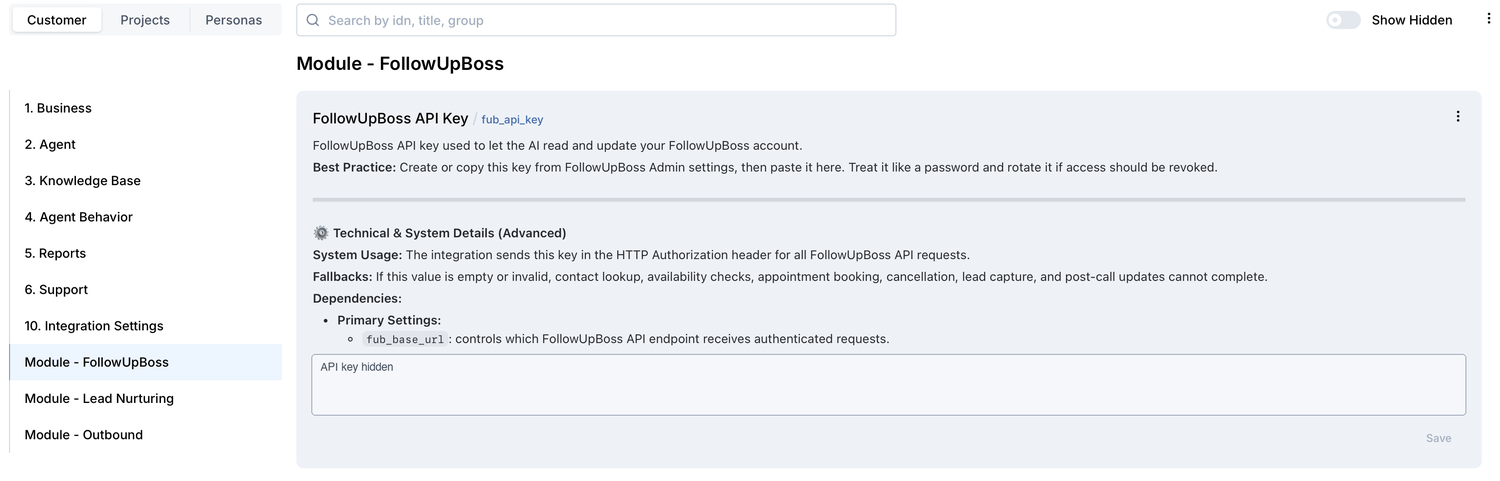
- Set the following attributes in Module - FollowUpBoss:
| Attribute | Required | Description |
|---|---|---|
fub_api_key | ✅ | FollowUpBoss API key (Admin → Integrations group → API Keys & Lead Email) |
fub_x_system | ❌ | Optional registered system name (X-System header) |
fub_x_system_key | ❌ | Optional registered system API key (X-System-Key header) |
fub_base_url | ❌ | API base URL (default: https://api.followupboss.com/v1) |
fub_default_event_source | ❌ | Lead source name (default: AI Receptionist) |
fub_default_appointment_type_id | ❌ | Default appointment type (auto-populated from catalog) |
fub_default_agent_user_id | ❌ | Default agent to assign (auto-populated from users catalog) |
fub_setup_scenarios | ❌ | Auto-add / refresh FollowUpBoss canvas scenarios (default: True) |
fub_enable_contact_lookup | ❌ | Enable fub_lookup_contact custom tool (default: True) |
fub_enable_availability | ❌ | Enable fub_check_availability custom tool (default: True) |
fub_enable_booking | ❌ | Enable fub_book_appointment custom tool (default: True) |
fub_enable_cancellation | ❌ | Enable appointment cancellation; when disabled, the AI tells the caller it cannot cancel and a human will help (default: True) |
fub_enable_lead_capture | ❌ | Enable fub_create_lead custom tool (default: True) |
fub_enable_post_call_updates | ❌ | Master switch for post-call CRM updates (default: True) |
fub_enable_post_call_log | ❌ | Log call to contact timeline after session (default: True) |
fub_enable_post_call_note | ❌ | Add conversation note after session (default: True) |

- Click Save on every edited attribute.
- Click Publish All.
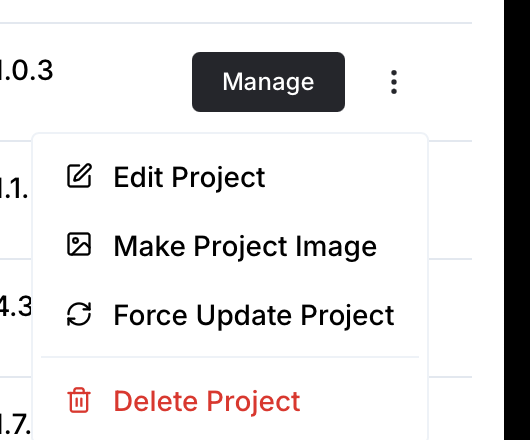
- After publishing completes, open the project row actions and run Force Update if the portal shows that action for the project. Use it after changing module version, registry module, or auto-update settings.
- On publish, the setup automatically:
- Creates / reuses connection (
fub_connector) - Registers custom tools through
_setupToolsSkill - Sends
refresh_static_datatoCacheDataFlowusing the setup actor - Refreshes appointment types and users from FollowUpBoss for dropdown-backed setup fields
- Refreshes canvas scenarios and intent types when scenario setup is enabled
- Creates / reuses connection (
How to use the integration
After setup, the agent uses FollowUpBoss as the source of truth for contacts, leads, appointments, and notes.
- When a caller is recognized by phone, the agent can load their FollowUpBoss contact before continuing.
- When a caller books, cancels, or asks about an appointment, the result is written back to FollowUpBoss.
- When a new lead is captured, the contact and follow-up context are saved for the sales team.
Authentication
FollowUpBoss uses two-layer authentication:
Layer 1 — System Identification (optional)
When configured, requests include:
X-System: Registered system nameX-System-Key: System API key
Layer 2 — User Authentication (Basic Auth)
HTTP Basic Auth with API key as username, empty password:
Authorization: Basic base64(api_key:)
How to test that everything works
- Start a test chat or call with a phone number that exists in FollowUpBoss.
- Ask to schedule an appointment and choose one of the offered times.
- Open FollowUpBoss and confirm the appointment or lead was created for the test contact.
- Ask to cancel the appointment and confirm the FollowUpBoss record is updated.
Limitations
Sliding 10-second window:
- Global: 250 req/10s (with X-System-Key), 125 without
- **create/update request unlimited
- Notes: 10 req/10s
- **update request 25 req/10s
On HTTP 429, Retry-After header indicates wait time.
FAQ
Q. Does the agent read appointments from Google Calendar? No. FollowUpBoss only returns appointments stored in FollowUpBoss for the API user.
Q. What happens if FollowUpBoss rate limits requests? The integration waits for the retry window and the operator should re-test after the rate limit clears.
Q. Can I keep custom canvas wording? Yes. Keep the exact trigger phrases from the shipped scenarios, then adjust greetings, questions, and summaries around them.
Limitations
- Google Calendar conflicts — If a separate Google Calendar scheduling tool is enabled in the same project, disable it for this agent so FollowUpBoss handles booking.
- Appointment reading — FollowUpBoss only returns appointments created in FollowUpBoss and owned by the API user.
- Session timeout — Post-call notes are saved after the platform marks the conversation as finished.