Monday.com Integration Guide
1. What This Integration Does
The Newo AI Agent integrates with monday.com so your AI can act as a scheduling assistant on top of your existing monday boards.
Once connected, the AI agent can:
- check appointment availability based on the meetings already on your Activities board and offer time slots to callers
- book new appointments and automatically create or link the contact on your Contacts board
- cancel appointments by archiving the meeting item on your Activities board
- recognize returning clients by phone number and pull their upcoming bookings into the conversation
- preload availability silently at the start of a session, so the agent answers faster
In plain terms: your monday.com boards become the calendar and client list that your AI assistant works from. Conversations on any channel (voice, chat, SMS, WhatsApp) read from and write to the same boards your team already uses.
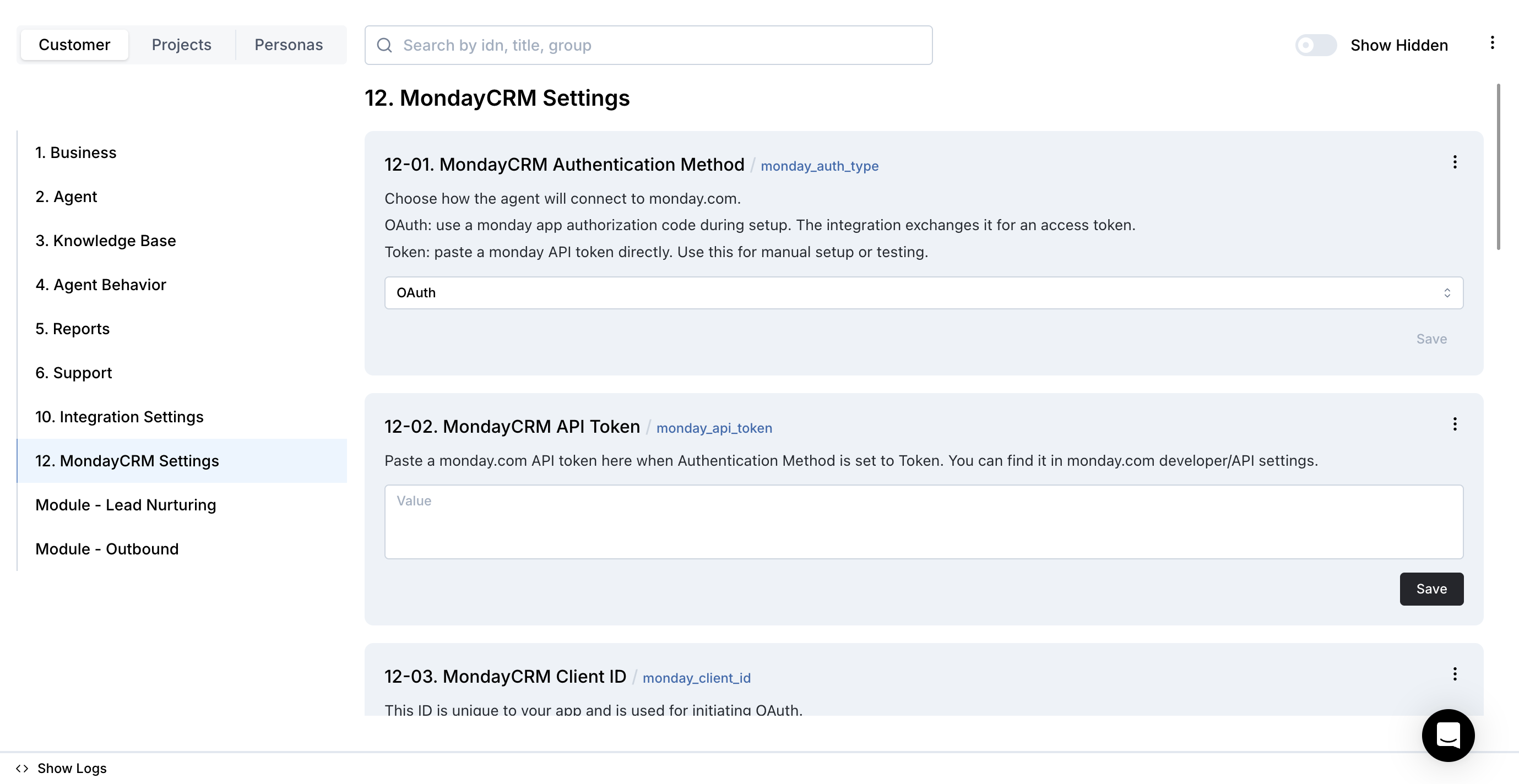
Figure S01. The MondayCRM Settings block in the Newo Builder — entry point for setup.
2. Before You Start
Make sure you have:
- an active monday.com account
- admin access to that account (you'll need to open the Developer Center)
- access to the Newo project builder for your project
- permission to edit project settings and click Publish All
The integration works on top of two boards that must already exist on your monday account:
- Activities board — where appointments / meetings live
- Contacts board — where your clients live
The boards must include a few specific columns so the agent knows where to read and write.
Activities board — required columns
| Column ID | What it's for |
|---|---|
activity_type | The kind of activity. The agent looks for Meeting. |
activity_status | Status of the activity (e.g. Open, Done). The agent treats Done as not blocking. |
activity_start_time | Start date and time of the appointment. |
activity_end_time | End date and time of the appointment. |
activity_item | A link/connection to the related item on the Contacts board. |
Optional columns the agent will auto-detect and fill in if they exist:
- a date column — populated with the booking date for calendar views
- a notes / long text column — populated with booking details
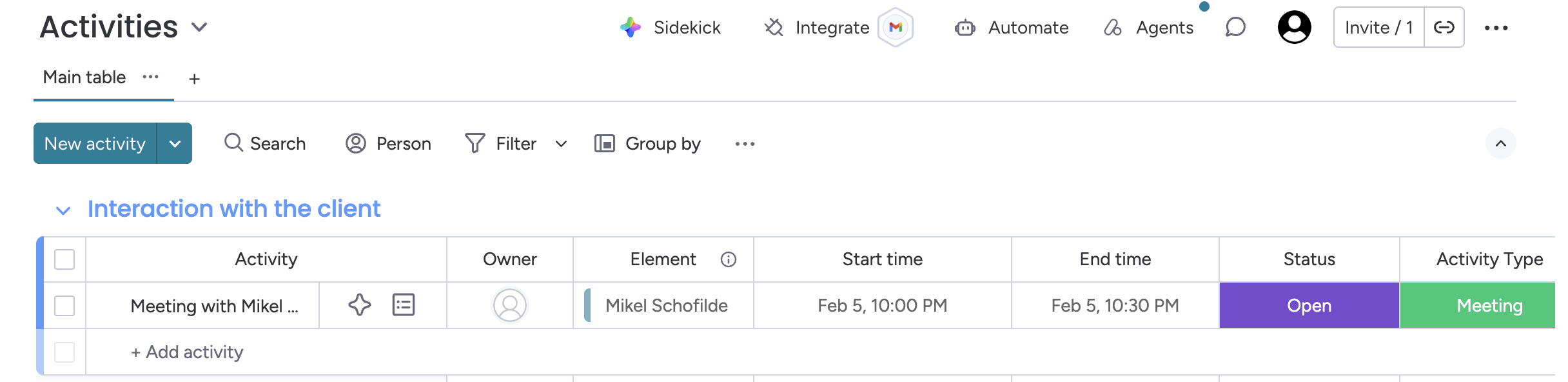
Figure S02. The Activities board — meeting items with type, status, start/end times, and a link to the Contacts board.
Contacts board — required columns
| Column ID | What it's for |
|---|---|
contact_phone | Phone number of the client. Used to recognize returning callers and to link bookings. |
contact_email | Email of the client. Displayed back to the agent as context when available. |
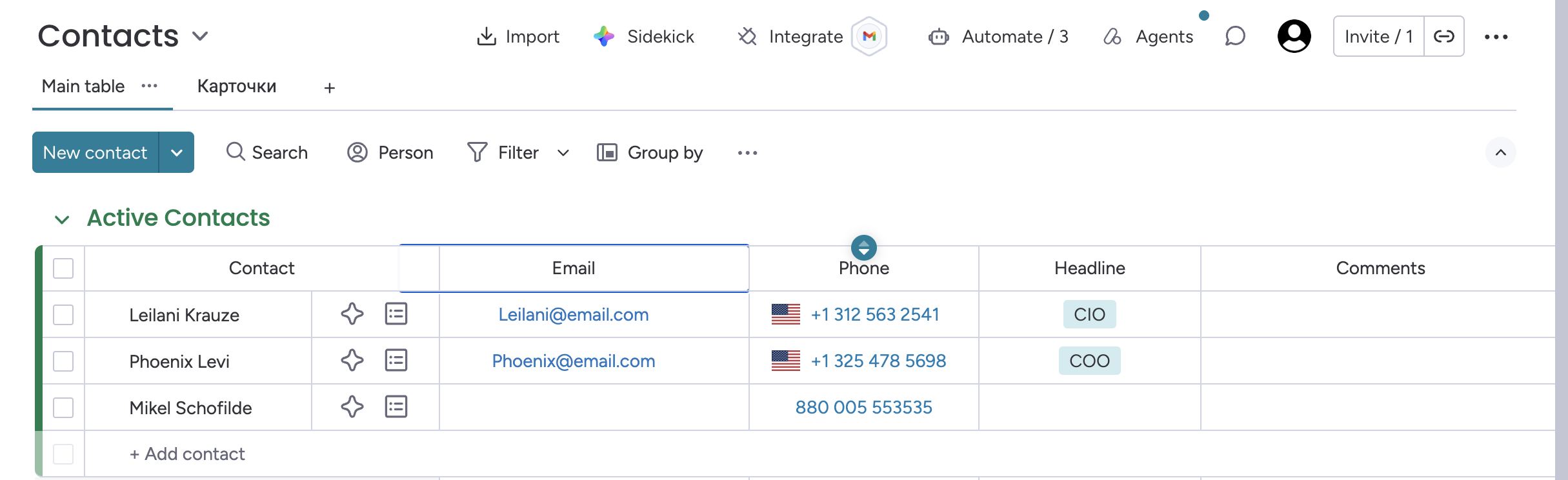
Figure S03. The Contacts board — clients with phone and email columns.
Tip: If your boards use different column IDs, either rename them to match the IDs above, or reach out to us so we can help adjust the setup.
You will also need one of the following authentication methods:
- API Token — recommended. The simplest option. You copy one token from monday's Developer Center and paste it into Newo.
- OAuth — for setups where you want the assistant to connect through a monday.com app you own (for example, a published marketplace app).
Which should I use? Use API Token unless your implementation partner has specifically asked you to use OAuth. Both options give the agent the same capabilities — the API Token method is faster to set up.
3. Connecting for the First Time
Create the Newo project
If this project already exists in Newo Builder, skip this subsection and continue with the integration-specific settings below.
- In Newo Builder, open the projects list and click Create Project (or Create New Project from the top-right menu).

- Fill IDN and Title. The exact names do not matter; use any clear names your team will recognize.
- In Registry, choose the release channel:
- staging — the newest module fixes appear here first. Use it when you need the latest fix, but expect possible unfinished changes.
- production — the final stable version for live projects.
- In Module, select the module for this integration.
 5. Leave Module version on Latest version unless support tells you to pin a specific version, then click Create.
Both methods need your board IDs, so let's grab those first.
3.1 Find Your Board IDs
-
Open your monday.com account in the browser.
-
Open the Activities board.
-
Look at the URL in the address bar:
https://your-account.monday.com/boards/1234567890The number at the end (in this example
1234567890) is the Activities board ID. Write it down. -
Repeat for the Contacts board — open it and copy the number at the end of its URL. That's the Contacts board ID.

Figure S04. The board ID is the number at the end of the board URL.
Tip: You can also find the board ID from the board menu: ... menu → Board settings → Board ID.
3.2 Connect with API Token (Recommended)
-
In monday.com, click your profile avatar in the top-right corner and choose Developers.
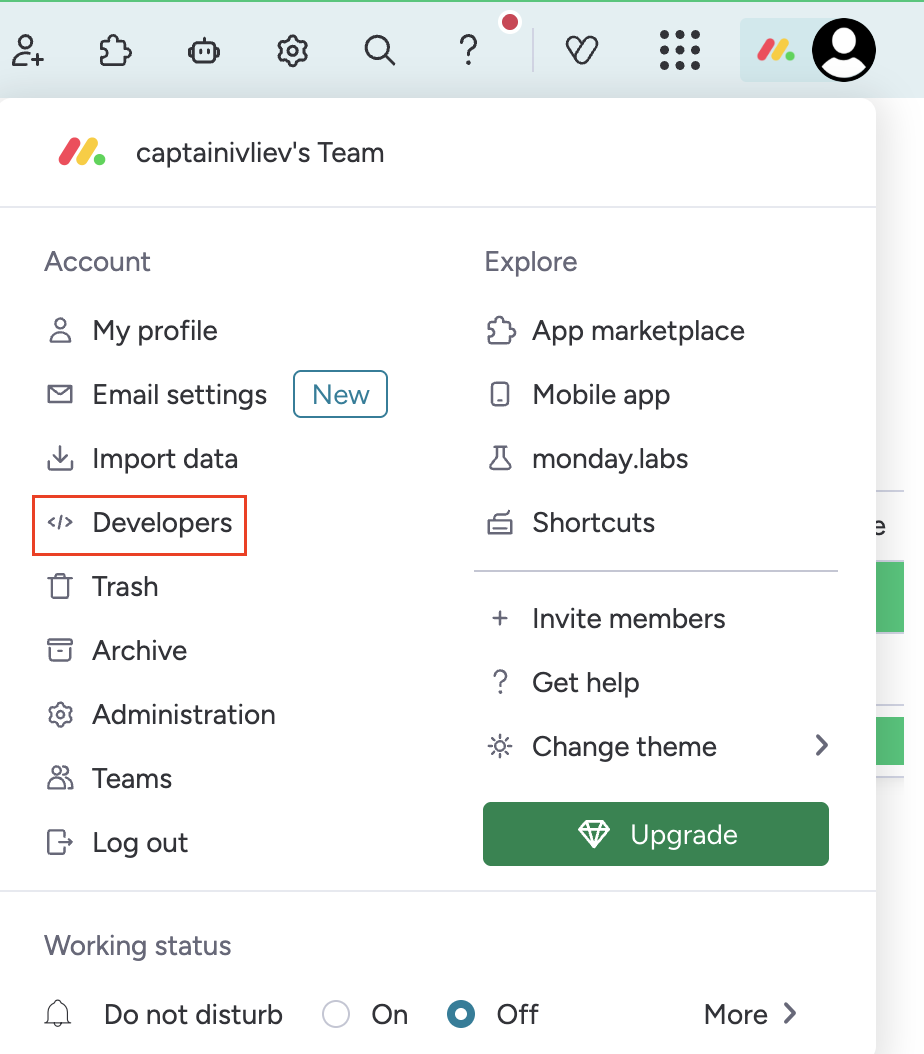
Figure S05. The Developers entry in the monday profile menu — opens the Developer Center.
-
In the Developer Center sidebar, open the API Token section.
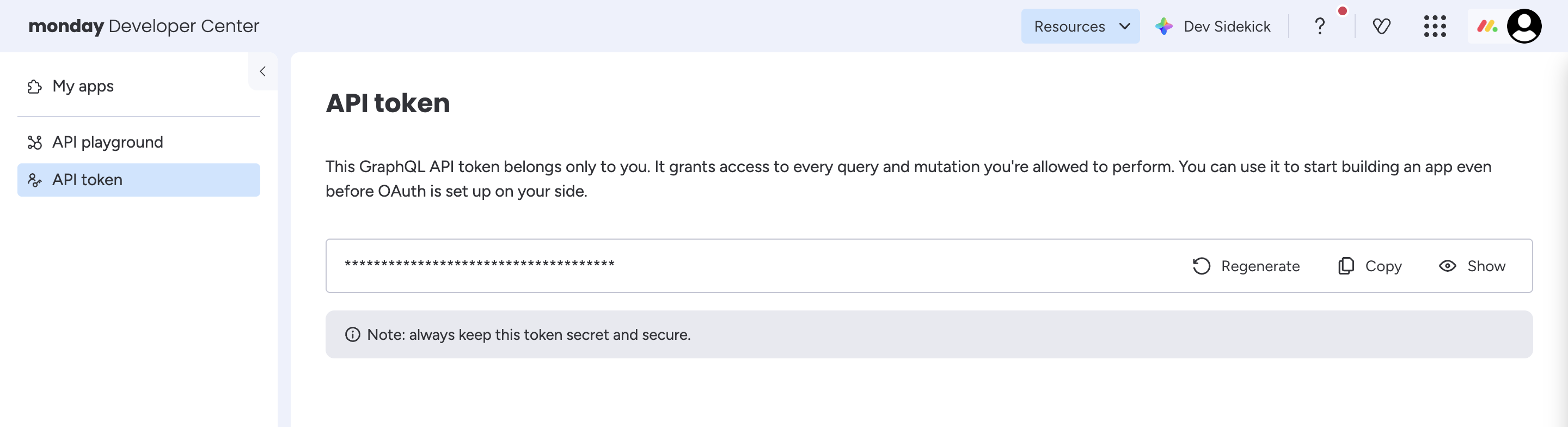
Figure S06. The API Token page in the monday Developer Center.
-
Click Show (or the copy icon) next to your personal API token and copy the full value.
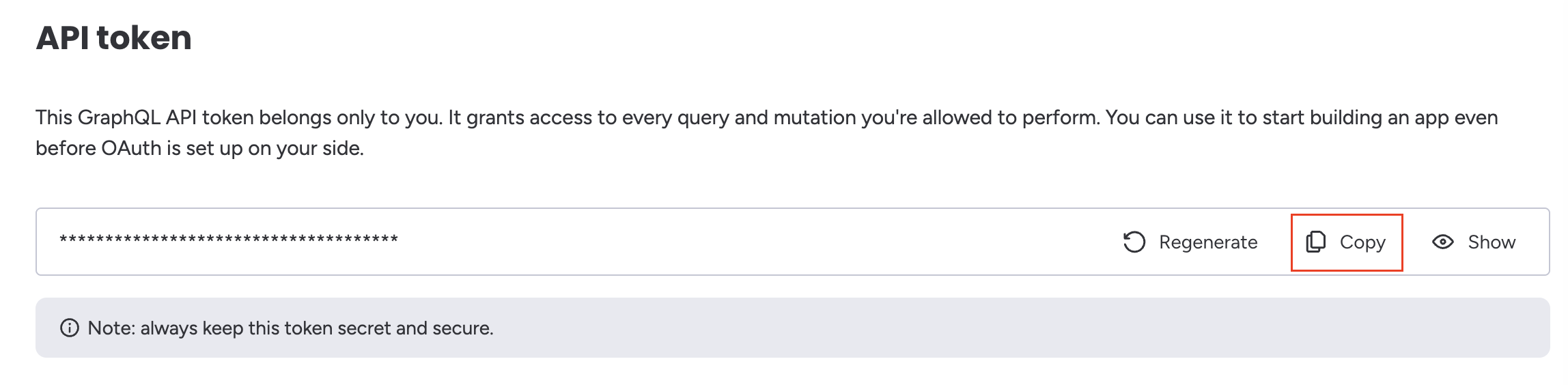
Figure S07. Copy the API token from the Developer Center.
-
Open your project in Newo and go to Builder → Attributes.
-
Find the MondayCRM Settings section.
-
Set Authentication Method (
monday_auth_type) toToken. -
Paste the token into the API Token (
monday_api_token) field. -
Fill in Activities ID (
activities_id) and Contacts ID (contacts_id) from Step 3.1. -
Click Save on every attribute you changed.
-
Click Publish All.
Important: This token gives full access to your monday.com account — do not share it publicly. If it ever leaks, regenerate it from the Developer Center; the old token stops working immediately.
3.3 Connect with OAuth
Use this method only if you want the assistant to connect through a monday.com app you own (for example, a published marketplace app).
-
In monday.com, open the Developer Center (profile avatar → Developers) and choose My apps.
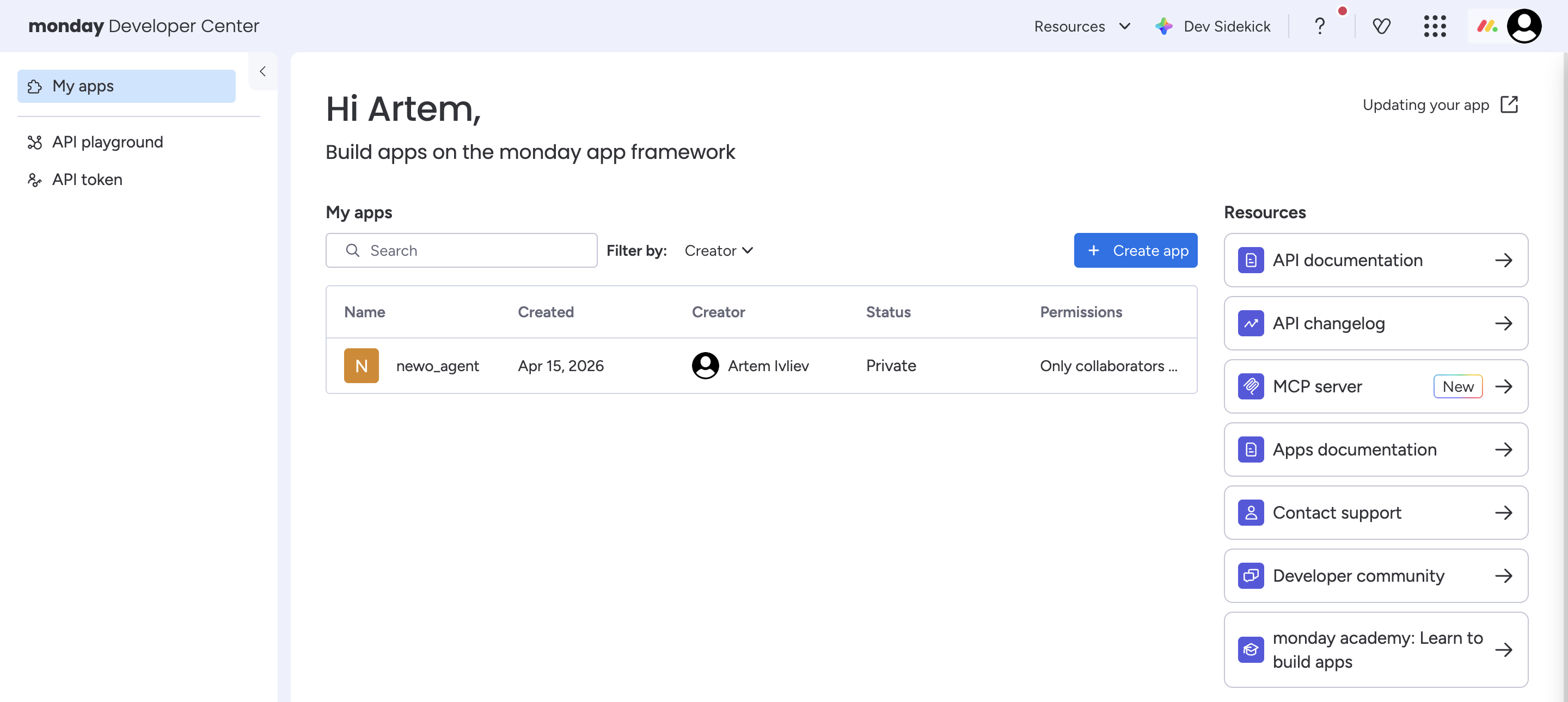
Figure S08. The My apps page in the monday Developer Center.
-
Open an existing app or click Create app and give it a name (for example
Newo AI Assistant).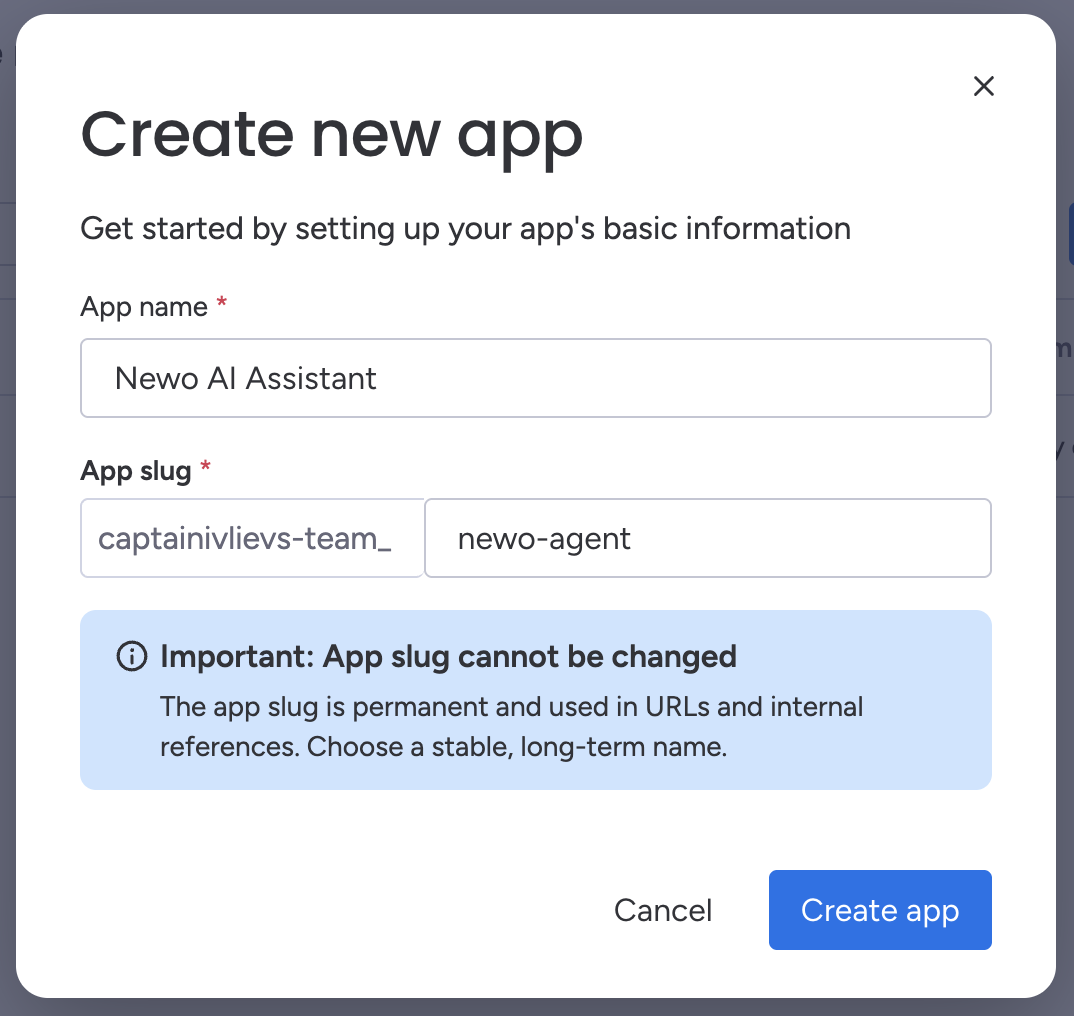
Figure S09. Creating a new monday app to host the OAuth connection.
-
Inside the app, open Features and add a new OAuth & Permissions feature. Copy the Client ID and Client Secret from this screen.
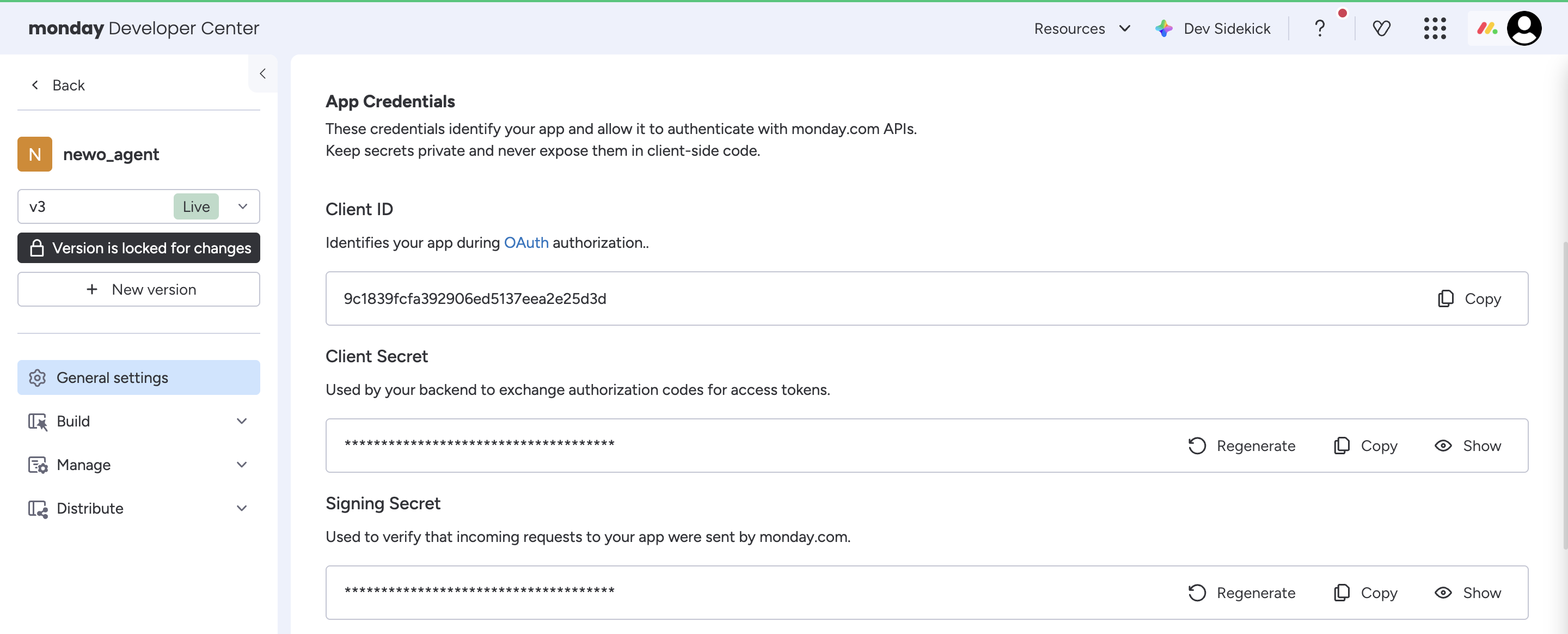
Figure S10. The OAuth & Permissions feature page — Client ID and Client Secret live here.
-
In the Scopes section of the same page, enable:
boards:readboards:write
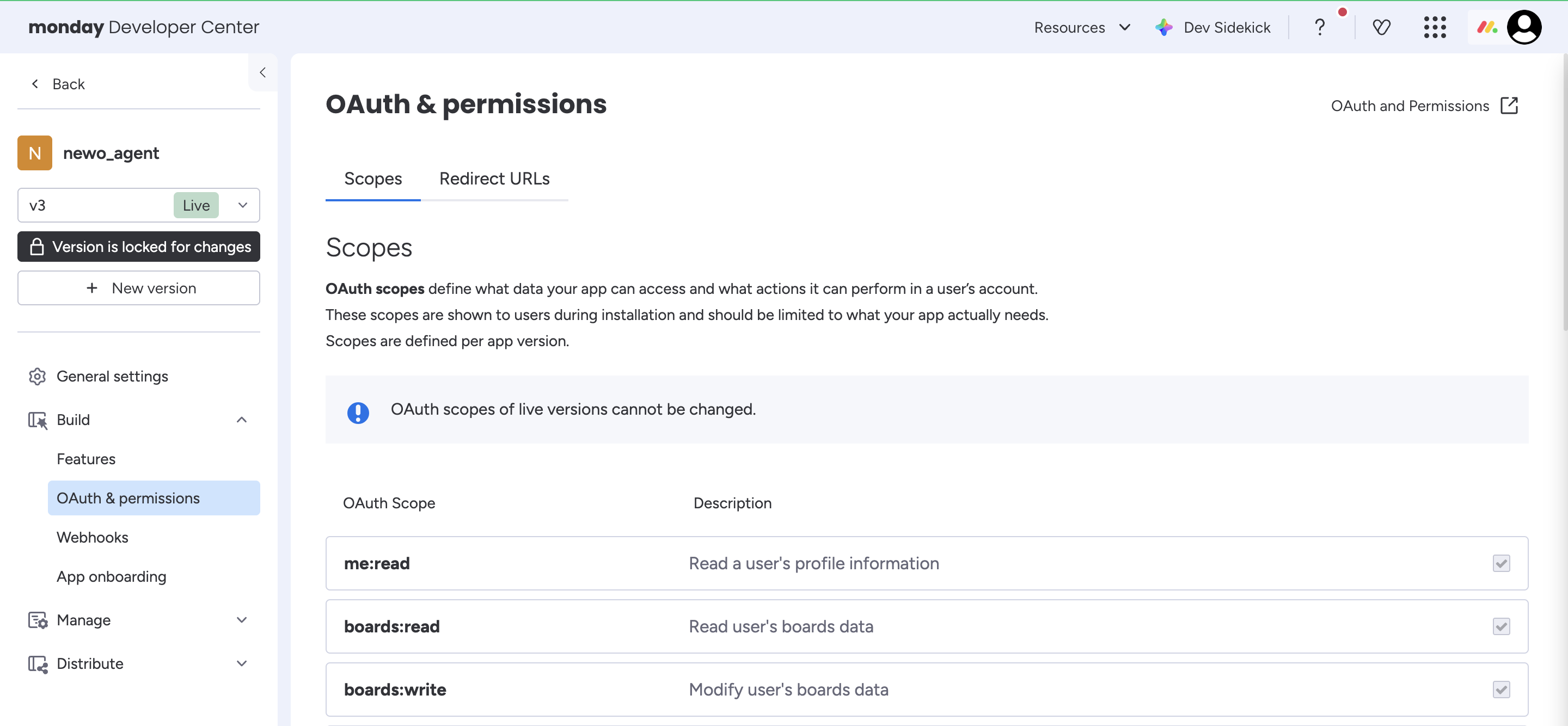
Figure S11. Required OAuth scopes.
-
In the Redirect URIs field, enter the redirect URI we provided you (for example
https://twinmind.pro/) and Save. The redirect URI must exactly match the value you'll paste into Newo — includinghttps://, slashes, and trailing characters.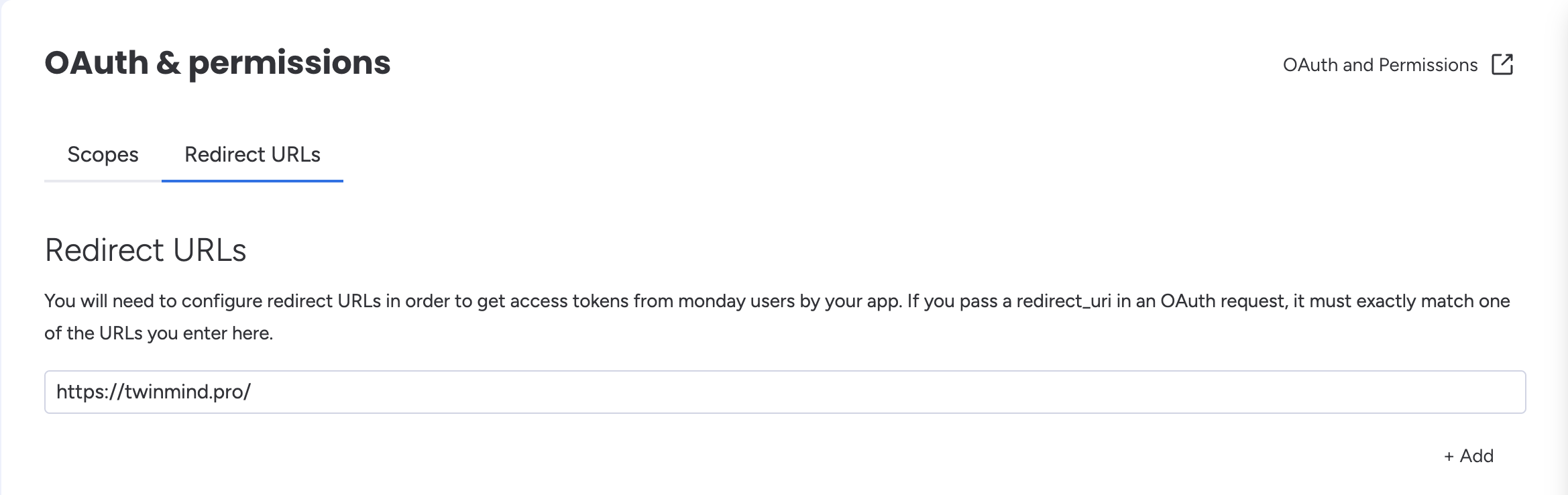
Figure S12. Redirect URI configured on the monday app.
-
On the same OAuth settings page, click the Making OAuth request link — monday builds it automatically using your Client ID, Redirect URI, and scopes. Open it in a new browser tab and click Approve.
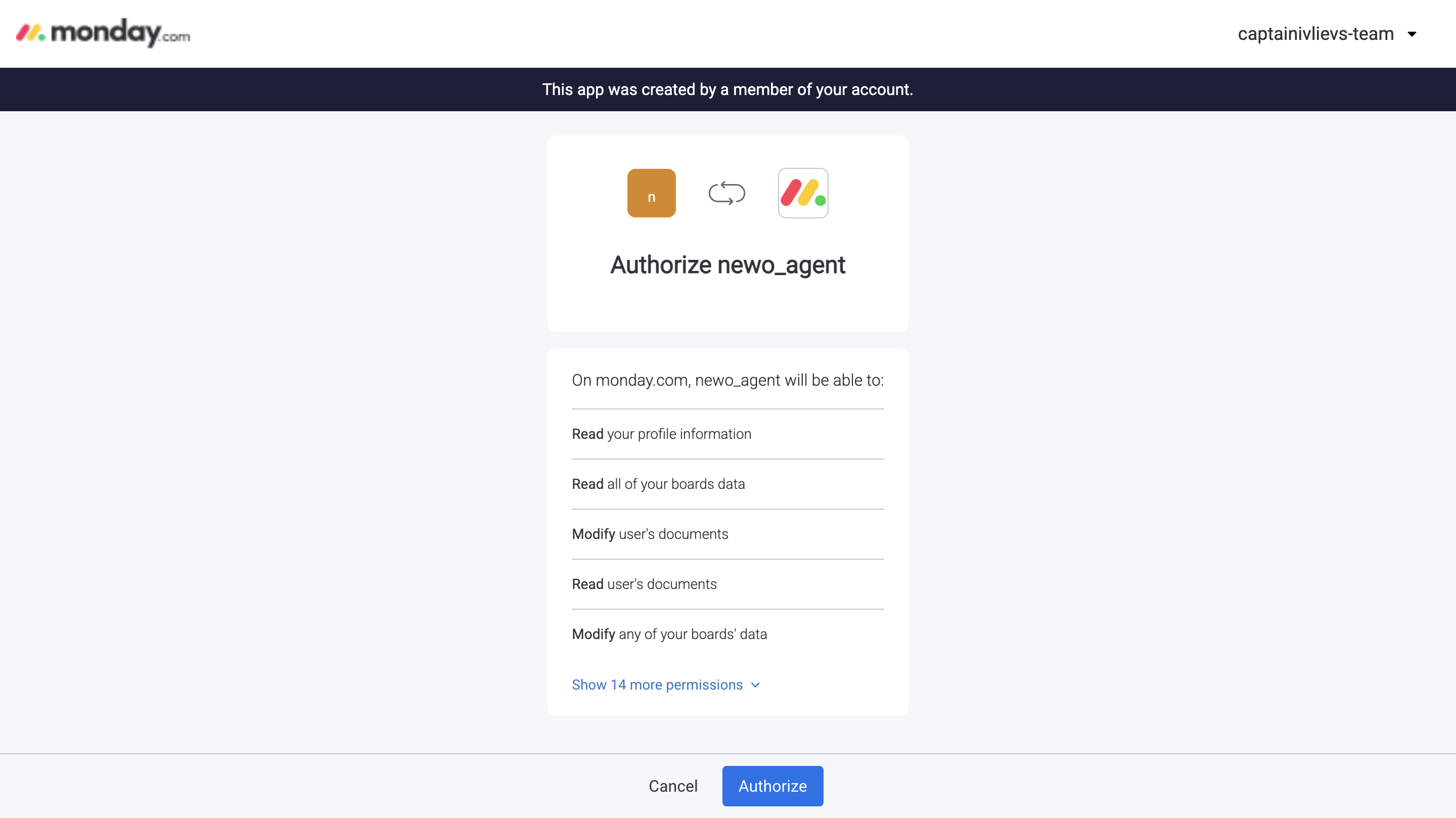
Figure S13. Approving the OAuth request for your monday app.
-
After approval, monday redirects you to your redirect URI and appends a
code=...parameter to the URL, for example:https://twinmind.pro/?code=abc123xyz...&state=monday-agent-setupCopy the value of the
codeparameter (everything betweencode=and&state=). That's your one-time OAuth code.
Figure S14. Copy the OAuth code from the URL after approval.
-
In Newo, open Builder → Attributes and find the MondayCRM Settings section.
-
Set Authentication Method (
monday_auth_type) toOAuth. -
Fill in:
- Client ID (
monday_client_id) - Client Secret (
monday_client_secret) - OAuth Redirect URI (
monday_redirect_uri) — must exactly match the URI configured in step 5 - OAuth Code (
monday_oauth_code)
- Client ID (
-
Fill in Activities ID (
activities_id) and Contacts ID (contacts_id) from Step 3.1. -
Click Save on every attribute you changed.
-
Click Publish All.
The OAuth code is one-time and short-lived. If setup doesn't succeed immediately, generate a fresh code (repeat step 6) and paste it again.
What happens after Publish:
- For OAuth: Newo exchanges the one-time code for a long-lived access token and stores it in the Access Token (
monday_access_token) attribute. - For Token: Newo uses the API token directly on every request.
- Newo reads your Activities board structure to auto-detect optional date and notes columns and the correct group ID for new items.
- The assistant's Canvas is updated — Via Agent booking and cancellation scenarios are installed from the Newo library and conflicting defaults are removed.
- The booking, availability, and cancellation tools are enabled for your AI agent.
4. Settings Reference
You can find all settings in Builder → Attributes → MondayCRM Settings.
Figure S01 (repeat). The MondayCRM Settings block where every attribute below is configured.
4.1 Connection Settings
| Setting | What it does | Required |
|---|---|---|
Authentication Method (monday_auth_type) | Choose Token (recommended) or OAuth. | Yes |
API Token (monday_api_token) | Personal API token from the monday Developer Center. | Token only |
Client ID (monday_client_id) | OAuth Client ID from your monday app. | OAuth only |
Client Secret (monday_client_secret) | OAuth Client Secret from your monday app. | OAuth only |
OAuth Redirect URI (monday_redirect_uri) | Must exactly match the redirect URI in your monday app. | OAuth only |
OAuth Code (monday_oauth_code) | One-time authorization code from the redirect URL. | OAuth only |
Access Token (monday_access_token) | Auto-filled by Newo after a successful OAuth exchange. Do not edit by hand. | Auto |
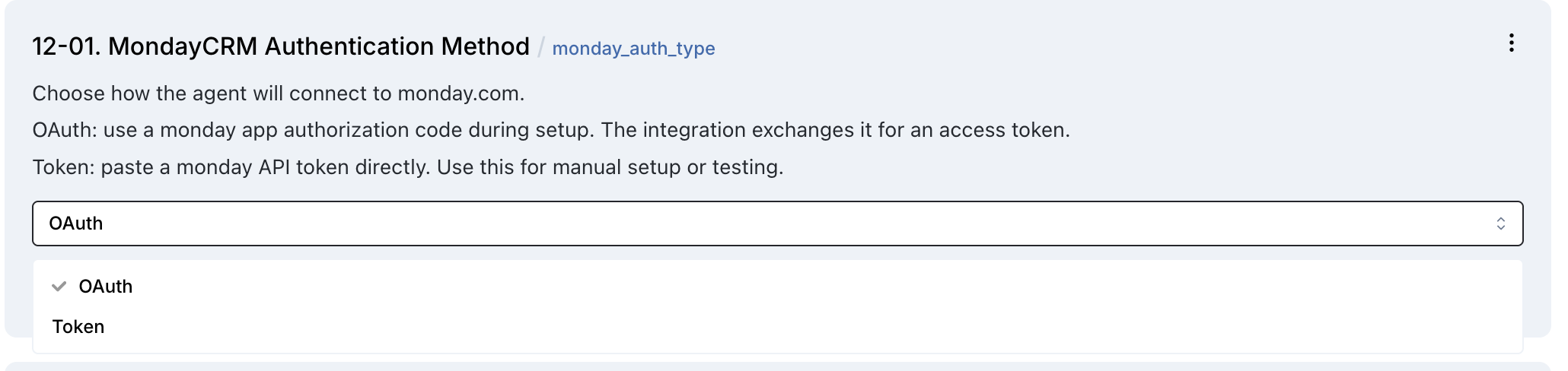
Figure S15. The Authentication Method dropdown — choose Token or OAuth.
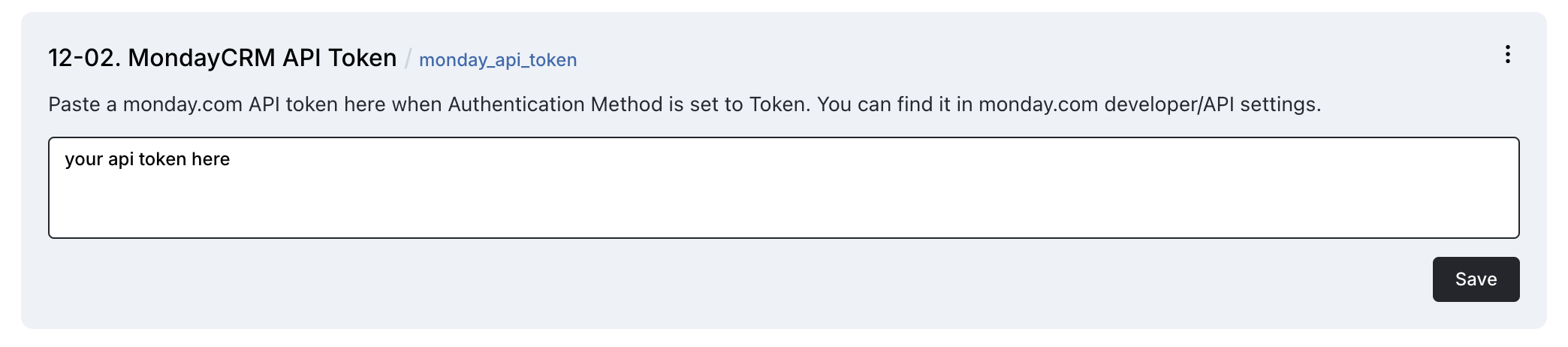
Figure S16. The API Token field — used when Authentication Method is set to Token.
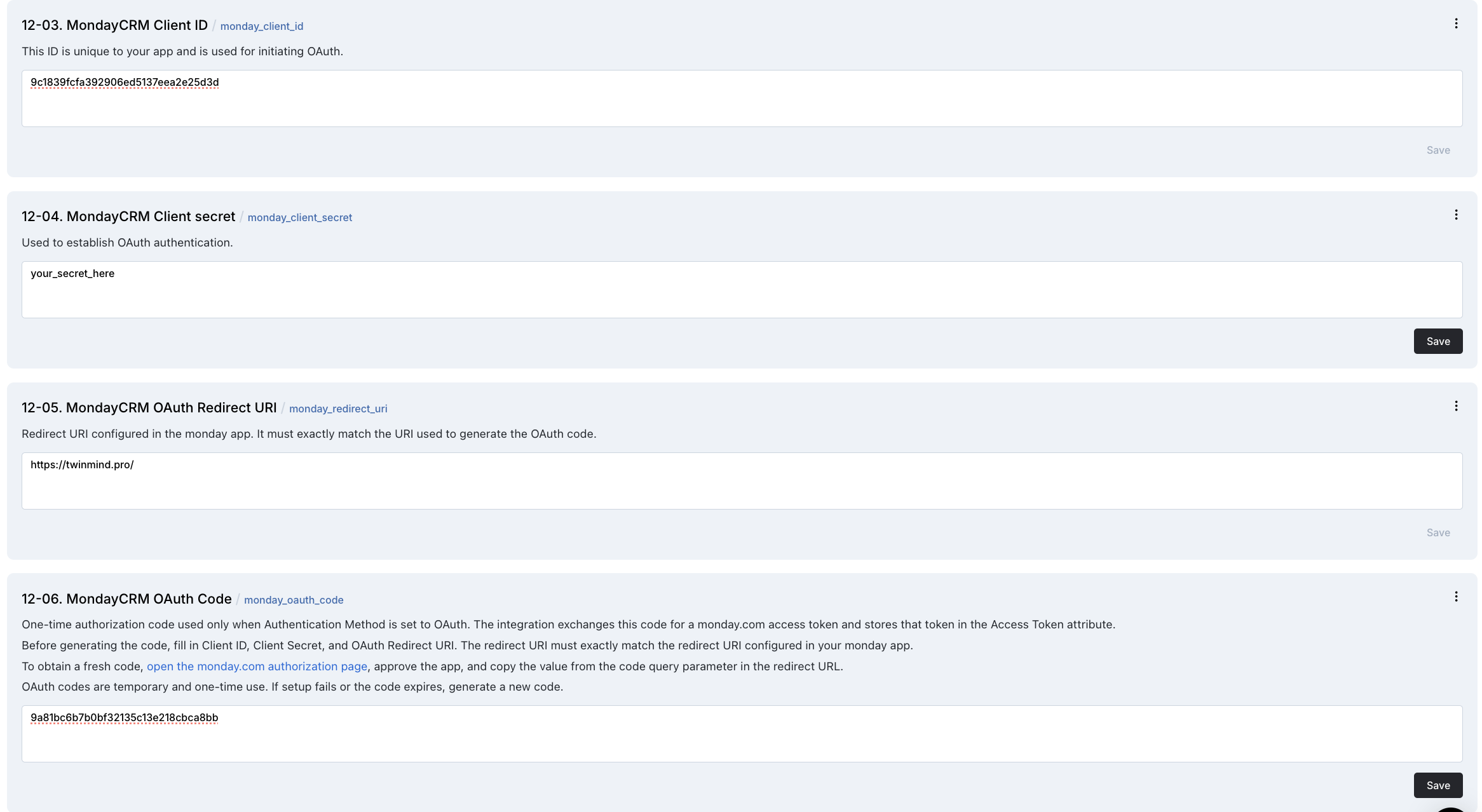
Figure S17. The OAuth fields — Client ID, Client Secret, Redirect URI, and OAuth Code.
4.2 Board Settings
| Setting | What it does | Required |
|---|---|---|
Activities ID (activities_id) | The ID of the Activities board (meetings/appointments). | Yes |
Contacts ID (contacts_id) | The ID of the Contacts board (clients). | Yes |
API Base URL (monday_base_api_url) | monday GraphQL endpoint. Default https://api.monday.com/v2 — leave as-is. | No |
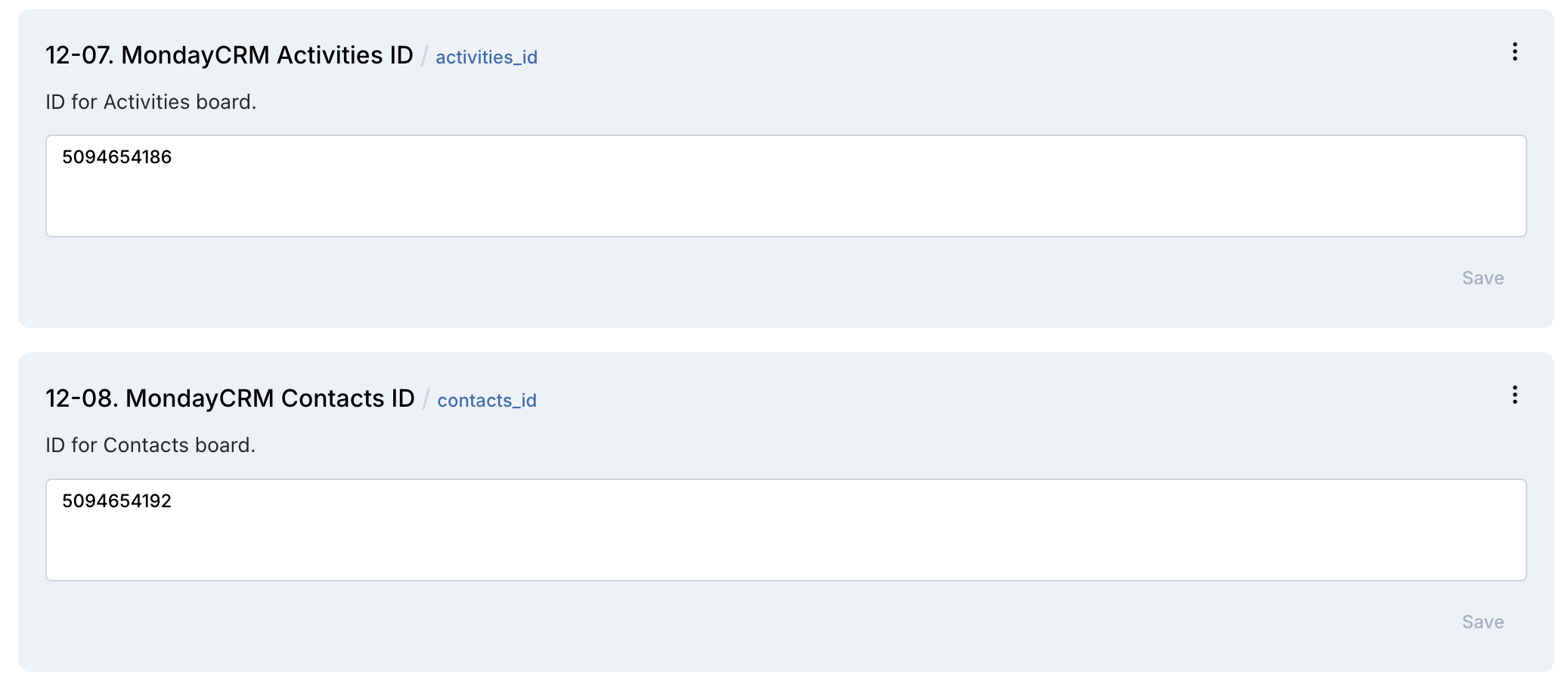
Figure S18. The board ID fields filled with numeric IDs from your monday URLs.
4.3 Feature On/Off Switches
Each feature can be independently enabled or disabled:
| Setting | Default | What it controls |
|---|---|---|
Enable Availability Check (monday_slots_available) | On | The agent can look up available time slots from the Activities board |
Enable Booking (monday_booking_available) | On | The agent can create new meeting items |
Enable Cancellation (monday_cancelation_available) | On | The agent can archive meeting items |
Preload Availability on Session Start (monday_check_availability_on_conversation_start) | Off | Silently checks the calendar in the background before the caller asks |
Recommended defaults for a new setup: leave all defaults as-is. Turn on Preload Availability on Session Start only if you want the agent to be slightly faster at the cost of an extra background API call per session.
4.4 Availability Tuning
| Setting | Default | What it does |
|---|---|---|
Slot Duration (monday_duration) | 30 | Length (in minutes) of an availability slot. The agent slices the day into slots of this size. |
Days Ahead (monday_show_for_days) | 1 | How many days into the future to look at when computing availability. |
Timezone (monday_timezone) | Project timezone | Controls how phrases like "3 pm tomorrow" are interpreted before being sent to monday in UTC. |
4.5 Save and Publish
Important — Save each attribute individually. After editing any attribute value in the Newo admin panel, click Save on that attribute before moving on. Changes that are not saved will be discarded when you publish.
Once every attribute you changed has been saved:
- Double-check that each field shows its new value (a saved attribute keeps the value after you click away).
- Click Publish All to deploy the changes to your AI agent.
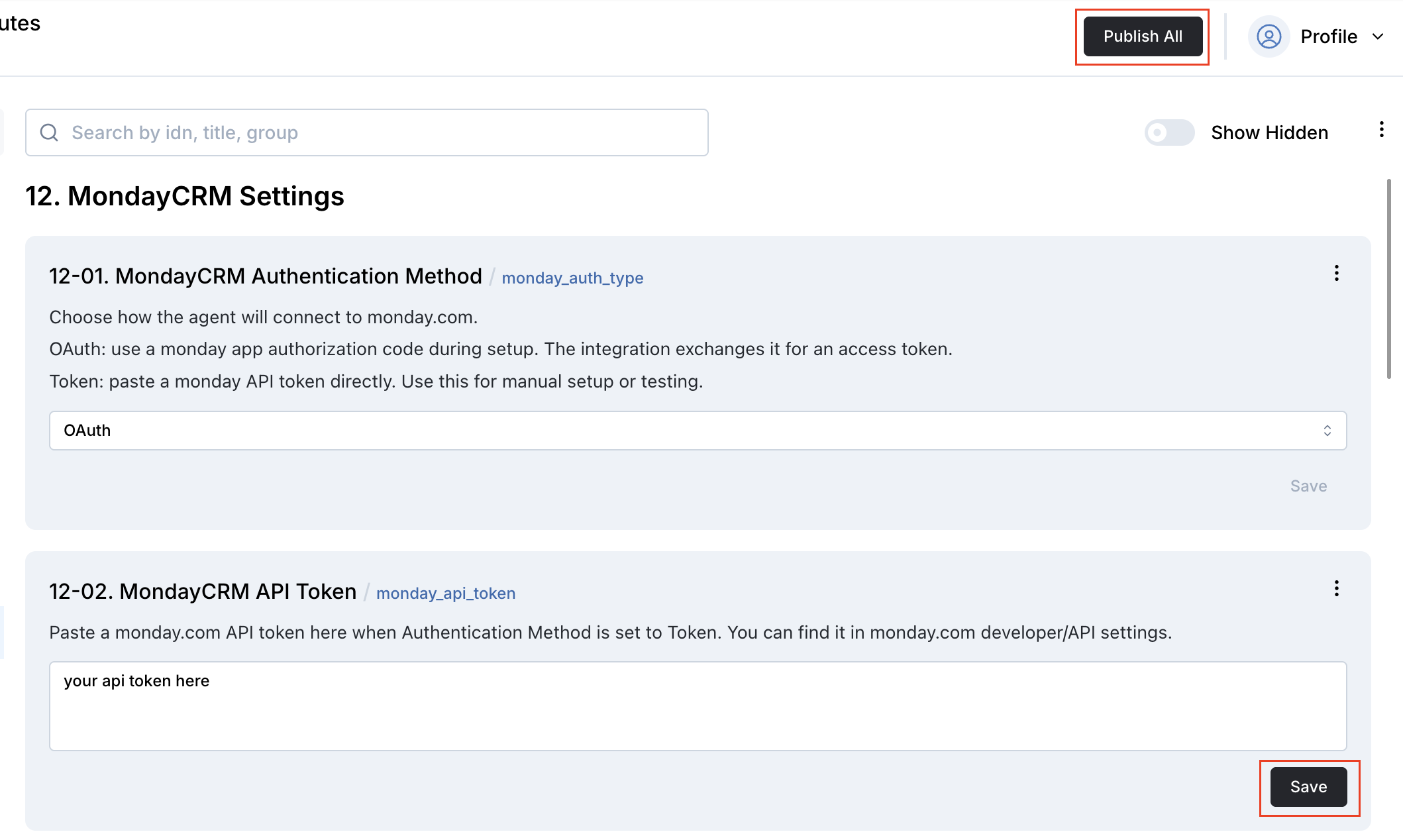
Figure S19. Save each attribute, then click Publish All to deploy the changes.
5. What the AI Agent Can Do
5.1 Check Availability
The AI looks at your Activities board, finds the meetings already booked for the requested day, and offers free slots based on Slot Duration and Days Ahead.
Example: "Do you have anything tomorrow afternoon?" → the agent checks your Activities board and reads back the open times.
You will see in monday.com: no record is created at this step.
5.2 Book an Appointment
The AI books the appointment the caller confirms.
What happens automatically:
- Newo searches the Contacts board for the caller's phone number.
- If the contact does not exist, Newo creates a new contact (name + phone).
- A new meeting item is created on the Activities board with the right start/end time, type Meeting, status Open.
- The meeting item is linked to the contact via the
activity_itemconnection.
You will see in monday.com: a new meeting item on the Activities board, plus a new or existing contact on the Contacts board.
5.3 Cancel an Appointment
The AI handles cancellation requests during the conversation.
You will see in monday.com: the meeting item is archived (not deleted — it can still be restored from the board's Archived view).
The agent can only cancel an appointment it has context for. Make sure your Canvas includes the cancellation scenario (it is added automatically when Auto-Setup Canvas Scenarios runs on first publish — see Section 7).
5.4 Recognize Returning Clients
When a call comes in with a caller ID, the AI looks up the phone number on the Contacts board and loads any upcoming meetings linked to that contact. The agent enters the conversation already knowing who's calling and what they have on the calendar.
You will see in monday.com: no record is created. This works silently in the background.
6. How to Test That Everything Works
Before going live, run through this checklist on a test contact.
6.1 After Setup
After clicking Publish All, confirm:
- Authentication Method is set to either
OAuthorToken - For Token mode: API Token is filled in
- For OAuth mode: Access Token is filled in (auto-populated by Newo after a successful exchange)
- Activities ID and Contacts ID match your boards
- No error messages appear in the publish log
6.2 Test Availability
- Start a test chat or call session.
- Ask: "What times are available tomorrow?"
- Confirm the agent returns a list of times that match the gaps between meetings already on your Activities board.
6.3 Test Booking
- Ask the agent to book a specific time (ideally outside your busy hours).
- Provide a test name and phone number.
- Open monday.com — a new meeting item should appear on the Activities board with the correct start/end time and a link to a contact on the Contacts board (a new contact is created if the test phone wasn't there).
6.4 Test Cancellation
- Ask the agent to cancel the appointment created in step 6.3.
- Open monday.com — the meeting item should now be in the Archived state on the Activities board.
6.5 Test Returning Client Recognition
- Start a session from a phone number that already exists on your Contacts board.
- The agent should greet the caller with context about their existing booking.
7. Canvas Auto-Setup
When the integration is published for the first time, Newo automatically updates your Canvas:
- conflicting default scheduling and cancellation scenarios are removed
- the Via Agent booking scenario is added from the Newo library — so the agent knows how to drive a booking conversation
- the Via Agent cancellation scenario is added — so the agent knows how to handle "I want to cancel my appointment"
What this means for you:
- you get a working starting point out of the box
- you can customize these scenarios for your business
- if you make significant Canvas customizations, re-test after any reconnect or Publish
These are starter templates, not a finished conversation design. Review them and adjust to match your business language and workflows.
8. Reconnecting and Rotating Credentials
When do I need to reconnect?
- The OAuth access token has been revoked or your monday app was uninstalled
- You rotated or regenerated the API token in monday
- The agent suddenly stopped checking availability, booking, or cancelling
- You changed the redirect URI on your monday app
How to rotate the API Token
- In monday's Developer Center, open the API Token page and click Regenerate. The old token stops working immediately.
- Copy the new token.
- Paste it into the API Token field in Newo.
- Click Save and then Publish All.
- Run a quick availability test.
How to re-authorize OAuth
- Generate a fresh OAuth code by reopening the Making OAuth request link from your monday app and approving again.
- Paste the new code into the OAuth Code field in Newo.
- Click Save and then Publish All.
- Confirm a new value appears in the Access Token field.
- Run a quick availability test.
The safe reconnect rule
Any time you change credentials, always do all three:
- Save the attribute
- Publish All
- Run at least one live test (availability or booking)
9. Troubleshooting
The agent says it cannot check availability, book, or cancel
Likely cause: the credentials or board IDs are missing or invalid.
Fix:
- Open Newo and check that Authentication Method is set.
- For Token mode — confirm API Token is not empty.
- For OAuth mode — confirm Client ID, Client Secret, Redirect URI, and OAuth Code are filled, and that Access Token is populated after publish. If Access Token is still empty, generate a fresh OAuth code (Section 3.3 step 6) and Publish again.
- Confirm Activities ID and Contacts ID are valid numeric IDs from the URLs of your boards.
- Click Publish All after any change.
My OAuth code keeps failing
- OAuth codes are one-time and short-lived. If setup didn't succeed immediately, the code may already be used or expired — generate a new one.
- The Redirect URI in the Newo admin panel must exactly match the one configured in your monday app — check for trailing slashes,
httpvshttps, and typos. - Make sure your Client ID, Client Secret, and Redirect URI all come from the same monday app.
Bookings are created but with no times in the date column
Likely cause: the agent only auto-fills date/notes columns it can detect. If your board uses non-standard column IDs they may not be picked up.
Fix: rename the optional date column ID to start with date_ and the long-text column ID to start with long_text_ (or use the title Date / Notes). Re-publish.
The agent can't recognize returning clients
- Check that the phone number on your Contacts board is stored in the
contact_phonecolumn. - Phone numbers need to be in a consistent format (we recommend the international format, e.g.
+15551234567).
The agent found a different time slot than I expected
- Check the Timezone attribute (
monday_timezone). It controls how "3 pm tomorrow" is interpreted before the value is sent to monday in UTC. - Confirm that the items on your Activities board have correct
activity_start_time/activity_end_timevalues.
A booked meeting is not blocking new availability
- Confirm the meeting item has
activity_type= Meeting andactivity_statusis not Done — the agent ignores anything marked Done. - Confirm
activity_start_timeandactivity_end_timeare populated.
New columns I added to the boards are not being used
Fix: click Publish All. The board metadata (columns, group ID) is refreshed on every publish.
I'm nervous about sharing the API token
- You can regenerate the API token in the monday Developer Center at any time. The moment you do, the old token stops working.
- If you ever want to disconnect the agent entirely, regenerate the token (Token mode) or revoke the OAuth app (OAuth mode). Access is cut off immediately.
10. FAQ
Does this create real records in monday.com? Yes. Bookings, cancellations, and contact creation all happen on your live monday boards.
Which connection method should I use? Use API Token unless your implementation partner has a specific reason to use OAuth. Both methods give the agent the same capabilities.
Can one setup handle multiple monday accounts? No. Each Newo project connects to one monday account and one pair of boards. Use separate Newo projects for separate monday accounts.
Can I use my existing monday boards? Yes — as long as they have the required column IDs (see Section 2). If your boards use different column IDs, either rename them to match or contact us.
Can the agent recognize returning customers automatically? Yes — when the caller's phone number is available, the agent looks them up on the Contacts board and pulls their upcoming bookings into the conversation.
Does the integration support rescheduling? Not directly. The agent will cancel the existing booking and create a new one for the new time.
What does Canvas Auto-Setup do? On first publish, Newo removes conflicting default scenarios from your Canvas and installs the Via Agent booking and cancellation scenarios from the library. These are starting templates — review and customize them for your business.
Can the agent detect the caller's timezone?
Times are interpreted using the monday_timezone attribute. If you operate across multiple timezones, talk to us about per-conversation timezone overrides.
What happens if my OAuth access token expires? Re-run the OAuth flow (Section 8). Paste a fresh OAuth code, Save, and Publish All — Newo will exchange it for a new access token and overwrite the old one.
What is the safest first test? Ask the agent for tomorrow's availability. It only reads from the board (no records are created), so it's a safe way to confirm the connection works.
11. Support Handoff Notes
When handing off to a support or partner team, make sure they know:
- which connection method is active (Token or OAuth)
- which monday account is connected
- the Activities ID and Contacts ID in use
- which features are enabled or disabled
- whether Canvas Auto-Setup was used or the Canvas was customized afterwards
The two most common fixes for any issue:
- Reconnect credentials and click Publish All
- Run a quick availability or booking test to confirm recovery