GoHighLevel Integration Guide
1. What This Integration Does
The Newo AI Agent integrates with GoHighLevel so your AI can act as a full scheduling and CRM assistant for your business.
Once connected, the AI agent can:
- check appointment availability in your GHL calendar and offer time slots to callers
- book appointments and automatically create or update the contact in GHL
- cancel and reschedule existing appointments
- recognize returning clients by phone number and pull their upcoming bookings
- sync every conversation back into GHL — as a conversation message and a contact note
- automatically move leads through your GHL pipeline based on the call outcome
- trigger outbound calls and SMS directly from GHL Workflows using native Marketplace actions
In plain terms: the AI handles calls and chats, uses GHL as its calendar and CRM backend, and writes everything back into GHL so your team always has full context.
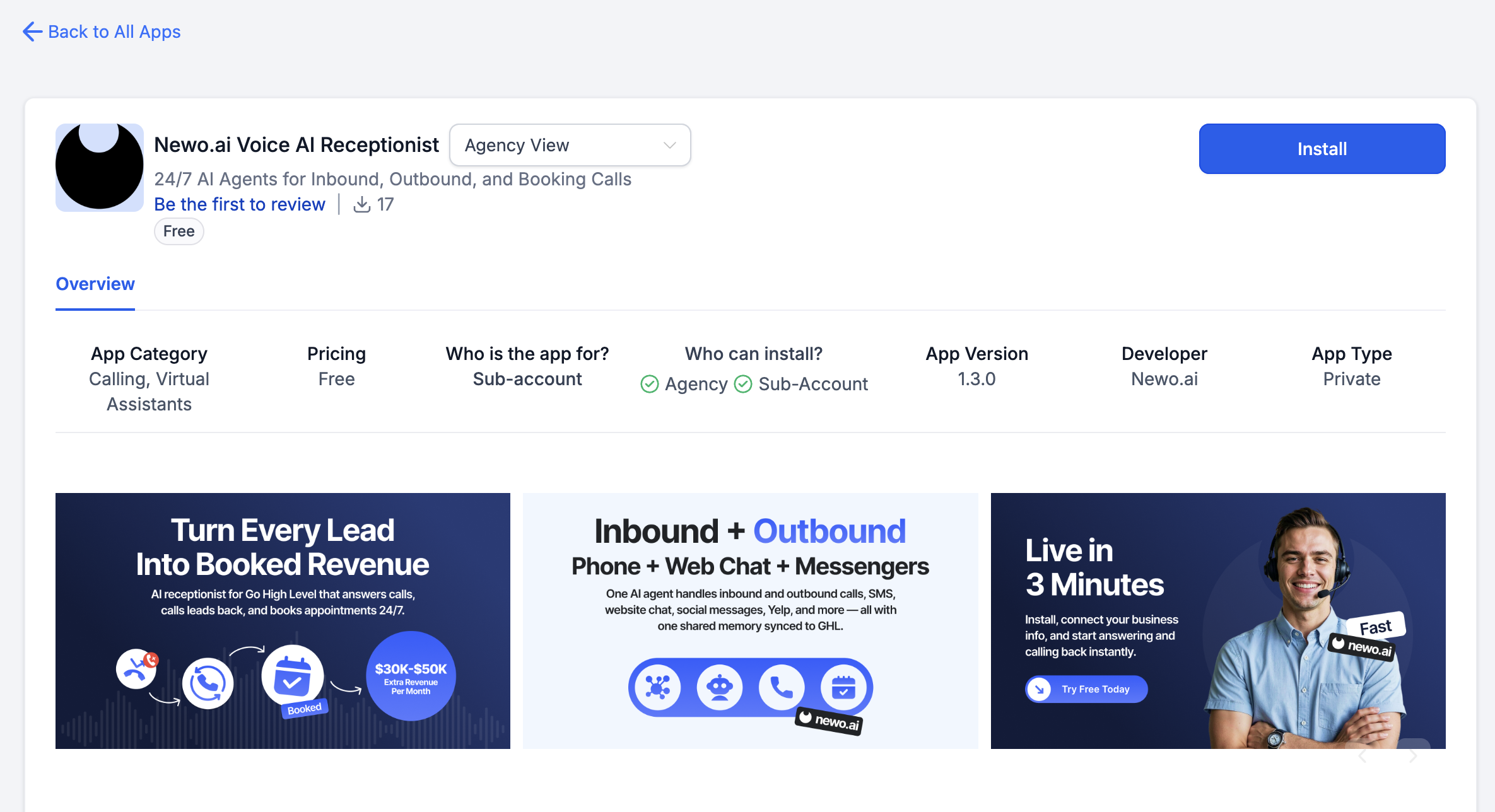
Figure S01. Entry point for starting GoHighLevel integration setup in Newo.
2. Before You Start
Make sure you have:
- an active GoHighLevel account
- access to the correct GHL sub-account (location) you want to connect
- access to the Newo project builder for your project
- permission to edit project settings and publish
You will also need one of the following:
- OAuth — recommended. You will be redirected to GHL to approve the connection.
- Private Token — for manual setups. You generate a token inside GHL and paste it into Newo.
Which should I use? Use OAuth unless your implementation partner has specifically asked you to use a Private Token. OAuth is more reliable and gives you access to the full feature set.
3. Connecting for the First Time
Create the Newo project
If this project already exists in Newo Builder, skip this subsection and continue with the integration-specific settings below.
- In Newo Builder, open the projects list and click Create Project (or Create New Project from the top-right menu).

- Fill IDN and Title. The exact names do not matter; use any clear names your team will recognize.
- In Registry, choose the release channel:
- staging — the newest module fixes appear here first. Use it when you need the latest fix, but expect possible unfinished changes.
- production — the final stable version for live projects.
- In Module, select the module for this integration.
 5. Leave Module version on Latest version unless support tells you to pin a specific version, then click Create.
3.1 Connect with OAuth (Recommended)
- Open your project in Newo and go to Builder → Attributes.
- Find the GoHighLevel section.
- Set Auth Type to
OAuth. - Click the authorization link shown in the OAuth Code field description.
- Log in to GoHighLevel and approve the requested permissions.
- Select the correct sub-account / location.
- After the redirect, copy the authorization code from the result page.
- Paste it into the OAuth Code field in Newo.
- Fill in your GHL Location ID.
- Click Save.
- Click Publish All.
What happens after Publish:
- Newo connects to your GHL account
- Your calendars appear in the Default Calendar dropdown
- Your pipelines appear in the Default Pipeline dropdown
- The integration is ready to handle conversations
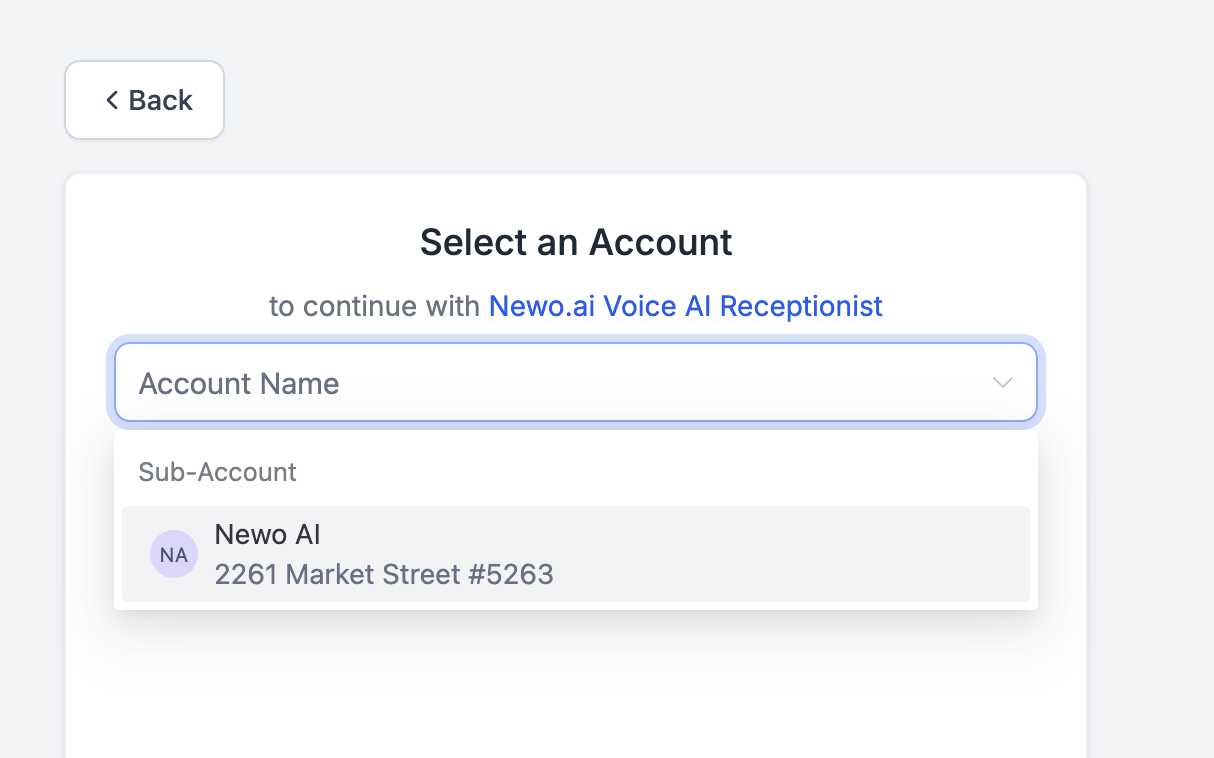
Figure S03. OAuth authorization screen in GoHighLevel — approve the connection here.
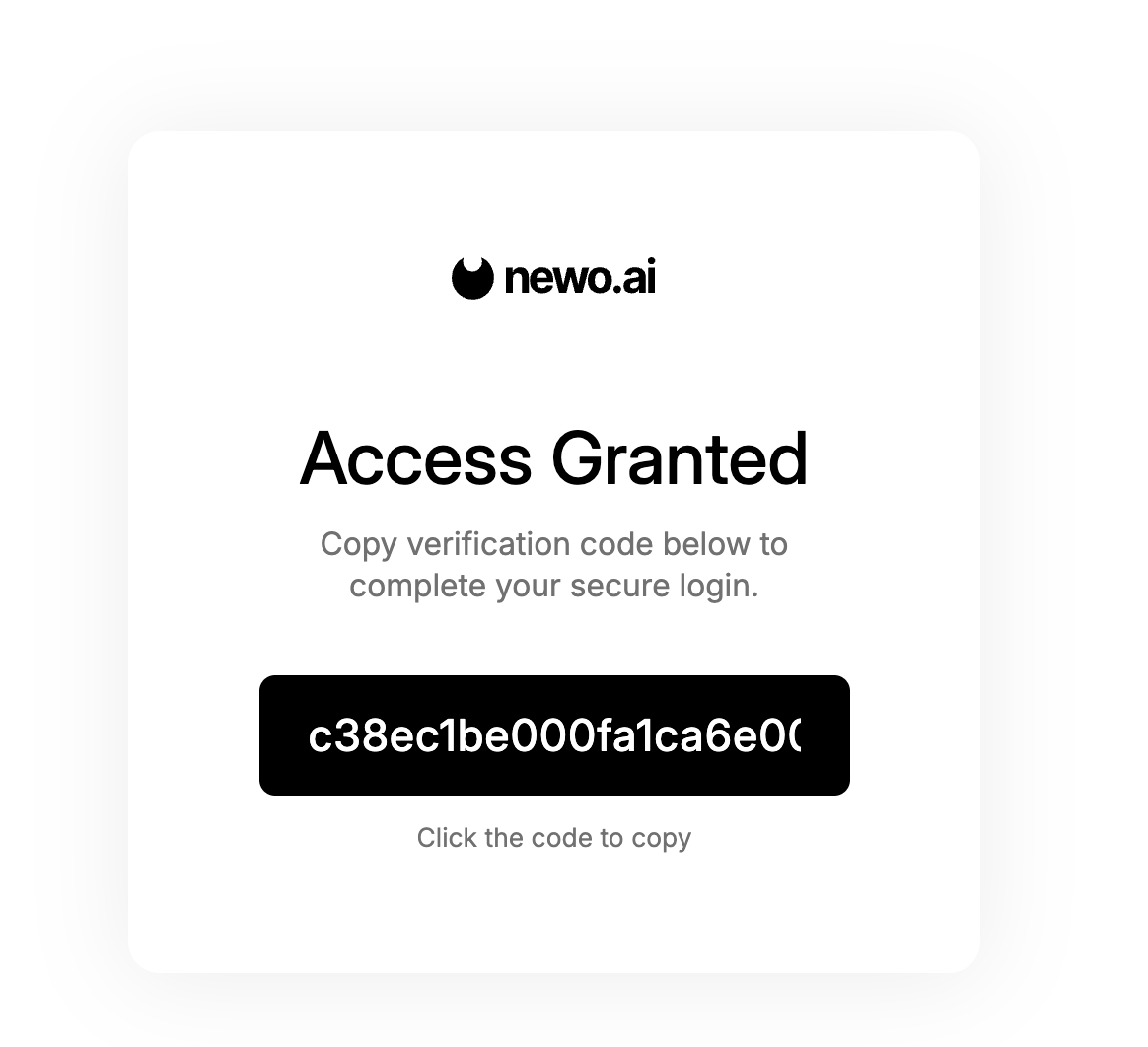
Figure S04. Copy the authorization code from this page and paste it into Newo.
3.2 Connect with Private Token
Use this method only if your implementation partner has instructed you to.
- In GoHighLevel, go to Settings → Integrations → Private Integrations.
- Create a new integration or open an existing one.
- Generate a token and copy it.
- In Newo, set Auth Type to
Token. - Paste the token into the Private Token field.
- Fill in your GHL Location ID.
- Click Save and then Publish All.
Important: The token must have access to contacts, calendars, conversations, pipelines, and custom values. If some features stop working after setup, your token may be missing required permissions.
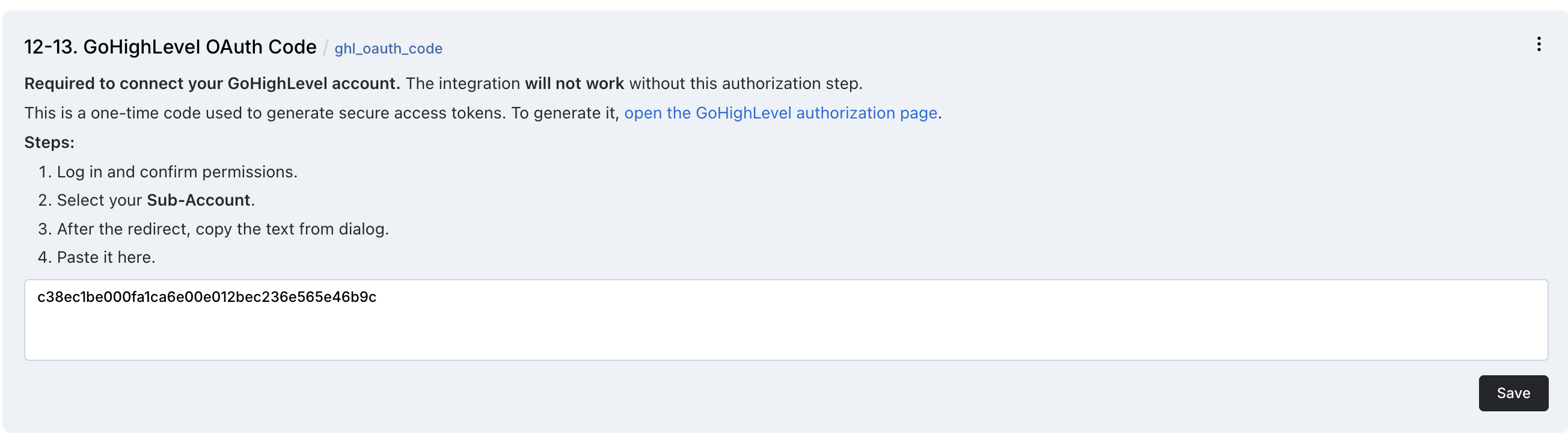
Figure S05. GoHighLevel Private Integration screen — generate and copy your token here.

Figure S06. After clicking Publish All, verify that calendars and pipelines appear in their dropdowns.
4. Settings Reference
You can find all settings in Builder → Attributes → GoHighLevel.
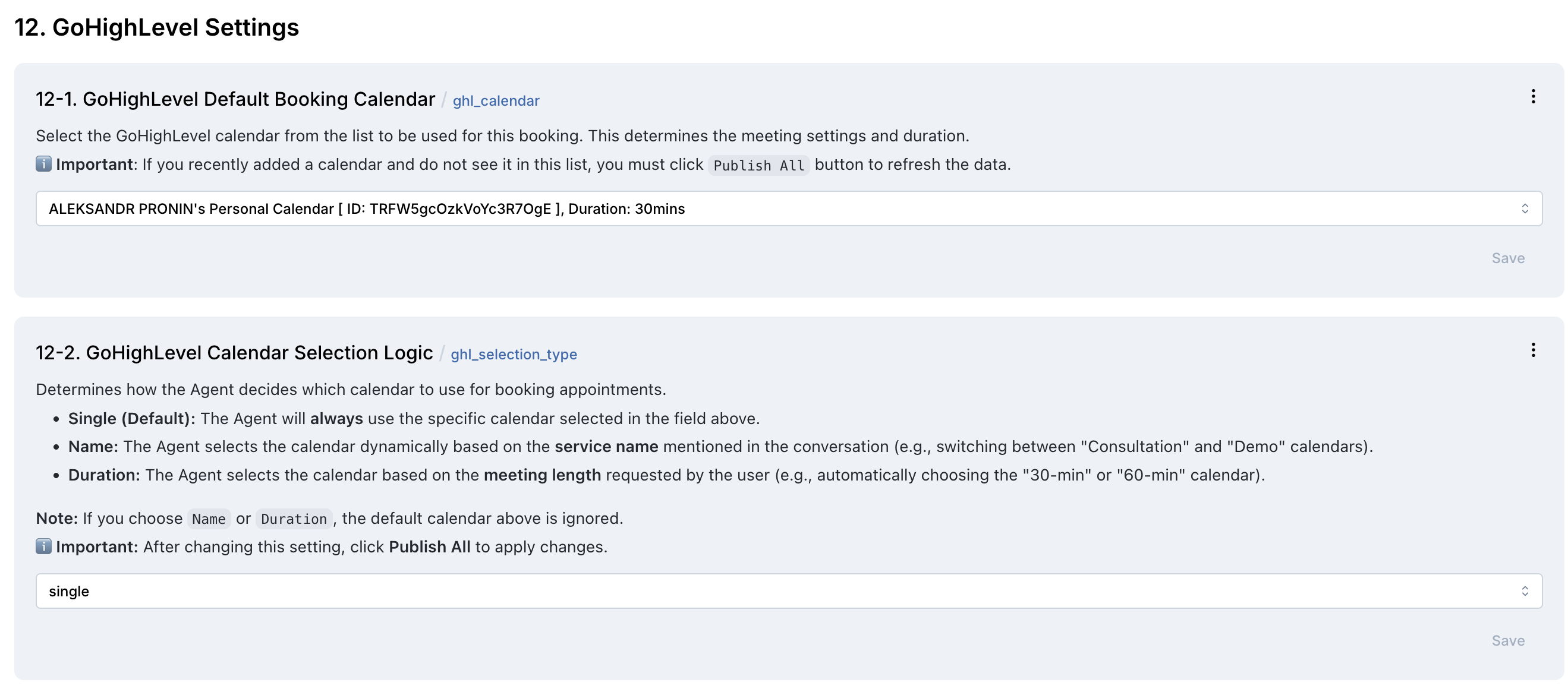
Figure S07. The GoHighLevel settings block in Newo Builder.
4.1 Connection Settings
| Setting | What it does | Required |
|---|---|---|
| Auth Type | Choose OAuth (recommended) or Token | Yes |
| OAuth Code | Authorization code from the GHL redirect. Only needed for OAuth. | OAuth only |
| Private Token | Token generated inside GHL Private Integrations. Only needed for Token method. | Token only |
| GHL Location ID | The ID of your GHL sub-account / location. Found in GHL Settings → Business Info. | Yes |
4.2 Feature On/Off Switches
Each feature can be independently enabled or disabled:
| Setting | Default | What it controls |
|---|---|---|
| Enable Availability Check | On | The agent can look up available time slots |
| Enable Booking | On | The agent can create appointments |
| Enable Cancellation | On | The agent can cancel appointments |
| Check Existing Clients | On | The agent recognizes returning callers by phone |
| Sync Conversation to GHL | On | The call/chat is written back to GHL as a conversation message |
| Save Client History Notes | On | A summary or transcript is added to the contact's notes |
| Update Pipeline Stage | Off | The agent moves the lead to a pipeline stage after the call |
| Auto-Setup Canvas Scenarios | On | Default booking and cancellation scenarios are added to Canvas automatically |
Recommended defaults for a new setup: leave all defaults as-is. Turn on Update Pipeline Stage only after you have tested it on a demo contact. If you leave the pipeline rule fields blank, Newo now auto-generates fallback guidance from the current GHL pipelines and stages after Publish All.
4.3 Calendar Settings
| Setting | What it does |
|---|---|
| Calendar Selection Mode | How the agent picks a calendar. Options: single, by name, by duration. Default: single. |
| Default Calendar | The calendar to use when mode is single. Populated automatically after Publish. |
| Calendar Selection Instructions | (Used with by name or by duration mode.) Tell the AI how to choose between calendars. |
Which Calendar Selection Mode to use:
- Single — the agent always uses the same calendar. Best for most businesses. Use this unless you have multiple calendar types.
- By Name — the agent picks the calendar based on what the customer asks for (e.g. "I want to book a consultation with Dr. Smith"). Requires clear instructions.
- By Duration — the agent picks the calendar based on the desired appointment length. Useful when your calendars are organized by duration.
4.4 Pipeline Settings
| Setting | What it does |
|---|---|
| Default Pipeline | The GHL pipeline to update after sessions. Populated automatically after Publish. |
| Auto-Select Pipeline | Lets the AI choose the best pipeline from the conversation instead of always using the single selected pipeline. |
| Pipeline Selection Rules | Optional instructions for how to choose between multiple pipelines. If blank, Newo auto-generates fallback guidance from your live GHL pipelines and writes it into this field on Publish All. |
| Pipeline Stage Rules | Optional instructions for how to choose the final stage. If blank, Newo auto-generates fallback guidance from the selected pipeline and writes it into this field on Publish All. |
Tip: Write pipeline rules in plain language, e.g. "If the caller booked an appointment, use Bookings Pipeline. If they need help with an existing appointment, use Support Pipeline." Stage rules can stay very direct too: "If the caller booked an appointment, move to Booked. If they asked to call back later, move to Follow-Up. If they are not interested, move to Closed - Lost."
4.5 Advanced Settings
These are safe to leave at defaults unless your implementation partner has specific requirements.
| Setting | Default | What it does |
|---|---|---|
| Use Timezone from Conversation | Off | Extract the caller's timezone from the conversation context |
| Preload Availability on Session Start | Off | Check the calendar in the background before the caller asks |
5. What the AI Agent Can Do
5.1 Check Availability
The AI searches your GHL calendar for free slots and offers them to the caller.
Example: "Do you have availability tomorrow afternoon?" → the agent checks your calendar and reads back available times.
You will see in GHL: no record is created at this step.
5.2 Book an Appointment
The AI books the appointment the caller confirms.
What happens automatically:
- Newo searches GHL for the caller's contact by phone number
- If the contact does not exist, Newo creates it
- The appointment is created in the selected GHL calendar
- The contact is linked to the appointment
You will see in GHL: a new appointment in your calendar and a new or updated contact.
5.3 Cancel an Appointment
The AI handles cancellation requests during the conversation.
You will see in GHL: the appointment status is changed to Cancelled.
The agent can only cancel an appointment it has context for. Make sure your Canvas includes a cancellation scenario (it is added automatically when Auto-Setup Canvas Scenarios is enabled).
5.4 Reschedule an Appointment
The AI updates the start time of an existing appointment to a new time the caller confirms.
You will see in GHL: the same appointment record with an updated time.
5.5 Recognize Returning Clients
When a call comes in with a caller ID, the AI looks up the phone number in GHL and loads any upcoming bookings for that contact. This gives the agent context before the conversation even starts.
You will see in GHL: no record created. This works silently in the background.
5.6 Sync Conversation to GHL
After every call or chat, the AI writes the conversation outcome back to GHL:
- a conversation message is added to the contact's GHL Conversations
- a note with call summary or transcript is saved to the contact
You will see in GHL: a new message in the contact's Conversations tab and a new note in their Notes tab.
5.7 Update Pipeline Stage
If enabled, the AI evaluates the call outcome and moves the contact's opportunity to the appropriate pipeline stage.
What happens automatically:
- if Auto-Select Pipeline is off, Newo uses the selected pipeline
- if Auto-Select Pipeline is on, Newo first picks the best pipeline from the conversation
- if Pipeline Selection Rules or Pipeline Stage Rules are blank, Newo generates fallback guidance from the current GHL pipelines and stages and saves it into those fields during Publish All
You will see in GHL: the contact's opportunity updated to the new stage.
6. How to Test That Everything Works
Before going live, run through this checklist on a demo contact.
6.1 After Setup
After clicking Publish All, confirm:
- The Default Calendar dropdown shows your GHL calendars
- The Default Pipeline dropdown shows your GHL pipelines (if pipeline update is enabled)
- No error messages appear in the publish log
6.2 Test Availability
- Start a test chat or call session.
- Ask for available times.
- Confirm the agent returns real time slots from your GHL calendar.
6.3 Test Booking
- Ask the agent to book a specific time.
- Provide a test name and phone number.
- Check GHL — a new appointment should appear in your calendar, and the contact should be created or updated.
6.4 Test Cancellation
- Use the appointment created in the booking test.
- Ask the agent to cancel it.
- Check GHL — the appointment status should be Cancelled.
6.5 Test Reschedule
- Use an existing appointment.
- Ask the agent to move it to a different time.
- Check GHL — the appointment time should be updated.
6.6 Test Returning Client Recognition
- Start a session where the caller phone number is provided.
- The agent should greet the caller with context about their existing booking.
6.7 Test Post-Call Sync
- Complete a test call.
- End the session.
- Check the contact in GHL:
- A new message appears in Conversations
- A note appears in Notes
- The pipeline stage was updated (if enabled)
7. Reconnecting and Rotating Credentials
When do I need to reconnect?
- The OAuth connection has expired or been revoked
- You rotated the Private Token
- Calendars or pipelines stopped showing up after Publish
- Certain features suddenly stopped working after changes on the GHL side
How to reconnect OAuth
- Generate a fresh authorization code by opening the authorization link again.
- Paste the new code into the OAuth Code field.
- Click Save and then Publish All.
- Confirm calendars and pipelines refresh.
- Run a quick availability test.
How to rotate a Private Token
- Generate a new token in GHL (Settings → Integrations → Private Integrations).
- Paste it into the Private Token field in Newo.
- Click Save and then Publish All.
- Run a quick test.
The safe reconnect rule
Any time you change credentials, always do all three:
- Save the attributes
- Publish All
- Run at least one live test (availability or booking)
8. Canvas Auto-Setup
When Auto-Setup Canvas Scenarios is enabled, Newo automatically adds ready-made conversation building blocks to your Canvas after the first Publish.
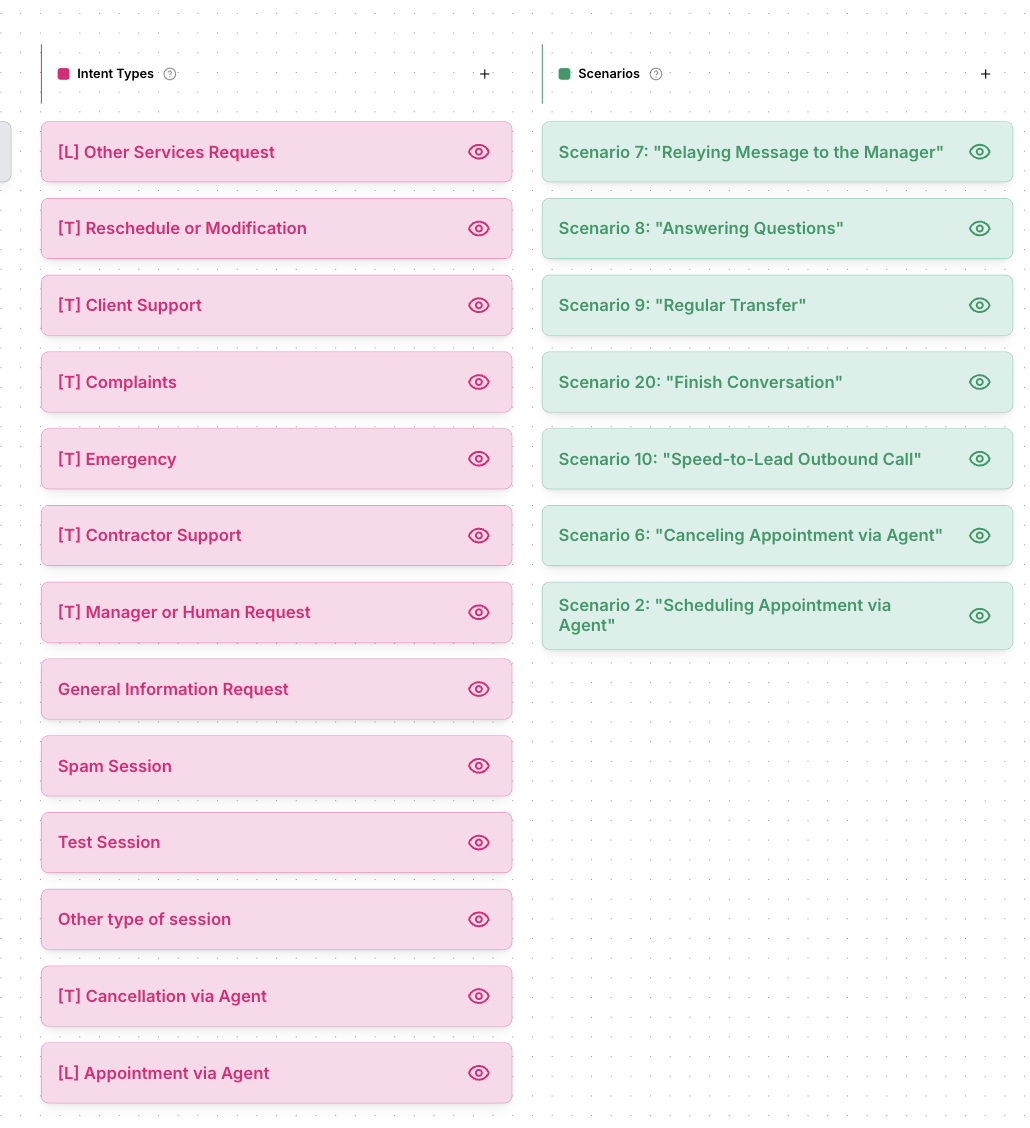
Figure S08. Canvas after automatic setup — default booking and cancellation scenarios are already inserted.
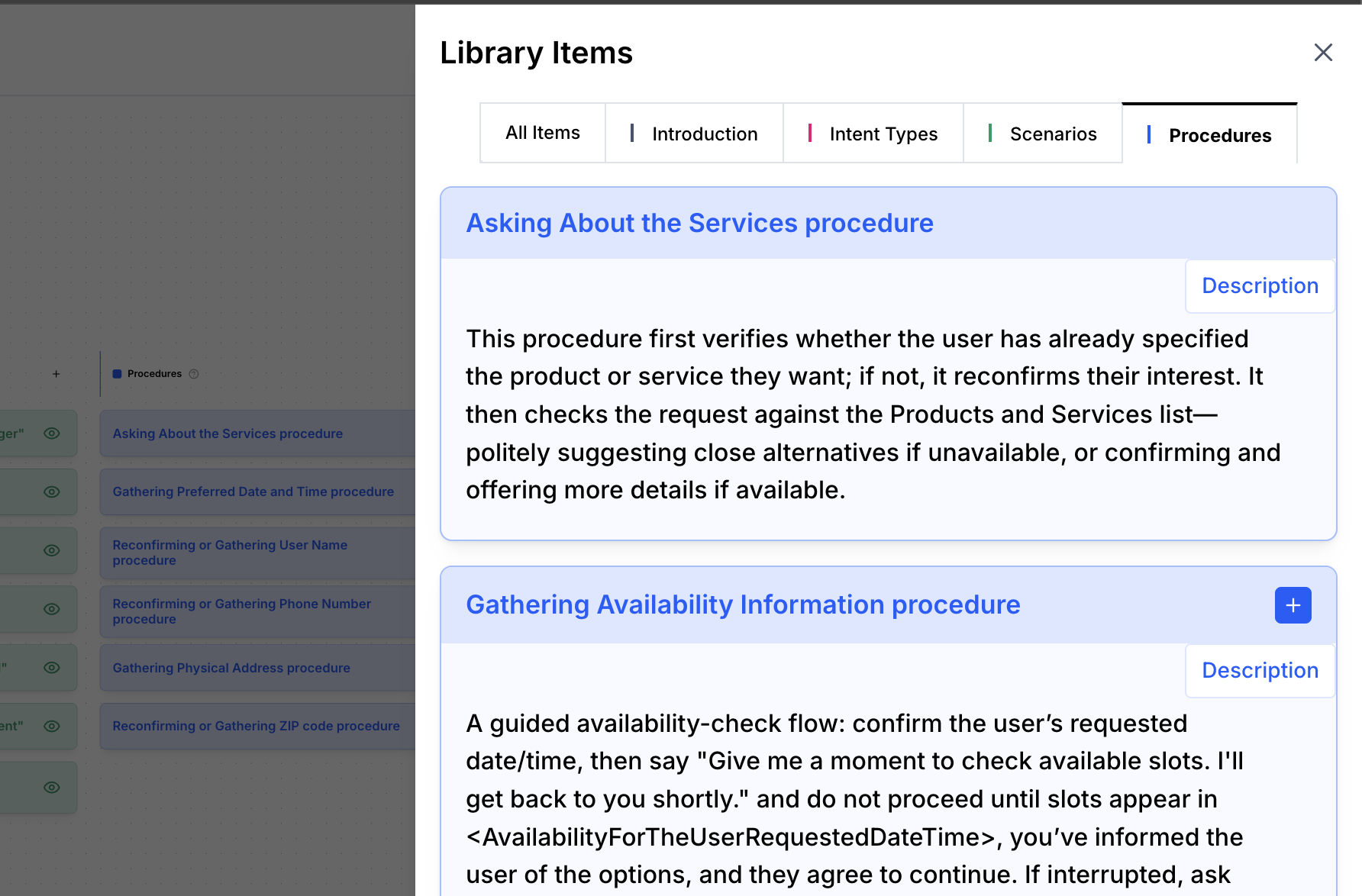
Figure S09. The scenario library showing the GoHighLevel-related Canvas items added automatically.
What is added automatically:
- A cancellation intent and cancellation scenario — so the agent knows how to handle "I want to cancel my appointment"
- An appointment scheduling scenario — a starting template for booking conversations
- A speed-to-lead outbound call scenario — for immediate follow-up on new leads
What this means for you:
- You get a working starting point out of the box
- You can customize these scenarios for your business
- If you make significant customizations, re-test after any reconnect or Publish
These are starter templates, not a finished conversation design. Review them and adjust to match your business language and workflows.
9. Automations You Can Build in GoHighLevel
Beyond the AI handling calls, you can build automations in GHL Workflows that react to what the AI did.
There are two ways to do this:
Option A — Trigger Newo from GHL: Use the Newo native actions installed through the Marketplace app to launch outbound calls or send SMS directly from a GHL Workflow.
Option B — React in GHL to what Newo logged: After a call ends, Newo writes the outcome to GHL. You can use that data to branch your GHL Workflows (e.g. send an SMS if the call went to voicemail).
Both can be used together.
9.1 Trigger an Outbound Call from a GHL Workflow
The Marketplace app adds a native Newo action inside the GHL Workflow Builder. This lets you launch an AI outbound call directly from any GHL automation trigger.
Common use cases:
- Call a new lead immediately after they fill out a form
- Call a lead when their pipeline stage changes
- Trigger a callback after a missed call
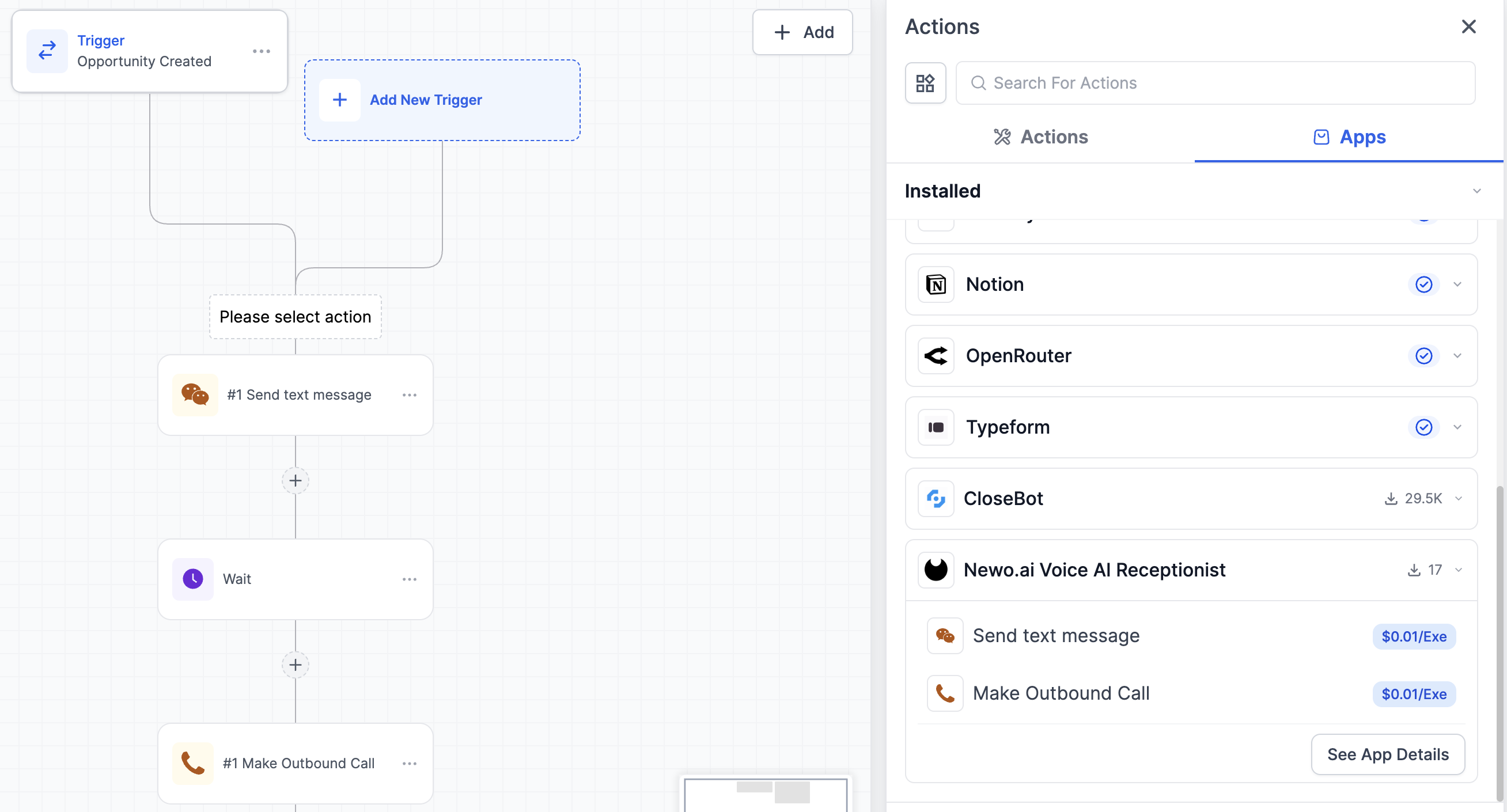
Figure S10. GoHighLevel workflow builder with the Newo outbound call action selected.
How to set it up:
- In GoHighLevel, open Automation → Workflows.
- Create a new workflow or edit an existing one.
- Choose your trigger (e.g. Contact Created, Form Submitted, Opportunity Stage Changed).
- Add a new action and select the Newo outbound call action from the Marketplace app.
- Map the fields:
- Contact phone → Phone Number
- Contact name → Contact Name
- Your Newo API key → API Key
- Optional: add a custom instruction → Agent Instruction
- Publish the workflow.
- Test on a demo contact first.
Agent Instruction examples:
- "Introduce yourself as our clinic's AI assistant and help the lead schedule a consultation."
- "This lead missed our previous call. Ask if they have a moment to talk and offer to book a callback if not."
- "Follow up on their form submission and qualify their interest before offering to book."
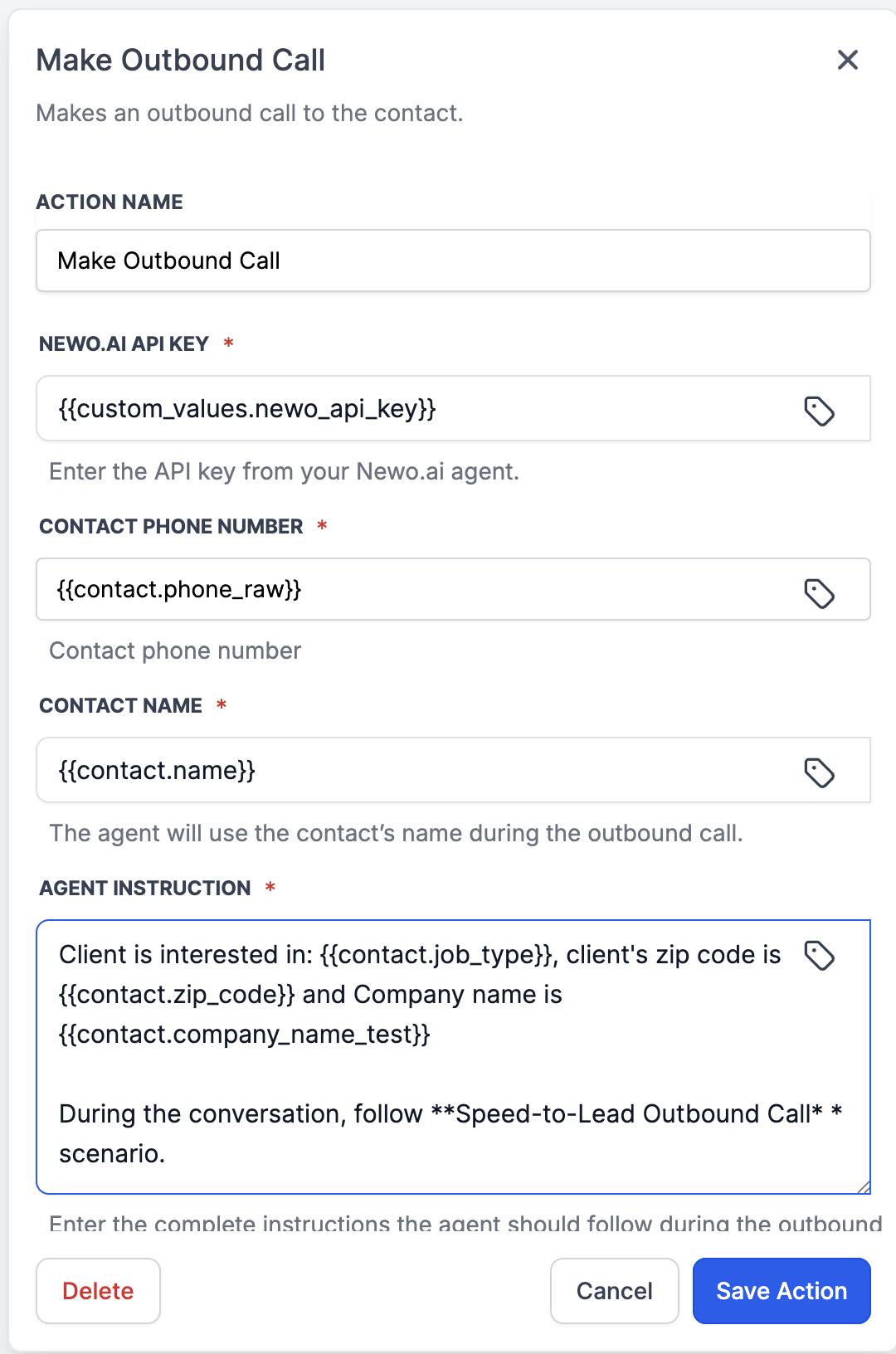
Figure S11. Outbound call action configured with phone, name, API key, and agent instruction fields mapped.
9.2 Trigger an SMS from a GHL Workflow
The Marketplace app also includes a native SMS action. It works the same way as the outbound call action — add it to a workflow, map the fields, and Newo sends the SMS.
Common use cases:
- Send an SMS follow-up after a missed call
- Send a booking confirmation SMS
- Send a nurture message after a lead enters a pipeline stage
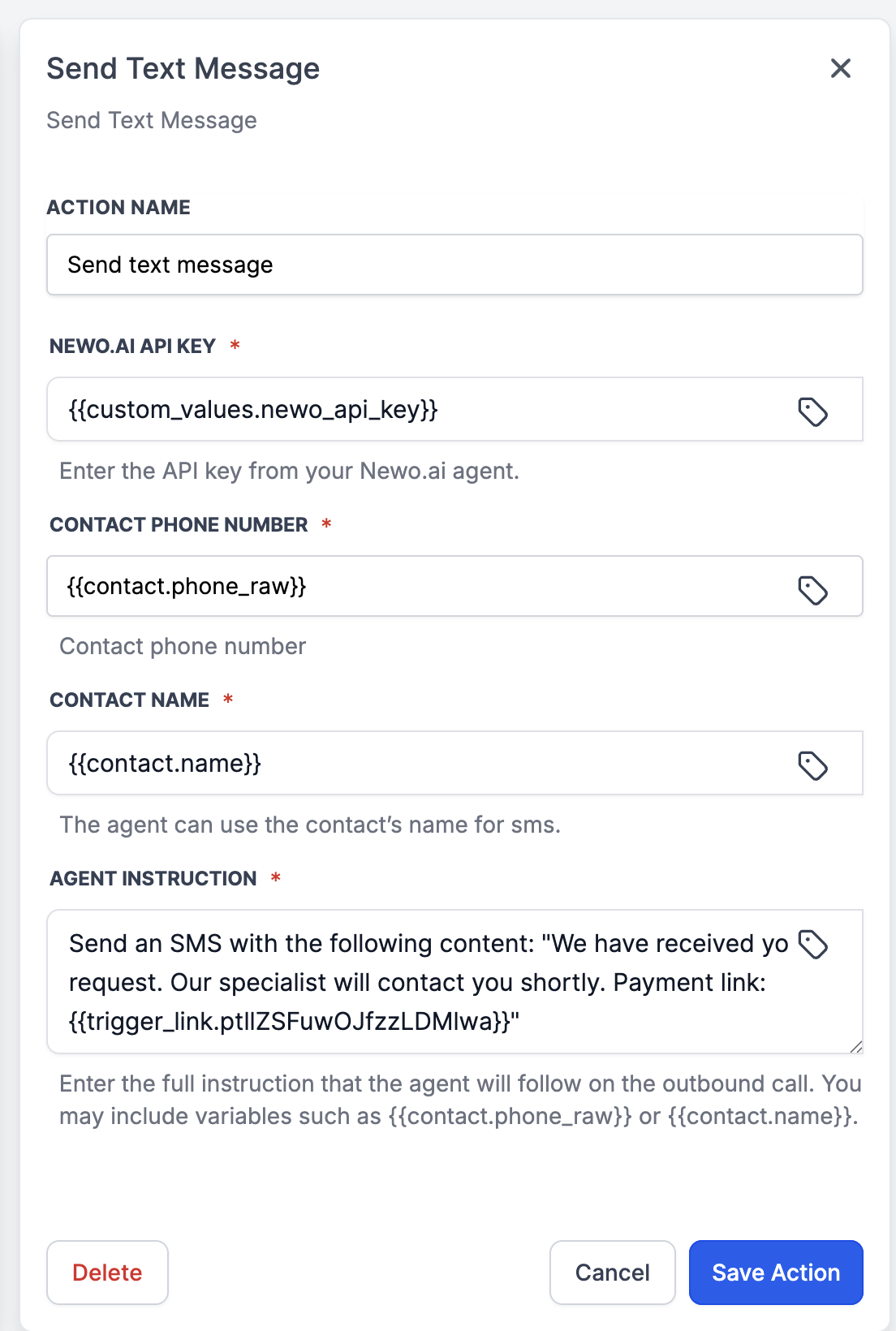
Figure S13. Native SMS action configuration inside the GoHighLevel workflow builder.
9.3 React in GHL to Call Outcomes
After every session, Newo (if Sync Conversation to GHL is enabled) writes the call outcome to the contact record. You can use this in GHL Workflow conditions.
Available call outcome values:
| Value | Meaning |
|---|---|
completed | Call ended normally |
answered | Call was answered |
voicemail | Call reached voicemail |
no-answer | Call was not answered |
busy | Line was busy |
canceled | Call was canceled before connecting |
failed | Call failed technically |
Example workflows:
Voicemail follow-up SMS:
- Trigger: conversation/contact updated
- Condition: call outcome =
voicemail - Action: send SMS — "Sorry we missed you. Reply here if you'd like us to call back."
Missed call callback queue:
- Trigger: conversation/contact updated
- Condition: call outcome =
no-answer - Actions: wait 10 minutes → create callback task or launch outbound call
Post-booking nurture:
- Trigger: opportunity updated
- Condition: stage moved to Booked
- Actions: send confirmation SMS → create follow-up reminder task
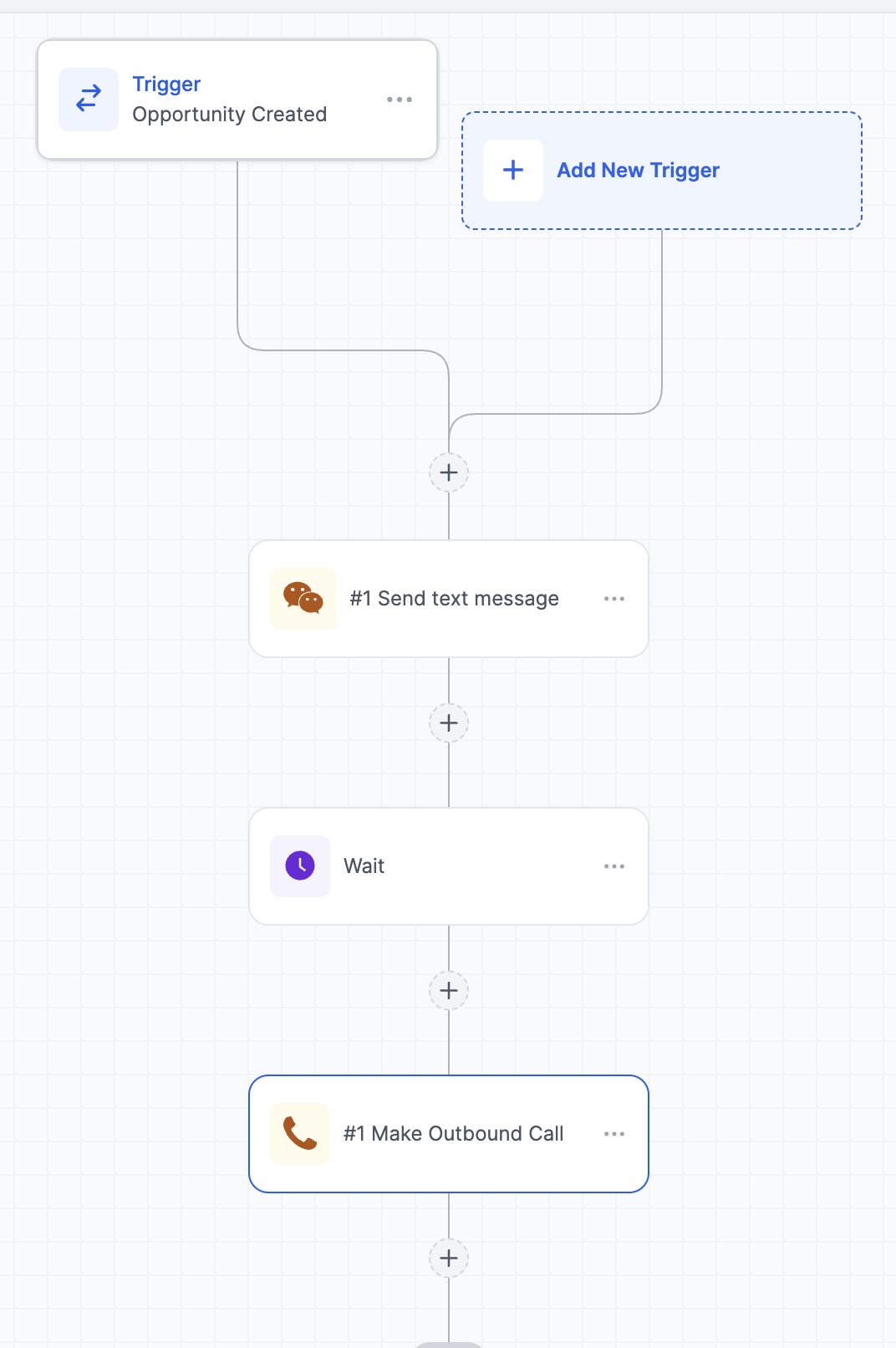
Figure S12. A complete GHL workflow combining a Newo call action with native GHL steps like SMS and wait nodes.
9.4 Checklist Before Enabling Automations
- The Marketplace app is installed correctly (for native call/SMS actions)
- The Newo API key is filled in and valid
- The GHL workflow is published
- Sync Conversation to GHL is enabled in Newo settings (for outcome-based workflows)
- GHL has calling and/or SMS capability configured for your location
- Business hours rules are in place — do not call leads outside business hours
- Duplicate prevention is in place — do not call or SMS the same lead repeatedly
- The workflow is tested on a demo contact before enabling for real leads
10. Troubleshooting
Calendars or pipelines are not showing up after Publish
Likely cause: The authorization code or token was invalid, or the wrong Location ID was entered.
Fix:
- Check that Auth Type, OAuth Code or Private Token, and Location ID are all correct.
- Click Publish All again.
- If still empty, reconnect credentials (see Section 7).
The agent is not booking appointments
Check:
- Is Enable Booking turned on?
- Is the correct calendar selected in Default Calendar?
- If using by name or by duration mode, are the Calendar Selection Instructions clear enough?
Quick fix: switch Calendar Selection Mode to single temporarily and test again.
The agent is not cancelling appointments
Check:
- Is Enable Cancellation turned on?
- Does the caller have a future appointment on record?
- Is the cancellation scenario present in Canvas?
The agent is using the wrong calendar
Check:
- If Calendar Selection Mode is
by nameorby duration, the instructions may be too vague.
Fix: click Publish All to refresh calendar metadata, then simplify the instructions or switch to single mode for debugging.
Nothing is appearing in GHL after the call ends
Check:
- Is Sync Conversation to GHL turned on?
- Did the session end normally (not cut off mid-call)?
Fix: ensure the setting is on and run a complete test session from start to finish.
No note is appearing on the contact
Check: Is Save Client History Notes turned on?
The pipeline stage is not updating
Check:
- Is Update Pipeline Stage turned on?
- Is a pipeline selected in Default Pipeline?
- If Auto-Select Pipeline is on, do the available pipelines and their stages look correct after Publish All?
- Are the Pipeline Stage Rules or Pipeline Selection Rules written clearly enough for the AI to pick the right result?
- If you left those fields blank, did you click Publish All after changing pipelines so Newo could refresh the auto-generated fallback guidance?
New calendars or pipelines I added in GHL are not appearing
Fix: click Publish All. Calendar and pipeline lists refresh on every publish.
The OAuth connection stopped working
Fix: generate a fresh authorization code and paste it into OAuth Code, then Save and Publish All.
The Private Token setup works partially but some features behave differently
Cause: the token may be missing required permissions, or your GHL account may require Marketplace-installed app behavior for certain features.
Fix: verify the token has full permissions for contacts, calendars, conversations, pipelines, and custom values. If issues persist, switch to OAuth.
The native outbound call action is not running
Check:
- Is the Newo API key filled in and valid?
- Is the contact phone number populated in GHL?
- Is the contact name populated?
- Is the GHL workflow published?
- Does the workflow branch actually reach the Newo action?
The native action returns "phone number is empty" or "contact name is empty"
Fix: check how the GHL workflow is mapping contact fields to the action inputs. Make sure the contact has a phone number and name before the workflow reaches the action.
A GHL workflow starts but no SMS or call happens
Check:
- Is GHL SMS / calling configured for this location?
- Are business hours or compliance rules blocking the action?
- Is the workflow action mapped to the correct sending number or channel?
The workflow fires too often
Fix: add deduplication conditions, wait steps, and a maximum retry limit to your GHL workflow.
11. FAQ
Does this create real records in GoHighLevel? Yes. Bookings, cancellations, contact updates, conversation messages, notes, and pipeline changes all happen in your live GHL account.
Can one setup handle multiple GHL locations? No. Each Newo project connects to one GHL location. Use separate projects for separate locations.
Which connection method should I use? Use OAuth unless your implementation partner has a specific reason to use a Private Token.
Why did newly added calendars not appear automatically? Because Newo refreshes calendar and pipeline data when you click Publish All. After adding a new calendar in GHL, publish the Newo project again.
Can the agent recognize returning customers automatically? Yes, when the caller's phone number is available and Check Existing Clients is enabled. The agent will look up the contact and their upcoming bookings before the conversation starts.
Does the integration support rescheduling? Yes. There is a dedicated reschedule flow that updates the existing appointment to a new time.
What does Auto-Setup Canvas Scenarios do? It automatically inserts ready-made booking, cancellation, and speed-to-lead scenarios into your Canvas when the project is published. These are starting templates — review and customize them for your business.
Can the agent detect the caller's timezone? Yes, if Use Timezone from Conversation is enabled.
Can I still build GHL automations with a Private Token setup? Yes, but some features may behave differently depending on the token's permissions and your GHL account type. If something is inconsistent, switching to OAuth is the safer option.
What is the safest first automation to test? An SMS follow-up after a voicemail outcome. It is low-risk, easy to verify, and a good starting point before building more complex retry or callback logic.
12. Support Handoff Notes
When handing off to a support or partner team, make sure they know:
- which connection method is active (OAuth or Private Token)
- which GHL location is connected (Location ID)
- which features are enabled or disabled
- whether Canvas Auto-Setup was used
- whether the deployment uses the Marketplace app for native actions
The two most common fixes for any issue:
- Reconnect credentials and click Publish All
- Run a quick availability or booking test to confirm recovery