Teamup Integration
What the AI can do
Summary
Teamup Integration connects Teamup (shared calendar platform) with Newo Platform.
It enables:
- Checking real-time availability slots across configurable date windows
- Booking appointments with automatic sub-calendar assignment
- Cancelling existing appointments
- Auto-detection of sub-calendars during setup
- Auto-provisioning of booking/cancellation scenarios to the workflow canvas
This integration is designed for businesses and teams who need automated appointment scheduling through a conversational AI agent (voice or chat) using Teamup as their calendar system.
Common use cases
- When a client asks about available slots → Check Teamup calendar for free time slots within the configured availability window
- When a client wants to book an appointment → Create an event in the Teamup calendar with title, notes, and duration
- When a client wants to cancel an appointment → Delete the event from the Teamup calendar by event ID
- When a conversation starts → Optionally preload nearest available slots into the agent's prompt context
- When the project is published → Auto-detect sub-calendars and configure booking/cancellation scenarios
Features at a glance
| Feature | Supported | Notes |
|---|---|---|
| Check Availability | ✅ | Configurable window (default: 7 days) and slot duration |
| Book Appointment | ✅ | With title, notes, duration; auto-assigns sub-calendar |
| Cancel Appointment | ✅ | By event ID via DELETE request |
| Silent Availability Preload | ✅ | Optional auto-check on conversation start |
| Sub-Calendar Auto-Detection | ✅ | Fetches active sub-calendars during setup |
| Canvas Scenario Provisioning | ✅ | Auto-adds Speed-to-Lead, Cancellation, and Scheduling scenarios |
| Configurable Timezone | ✅ | IANA timezone for all date/time operations |
| Configurable Slot Duration | ✅ | Default 30 minutes, configurable per project |
| Rescheduling | ❌ | Cancel + rebook workflow (no direct reschedule API) |
| Multi-Location Support | ❌ | One sub-calendar per instance; use multiple instances |
| Webhook Support | ❌ | No inbound webhook handling |
Before You Start
Before installation:
- Active Teamup account with API access
- Teamup API Key (request at https://teamup.com/api-keys/request)
- Teamup Calendar Key (the
ks...key from your calendar URL that determines permission level)
Setup
Create the Newo project
If this project already exists in Newo Builder, skip this subsection and continue with the integration-specific settings below.
- In Newo Builder, open the projects list and click Create Project (or Create New Project from the top-right menu).

- Fill IDN and Title. The exact names do not matter; use any clear names your team will recognize.
- In Registry, choose the release channel:
- staging — the newest module fixes appear here first. Use it when you need the latest fix, but expect possible unfinished changes.
- production — the final stable version for live projects.
- In Module, select the module for this integration.
 5. Leave Module version on Latest version unless support tells you to pin a specific version, then click Create.
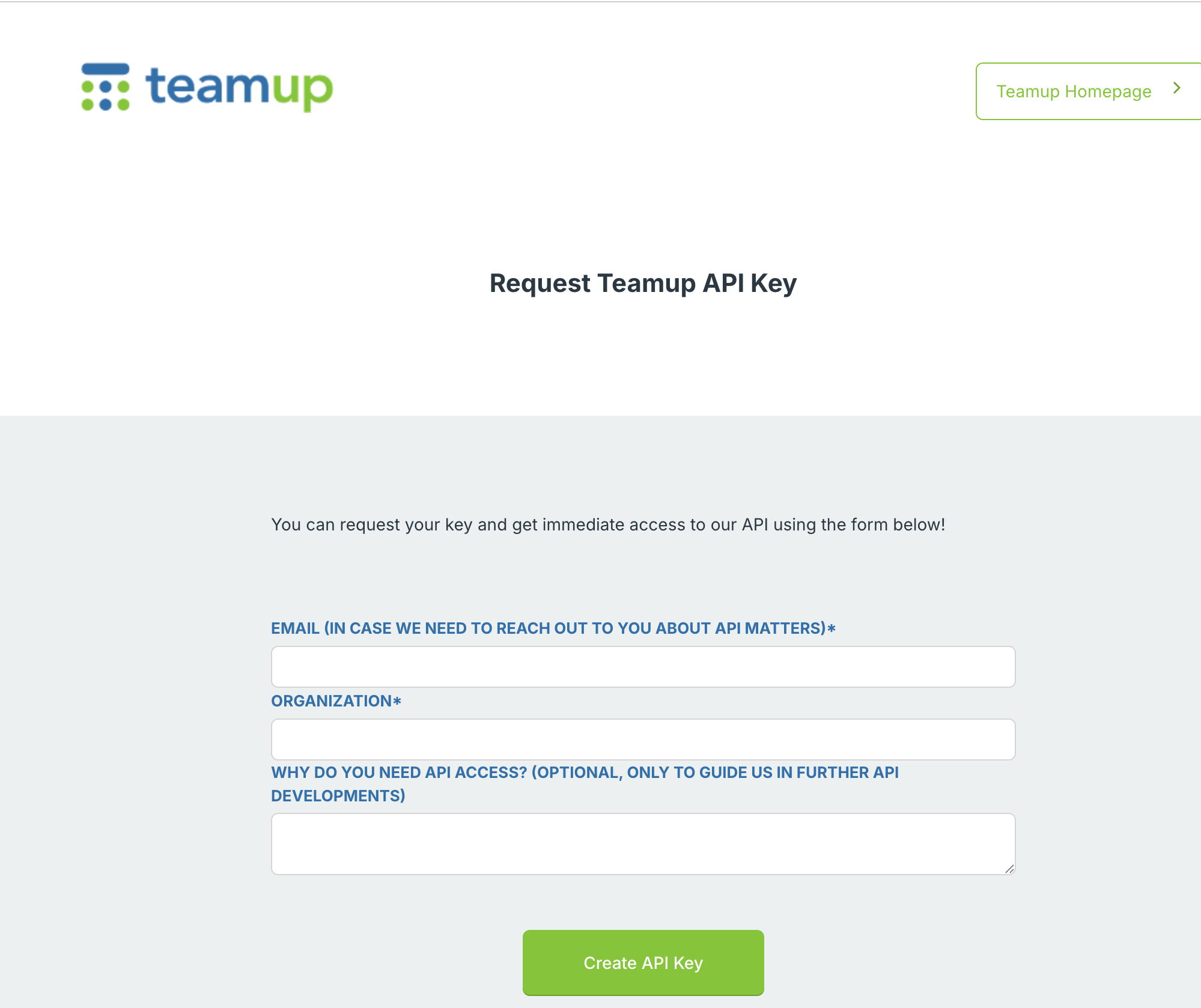
3.1 Step 1 — Get Teamup API Key
- Go to https://teamup.com/api-keys/request
- Fill in the form: your email, organization name, and optionally describe the use case
- Click Create API Key
- Copy the API key and store it securely
3.2 Step 2 — Create a Calendar Link with Modify Permissions
The Calendar Key (ks... format) controls API access scope and permissions. You need a key with Modify permission for booking and cancellation to work.
- Open your Teamup calendar
- Go to Settings (gear icon) → Sharing
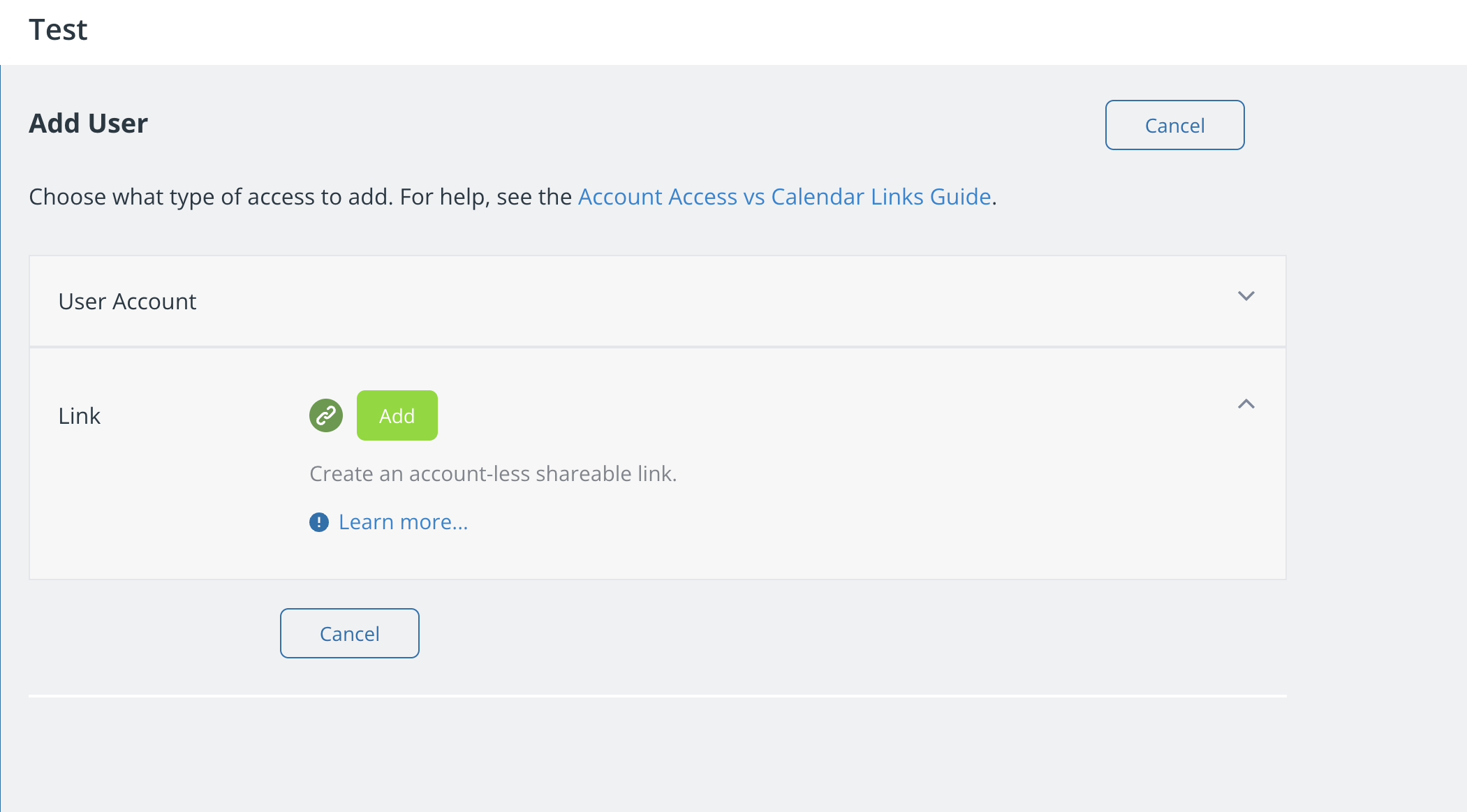
- Click Add User → expand the Link section → click Add
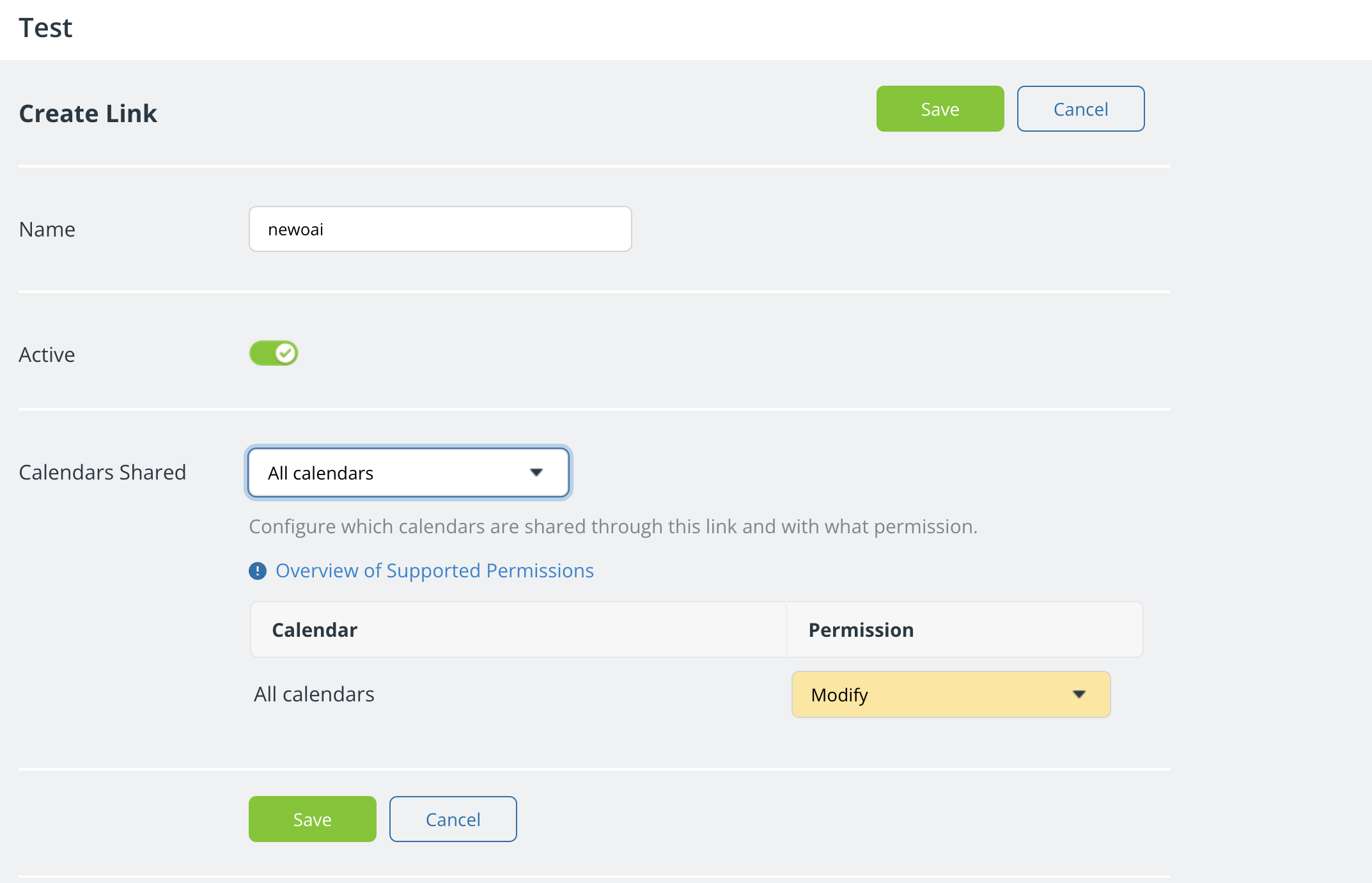
- In the Create Link dialog:
- Set a Name (e.g.,
newoai) - Ensure Active is toggled on
- Under Calendars Shared, select All calendars (or specific ones)
- Set Permission to Modify (required for booking/cancellation)
- Click Save
- Set a Name (e.g.,
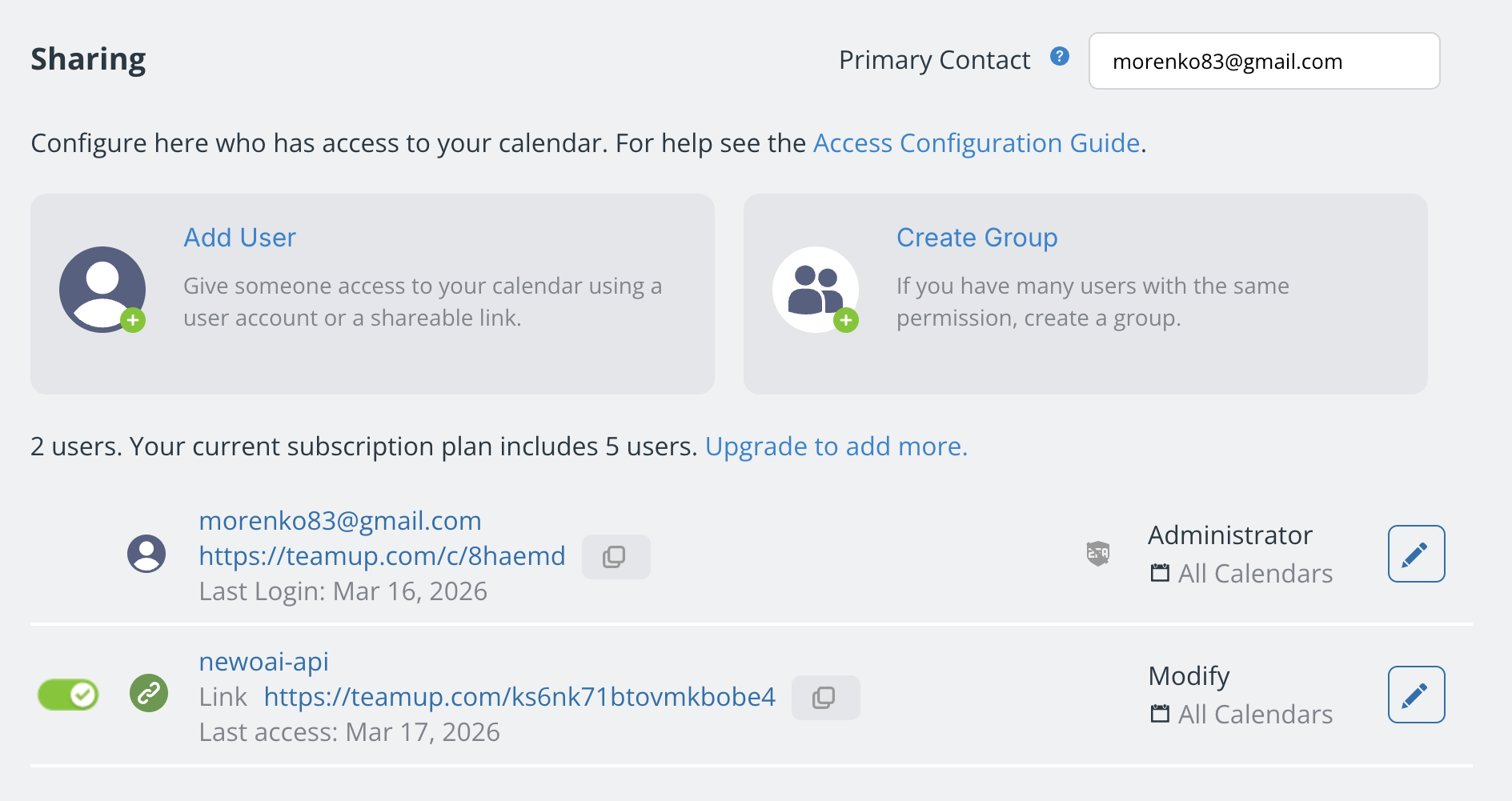
- After saving, the calendar key appears in the Sharing list as a URL:
https://teamup.com/ks6nk71btovmkbobe4- The part after
/is your Calendar Key:ks6nk71btovmkbobe4
- The part after
Permission levels:
- Read-only — only availability checking will work
- Modify — availability, booking, and cancellation all work
- Admin — full access including calendar settings
3.3 Step 3 — Connect in Newo Platform
- Open Newo → Projects
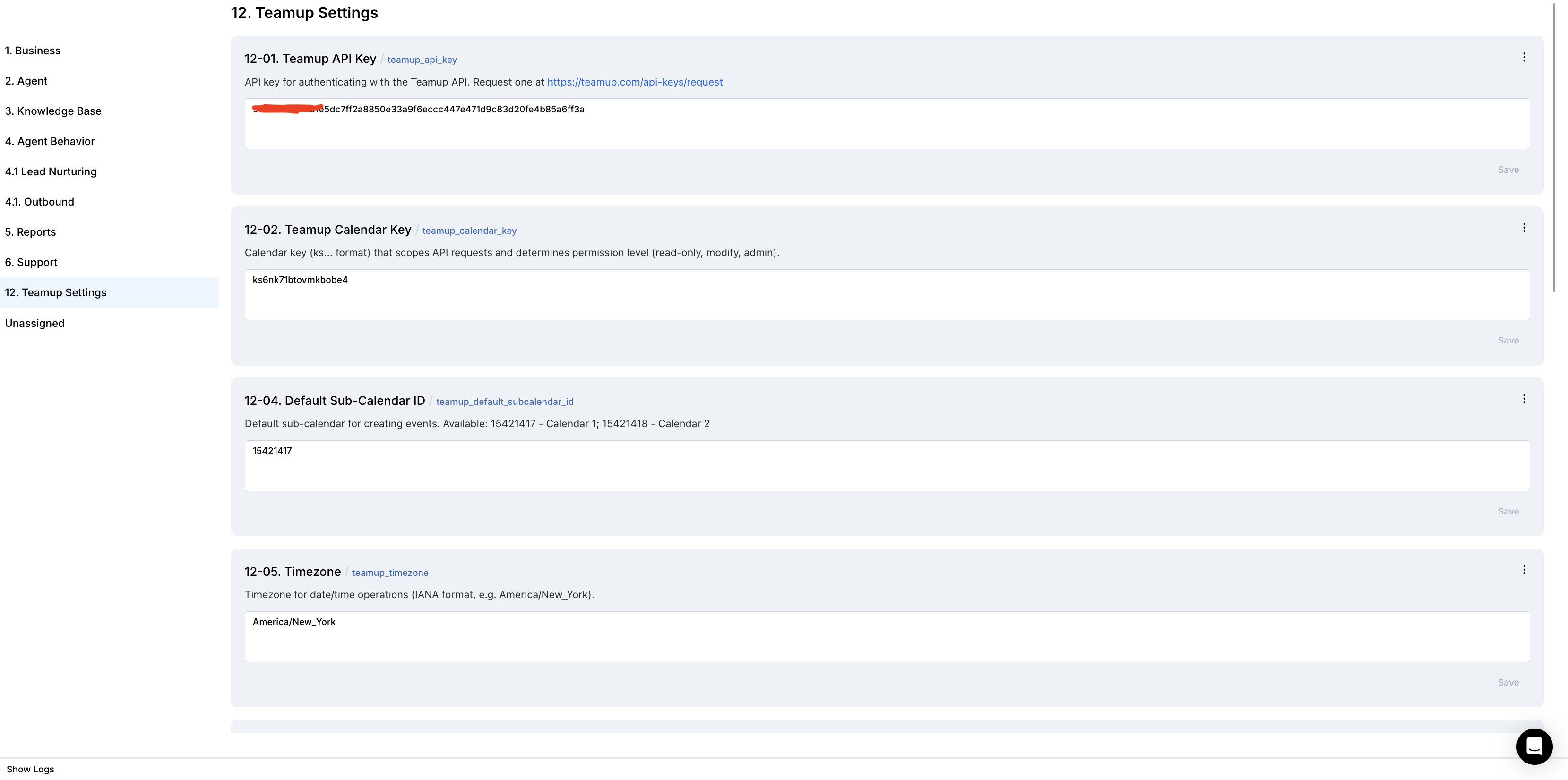
- Navigate to Builder / Attributes → section 12. Teamup Settings
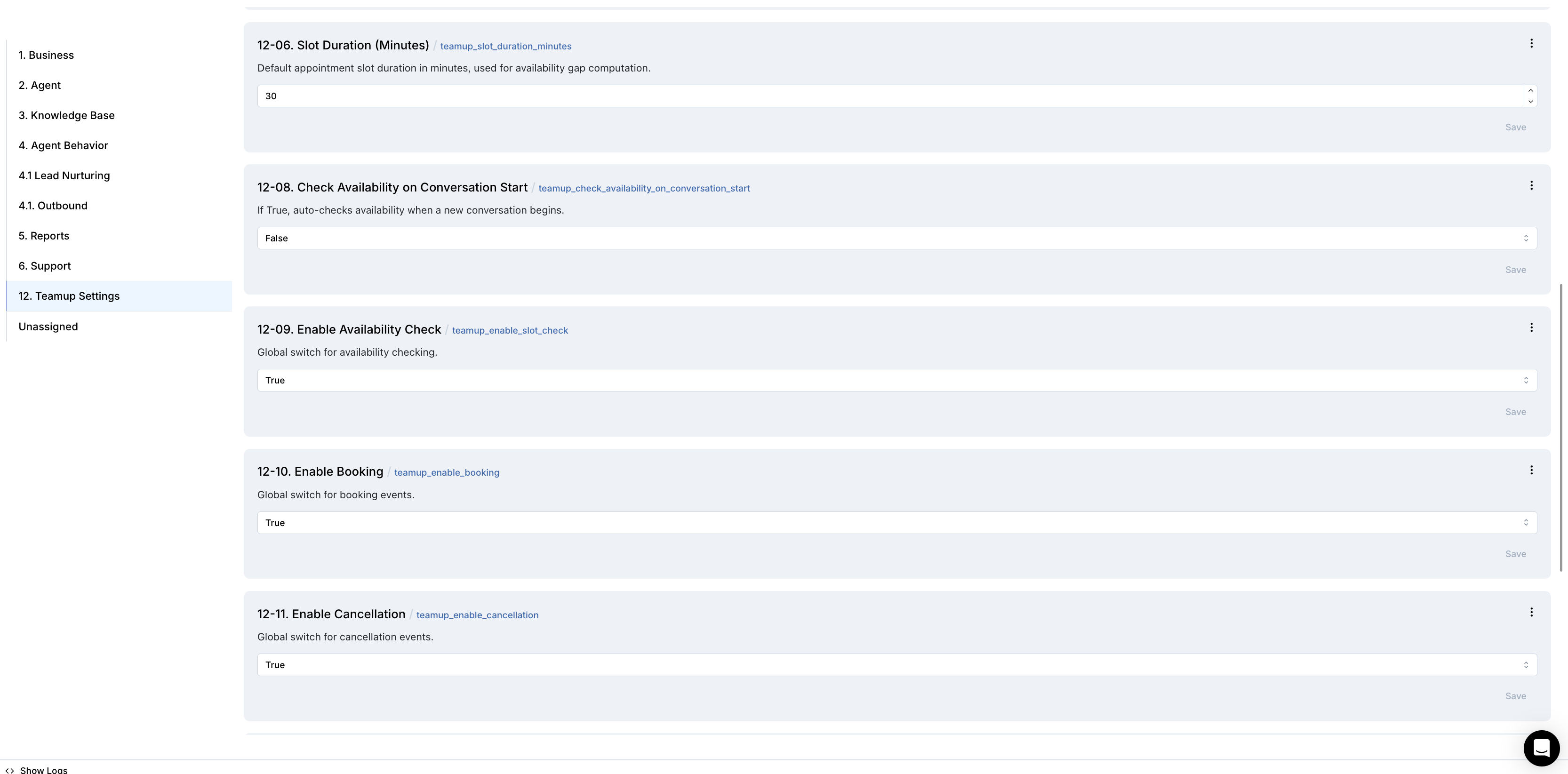
- Set the required attributes:
| Attribute | Required | Description |
|---|---|---|
teamup_api_key | ✅ | API key from Step 1 |
teamup_calendar_key | ✅ | Calendar key (ks...) from Step 2 |
teamup_base_url | ❌ | API base URL (default: https://api.teamup.com) |
teamup_default_subcalendar_id | ❌ | Default sub-calendar ID for events. Auto-detected if only one exists |
teamup_timezone | ❌ | IANA timezone (default: America/New_York) |
teamup_slot_duration_minutes | ❌ | Slot duration in minutes (default: 30) |
teamup_show_for_days | ❌ | Availability window in days (default: 7) |
teamup_check_availability_on_conversation_start | ❌ | Auto-check availability on new conversation (default: False) |
teamup_enable_slot_check | ❌ | Enable availability checking (default: True) |
teamup_enable_booking | ❌ | Enable booking capability (default: True) |
teamup_enable_cancellation | ❌ | Enable cancellation capability (default: True) |
teamup_setup_scenarios | ❌ | Auto-add default scenarios to canvas (default: True) |
teamup_override_agent_attributes | ❌ | Override ConvoAgent booking schemas and feature flags (default: True) |
- Click Save + Publish All
- On publish, the SetupFlow automatically:
- Creates the
teamup_connectorconnection - Sets ConvoAgent booking/availability/cancellation feature flags
- Injects payload schemas for availability, booking, and cancellation tools
- Fetches active sub-calendars from Teamup API
- Auto-selects default sub-calendar if only one exists
- Provisions Speed-to-Lead and Cancellation scenarios to the workflow canvas
- Creates the
How to use the integration
This section explains how the integration works, how to configure automation, and how to test it.
4.1 How the Integration Works
The integration operates based on Triggers and Actions via the event-driven system.
- A Trigger is a system event that starts a flow
- An Action is the API operation performed in Teamup
Where to test
Testing can be done through the Newo conversation interface (chat or voice channel) by interacting with the agent.
How to test that everything works
To test the integration:
- Setup: Publish the project and verify sub-calendars are detected (check logs for
[SETUP] Found N sub-calendars) - Check Availability: Ask "What times are available this week?" — verify the agent returns grouped time slots by date
- Book Appointment: Ask "Book me at 2pm tomorrow" — verify the event appears in your Teamup calendar
- Cancel Appointment: Ask "Cancel my booking" — verify the event is removed from your Teamup calendar
If no action occurs:
- Ensure
teamup_api_keyandteamup_calendar_keyare set correctly - Verify the calendar key has modify or admin permissions (not read-only)
- Confirm
teamup_default_subcalendar_idis set (auto-detected if single sub-calendar) - Ensure
teamup_enable_slot_check,teamup_enable_booking,teamup_enable_cancellationareTrue - Confirm the project was re-published after configuration changes
- Check that
teamup_override_agent_attributesisTruefor ConvoAgent tool gating
Note: This integration performs real operations in Teamup. Changes made through the agent are reflected in the live calendar.
FAQ
Q: How does availability checking work? A: The integration fetches all existing events from the Teamup calendar within the configured date range, then computes free slots by checking for gaps between booked events. Slots are grouped by date and returned in 12-hour format (e.g., "02:00 PM").
Q: What happens if no sub-calendar ID is configured?
A: During setup, the integration auto-detects sub-calendars via the API. If exactly one active sub-calendar exists, it is auto-selected. If multiple exist, the user must manually set teamup_default_subcalendar_id. Booking will fail without a sub-calendar ID.
Q: Can I use a read-only calendar key? A: Only for availability checking. Booking and cancellation require a calendar key with modify or admin permissions. The integration checks for 401/403 errors and routes them as auth failures.
Q: Does the integration support rescheduling? A: Not directly. Rescheduling is handled via a cancel + rebook workflow: Publish All adds a "Reschedule" intent type that routes through the cancellation scenario first, then proceeds to the scheduling scenario.
Q: What timezone is used for slot computation?
A: The timezone configured in teamup_timezone (default: America/New_York). All date/time parsing and slot computation uses this timezone via Python's zoneinfo module.
Q: What scenarios are auto-added to the canvas? A: Three scenarios (Speed-to-Lead Outbound Call, Canceling Appointment via Agent, Scheduling Appointment via Agent) and three intent types (Cancellation via Agent, Existing Client Appointment, Reschedule or Modification). Default industry-specific scenarios (beauty, home service) are removed.
Q: How is the booking stored for cancellation lookup?
A: When a booking is created, ConvoAgent stores the booking_id (Teamup event ID) in the persona's bookings attribute. During cancellation, ConvoAgent retrieves the booking and passes meta.booking_id to the CancellationFlow.