Close Integration
Connects Close with the Newo AI agent so chat visitors and callers can ask for pricing, request a callback, share contact info, and have the team receive a clean follow-up record without leaving the conversation.
Time to first success: about 15 minutes if you already have Close admin access and a Newo Builder project.
Before You Start
Make sure you have:
- an active Close account;
- admin access in Close, so you can create an API key;
- access to Newo Builder, with permission to edit project settings and click Publish All;
- the contact status or request status IDs your team wants to use, if the agent should apply specific statuses;
- a Close Scheduling Link or a default scheduling-link URL, if the agent should send meeting links;
- Newo SMS configured for the project, if the agent should send text messages.
What The AI Can Do
- Pass contact info to the team. The agent asks for a name and at least one contact method, then updates Close after it has enough information.
- Update an existing request. The agent can pass along confirmed next steps, priority, status, value, or notes.
- Add conversation notes. The agent can add a summary of the conversation to the current contact record.
- Create follow-up reminders. The agent can set a team reminder to call, email, text, or otherwise follow up.
- Subscribe a contact to a follow-up sequence. The agent can use a configured Close sequence when the operator enables this.
- Send approved text messages. The agent sends SMS through Newo SMS when SMS is enabled.
- Handle meeting-link workflows. The agent can send a Close scheduling link by SMS, find existing Close meeting activities, cancel confirmed meetings, and add meeting-change notes.
Features At A Glance
| Feature | Included |
|---|---|
| Contact info handoff | Yes |
| Contact status updates | Yes |
| Conversation note logging | Yes |
| Structured request updates | Yes |
| Team follow-up reminders | Yes |
| Sequence enrollment | Yes |
| SMS through Newo SMS | Optional |
| Meeting link sharing | Yes |
| Existing meeting lookup/cancel/note | Yes |
| Live slot booking | No |
| Close webhooks | No |
| OAuth marketplace flow | No |
Live slot booking is intentionally not included in this module. The Close module sends a configured Close scheduling link by SMS and manages existing Close meeting activities. Use a scheduling integration if the agent must check live times or create calendar bookings directly.
Screenshots
Close setup screenshots are saved in:
| File | What it shows |
|---|---|
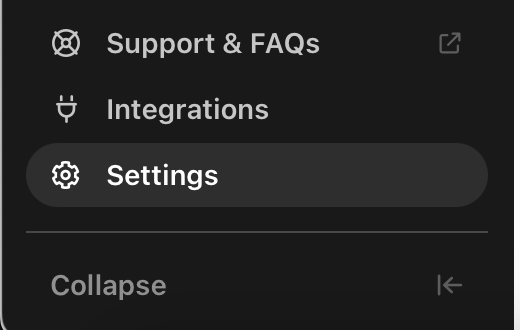
S01-settings-menu.png | Close left navigation with Settings selected. |
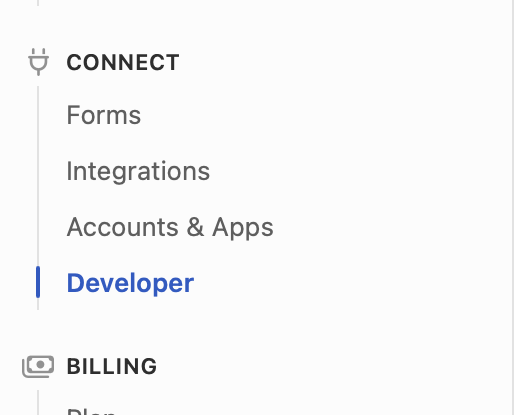
S02-developer-menu.png | Close Settings side menu under Connect, with Developer selected. |
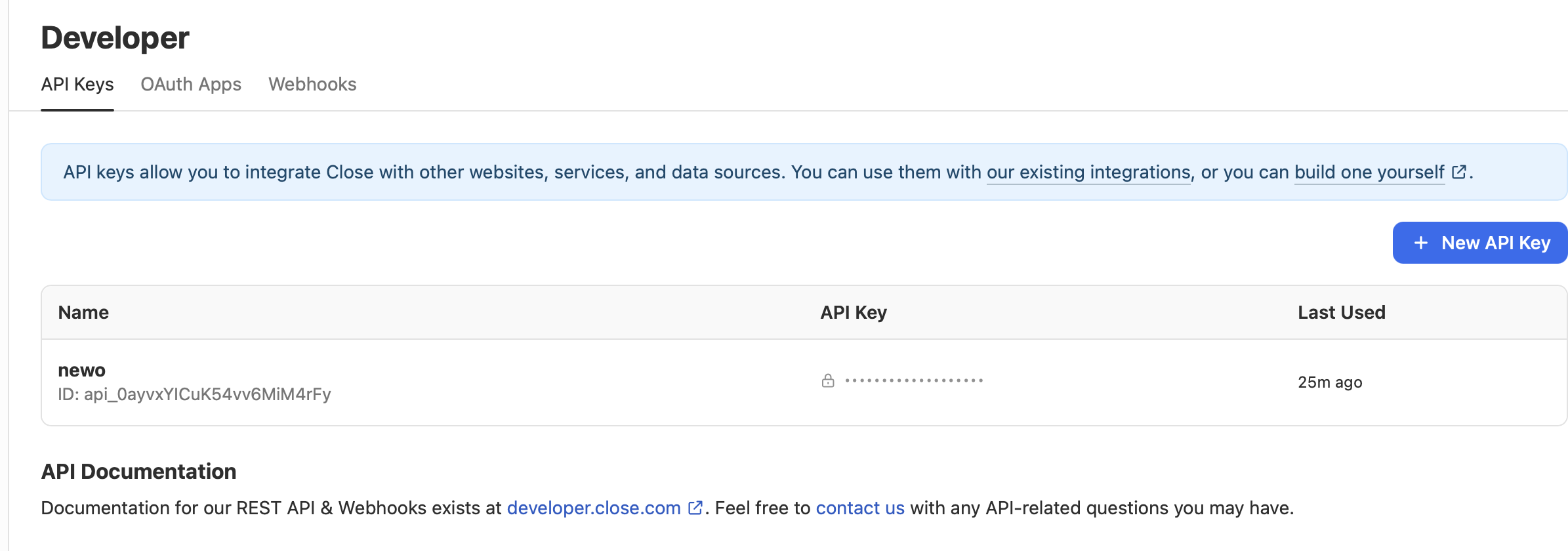
S04-api-key-created.png | Close Developer page after creating the API key. |
Do not include raw API keys in screenshots. If a key is visible, blur it before committing the image.
Setup
Create the Newo project
If this project already exists in Newo Builder, skip this subsection and continue with the integration-specific settings below.
- In Newo Builder, open the projects list and click Create Project (or Create New Project from the top-right menu).

- Fill IDN and Title. The exact names do not matter; use any clear names your team will recognize.
- In Registry, choose the release channel:
- staging — the newest module fixes appear here first. Use it when you need the latest fix, but expect possible unfinished changes.
- production — the final stable version for live projects.
- In Module, select the module for this integration.
 5. Leave Module version on Latest version unless support tells you to pin a specific version, then click Create.
1. Prepare Your Close Account
- Open Close.
- Go to Settings.
- Under Connect, open Developer.
- Open the API Keys tab.
- Click New API Key.
- Give the key a recognizable name, for example
Newo. - Copy the full API key when Close shows it.
Close shows the full key only once. If it is lost, create a new one and replace the value in Newo.
2. Configure In Newo
Open Newo Builder, go to project settings, and find the Module - Close settings group.
Fill the required settings first:
| Setting | What to enter |
|---|---|
| Close API Key | The full Close API key. |
| Close API Base URL | Keep the default unless Close support gives you another URL. |
| Default Contact Record Name | Fallback name used when the visitor does not give a company name. |
Then review optional defaults:
| Setting | Use when |
|---|---|
| Default Contact Status ID | The team wants new or updated contact records to use a specific Close status. |
| Potential Status ID | A new caller shows initial interest but has not asked for a meeting yet. |
| Interest Status ID | The caller asks for or confirms a meeting. |
| Not Interest Status ID | The caller is wrong-number, inappropriate, no longer interested, or rejects required terms. |
| Not Fit Status ID | The caller does not meet configured requirements such as location or organization type. |
| Canceled Status ID | The caller cancels an existing meeting because they lost interest. |
| Default Request Status ID | The team wants structured request updates to use a specific status. |
| Default Scheduling Link URL | Optional override link. If empty, the module attempts to read the first Close Scheduling Link from the Close API. |
Review feature switches:
| Setting | Default | Purpose |
|---|---|---|
| Enable Contact Info Handoff | On | Lets the agent pass visitor contact info to the team. |
| Enable Contact Status Updates | On | Lets the agent update contact status and configured fields. |
| Enable Interaction Logging | On | Lets the agent add conversation notes. |
| Enable Request Updates | On | Lets the agent create or update structured request details. |
| Enable Follow-up Tasks | On | Lets the agent set reminders for the team. |
| Enable Sequence Enrollment | On | Lets the agent subscribe a contact to a configured sequence. |
| Enable Meeting Management | On | Lets the agent send scheduling links by SMS and manage existing Close meetings. |
| Enable SMS | Off | Lets the agent send caller-approved SMS through Newo SMS. |
| Setup Follow-up Scenarios | On | Adds the reference canvas scenarios during publish. |
3. Hit Publish All
Click Publish All after saving the settings.
During publish, Newo:
- creates or reuses the Close connection;
- creates the visible setup settings and hidden system settings;
- registers the custom follow-up actions the agent can use;
- keeps generic booking, availability, and cancellation tools out of this module;
- registers Close-specific meeting-link and meeting-management actions;
- adds follow-up scenarios to the canvas when Setup Follow-up Scenarios is on.
4. Verify Setup
After Publish All:
- The Module - Close settings group should show the visible settings listed above.
- The canvas should include Initial Interest Intake, Meeting Request, Request Disposition, Meeting Change Request, Team Follow-up Reminder, and Text Message Send.
- A test chat should reach the phrase
"I'll pass your contact info to the team now."only after the visitor has given a name and at least one contact method.
How To Test That Everything Works
Run these checks before going live.
Contact Follow-up
- Start a test chat.
- Say:
Hi, I need pricing for your annual plan.
- When the agent asks who should be contacted, answer naturally:
It's for a team, and I'd like someone to get back to me with pricing.
- When the agent asks for contact info, provide it:
Sure, I'm Riley Brooks. You can reach me at riley@example.com or +1 555 010 7806.
Expected:
- The agent says:
"I'll pass your contact info to the team now." - The agent waits for the Close result before saying the team has the contact info.
- A Close contact record exists with the name, email, and phone from the test.
Request Update
After contact info is already known, say:
Please add that we're interested in the annual plan for a 20-person team.
Expected:
- The agent says it will pass the update to the team.
- Close receives the request update.
- The agent confirms only after the result is available.
Follow-up Reminder
After contact info is already known, say:
Please remind the team to call me tomorrow about pricing.
Expected:
- The agent says it will set a follow-up reminder for the team.
- The reminder appears in Close.
Meeting Link
Use this when Enable Meeting Management is on and Close has a scheduling link or Default Scheduling Link URL is configured.
Say:
I'd like to book a meeting with the team.
Expected:
- The agent says:
"I'll send the meeting link now." - The link is sent through Newo SMS.
- In a voice conversation, the agent does not read or spell the URL.
- The Close contact status is updated to Interest when the status ID is configured.
SMS
Use this only when Enable SMS is on and Newo SMS is configured for the project.
Say:
Please text me: Thanks for your interest, our team will follow up today.
Expected:
- The agent confirms the exact text before sending.
- The message is sent through Newo SMS.
Scenarios
What Gets Added On Publish All
| Intent | Scenario |
|---|---|
| Follow-up Contact Info | Follow-up Contact Info |
| Request Update | Request Update |
| Meeting Request | Meeting Request |
| Meeting Change Request | Meeting Change Request |
| Team Follow-up Reminder | Team Follow-up Reminder |
| Text Message Send | Text Message Send |
These scenarios are a reference implementation. Operators can edit wording in the canvas UI, but future module updates do not overwrite edited copies. To get newer shipped defaults, delete the edited canvas item and run Publish All again.
Why Trigger Phrases Matter
Trigger phrases are the plain-English sentences that tell the agent it is time to call Close. If you customize scenario wording, keep the trigger phrase for the action you still want to happen.
Follow-up Contact Info
Use this when a visitor asks for pricing, a callback, more information, or someone from the team to get back to them.
Steps:
- Check whether the conversation already contains the visitor's name and at least one contact method.
- Ask only for missing information, one question at a time.
- Confirm the information in plain language.
- Say the trigger phrase: "I'll pass your contact info to the team now."
- Wait for the result.
- Confirm that the team has the contact info.
Triggered by intent: Follow-up Contact Info
Trigger phrases, do not edit:
"I'll pass your contact info to the team now.""I'll make sure the team has your contact info.""I'll pass your pricing request to the team now."
What the agent reads to know the result:
- Contact record panel — tells the agent whether the handoff is loading, successful, or failed.
Safe customization:
- You can reword how the agent asks for name, email, or phone.
- You can add business-specific context around pricing or callback expectations.
- Do not remove the trigger phrase.
- Do not tell the agent to confirm success before the Close result is available.
Request Update
Use this when the visitor or operator gives a concrete update, such as priority, status, expected value, or next step.
Steps:
- Make sure contact info is already known.
- Use only confirmed update info.
- Say the trigger phrase: "I'll pass that update to the team now."
- Wait for the result.
- Confirm briefly that the team has the update.
Triggered by intent: Request Update
Trigger phrases, do not edit:
"I'll pass that update to the team now."
What the agent reads to know the result:
- Contact record panel — tells the agent whether the update is loading, successful, or failed.
Safe customization:
- You can change how the agent asks for priority or next-step details.
- Do not invent status IDs or values the visitor did not provide.
- Do not remove the trigger phrase.
Team Follow-up Reminder
Use this when a visitor asks for a call, email, text, or later team follow-up.
Steps:
- Make sure contact info is already known.
- Ask for the concrete follow-up action in the visitor's words.
- Say the trigger phrase: "I'll set a follow-up reminder for the team."
- Wait for the result.
- Confirm that the reminder is set.
Triggered by intent: Team Follow-up Reminder
Trigger phrases, do not edit:
"I'll set a follow-up reminder for the team."
What the agent reads to know the result:
- Contact record panel — tells the agent whether the reminder is loading, successful, or failed.
Safe customization:
- You can change how the agent asks about preferred channel or timing.
- Do not promise a specific person unless your business context names that person.
- Do not remove the trigger phrase.
Text Message Send
Use this when the visitor asks for a specific text message and SMS is enabled.
Steps:
- Confirm the recipient phone number and exact SMS body.
- Say the trigger phrase: "I'll send that text now."
- Wait for the result.
- Confirm whether the text was sent.
Triggered by intent: Text Message Send
Trigger phrases, do not edit:
"I'll send that text now."
What the agent reads to know the result:
- Contact record panel — tells the agent whether SMS sending is loading, successful, or failed.
Safe customization:
- You can change how the agent asks for message approval.
- Do not rewrite the visitor-approved SMS body.
- Do not remove the trigger phrase.
Trigger Phrases Reference
| Trigger phrase | Action |
|---|---|
"I'll pass your contact info to the team now." | Contact follow-up |
"I'll make sure the team has your contact info." | Contact follow-up |
"I'll pass your pricing request to the team now." | Contact follow-up |
"I'll pass that update to the team now." | Request update |
"I'll set a follow-up reminder for the team." | Follow-up reminder |
"I'll send that text now." | SMS |
Example Dialogs
Contact Follow-up
Customer: Hi, I need pricing for your annual plan.
Agent: Great, so you'd like pricing for the annual plan, correct?
Customer: It's for a team, and I'd like someone to get back to me with pricing.
Agent: Could I get your name and the best email or phone number to reach you?
Customer: Sure, I'm Riley Brooks. You can reach me at riley@example.com or +1 555 010 7806.
Agent: I'll pass your contact info to the team now.
Agent after Close result: The team has your contact info and will follow up with pricing.
Missing Contact Method
Customer: Please have someone get back to me.
Agent: Sure. Could I get your name and the best email or phone number to reach you?
Customer: Riley Brooks.
Agent: Thanks, Riley. What email or phone number should the team use?
Follow-up Reminder
Customer: Please remind the team to call me tomorrow about the annual plan.
Agent: I'll set a follow-up reminder for the team.
Agent after Close result: The reminder is set for the team.
Customizing The Agent
You can safely edit:
- how the agent introduces the follow-up flow;
- how it asks for name, email, and phone;
- business-specific wording around pricing, demos, proposals, or callback expectations;
- whether the scenario asks for company name or team size.
Always preserve:
- the trigger phrases listed above;
- the step where the agent waits for the result;
- the rule that the agent asks only for missing contact info;
- the rule that the agent does not claim completion before Close responds.
Common Errors And Recovery
| Symptom | Likely cause | How to recover | How to verify |
|---|---|---|---|
| Agent says the API key is not configured | Close API Key is empty | Paste the full Close API key and click Publish All | Run a contact follow-up test |
| Close rejects the request | The API key is wrong or was copied incompletely | Create a new key in Close and replace the value in Newo | The test creates or updates a contact record |
| Agent asks for the same info twice | Scenario wording was edited and no longer checks existing conversation info | Restore the reference Follow-up Contact Info scenario or compare against this guide | The agent asks only for missing info |
| Agent says it will pass info along but nothing appears in Close | Trigger phrase was removed or changed too much | Restore one supported trigger phrase and click Publish All | The test reaches the Close result message |
| SMS is not sent | SMS is disabled or Newo SMS is not configured | Configure Newo SMS, enable Enable SMS, and publish | A test text is delivered through Newo SMS |
| Meeting link is not sent | No Close Scheduling Link exists and Default Scheduling Link URL is empty | Create a Close Scheduling Link or fill Default Scheduling Link URL, then publish | A meeting-link test sends the link by SMS |
Limitations
- This module sends meeting links and manages existing Close meeting activities; it does not check live availability slots.
- This module does not configure Close webhooks.
- This module does not implement a Close OAuth marketplace flow.
- SMS delivery depends on Newo SMS.
- The agent depends on exact trigger phrases to start Close actions.
Support Handoff Notes
- Auth method: Close API key.
- Main Newo settings group: Module - Close.
- First smoke test: contact follow-up with a fresh email and phone.
- Most common fix: replace the API key and click Publish All.
- Canvas reset: delete edited follow-up scenarios and click Publish All to restore shipped defaults.
All Settings Reference
| Name | Description | Required | Default | Hidden | Edit |
|---|---|---|---|---|---|
| Close API Key | API key used to connect to Close | Yes | Empty | No | Yes |
| Close API Base URL | Base URL for Close API calls | No | https://api.close.com/api/v1 | No | Rarely |
| Default Contact Record Name | Fallback record name when company name is unknown | No | Newo AI Prospect | No | Yes |
| Default Contact Status ID | Optional status for new or updated contact records | No | Empty | No | Yes |
| Potential Status ID | Status for initial-interest callers | No | Empty | No | Yes |
| Interest Status ID | Status for callers who request or confirm a meeting | No | Empty | No | Yes |
| Not Interest Status ID | Status for wrong-number, inappropriate, or no-longer-interested callers | No | Empty | No | Yes |
| Not Fit Status ID | Status for callers outside configured qualification requirements | No | Empty | No | Yes |
| Canceled Status ID | Status for callers who cancel an existing meeting after losing interest | No | Empty | No | Yes |
| Default Request Status ID | Optional status for structured request updates | No | Empty | No | Yes |
| Default Scheduling Link URL | Optional override scheduling link; otherwise Close Scheduling Links are used | Only for meeting links | Empty | No | Yes |
| Enable Contact Info Handoff | Lets the agent pass contact info to the team | No | On | No | Yes |
| Enable Contact Status Updates | Lets the agent update contact status and configured fields | No | On | No | Yes |
| Enable Interaction Logging | Lets the agent add conversation notes | No | On | No | Yes |
| Enable Request Updates | Lets the agent create or update structured request details | No | On | No | Yes |
| Enable Follow-up Tasks | Lets the agent set team reminders | No | On | No | Yes |
| Enable Sequence Enrollment | Lets the agent add contacts to configured sequences | No | On | No | Yes |
| Enable Meeting Management | Lets the agent send meeting links and manage Close meetings | No | On | No | Yes |
| Enable SMS | Lets the agent send approved SMS through Newo SMS | No | Off | No | Yes |
| Setup Follow-up Scenarios | Adds reference canvas scenarios during publish | No | On | No | Yes |
| Internal extraction schemas and instructions | System-only data used to read conversation fields | No | Auto-created | Yes | No |
| Internal setup record | System-only setup record used during publish | No | Auto-created | Yes | No |