Boulevard Integration
Boulevard Integration connects a Newo agent to Boulevard scheduling. The agent can check live availability, book appointments, find existing appointments, cancel appointments, and reschedule appointments.
This guide covers sandbox and production setup. Screenshots are taken from a Boulevard sandbox account and Newo Builder; secrets, email addresses, and internal ids are hidden.
Create the Newo project
If this project already exists in Newo Builder, skip this subsection and continue with the integration-specific settings below.
- In Newo Builder, open the projects list and click Create Project (or Create New Project from the top-right menu).

- Fill IDN and Title. The exact names do not matter; use any clear names your team will recognize.
- In Registry, choose the release channel:
- staging — the newest module fixes appear here first. Use it when you need the latest fix, but expect possible unfinished changes.
- production — the final stable version for live projects.
- In Module, select the module for this integration.
 5. Leave Module version on Latest version unless support tells you to pin a specific version, then click Create.
What the integration does
| Feature | What it does | Default |
|---|---|---|
| Availability | Shows live Boulevard slots by service, date, time, and specific staff only when the customer asks for a staff member | Enabled |
| Booking | Books one selected appointment slot returned by Boulevard | Disabled until sandbox validation |
| Booking confirmation SMS | Sends the customer an SMS with the confirmation and calendar link, so the agent does not paste a long URL in chat | Enabled |
| Reminder SMS | Sends an appointment reminder before the visit | Enabled, 60 minutes |
| Existing appointment lookup | Finds existing appointments by phone, email, or full name | Disabled until Admin API validation |
| Cancellation | Cancels a found appointment after the customer explicitly confirms | Disabled until Admin API validation |
| Reschedule | Moves a found appointment to a selected replacement slot | Disabled until Admin API validation |
After a successful booking, the agent must not say appointment ids, cart ids, client ids, or long Google Calendar URLs. If confirmation SMS is enabled and the customer phone number is available, the agent should say that the calendar link was sent by SMS.
What you need before setup
Prepare these items on the Boulevard side:
| Item | Who provides it | Used for |
|---|---|---|
| Boulevard Dashboard access | Customer / Boulevard admin | Check locations, services, and staff |
| Business ID | Boulevard Developer Portal or Boulevard support | Connect Newo to the target business |
| API application key for client booking | Boulevard Developer Portal or Boulevard support | Availability and booking |
| Admin API key | Boulevard Developer Portal or Boulevard support | Existing appointment lookup, cancellation, and reschedule |
| Admin secret key | Boulevard Developer Portal or Boulevard support | Signed Admin API authentication |
Where to get Boulevard credentials
Short answer: these values do not come from the regular Boulevard sandbox dashboard, and Newo does not create them. They are issued in the Boulevard Developer Portal as part of a Boulevard API application. If the customer does not have Developer Portal access, request the credentials from Boulevard through the customer's CSM, Help Chat, or Developer Support Portal.
Option A: the customer has Boulevard Developer Portal access
Ask the Boulevard admin or technical owner to open the Boulevard Developer Portal, find the API application for the target business, and copy these values from that application:
| Copy from Boulevard API application | Paste into Newo |
|---|---|
Business ID / BUSINESS_ID | Boulevard Business ID |
API Key / API_KEY for client booking | Boulevard Client API Key |
Admin API Key / API_KEY | Boulevard Admin API Key |
Secret Key / SECRET_KEY | Boulevard Admin Secret Key |
If Boulevard provides one API_KEY for the API application, paste the same key into both Boulevard Client API Key and Boulevard Admin API Key. If Boulevard provides separate client and admin keys, paste them into their matching fields.
SECRET_KEY goes only into Boulevard Admin Secret Key. Do not manually generate or paste a signed token. Newo generates the Admin API token from the key, secret, and business id.
Option B: there is no Boulevard Developer Portal access
The customer must request the credentials from Boulevard. Use the customer's CSM, Help Chat, or Developer Support Portal.
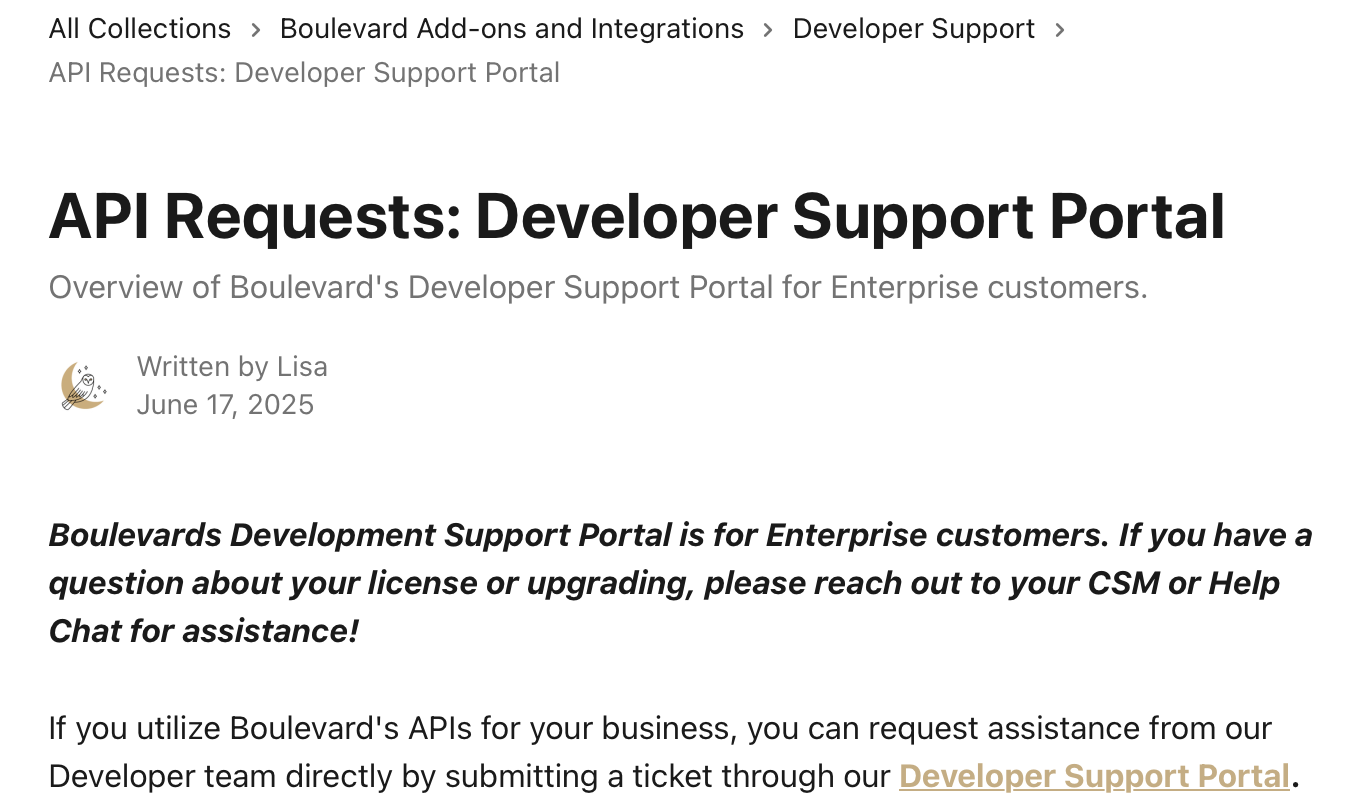
Send this request to Boulevard:
Hi Boulevard team,

We are setting up a Newo integration for Boulevard appointment booking and appointment management.
Please provide credentials for the target business:

- Business ID
- API Key for Client API / Book SDK booking flow
- Admin API Key
- Admin Secret Key
- Confirmation whether these credentials are for sandbox or live

We do not need customer passwords, payment card data, or a pre-generated signed token.
Newo will generate the signed Admin API token from API_KEY, SECRET_KEY, and BUSINESS_ID.
Official links:
- Boulevard sandbox
- Boulevard Book SDK setup
- Boulevard Admin API Authentication
- Boulevard Custom/Public Apps guide
Check Boulevard before Newo setup
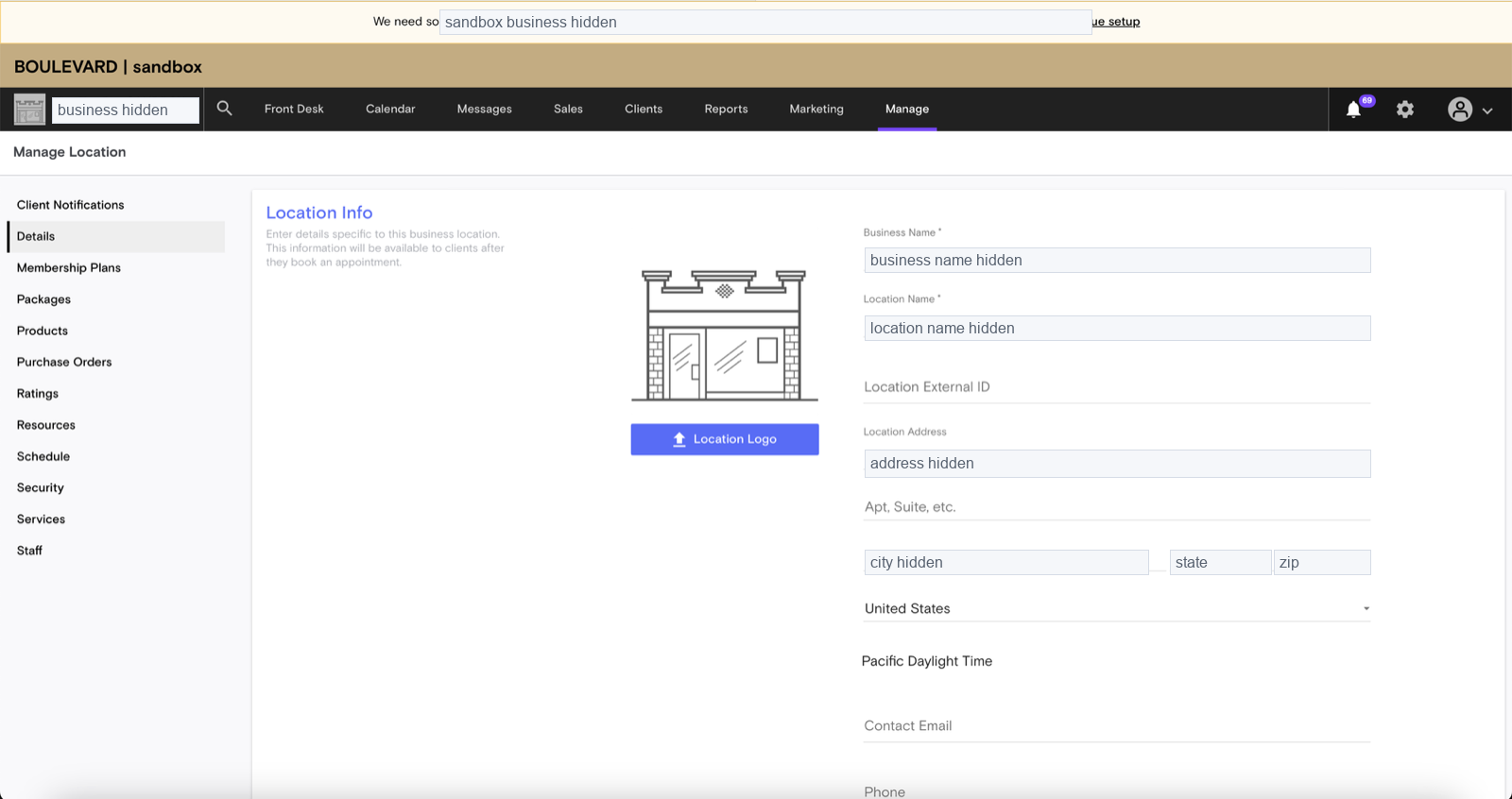
- Open Boulevard sandbox or the production dashboard.
- Go to
Manage. - Verify that the target location is active and filled in.
-
Go to
Manage -> Services. -
Verify that the services the agent should book are active and available for online booking.
-
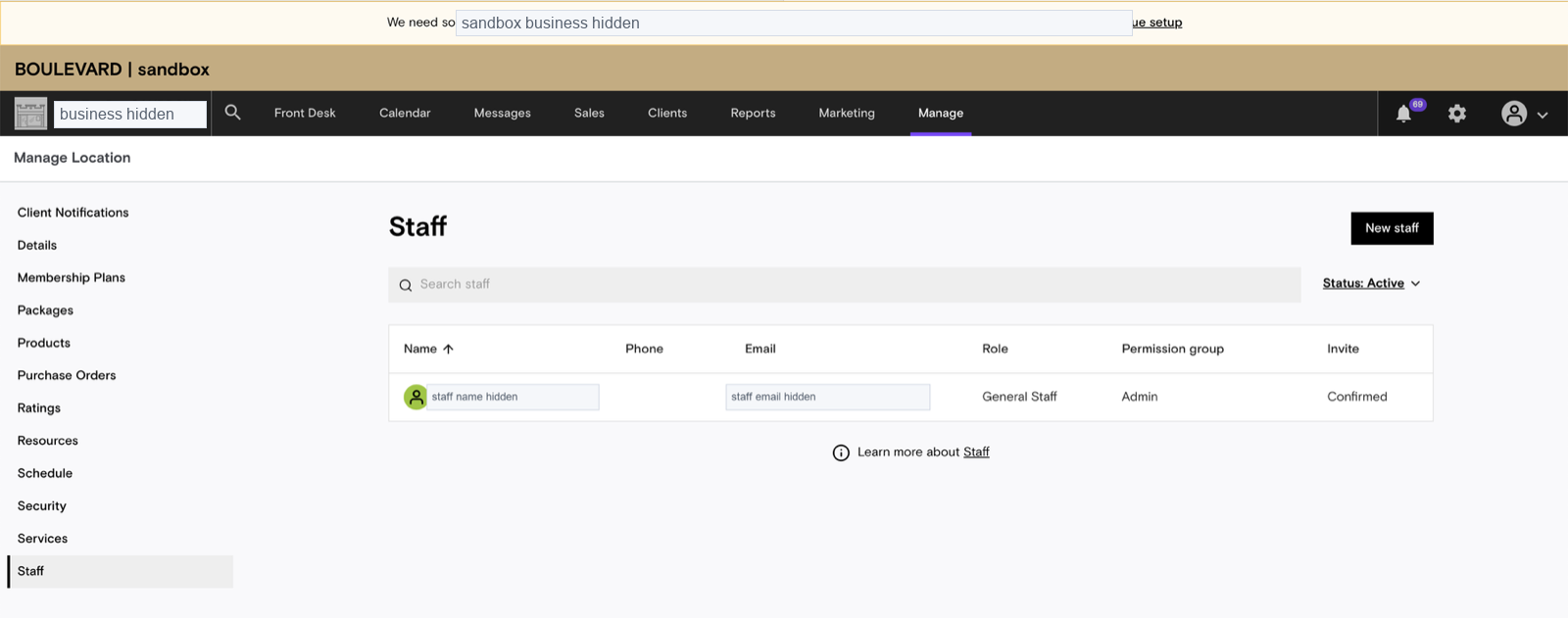
Go to
Manage -> Staff. -
Verify that the required staff members are active. Staff matters for requests like "I want a haircut with Alex"; if the customer does not ask for a specific staff member, the agent should search any available staff.
Setup in Newo
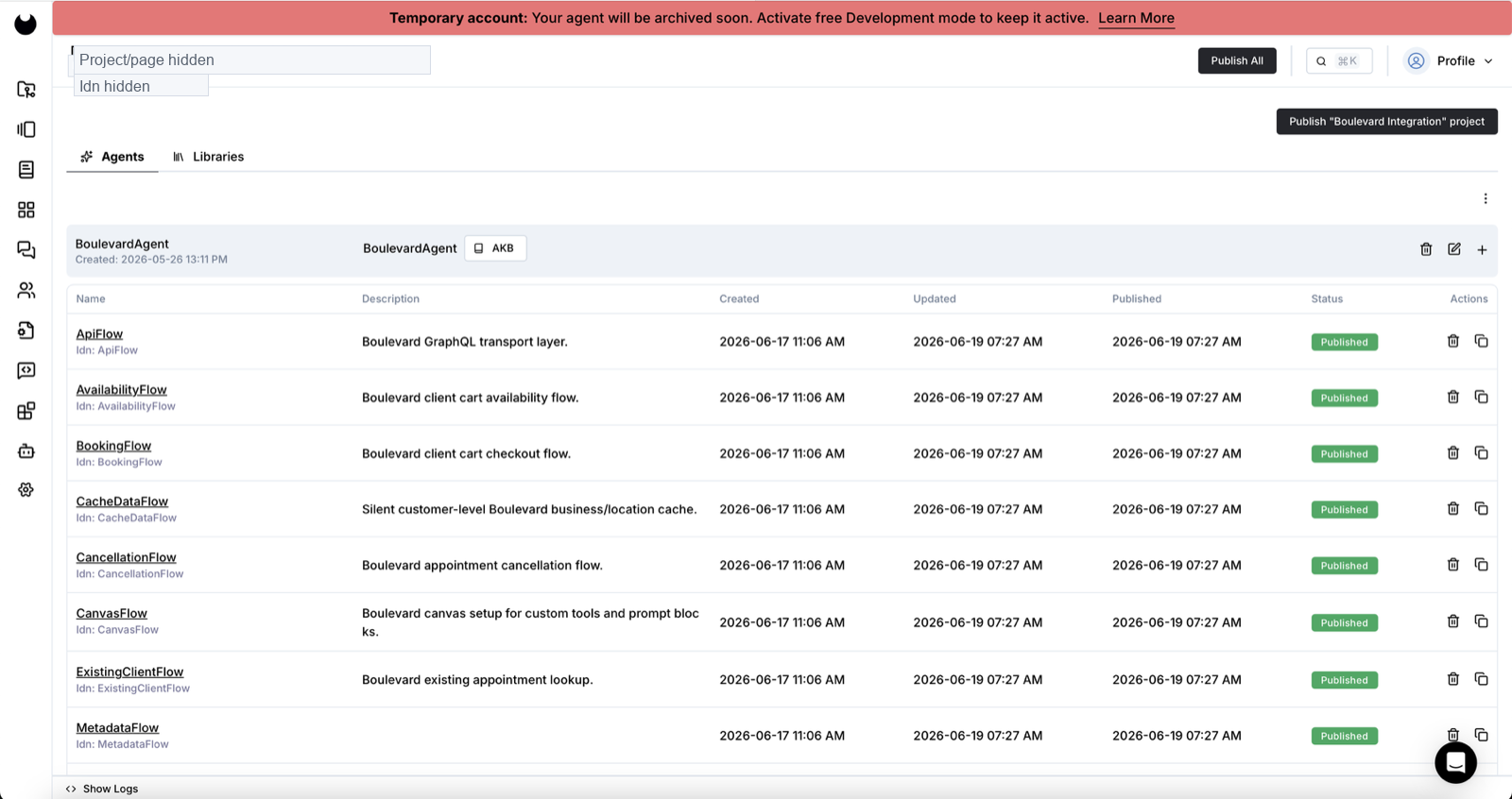
- Open the project in Newo Builder.
- Confirm that
Boulevard Integrationis added to the project. - Click
Publish Allso Newo creates attributes, connectors, and scenarios.
- Open
Attributes -> Customer. - Select the
Module - BoulevardIntegrationgroup. - Turn on
Show Hiddento see the hidden credential fields.
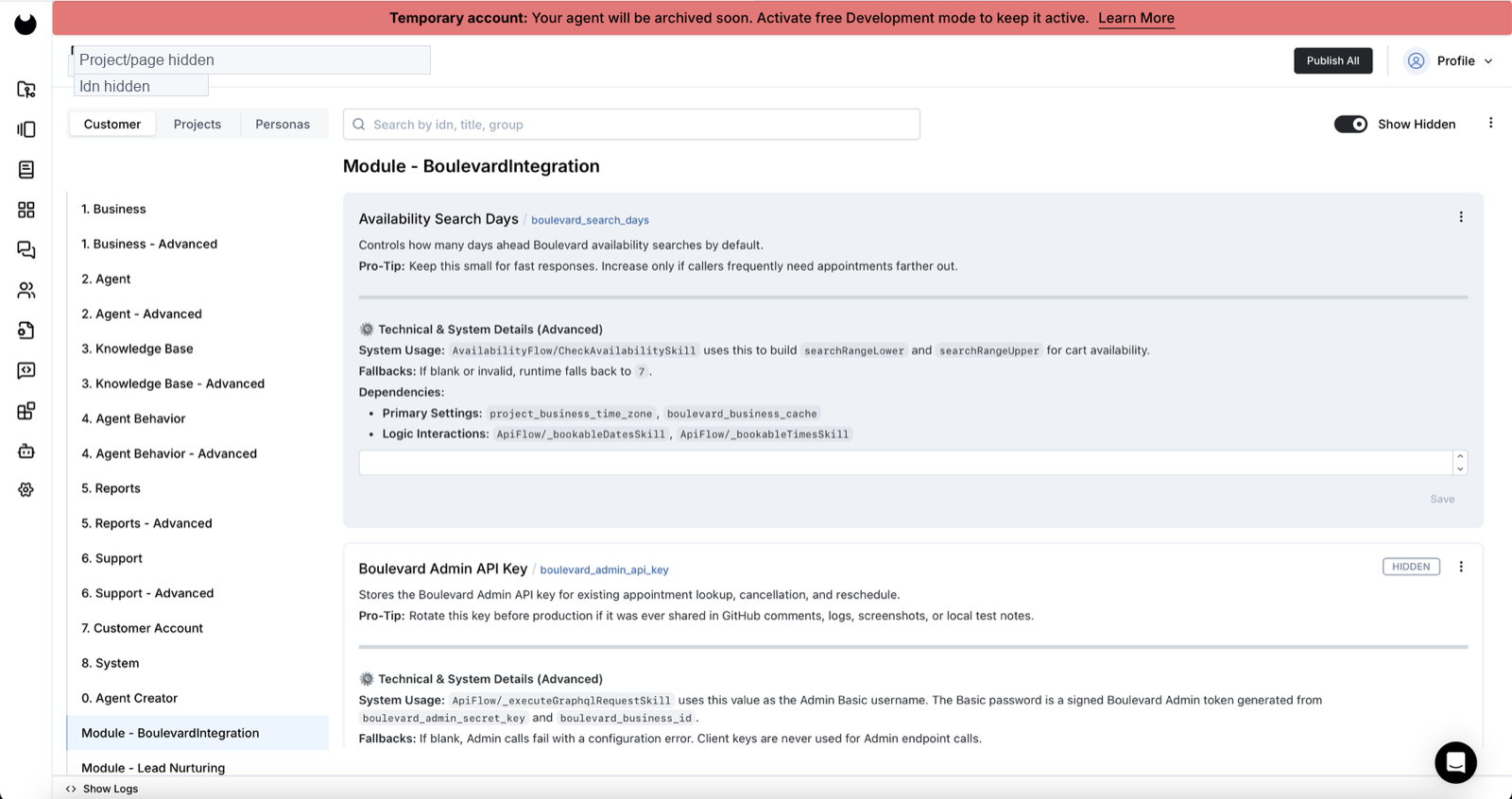
- Fill in the main fields:
| Newo field | Value |
|---|---|
Boulevard Platform | sandbox for sandbox, live for production |
Boulevard Business ID | BUSINESS_ID from the Boulevard API application |
Boulevard Client API Key | API Key for Client API / Book SDK. If Boulevard issued one API_KEY, paste it here |
Boulevard Admin API Key | Admin API_KEY. If Boulevard issued one API_KEY, paste the same key here |
Boulevard Admin Secret Key | Admin SECRET_KEY; required for lookup, cancel, and reschedule |
- Do not edit these fields manually:
| Field | Why |
|---|---|
Boulevard API Version | Keep 2020-01 unless Boulevard asks for another version |
Boulevard Client GraphQL URL | Newo builds this automatically |
Boulevard Admin GraphQL URL | Newo builds this automatically |
Boulevard Admin Signed Token Override | Leave empty; this is only an emergency support/debug override |
Boulevard Business Cache | Newo updates this automatically |
- Click
Publish Allagain. - After publish, check
Boulevard Location. If the dropdown is empty, Newo could not fetch business/location data from Boulevard. Check platform, Business ID, and Client API Key. - Select the target location and click
Publish Allagain.
Feature flags
Turn features on gradually:
| Field | Recommendation |
|---|---|
Enable Boulevard Availability | Keep True |
Enable Boulevard Booking Checkout | Turn on only after successful sandbox booking |
Send Booking Confirmation SMS | Keep True if the calendar link should be sent by SMS |
Send Boulevard Appointment Reminder | Keep True if reminders are needed |
Reminder Minutes Before Appointment | Usually 60 |
Enable Existing Appointment Lookup | Turn on after successful Admin API validation |
Enable Boulevard Cancellation | Turn on after successful Admin API validation |
Enable Boulevard Reschedule | Turn on after successful Admin API validation |
Setup Boulevard Custom Tools | Keep True |
Setup Boulevard Canvas | Keep True unless scenarios are managed manually |
Admin API is ready when the hidden Boulevard Admin API Verified field is True, and Boulevard Admin API Probe Status shows a successful probe. If Admin API is not verified, lookup, cancellation, and reschedule should stay disabled.
How to test after setup
Test like a real customer. Do not use technical words and do not pre-supply internal ids.
Availability
Example:
I want a haircut tomorrow afternoon.
Expected:
- the agent asks only for missing service, date, or time details;
- the agent does not ask for name, phone, or email before showing available slots;
- the agent shows only real slots returned by Boulevard;
- if the customer did not ask for a specific staff member, the agent must not force staff selection.
Staff-specific availability
Example:
Do you have a haircut slot with a specific staff member tomorrow?
Expected:
- the agent asks for staff only if the staff name was not provided;
- if the staff name was already provided, the agent does not ask again;
- returned slots must match the selected staff member.
Booking
Example:
I’ll take the 9:45 AM slot.
Expected:
- the agent asks for first name, last name, and phone;
- email can be optional if the business needs it;
- before booking, the agent briefly confirms service, staff or "any available staff", date, time, and location;
- after successful booking, the agent says in plain language that the appointment is booked;
- the agent does not say the appointment id;
- the agent does not paste the Google Calendar URL in chat if it was sent by SMS.
Existing appointment lookup
Example:
Can you check my appointment? My phone is +1 555 000 0000.
Expected:
- the agent searches by phone, email, or full name;
- the agent shows a customer-friendly summary: service, date, time, staff, and location;
- the agent does not expose internal ids.
Cancellation
Example:
Please cancel my appointment.
Expected:
- if the appointment has not been found yet, the agent runs lookup first;
- before cancellation, the agent shows a summary of the found appointment and asks for explicit confirmation;
- cancellation runs only after confirmation;
- after success, the agent says the appointment was canceled.
Reschedule
Example:
I need to move my appointment to Friday afternoon.
Expected:
- if the appointment has not been found yet, the agent runs lookup first;
- the agent searches Boulevard for replacement slots;
- the customer selects one of the returned slots;
- the agent does not say the appointment was moved until Boulevard confirms reschedule.
Common issues
| Symptom | What to check |
|---|---|
Boulevard Location is empty | Platform, Business ID, Client API Key, then Publish All |
| Lookup/cancel/reschedule do not work | Admin API Key, Admin Secret Key, Boulevard Admin API Verified |
| Booking does not run | Enable Boulevard Booking Checkout must be True after sandbox validation |
| The customer sees a long calendar URL | Send Booking Confirmation SMS should be True, and Boulevard Canvas scenarios should be published |
| The agent asks for name/phone before availability | Check that Setup Boulevard Canvas = True, then click Publish All |
| The agent asks for a specific staff member when the customer did not request one | Check that Boulevard Canvas is current, then retest staff-specific availability |
| Boulevard requires payment method | Newo must not collect card number, CVV, or raw payment token; adjust Boulevard checkout/payment policy or keep booking checkout disabled |
Production checklist
Before production:
- sandbox availability is verified;
- sandbox booking is verified without collecting card details in Newo;
- confirmation SMS is verified;
- Admin API probe is successful;
- lookup is verified;
- cancellation is verified on a test appointment;
- reschedule is verified on a test appointment;
- production Business ID and keys are entered separately from sandbox;
- after switching
Boulevard Platform = live,Publish Allis completed; - production
Boulevard Locationis selected; - a short live-dialog smoke test is completed.