Kommo Integration
Connects Kommo CRM with Newo so every finished conversation can update the customer contact, select or create a lead, add a note and tag, create a manager task, and optionally move the lead to another stage.
Time to first success: about 15–20 minutes if you already have Kommo administrator access and a private integration.
Before You Start
Make sure you have:
- an active Kommo workspace;
- Kommo administrator access with permission to create integrations;
- access to Newo Builder with permission to edit project settings and click Publish All;
- a Kommo pipeline for leads handled by Newo;
- the exact redirect URL
https://static.newo.ai/oauth/index.htmlregistered in Kommo when using OAuth.
Use test contacts in a safe Kommo workspace before enabling the integration for production conversations. A finished conversation can create or update real CRM records.
What the AI can do
- Find or create a contact. After a conversation, Newo searches by phone or email and creates a contact when no match exists.
- Protect existing contact data. Existing names, phone numbers, and email addresses are preserved. Missing names may be filled, and new phone or email values are added without deleting existing values.
- Reuse the correct lead. When Newo creates a lead, it saves that lead for the customer and prefers the same lead during later conversations.
- Create a lead when needed. If the contact has no available lead, Newo creates one in the selected pipeline and gives it an initial stage.
- Control stage changes. Existing leads move only when stage updates are enabled; pipeline decision rules choose the destination stage.
- Create manager tasks. The task title describes the next action, while details preserve useful facts from the conversation.
- Add direction and interest tags. The default rules add
Newo_inbound,Newo_inbound+,Newo_outbound, orNewo_outbound+to the lead without replacing existing tags. - Save localized conversation notes. Notes can include the summary, result, contact data, recording links, and a transcript excerpt in the configured CRM language.
- Use existing customer context during a conversation. Optional client-history lookup lets the agent recognize a known Kommo contact once a phone number is available.
- Use OAuth or a long-lived token. OAuth access is refreshed automatically; a long-lived token is used directly until the operator replaces it.
How the lead is selected
A Kommo contact may have more than one lead. The integration follows these rules:
- If Newo previously created a lead for this customer and that lead is still linked to the contact, Newo reuses it.
- If the saved lead is no longer linked to the contact, Newo uses the first available lead returned for that contact.
- If the contact has no lead, Newo creates a new one and saves its ID for future conversations.
The saved lead is written only after Newo successfully creates a new lead. Looking up an existing contact or choosing an existing lead does not overwrite that saved value. Lead tags are not used to choose a lead.
Features at a glance
| Feature | Included |
|---|---|
| Contact lookup by phone or email | ✅ |
| Non-destructive contact creation and update | ✅ |
| Lead selection and creation | ✅ |
| Reuse of a lead previously created by Newo | ✅ |
| Configurable stage changes | ✅ |
| Manager follow-up tasks | ✅ |
| Additive lead tags | ✅ |
| Localized lead notes | ✅ |
| Existing-customer context during a conversation | ✅ |
| OAuth and long-lived-token authentication | ✅ |
| Kommo webhooks | ❌ |
| Booking and calendar availability | ❌ — use a scheduling integration |
| Multi-location routing | ❌ |
Setup
Create the Newo project
If the project already exists in Newo Builder, skip this subsection.
- Open the projects list and click Create Project.
- Enter a clear IDN and title.
- Choose production for a stable live project or staging when you need the latest prerelease fixes.
- Select the Kommo module and leave Module version on Latest version unless support asks you to pin a version.
- Click Create.
1. Prepare a private integration in Kommo
- Open Settings → Integrations & channels → Integration marketplace.
- Click Create integration.
- Set the Redirect URL to exactly
https://static.newo.ai/oauth/index.html. - Select Allow access: All.
- Save the integration with a clear name such as Newo.
- Open Keys and scopes.
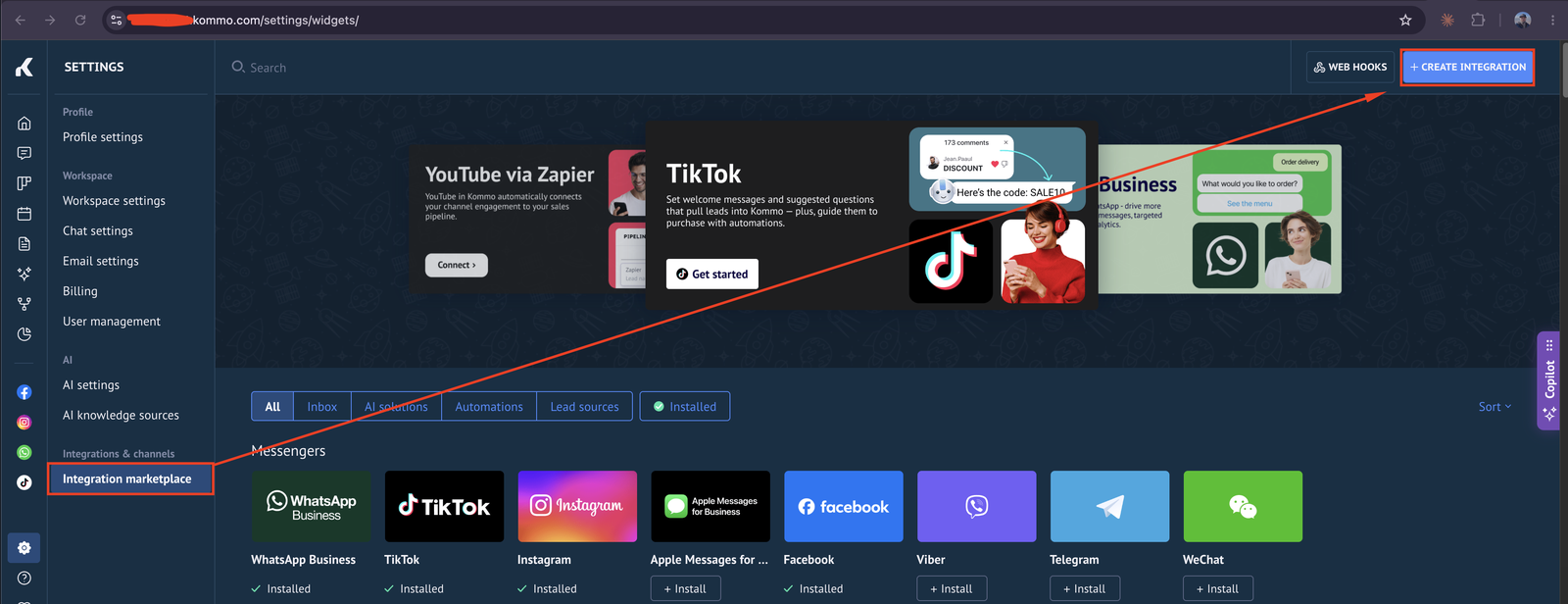
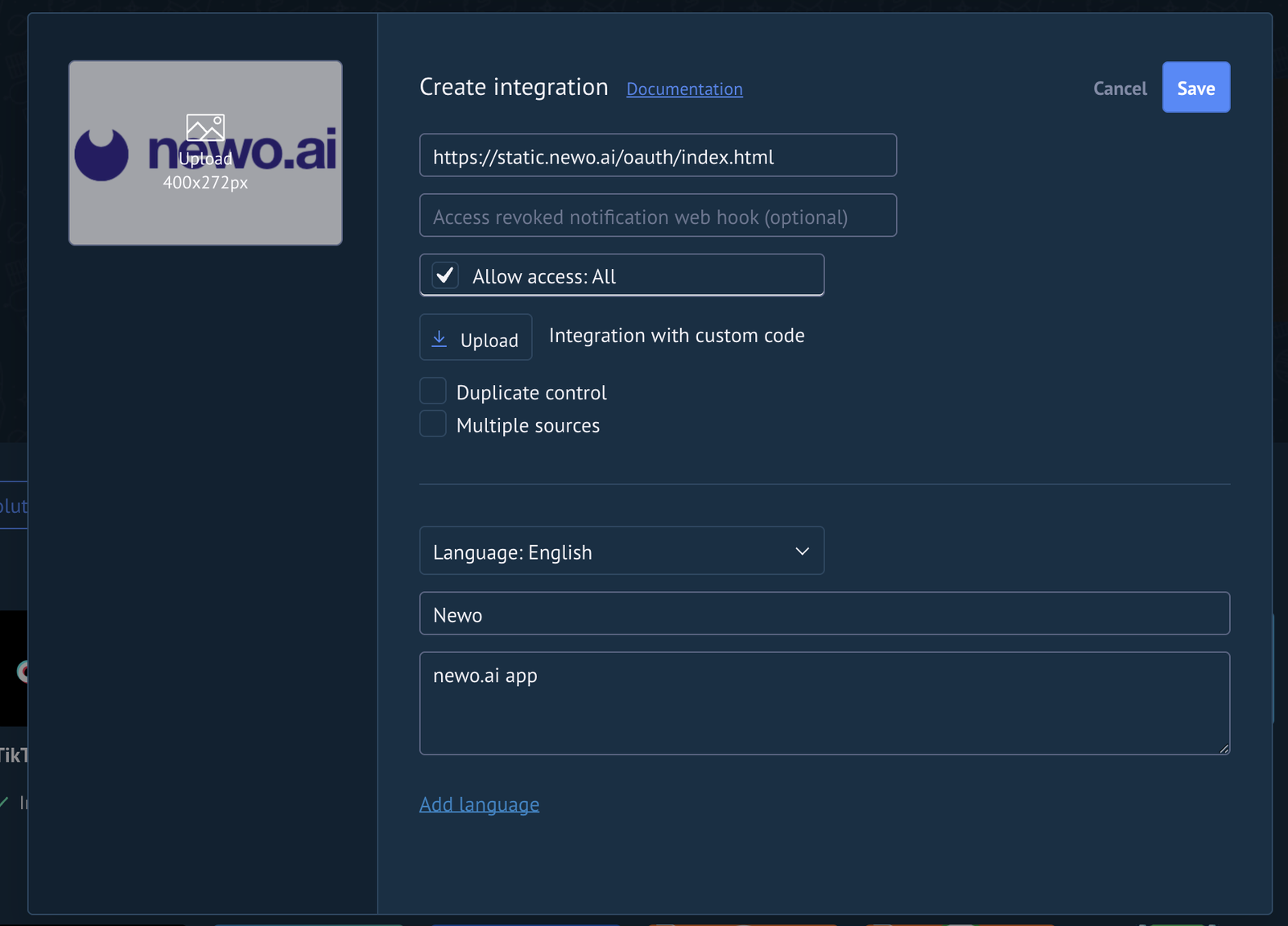
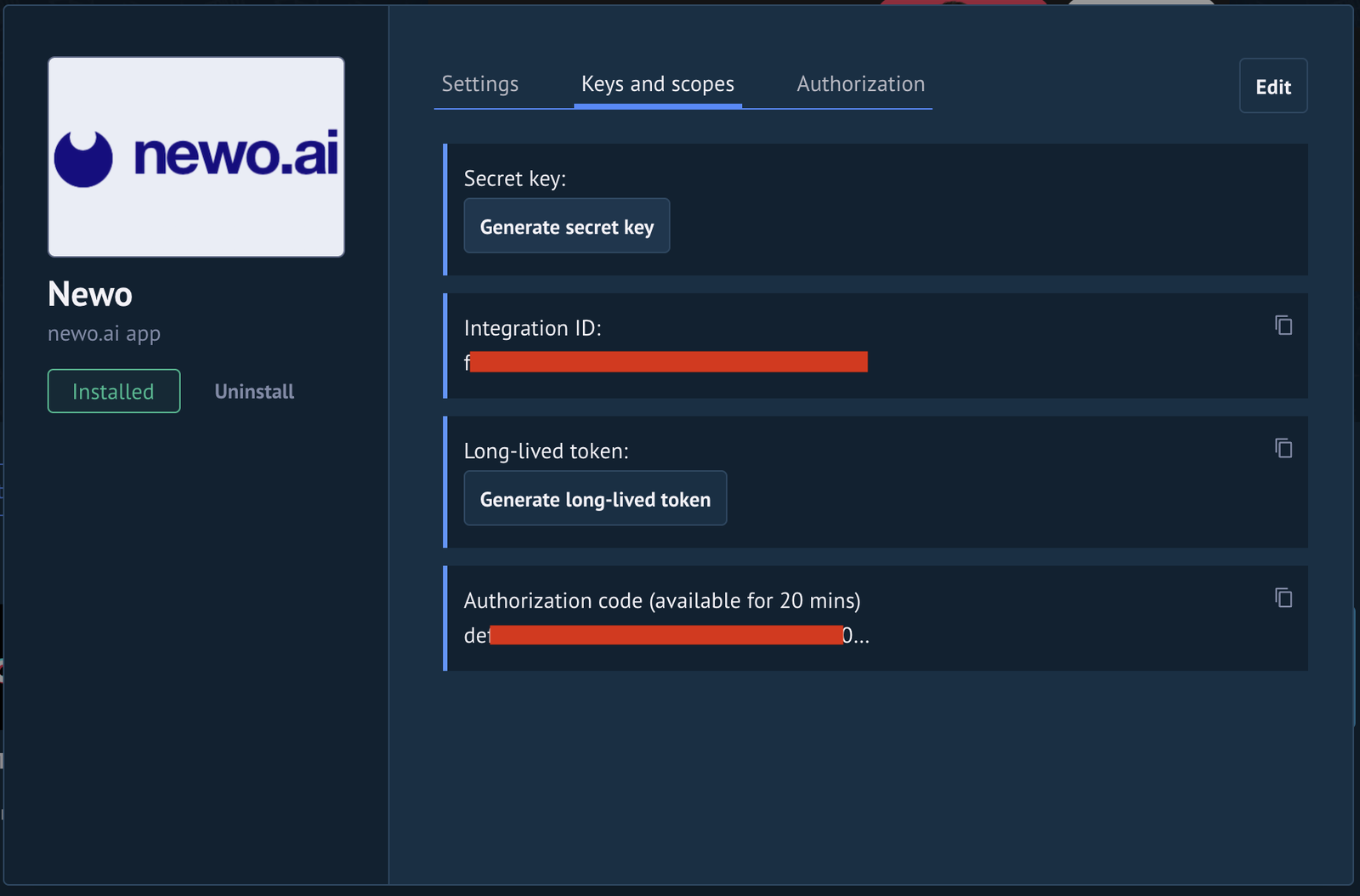
Do not add a trailing slash, query parameters, spaces, or different capitalization to the Redirect URL. It must be registered on the same Kommo integration whose Integration ID is entered in Newo.
2. Choose an authentication method
Option A — OAuth with a private integration (recommended)
- Copy the Kommo Integration ID.
- Generate and copy the Secret key.
- Keep the Kommo integration page open while configuring Newo.
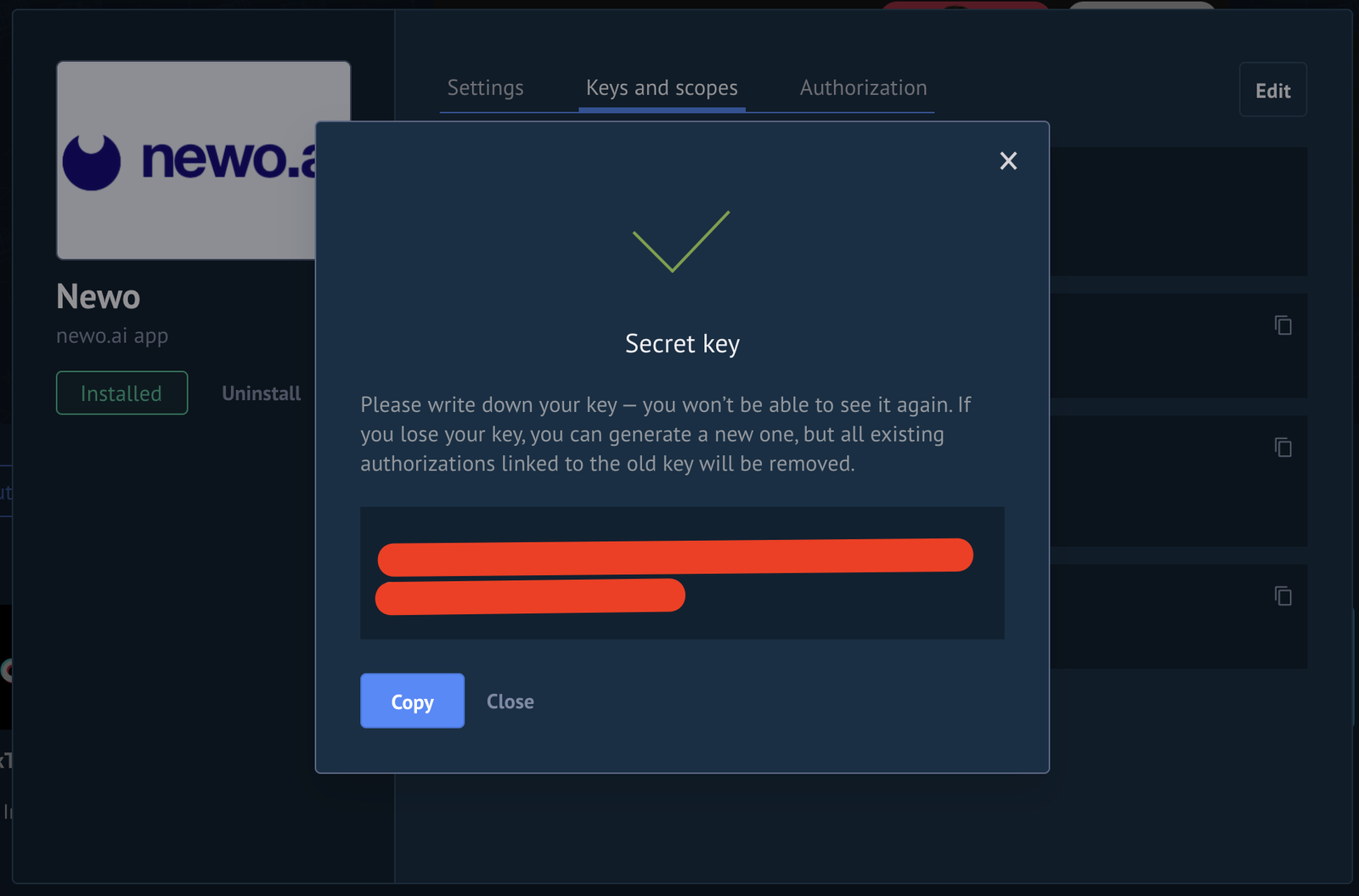
If you regenerate the secret later, create a fresh authorization code. Codes created with the previous secret cannot be reused.
Option B — Long-lived token
Use this option for a private integration connected to one Kommo account.
- Open the private integration's Keys and scopes page.
- Generate a long-lived token with the required CRM permissions.
- Copy it once and store it securely.
Newo does not refresh this token. If Kommo revokes it, generate a new token and replace the value in Newo.
Option C — Public integration
Use Public Integration only when the Newo implementation team confirms that shared public credentials are available for the workspace. The customer still provides the subdomain and authorization code, then selects a pipeline after synchronization.
3. Configure Kommo in Newo
Open the Module - Kommo settings group in Newo Builder.
For private OAuth:
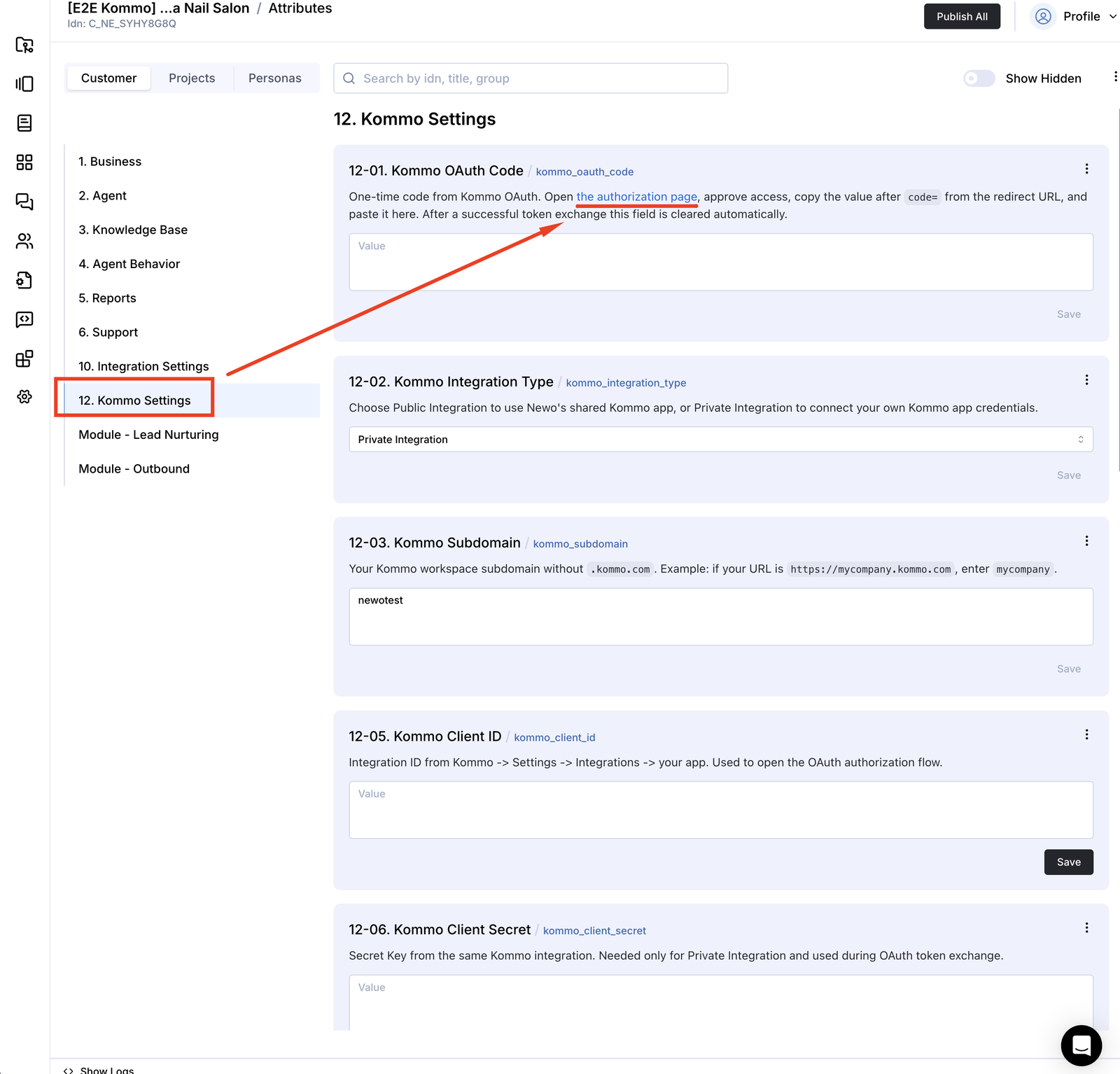
- Set Authentication Method to OAuth.
- Set Integration Type to Private Integration.
- Enter the workspace prefix in Subdomain. For
https://example.kommo.com, enterexample. - Confirm Redirect URI is
https://static.newo.ai/oauth/index.html. - Paste the Integration ID into Client ID and the secret into Client Secret.
- Open the authorization link shown with OAuth Code, approve access in Kommo, copy only the returned code, and paste it into OAuth Code.
- Click Publish All.
For a long-lived token:
- Set Authentication Method to Long-lived Token.
- Enter Subdomain.
- Paste the token into Long-lived Token.
- Click Publish All. OAuth fields and the redirect step are not used in this mode.
4. Select the pipeline and enable the required actions
After the first successful Publish All:
- Confirm Last Init Error is empty.
- Open Pipeline and choose the pipeline Newo should use.
- Click Publish All again so the stage list is refreshed.
- Choose the required feature settings:
| Setting | Purpose | Default |
|---|---|---|
| Update Pipeline Stage | Adds stage selection to the single analysis and allows the pipeline flow to move a lead. | off |
| Preserve Existing Lead Pipeline and Stage | Blocks stage changes for existing leads even if the analysis requests one. | on |
| Create Follow-Up Tasks | Adds task selection to the single analysis and allows manager-task creation. | off |
| Create Generated Lead Tags | Adds tag selection to the single analysis and allows additive lead tags. | on |
| Save Conversation Notes to Lead | Saves the prepared conversation note on the selected lead. | off |
| Enable Client History | Loads known Kommo contact context while the conversation is active. | off |
| CRM Language | Forces task text and translatable note text into a language such as Russian, English, or Spanish. | conversation language |
Each enabled feature has its own instruction field. The integration combines the enabled instruction blocks into one structured generation.
Configure the automatic CRM decision
The integration runs one analysis after each finished conversation. Before the analysis, it reads the three feature switches. An enabled feature contributes its instructions and expected result fields; a disabled feature contributes neither. The same switch is checked again before any change is written to Kommo.
The switches are the top-level controls: instructions cannot reactivate a disabled feature. For enabled task and tag features, an empty task title or tag name means there is no action for this conversation.
Stage rules
Use Pipeline Decision Rules to explain how conversation outcomes map to exact stage names.
To move only interested customers to a specific stage:
- Choose the stage "Potential lead" when the client wants the product or service.
- Otherwise choose the stage "Initial contact".
- Never choose a closed stage unless the conversation explicitly confirms that outcome.
Replace both examples with exact names from the selected pipeline.
When Update Pipeline Stage is off, stage selection is excluded from the analysis and existing leads are not moved. A new lead still needs an initial stage, so the integration uses the first selectable stage. For an existing lead to move, both conditions must be true:
- Update Pipeline Stage is on.
- Preserve Existing Lead Pipeline and Stage is off.
Task rules
Use Task Decision Instructions to explain when a concrete manager action remains. Despite its legacy technical idn, the field applies to inbound and outbound conversations.
To create a task when the customer wants a product or service:
- Create a task when the client wants the product or service and a manager must continue the process.
- Make the task title describe the manager's next action.
- Put the facts required for that action in the task details.
- Otherwise do not create a task.
When Create Follow-Up Tasks is off, task selection is excluded from the analysis and no task can be created.
Task deadlines follow these defaults:
| Customer wording | Deadline used |
|---|---|
| Exact date and time | The stated date and time |
| Exact time range | Start of the range |
| Morning / first half of the day | 10:00 on the stated date |
| Afternoon / second half of the day | 15:00 on the stated date |
| Evening | 18:00 on the stated date |
| Date without time | 10:00 on that date |
| Time without date | That time on the next calendar day |
| No usable date or time | Current time plus the configured inbound/outbound fallback delay |
Use Inbound Follow-up Delay (hours) and Outbound Follow-up Delay (hours) to configure the fallback. Both default to 24 hours. A client-stated valid deadline takes priority.
Tag rules
Use Tag Decision Instructions to describe tag selection. The bundled rule is:
- For inbound calls, use Newo_inbound or Newo_inbound+.
- For outbound calls, use Newo_outbound or Newo_outbound+.
- Use the + variant only when the client wants to buy, book, order, or receive the product or service.
To use different names, replace all four names directly in Tag Decision Instructions and explain when each one applies. On migration, an empty instruction is seeded from the old inbound/outbound tag settings once; after that, only this instruction controls the names. When Create Generated Lead Tags is off, tag selection is excluded from the analysis and no generated tag can be added. Tags apply only to leads, existing tags are preserved, and duplicates are skipped.
Lead-note and language rules
Turn Save Conversation Notes to Lead on to save notes. Set CRM Language when all task text and translatable note content must use a specific language.
The CRM language overrides the language of summaries, metadata, examples, and isolated transcript turns. Names, phone numbers, email addresses, URLs, postal codes, addresses, dates, and product names remain unchanged. The four fixed Newo_* tags are never translated.
When CRM Language is blank, Newo uses the primary language of the customer's substantive requests. It does not switch languages because of one isolated message or English supporting metadata.
Call Analysis JSON Schema
Call Analysis JSON Schema is now a hidden, read-only template. The integration restores it on Publish All and builds the final schema from enabled features. Configure business behavior only in the three feature instruction fields.
How to test that everything works
Use a test contact and inspect the visible result in Kommo after each finished conversation.
Test authorization
- Complete one authentication method and click Publish All.
- In OAuth mode, confirm OAuth Code becomes empty after success. In long-lived-token mode, confirm the token stays saved.
- Confirm Last Init Error is empty and Pipeline contains values from Kommo.
- Select a pipeline, publish again, and confirm the stage list has refreshed.
Test contact protection
- Create a Kommo contact with an existing name, phone number, and email.
- Run a conversation using that phone or email and end the session.
- Confirm the same contact is reused.
- Confirm existing data remains and only genuinely new phone or email values are appended.
Test lead reuse
- Use a test contact with no leads and finish a conversation.
- Confirm one new lead appears in the selected pipeline.
- Add another lead manually to the same contact.
- Finish another conversation for the same customer.
- Confirm the task, note, and tag are added to the lead Newo created in step 2, not the manually added lead.
Test stage protection
- Turn Update Pipeline Stage off.
- Finish a conversation for an existing lead and confirm it does not move.
- Turn the feature on, turn Preserve Existing Lead Pipeline and Stage off, and configure an exact stage mapping in Pipeline Decision Rules.
- Finish a matching conversation and confirm the lead moves to that stage.
Test tasks, tags, notes, language, and dates
- Turn Create Follow-Up Tasks and Save Conversation Notes to Lead on.
- Set CRM Language to
Russian. - Ask for a service in Russian and request a specific date “in the first half of the day”.
- Confirm the task title, details, and translatable note text are in Russian.
- Confirm the task deadline is 10:00 on the requested date.
- Confirm the lead receives the direction tag with
+and existing tags remain. - Repeat with a greeting-only conversation. Confirm no task is created and the analysis still completes without an error.
Customizing the integration
- Edit Pipeline Decision Rules, Task Decision Instructions, and Tag Decision Instructions independently.
- Use the feature flags to completely remove disabled modules from the generation and runtime writes.
- Use exact pipeline stage names refreshed after Publish All.
- Keep task instructions able to return empty task fields for conversations without a manager action.
- Do not edit the hidden Call Analysis JSON Schema.
- Run Publish All after changing the selected pipeline so the runtime stage cache is refreshed.
FAQ
Q. Why does OAuth Code disappear after Publish All?
Kommo authorization codes are single-use. Newo clears the code after a successful exchange.
Q. Why does OAuth report “Redirect URI is not associated with client”?
The Redirect URL saved on the Kommo integration does not exactly match Redirect URI in Newo, or Client ID belongs to another Kommo integration. Save https://static.newo.ai/oauth/index.html on the correct integration, generate a fresh code, and publish again.
Q. Will Newo create duplicate leads?
If Newo has already created a lead for this customer, it saves and reuses that lead while it remains linked to the contact. If no saved Newo-created lead is available, it uses the first lead returned for the contact; if no lead exists, it creates one.
Q. Can one contact have several leads?
Yes. Kommo can link several leads to one contact. That is why the integration stores the ID of a lead it creates and prefers it on later conversations.
Q. Are lead tags used to find the lead?
No. Tags classify the conversation outcome but do not participate in lead selection.
Q. Why did an existing lead not move?
Check both gates: Update Pipeline Stage must be on and Preserve Existing Lead Pipeline and Stage must be off. Then confirm Pipeline Decision Rules returns an exact configured stage name.
Q. Why was no task created?
Create Follow-Up Tasks must be on, Task Decision Instructions must produce a non-empty task title, and the selected lead must have a responsible user.
Q. Can contact synchronization overwrite customer data?
Existing names, phone numbers, and emails are preserved. If the safe existing-field snapshot is unavailable, the integration skips the risky update instead of replacing data.
Q. Does CRM Language translate fixed tags and customer data?
No. Fixed Newo_* tags, names, phone numbers, emails, URLs, addresses, dates, postal codes, and product names remain unchanged.
Q. Can this integration book an appointment?
No. Kommo is used for CRM updates. Add a scheduling integration for availability and booking.
Common errors and recovery
Publish All reports a redirect mismatch
Likely cause: Redirect URI differs from the Redirect URL registered on the Kommo integration identified by Client ID.
How to recover:
- Open the matching integration in Kommo.
- Save exactly
https://static.newo.ai/oauth/index.htmlas its Redirect URL. - Generate a fresh authorization code.
- Replace OAuth Code in Newo and click Publish All.
How to verify: OAuth Code becomes empty, Last Init Error is empty, and Pipeline contains values.
Pipeline is empty after Publish All
Likely cause: authentication failed, the subdomain is incorrect, or the credentials belong to another Kommo workspace.
How to recover: verify Authentication Method, Subdomain, and the credentials for the selected mode, then publish again.
How to verify: Pipeline contains the workspace pipelines.
Tasks do not appear
Likely cause: task creation is off, the task feature returned an empty title, or the selected lead has no responsible user.
How to recover: turn Create Follow-Up Tasks on, review Task Decision Instructions, and assign a responsible user to the Kommo lead.
How to verify: repeat a test conversation with clear interest; a task with a next-action title appears on the lead.
CRM text appears in the wrong language
Likely cause: CRM Language is blank or contains an unclear value.
How to recover: enter a full language name such as Russian and publish again. The shared language constraint is internal and is not replaced by feature prompts.
How to verify: repeat a mixed-language test; task text and translatable lead-note text use the selected language.
Limitations
- No direct Kommo webhook ingestion; updates are driven by finished Newo conversations and setup publishes.
- No built-in calendar availability, booking, cancellation, or rescheduling.
- No multi-location routing.
- A pre-existing contact with several leads and no saved Newo-created lead falls back to the first available lead.
- Follow-up task creation requires a responsible user on the selected lead.
- Generated tags apply only to leads, not contacts or Newo personas.
- OAuth requires an exact redirect match and a fresh code after redirect or secret changes.
- Long-lived tokens are not refreshed automatically.
Support handoff notes
When handing the project to another operator or support team, record:
- the authentication method and integration type in use;
- the Kommo subdomain and selected pipeline;
- whether stage updates, tasks, notes, and client history are enabled;
- the configured CRM language;
- which of the three feature prompts were customized;
- the exact redirect URL registered in Kommo;
- the result of the lead-reuse and mixed-language tests above.
All settings reference
The table below is the complete customer-setting inventory. Operators normally edit rows marked ✅. Use ⚠️ settings carefully; 🔒 settings are managed internally or retained only for compatibility.
| Name | Description | Required | Default | Hidden | Edit |
|---|---|---|---|---|---|
kommo_auth_type | Authentication method: OAuth or Long-lived Token. | No | OAuth | No | ✅ |
kommo_integration_type | OAuth credential owner: Private Integration or Public Integration. | OAuth | Private Integration | Token mode | ✅ |
kommo_subdomain | Kommo workspace prefix. | Yes | (empty) | No | ✅ |
kommo_redirect_uri | OAuth callback URL that must exactly match Kommo. | OAuth | https://static.newo.ai/oauth/index.html | Token mode | ✅ |
kommo_client_id | Kommo Integration ID. | Private OAuth | (empty) | Public or token mode | ✅ |
kommo_client_secret | Kommo integration secret. | Private OAuth | (empty) | Public or token mode | ✅ |
kommo_oauth_code | One-time OAuth authorization code. | First OAuth authorization | (empty) | Token mode | ✅ |
kommo_long_lived_token | Direct private-integration token. | Token mode | (empty) | No | ✅ |
kommo_pipeline_id | Pipeline used for new leads and optional stage changes. | Yes | First active pipeline when available | No | ✅ |
kommo_update_pipeline | Enables the stage prompt/schema module and pipeline-stage writes. | No | off | No | ✅ |
kommo_skip_pipeline_update_for_existing_leads | Preserves the pipeline and stage of existing leads. | No | on | No | ✅ |
kommo_pipeline_decision_rules | Feature prompt for choosing an exact pipeline stage. | Stage feature | Bundled rules | No | ✅ |
kommo_enable_follow_up_tasks | Enables the task prompt/schema module and manager-task writes. | No | off | No | ✅ |
kommo_outbound_task_decision_instructions | Feature prompt for task necessity, title, details, and deadline. | Task feature | Bundled rules | No | ✅ |
kommo_inbound_followup_delay_hours | Inbound task fallback delay when no usable deadline is generated. | Task feature | 24 | No | ✅ |
kommo_outbound_followup_delay_hours | Outbound task fallback delay when no usable deadline is generated. | Task feature | 24 | No | ✅ |
kommo_enable_generated_tags | Enables the tag prompt/schema module and additive lead tags. | No | on | No | ✅ |
kommo_tag_decision_instructions | Feature prompt for selecting one configured lead tag. | Tag feature | Bundled rules | No | ✅ |
kommo_lead_tag | Deprecated; tag names are configured in kommo_tag_decision_instructions. | No | Existing value preserved | Yes | 🔒 |
kommo_outbound_lead_tag | Deprecated; tag names are configured in kommo_tag_decision_instructions. | No | Existing value preserved | Yes | 🔒 |
kommo_enable_lead_notes | Saves prepared conversation notes to the lead. | No | off | No | ✅ |
kommo_enable_client_history | Loads existing contact context during conversations. | No | off | No | ✅ |
kommo_crm_language | Mandatory language for task text and translatable note content. | No | Conversation language | No | ✅ |
kommo_call_analysis_schema | Internal modular structured-output template. | No | Bundled schema | Yes | 🔒 |
kommo_base_url | Resolved Kommo API address. | No | Generated | Yes | 🔒 |
kommo_refresh_token | Stored OAuth refresh credential. | No | (empty) | Yes | 🔒 |
kommo_access_token | Stored OAuth access credential. | No | (empty) | Yes | 🔒 |
kommo_pipeline_stages | Cached stages for the selected pipeline. | No | [] | Yes | 🔒 |
kommo_last_init_error | Most recent setup or pipeline synchronization error. | No | (empty) | Yes | 🔒 |
kommo_outbound_task_decision_mode | Deprecated; runtime does not read it. | No | (empty) | Yes | 🔒 |
Changelog
v1.6.2 — Feature-first modular analysis
- Restores independent feature flags and prompts for stage changes, tasks, and lead tags.
- Makes each feature switch authoritative: disabled actions are excluded from both analysis and CRM updates.
- Replaces the single oversized instruction with separate stage, task, and tag instructions combined into one analysis.
- Restores separate inbound and outbound fallback-delay controls for tasks.
- Moves exact tag names into Tag Decision Instructions; the old tag-name settings are hidden compatibility inputs only.
- Adds automated coverage for every stage/task/tag feature combination and safely falls back when an analyzed task date is invalid.
v1.6.1 — Stable lead reuse and localized CRM output
- Saves a lead ID only after Newo successfully creates the lead, then prefers that lead in later conversations.
- Removes tag-based lead selection and marks the old inbound/outbound tag settings as fully unused.
- Strengthens CRM-language output so English summaries or metadata cannot override the selected language.
- Preserves stated task dates and maps broad periods such as “first half of the day” to deterministic times.
- Documents copy-ready rules for stage changes, tasks, tags, lead notes, schema safety, and trivial conversations.
v1.6.0 — Unified post-conversation analysis
- Uses one complete decision for stage, task, tag, customer name, call result, and lead note.
- Adds an explicit stage-change decision so instructions can keep an existing lead in place.
- Generates the lead note in the same analysis instead of running a separate translation step.
- Moves all active stage, task, and tag business rules into Call Analysis Instructions.
v1.5.0 — Simplified tasks and direction tags
- Creates a follow-up task when the customer wants a product or service and a manager must continue the process.
- Uses
Newo_inbound/Newo_inbound+andNewo_outbound/Newo_outbound+according to direction and customer interest. - Preserves custom operator instructions while migrating older bundled defaults.