Exely Integration Guide
What the AI can do
The Newo AI Agent integrates with Exely (hotel PMS / channel manager) so your AI can act as a hotel reservation assistant for your property.
Once connected, the AI agent can:
- check room availability for requested stay dates and guest counts
- present room options with pricing and meal plans
- hand off bookings to guests via a prefilled web booking link (email + SMS + chat) — default mode
- create hotel reservations directly via REST (after Exely opens the Reservation API in June 2026)
- hand off cancellations to the hotel phone and email contacts (default mode)
- look up existing reservations by confirmation number via the Read Reservation API
- auto-add default hotel booking scenarios to Canvas
In plain terms: the AI can talk to guests about room availability and bookings while Exely acts as the hotel reservation backend.
Important — current Exely API limitations. The public Exely offering exposes Content, Search, and Read-Reservation APIs. The Reservation write API (verify / create / cancel / modify) is scheduled to be released in June 2026, per Exely support. Until that release:
- Booking: the agent sends the guest a prefilled
bookingFormLinkfrom Exely's booking widget via email + SMS + chat; the guest completes the booking in the browser.- Cancellation / Modification: the agent directs the guest to the hotel contacts (phone + email auto-populated from the Content API).
Both modes are controlled by the
Online Booking via API/Online Cancellation via APItoggles (disabled by default). When Exely opens the write API, flip the toggles — no code changes needed.
Manager Quick View
| Question | Short answer |
|---|---|
| What business problem does this solve? | Lets the AI handle hotel availability, booking, cancellation, modification, and booking lookup without a human agent doing those actions manually. |
| Who is this for? | Hotels and hospitality businesses using Exely (formerly Bnovo) as their property management system. |
| What is needed before setup? | Exely API credentials (Client ID + Client Secret) and the Property ID. |
| How long does setup usually take? | 5-10 minutes if API connections are already enabled in the Exely extranet. |
| How do we know it worked? | Publish All completes successfully and exely_access_token is populated. |
| What should we test first? | Availability, then booking, then booking lookup. |
Best Fit / Not a Fit
Best fit:
- hotel reservation operations via Exely
- AI-led guest conversations about room availability and bookings
- teams that want one Newo project per hotel/property
Not a fit:
- CRM-heavy workflows or lead pipeline automation
- guest recognition based only on phone number
- multi-property routing inside one Exely setup
- payment processing (not yet supported)
Before You Start
Make sure you have:
- access to the Newo project builder for your project
- permission to edit project settings and publish
- API connections section enabled in the Exely extranet (may need to request from Exely support)
- Exely API credentials (Client ID and Client Secret)
- the exact Property ID for your hotel
Who Usually Provides What
| Role | Usually provides |
|---|---|
| Hotel / client team | Exely account access, Property ID, operational testing help |
| Exely support | API connections enablement, Client ID, Client Secret |
| Newo implementer / PM | Newo setup, feature toggles, publish, test plan, go-live validation |
You will need these values before setup:
- Client ID (OAuth2)
- Client Secret (OAuth2)
- Property ID
- Base URL (default:
https://connect.hopenapi.com) - Language Code (default:
en)
Note: The API connections section is not enabled by default in the Exely extranet. You must contact Exely support (
welcome@exely.com) to enable it before you can generate API credentials.
Setup
Create the Newo project
If this project already exists in Newo Builder, skip this subsection and continue with the integration-specific settings below.
- In Newo Builder, open the projects list and click Create Project (or Create New Project from the top-right menu).

- Fill IDN and Title. The exact names do not matter; use any clear names your team will recognize.
- In Registry, choose the release channel:
- staging — the newest module fixes appear here first. Use it when you need the latest fix, but expect possible unfinished changes.
- production — the final stable version for live projects.
- In Module, select the module for this integration.
 5. Leave Module version on Latest version unless support tells you to pin a specific version, then click Create.
3.1 Enable API Access in Exely
- Contact your Exely account manager or email
welcome@exely.com - Request to enable the "API connections" section in your extranet
- Wait for confirmation (typically 1-2 business days)
3.2 Create an API Connection
Based on Exely's official guide: How to create an API connection.
-
Log in to the Exely extranet at
https://secure.exely.com/app/. -
Navigate to Property Settings → API Connections and click Create a connection.
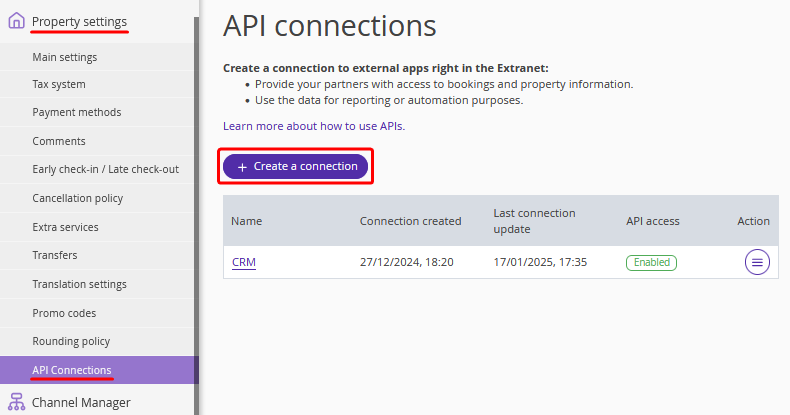
Figure 1. API Connections screen in Property Settings.
-
On the creation page, enter a connection name (e.g.
Newo AI Integration) in the API connection section. -
In the Available APIs section, tick the checkboxes for the APIs Newo needs:
- Content API — required (property description, meal plans, cancellation rules)
- Search API — required (room availability, pricing)
- Read Reservation API — required (booking lookup)
- Reservation API — tick if/when Exely has enabled the write endpoint for your account (see the June 2026 note in §1). Safe to tick in advance — nothing breaks if the server-side role isn't granted yet.
- PMS Universal API v2 — optional; Newo doesn't call it today.
Click Save at the top of the page.
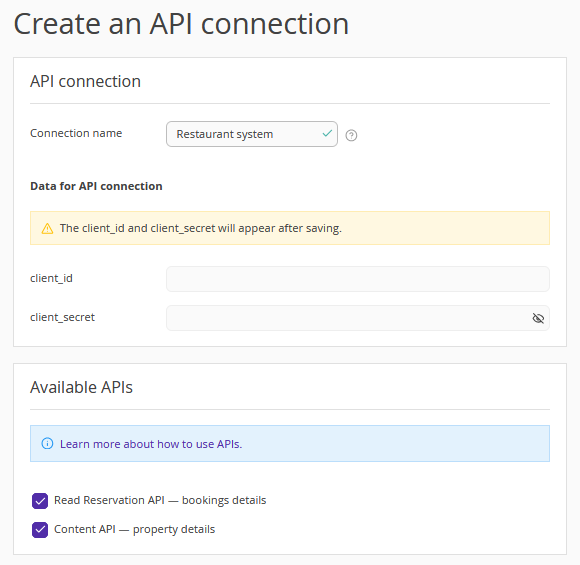
Figure 2. Enter a connection name and select the required APIs.
-
In the confirmation popup, choose Save and enable access to activate the connection immediately. Save only leaves it disabled; you can enable it later from the actions menu (Figure 6 / Figure 8).
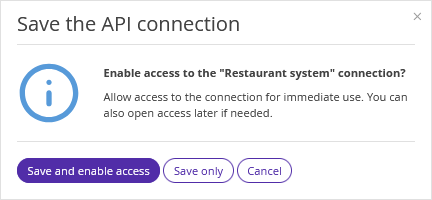
Figure 3. "Save and enable access" activates the connection immediately.
-
⚠️ Copy the generated
client_idandclient_secretnow. Exely fills them in automatically right after save; these values are what Newo uses to authenticate and they must be stored somewhere safe before you leave the page.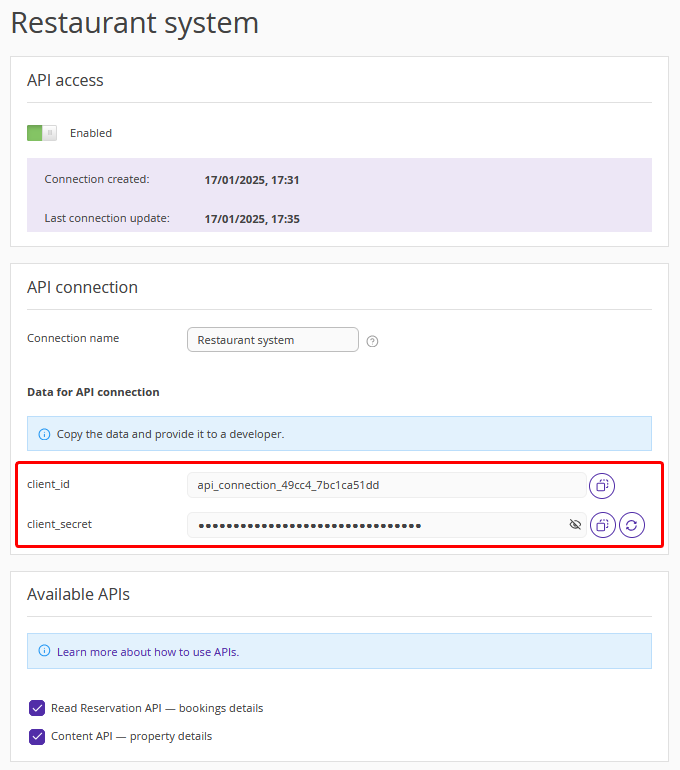
Figure 4. Copy the Client ID and Client Secret — you will need them in the Newo platform setup.
-
Your created connections appear in the list on the main API Connections page. Each row shows the connection name, status, and an actions menu.
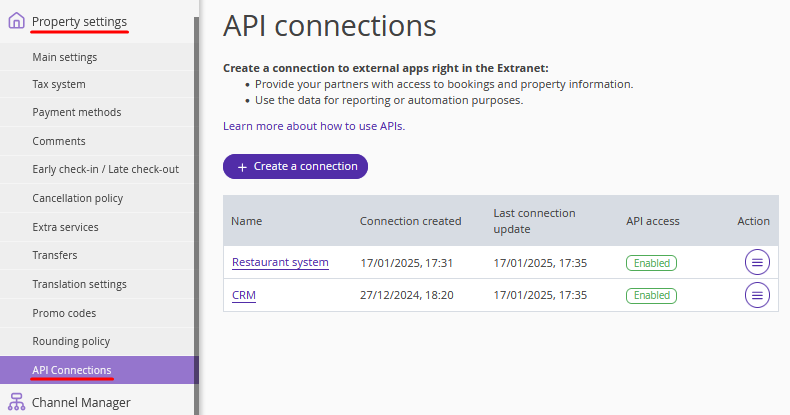
Figure 5. List of created API connections.
-
Use the row's action menu to edit, open settings, enable / disable, or delete a connection.
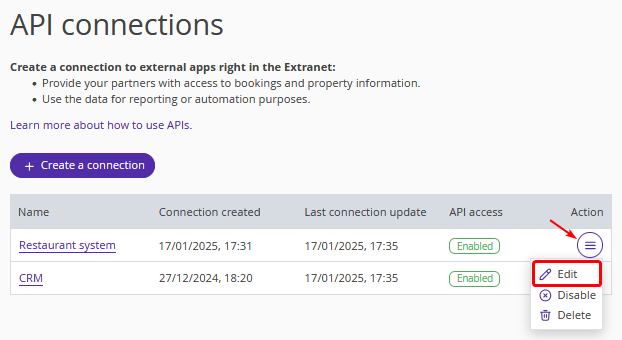
Figure 6. Per-connection actions menu.
-
Settings re-opens the full editor (name + API checkboxes). Use this to grant an additional API later — e.g. to add Reservation API once Exely enables write access for your client.
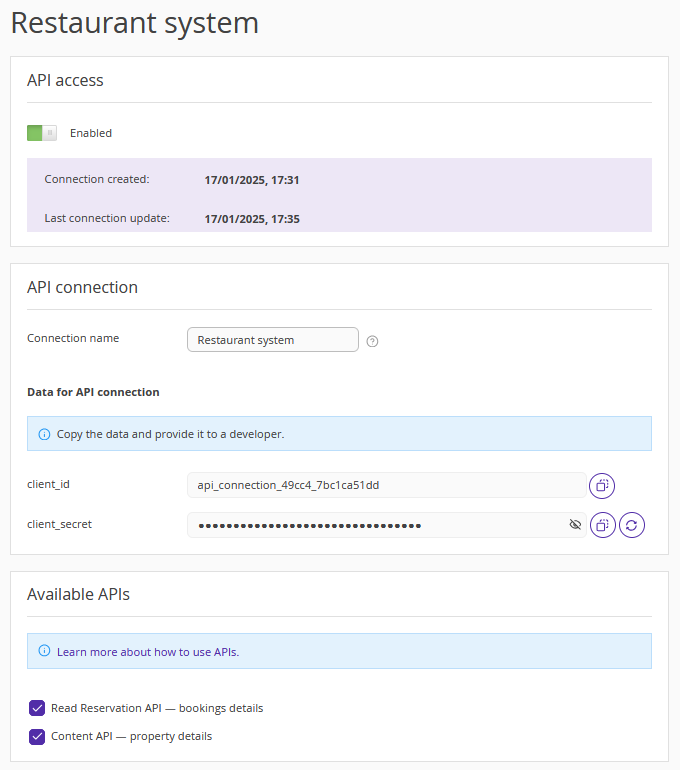
Figure 7. Connection settings editor.
-
The Enable access / Disable access toggle in the actions menu controls whether requests authenticated with that
client_idreach the Exely APIs.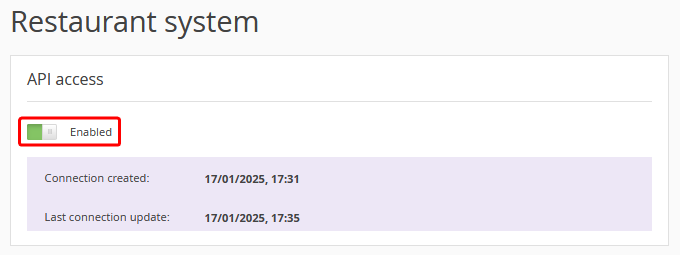
Figure 8. Enable / disable access toggle.
Tip. Your Property ID can be found in the extranet URL:
https://secure.exely.com/app/Property/{PROPERTY_ID}/...— or ask Exely support for it.Warning. If you disable or delete the connection, every Newo call (availability, lookup, booking handoff) will fail with
401until you either re-enable access or issue a newclient_id/client_secretpair and update Newo's attributes 04 and 05.
3.3 Configure Exely in Newo
- Open your project in Newo.
- Go to Builder → Attributes.
- Find the 12. Exely Settings section.
- Fill in:
- 01. Base URL —
https://connect.hopenapi.com(production) orhttps://connect.test.hopenapi.com(testing) - 02. Property ID — your hotel's property identifier
- 03. Language Code — language for room descriptions (
en,ru,de, etc.) - 04. Client ID — OAuth2 Client ID from step 3.2
- 05. Client Secret — OAuth2 Client Secret from step 3.2
- 01. Base URL —
- Review the feature toggles:
- 07. Enable Availability Check — on
- 08. Enable Booking — on
- 09. Enable Cancellation — on
- 10. Enable Reschedule — on
- 11. Enable Booking Lookup — on
- 12. Enable Guest Identification — on (phone-based guest lookup + active stays listing — lets the agent find an existing reservation without a confirmation number)
- 13. Online Booking via API — off (flip to
Trueonly when Exely's Reservation write API is available to your client) - 14. Online Cancellation via API — off (flip to
Trueonly when Exely's Reservation write API is available)
- Optional: override 15. Hotel Contact Phone and 16. Hotel Contact Email if the values auto-imported from Exely's Content API are wrong. Both are used in offline booking / cancellation handoffs, so they must point at a real front-desk contact.
- Click Save.
- Click Publish All.
3.4 What Happens After Publish
When you publish:
- Newo validates the integration registry ID
- creates or updates connections:
exely_connector(main API)exely_token_connector(OAuth2 authentication)
- creates or refreshes the setup persona and actor
- requests an OAuth2 access token from Exely (valid 15 minutes, auto-refreshed)
- stores the token in
exely_access_token - registers all 7 Exely custom tools (availability, booking, cancellation, modification, lookup, guest identification, active stays listing)
- on the first availability check after setup, loads property metadata from the Content API and auto-populates
exely_hotel_contact_phone/exely_hotel_contact_email(only if they are still empty — your manual overrides are preserved) - auto-adds default hotel scenarios and intent types to Canvas
3.5 What "Successful Setup" Looks Like
After setup is complete, you should expect all of the following:
exely_access_tokenhas a non-empty value- the project can run an availability check without authentication errors
- the Exely settings stay saved after refresh
- the booking-related tools are available to the agent
- hotel-specific scenarios and intent types appear in Canvas
3.6 Making a New Room Available Online
The AI only offers rooms that Exely returns from /api/search/v1/.../room-stays — which means the room must exist in the PMS, have a rate plan, and have non-zero "Available online" quantity. Below is the end-to-end path based on Exely's own guide (How to create room inventory in Exely PMS).
Part 1 — Add a Room Type
-
In the Exely extranet, navigate to Room management → Room types and click Add room type.
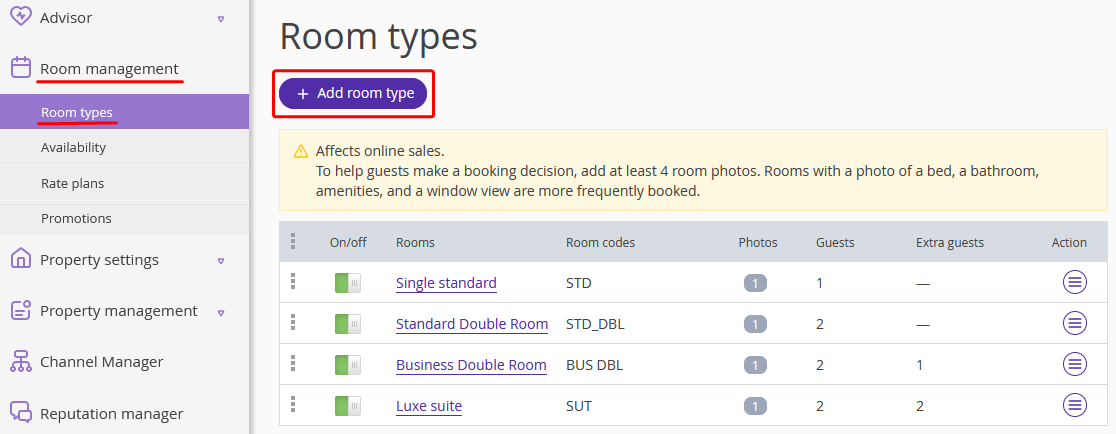
Figure 9.1. Room types list with "Add room type" action.
-
In the Main setting section, provide the room name and room code.
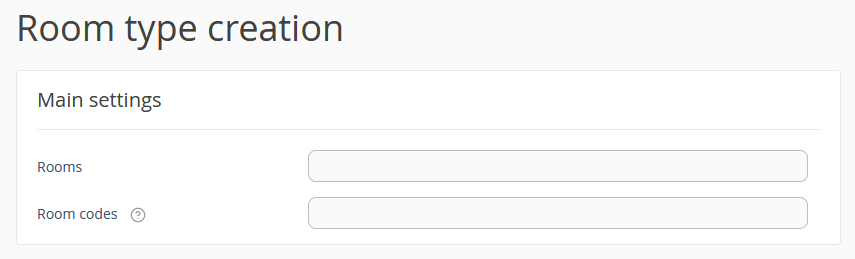
Figure 9.2. Main setting — name and code.
-
In Occupancy, choose the accommodation offer type and room area. Fill in:
- Guests with main occupancy — guest count + applicable accommodation types.
- Extra beds in the room — if applicable.
- Child accommodation without bed — if applicable.

Figure 9.3. Occupancy configuration.
-
Click Save. Repeat for every room type you want bookable.
Part 2 — Create the Room Inventory
-
Go to Property management → Room Inventory. If the property has several buildings or floors, add them on the Buildings and floors tab first.

Figure 9.4. Buildings and floors tab.
-
Open the Rooms tab → click Add room. Pick the building, floor, room type, and bed type (for display), enter the room number, and click Add room No. to add every physical unit of that type. Click Save.
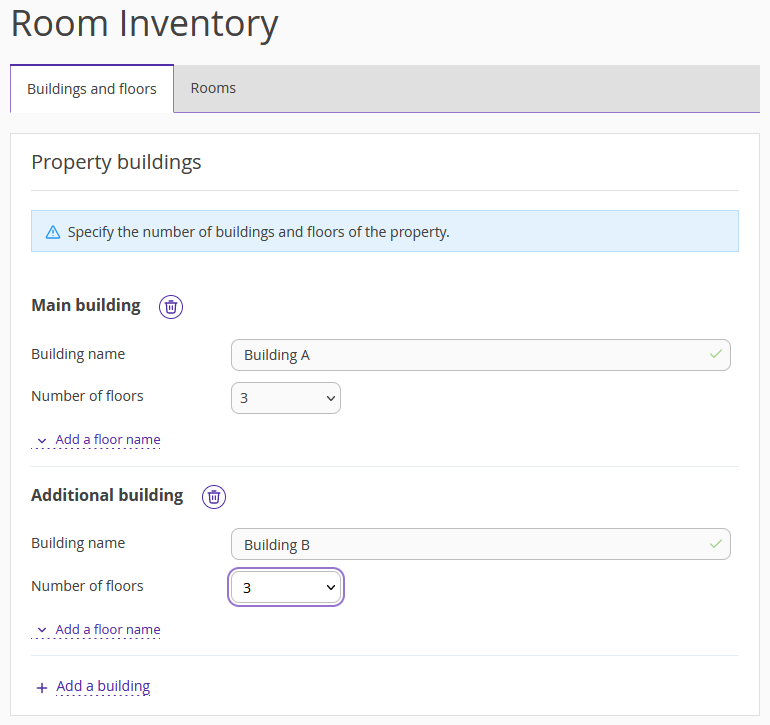
Figure 9.5. Add room dialog.
-
Verify the rooms show up correctly in Property management → Front desk.
Part 3 — Enable Online Availability
-
Go to Room management → Availability and set the default availability for the new room type on the calendar (the "Available online" number must be > 0 for the dates the AI will offer).
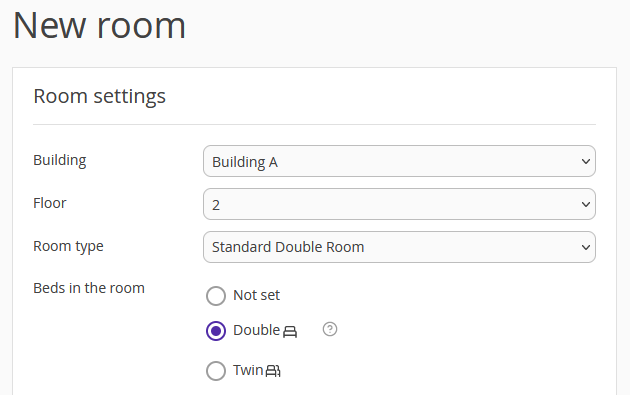
Figure 9.6. Set default availability.
-
Go to Room management → Rate plans, open an existing plan or create a new one, and indicate prices for the new room type. Without a priced rate plan, the room will not be returned by the Search API even if availability is non-zero.

Figure 9.7. Rate plan — room prices.
Checklist — if the AI still doesn't see the room
- Room type was saved in Room management → Room types.
- At least one physical room of that type exists in Room Inventory → Rooms.
- Availability on the requested dates is non-zero (check the calendar for the exact stay window).
- A Rate plan with prices exists for the new room type.
- Channel distribution includes Exely's online booking engine (the source behind
connect.hopenapi.com). A room restricted to OTA-only distribution will not appear.
Quick self-check — does /room-stays return the new room?
curl "https://connect.hopenapi.com/api/search/v1/properties/<PROPERTY_ID>/room-stays\
?arrivalDate=2026-05-01&departureDate=2026-05-03&adults=1&includeExtraStays=false&includeExtraServices=false" \
  -H "Authorization: Bearer <TOKEN>" \
  -H "Accept: application/json"
- If the new room is missing from
roomStays[], re-check the checklist above — this is an Exely-side setup issue; the AI has no way to see a room that doesn't come back from Search. - If the new room is present, the AI will offer it automatically. No redeployment needed —
exely_room_type_mapis refreshed on every availability cycle.
Note. If an existing room type's human-readable name changes in Exely, trigger one availability check to refresh
exely_room_type_map. The attribute is updated from the live Content API response each time static data is fetched.See also. Exely's own articles: Create room type, Create buildings and floors, Create apartment inventory.
All settings reference
You can find all settings in Builder → Attributes → 12. Exely Settings.
4.1 Connection Settings
| Setting | What it does | Required |
|---|---|---|
| 01. Base URL | Root URL for the Exely Connect API | Yes (default provided) |
| 02. Property ID | The hotel property the AI will query and update | Yes |
| 03. Language Code | Language for room type names and descriptions | Yes (default: en) |
| 04. Client ID | OAuth2 credential for API authentication | Yes |
| 05. Client Secret | OAuth2 credential for API authentication | Yes |
| 06. Access Token | Temporary OAuth2 token stored after setup | Auto-filled |
4.2 Feature Toggles
| Setting | Default | What it controls |
|---|---|---|
| 07. Enable Availability Check | On | Allows the agent to check room availability |
| 08. Enable Booking | On | Allows the agent to create reservations (direct REST or link handoff, depending on 12) |
| 09. Enable Cancellation | On | Allows the agent to cancel reservations (direct REST or hotel handoff, depending on 13) |
| 10. Enable Reschedule | On | Allows the agent to modify/reschedule reservations |
| 11. Enable Booking Lookup | On | Allows the agent to look up reservation details by confirmation number (uses Read Reservation API) |
| 12. Enable Guest Identification | On | When True, the agent can identify a returning guest by phone against the Exely PMS guest database and list their currently active stays — letting the AI surface a reservation even when the guest does not have the confirmation number. Disable if you do not want the AI calling the PMS guests/search / find-occupied-room-stays endpoints. |
| 13. Online Booking via API | Off | When True, creates bookings through Exely's Reservation write API (verify → create). When False (default), the agent hands the guest a prefilled booking link via email + SMS + chat. Flip to True only after Exely enables the Reservation write API for your client (expected June 2026). |
| 14. Online Cancellation via API | Off | When True, cancellations go through Exely's Reservation write API (calculate-penalty → cancel). When False (default), the agent directs the guest to the hotel contacts. Flip to True at the same time as toggle 13. |
4.3 Hotel Contact Settings (offline handoffs)
These are surfaced to guests when Online Booking via API / Online Cancellation via API are off. They are what the guest is given to complete a booking outside the AI chat (confirmation email link from Exely + hotel front desk) or to cancel an existing reservation.
| Setting | Default | What it does |
|---|---|---|
| 15. Hotel Contact Phone | Auto-filled from Content API | Shown in the cancellation handoff message. Override if the auto-imported value is a fax / legacy number. |
| 16. Hotel Contact Email | Auto-filled from Content API | Same purpose as 15, for email. |
Tip. The auto-import runs the first time the integration fetches property metadata (usually the first availability check after setup). If both fields were already set manually before that, the auto-import does not overwrite them.
4.4 Technical / Advanced Settings
| Setting | Default | What it does |
|---|---|---|
| Setup Persona ID | Auto | Persona used during setup and tool registration |
What the AI can do
5.1 Check Availability
The AI checks Exely availability for:
- check-in date (arrival)
- check-out date (departure)
- number of adult guests
The integration calls:
- the lookup request
- the lookup request
What the agent receives:
- available room types with names
- rate plans with names
- meal plan information (Room Only, Bed & Breakfast, etc.)
- total pricing per room type
- checksums for booking verification
5.2 Create a Reservation
The AI can create a reservation after it has:
- stay dates (arrival + departure)
- adult count
- guest first name and last name
- guest phone number
- (optional) guest email
Behaviour depends on toggle 13. Online Booking via API:
Default — offline link handoff (toggle off). The agent pulls the prefilled bookingFormLink from the availability response (it carries hotel + room + rate + dates + currency) and:
- emits
email_worker_send_emailto the guest with subject "Complete your hotel booking" and the link in the body - emits
sms_worker_send_smsto the guest's phone with the link - shows the link in chat and explains the guest finishes the booking in the browser
No REST booking call is made. The confirmation number is not known to the AI in this mode; the guest receives it from Exely after they complete the form.
Online (toggle on, after June 2026). Two-step REST flow:
- the create/update request — validates the booking and returns a
createBookingToken - the create/update request — creates the confirmed reservation using the token
On success in online mode, the agent:
- stores booking metadata in the persona
bookingsattribute (NAF standard) - communicates the confirmation number, total price, and dates to the guest
Note: The
createBookingTokenis single-use and valid for 24 hours.
5.3 Cancel a Reservation
The AI can cancel a reservation when the guest provides their confirmation number.
Behaviour depends on toggle 14. Online Cancellation via API:
Default — hotel handoff (toggle off). The agent replies with a message like:
"To cancel booking
<number>, please use the 'Manage booking' link in the confirmation email you received from Exely, or contact the hotel directly by phone at<Hotel Contact Phone>or by email at<Hotel Contact Email>."
No REST cancel call is made. The hotel contact values come from attributes 15 and 16.
Online (toggle on, after June 2026). Three-step REST flow:
- the lookup request — retrieves booking details (via Read Reservation API)
- the lookup request — calculates the penalty
- the create/update request — cancels with the expected penalty amount
In online mode, the agent communicates any penalty to the guest before proceeding.
5.4 Modify / Reschedule a Reservation
The AI can update an existing reservation by changing stay dates or room type.
The integration follows a three-step process:
- the lookup request — retrieves current booking (including version for optimistic locking)
- the create/update request — verifies the modification is possible
- the create/update request — applies the changes
Note: Modification requires the booking
versionfield for optimistic locking. If a 409 conflict occurs, the booking is re-fetched and the modification retried.
5.5 Look Up an Existing Reservation (by confirmation number)
The AI can retrieve a single booking's details when the guest provides their confirmation number.
The integration calls the public Read Reservation API:
- the lookup request
The agent reads back: status, dates, room type, guest name, and total price. This endpoint is available in the current Exely offering (does not depend on the write-API release in June 2026).
5.6 Find a Reservation by Phone (no confirmation number)
When the guest does not have the confirmation number, the agent identifies the guest in the Exely PMS by phone, then lists their currently active stays. This path requires toggle 12. Enable Guest Identification to be on (it is on by default).
The integration uses two PMS endpoints:
- the lookup request — finds the guest profile
- the lookup request — lists active stays for that guest
If multiple guest profiles share the same phone, the agent collects first / last name (and optionally citizenship) to disambiguate. If no profile matches, the agent offers the confirmation-number path or hands off to the hotel staff.
5.7 Auto-Setup Canvas Scenarios
If Canvas auto-setup is enabled, Exely inserts:
- 7 hotel-specific scenarios: Room Booking, Cancellation, Modification, Booking Lookup, Room Availability, Guest Identification, Active Stays Listing
- 7 corresponding intent types that trigger the scenarios
- removes conflicting default appointment/reservation scenarios
This happens through:
- Canvas setup
- Canvas setup and library publishing
Features at a glance
| Feature | Supported | Notes |
|---|---|---|
| Check availability | Yes | Room types, pricing, meal plans |
| Create reservation — link handoff (default) | Yes | Agent sends Exely's bookingFormLink via email + SMS + chat |
| Create reservation — direct REST | Gated | Ships when Exely opens the Reservation write API (June 2026). Two-step verify → create flow already wired in code. |
| Cancel reservation — hotel handoff (default) | Yes | Agent surfaces hotel phone + email from Content API contacts |
| Cancel reservation — direct REST | Gated | Ships together with direct booking (June 2026). |
| Modify reservation | Gated | Same API surface as cancellation (June 2026). |
| Look up reservation | Yes | By confirmation number, via public Read Reservation API |
| Recognize returning guests by phone | Yes | Phone-based PMS guest lookup with duplicate-profile disambiguation by name / citizenship (toggle 12). |
| List a returning guest's active stays | Yes | After phone-based identification, the AI fetches all currently occupied / upcoming stays for the guest (toggle 12). |
| Payment processing | No | Planned for Phase 2 |
| Guest check-in | No | Planned for Phase 2 |
| Outbound reminders | No | Planned for Phase 2 |
| Canvas auto-setup | Yes | 5 scenarios + 5 intent types |
| Multi-property in one project | No | One exely_property_id per project |
| Webhooks from Exely | No | Exely does not support webhooks |
How to test that everything works
Before going live, run through this checklist.
Recommended Test Order
- Availability — proves authentication and property targeting work
- Booking — proves write access and two-step flow work
- Booking Lookup — proves existing reservation retrieval works
- Cancellation — proves post-booking lifecycle works
- Modification — proves date/room change flow works
8.1 After Setup
After clicking Publish All, confirm:
-
exely_access_tokenis populated (non-empty) - no publish errors appear
-
exely_setup_persona_idexists - feature toggles have the intended values
- hotel scenarios appear in Canvas
8.2 Test Availability
- Start a test conversation.
- Ask: "Do you have any rooms available for May 1st to May 3rd for 2 guests?"
- Confirm the agent says "Let me check available rooms for you" and returns room options with prices.
8.3 Test Booking
- Continue from availability or start a new conversation.
- Select a room type from the options.
- Provide guest details when asked (name, phone, email).
- Confirm the agent says "I'm booking your room now" and returns a confirmation number.
8.4 Test Booking Lookup
- Start a new conversation.
- Ask: "Can you check my reservation? My booking number is [number]."
- Confirm the agent returns status, dates, room type, and total price.
8.5 Test Cancellation
- Start a new conversation.
- Say: "I need to cancel my reservation. My booking number is [number], check-in [date]."
- Confirm the agent asks for confirmation, then cancels.
8.6 Test Modification
- Start a new conversation.
- Say: "I need to change my booking [number] to new dates [dates]."
- Confirm the agent checks availability for new dates and offers to update.
FAQ and Troubleshooting
Why does exely_access_token stay empty after publish?
Check:
- Client ID and Client Secret are correctly filled in
- Base URL is correct (
https://connect.hopenapi.comfor production) - API connection is enabled and active in the Exely extranet
Why is availability working but booking fails?
Check:
- 08. Enable Booking is turned on
- required guest fields are present in the conversation (name, phone)
- if you have 13. Online Booking via API turned on, the Exely API credentials must have write permissions — if they don't, the REST call returns
403 "You cannot consume this service". Turn toggle 13 off to fall back to the link-handoff flow that works without write permissions.
Why don't I see a confirmation number after a booking?
In the default offline mode (toggle 13 off), the confirmation number is generated by Exely after the guest completes the form in the browser — the AI never sees it, so it can't read it back to the guest. Confirmation arrives at the guest's email from Exely directly.
If you need the AI to confirm the reservation by number, flip toggle 13 on (requires Reservation write API access).
Why is the AI directing guests to call the hotel to cancel?
This is the default when 14. Online Cancellation via API is off. The AI cannot call the REST cancel endpoint, so it hands the guest over to the hotel contacts defined in 15. Hotel Contact Phone / 16. Hotel Contact Email. Flip toggle 14 to True once Exely enables the write API for your client.
The hotel contact phone/email shown is wrong. How do I fix it?
Override attributes 15 and 16 manually in Builder → Attributes → 12. Exely Settings, then Publish All. Your manual values will not be overwritten by the next Content API fetch — the auto-import only runs while both fields are empty.
Why can't the agent find my reservation?
Most commonly:
- the confirmation number format is wrong
- the booking was made in a different property
- 11. Enable Booking Lookup is turned off
Do I need to reconnect if credentials change?
Yes. Any time you change Exely credentials:
- Update the attributes in Newo
- Click Save
- Click Publish All
- Run at least one live test
Does this integration support multiple properties?
Not in the current implementation. One project uses one exely_property_id. For multiple properties, create separate Newo projects.
What currency are prices displayed in?
Prices are returned in the property's configured currency in Exely (e.g., GEL for Georgia, EUR for Europe, USD for international properties).
Does Exely send webhooks for booking changes?
No. Exely does not support webhooks. Booking status is checked on-demand during conversations.
10. Manager Rollout Summary
This integration is a good fit if you want the AI to handle:
- room availability inquiries
- hotel reservation creation
- reservation changes and cancellations
- booking lookup by confirmation number
This integration is not currently positioned as:
- a CRM replacement
- a payment processing system
- a guest recognition system based only on caller ID
Recommended rollout order:
- Enable API connections in Exely extranet
- Generate API credentials
- Configure in Newo and publish
- Test availability
- Test booking
- Test lookup, cancellation, modification
- Review Canvas scenarios
- Go live on one hotel first
Go-Live Recommendation
For the cleanest launch:
- start with one property only
- keep all core features enabled unless there is a clear business reason not to
- run at least one real booking and one real lookup before launch day
- have a fallback human process ready for the first live shift