Tableo Integration
Connects Tableo with the Newo AI agent so restaurant guests can ask for live reservation availability, choose a dining area, create a booking, modify their reservation or cancel it during a call or chat.
Before You Start
Make sure you have:
- an active Tableo restaurant account;
- access to the Tableo admin panel or a Tableo account administrator;
- a Tableo API token for the restaurant the agent will serve;
- dining areas configured in Tableo, such as Main Dining or Terrace;
- reservation availability configured for the dining areas and party sizes you want to offer;
- access to Newo Builder, with permission to edit attributes and click Publish All.
The token selects the restaurant. One Newo Tableo connection should point to one restaurant account.
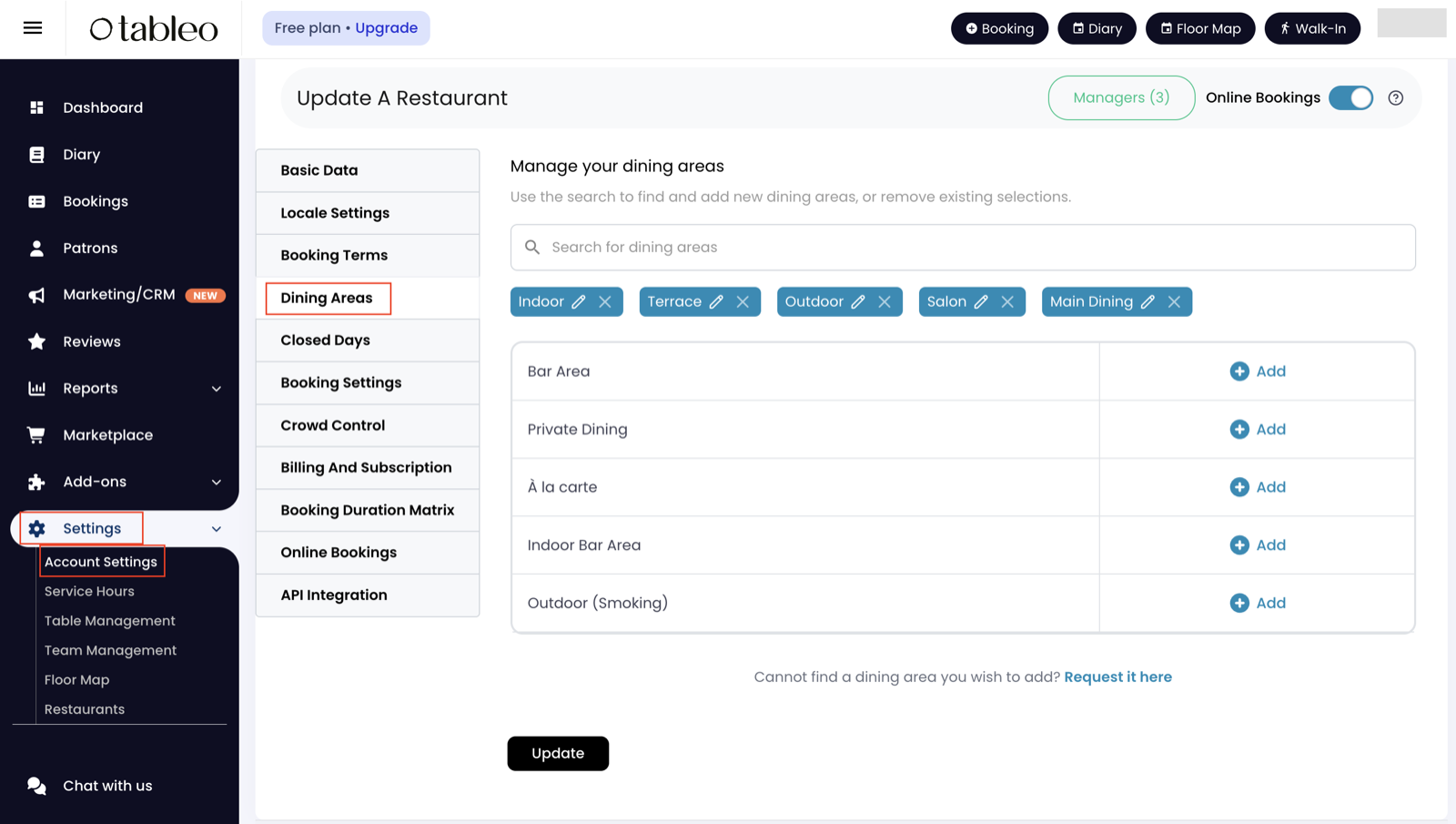
Figure S01. Tableo account settings with the available dining areas.
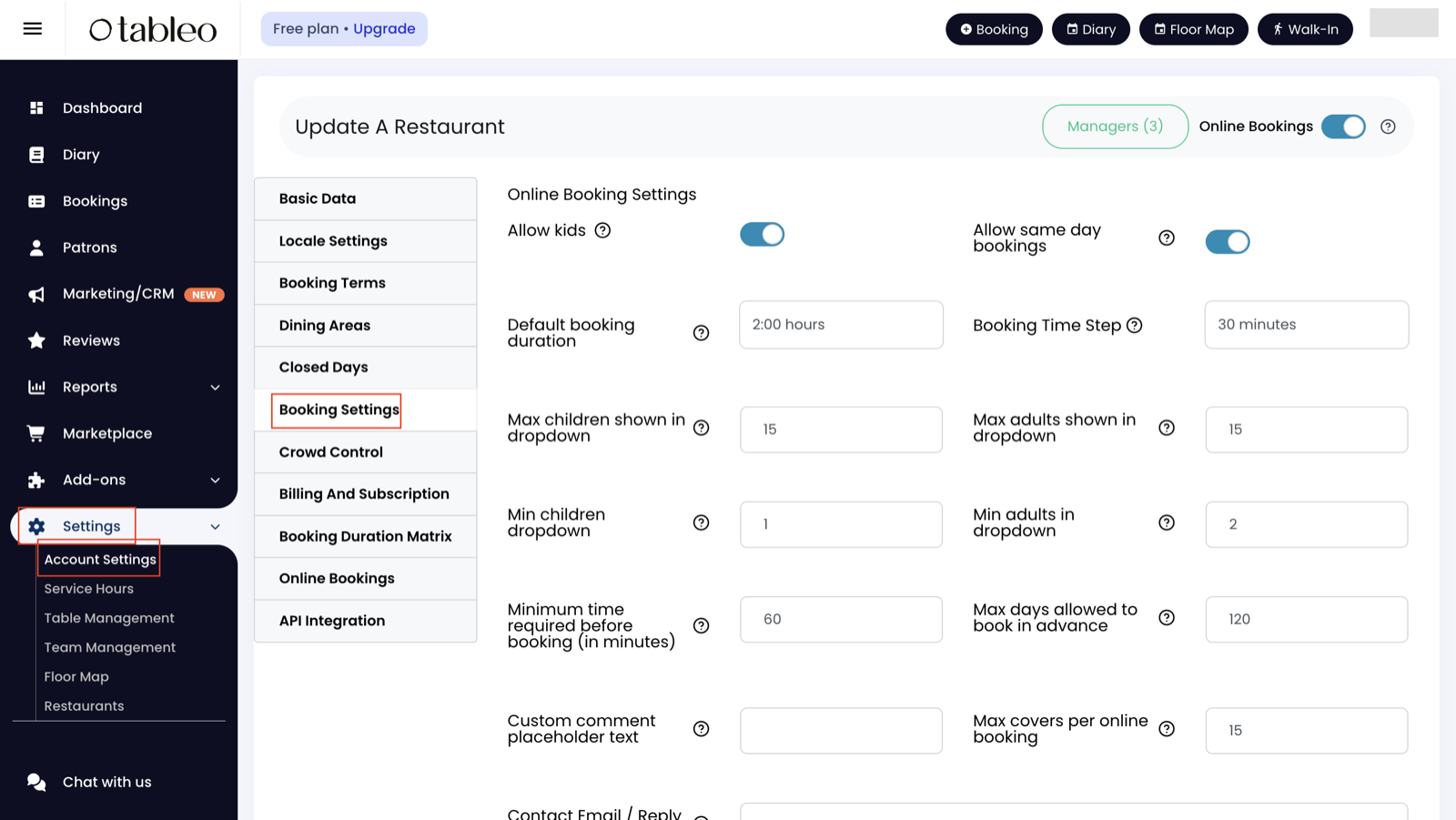
Figure S02. Tableo booking settings used when configuring online reservation availability.
What the Agent can do
- Check live reservation availability. The agent asks for the date and number of guests, then reads back real Tableo slots.
- Offer dining-area choices. If Tableo returns more than one dining area, the agent can ask whether the guest prefers options such as Main Dining or Terrace.
- Create a restaurant booking. After the guest confirms a slot and dining area, the reservation is created in Tableo.
- Remember bookings created during the conversation. The confirmed reservation is stored with the guest's Newo profile.
- Look up existing reservations by phone number. When a guest phone number is detected, the integration can load accepted Tableo reservations for the configured upcoming lookup window. If the guest provides a phone number while asking to cancel or change a booking, the agent can announce the matching reservations and ask which one to use.
- Cancel an accepted reservation. After the guest confirms which accepted reservation should be cancelled, the agent can cancel it in Tableo.
- Reschedule an accepted reservation. After the guest chooses a replacement slot, the agent can move the existing reservation.
Returning-customer recognition
When a phone number becomes available during a conversation, the integration checks for that guest's accepted Tableo reservations in the configured upcoming lookup window. The lookup is restricted to bookings whose guest phone number matches the detected number.
This allows the agent to answer questions such as "Do I already have a reservation?" without exposing other guests' reservations.
If the phone number is detected automatically at the start of a call, the lookup is silent and simply refreshes the guest's reservation context. If the guest asks to cancel or move a reservation and then provides their phone number, the agent can tell them which matching reservations were found.
If no booking is found in the configured upcoming window, the agent can ask for the reservation date and run a date-specific lookup for that same phone number.
Features at a glance
| Feature | Included |
|---|---|
| Check live availability by date and party size | Yes |
| Offer slots grouped by dining area | Yes |
| Create a booking in the selected dining area | Yes |
| Store newly created reservations in the guest profile | Yes |
| Refresh upcoming existing reservations by phone | Yes |
| Ask for a reservation date and run a date-specific lookup when needed | Yes |
| Hide cancelled reservations from the guest's active booking list | Yes |
| Cancel an accepted Tableo reservation | Yes |
| Reschedule an accepted Tableo reservation after a replacement availability check | Yes |
| Take payments during the Newo conversation | No |
Setup
Create the Newo project
If this project already exists in Newo Builder, skip this subsection and continue with the integration-specific settings below.
- In Newo Builder, open the projects list and click Create Project (or Create New Project from the top-right menu).

- Fill IDN and Title. The exact names do not matter; use any clear names your team will recognize.
- In Registry, choose the release channel:
- staging — the newest module fixes appear here first. Use it when you need the latest fix, but expect possible unfinished changes.
- production — the final stable version for live projects.
- In Module, select the module for this integration.
 5. Leave Module version on Latest version unless support tells you to pin a specific version, then click Create.
1. Prepare your Tableo account
1.1 Confirm dining areas and availability
- Open the Tableo admin panel.
- Confirm that the restaurant has at least one dining area.
- Confirm that availability is configured for the dates, hours, and party sizes the agent should offer.
- Note the exact dining-area names. The agent presents those names to the guest and uses the guest's selection when creating a booking.
How to verify: use the Tableo admin panel to confirm that a manual availability check returns slots for a known date and party size.
1.2 Confirm the restaurant can accept bookings
The Tableo account must be ready to accept API-created reservations. Some accounts require additional Tableo-side account linking before a booking can be accepted.
How to verify: create a test reservation from Tableo or confirm the account setup with the Tableo account administrator.
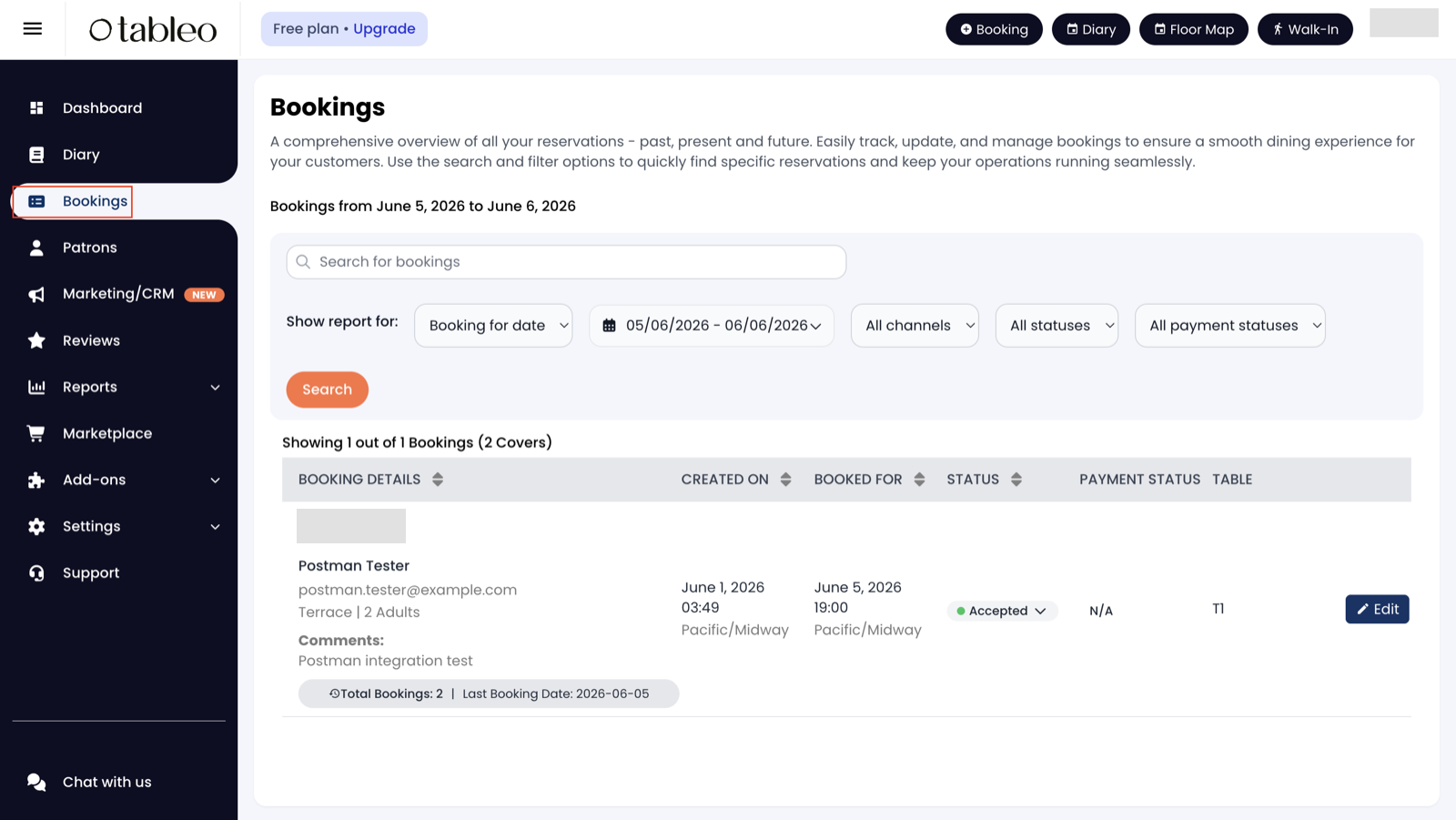
Figure S03. Tableo bookings list with a test reservation created through the integration.
2. Get your Tableo credentials
Tableo API Token
- Open the Tableo admin panel.
- Generate or request the API token for the restaurant this agent should serve.
- Copy the token exactly as Tableo provides it.
If your Tableo account does not show a token-generation page, ask your Tableo account administrator or implementation contact to issue the token.
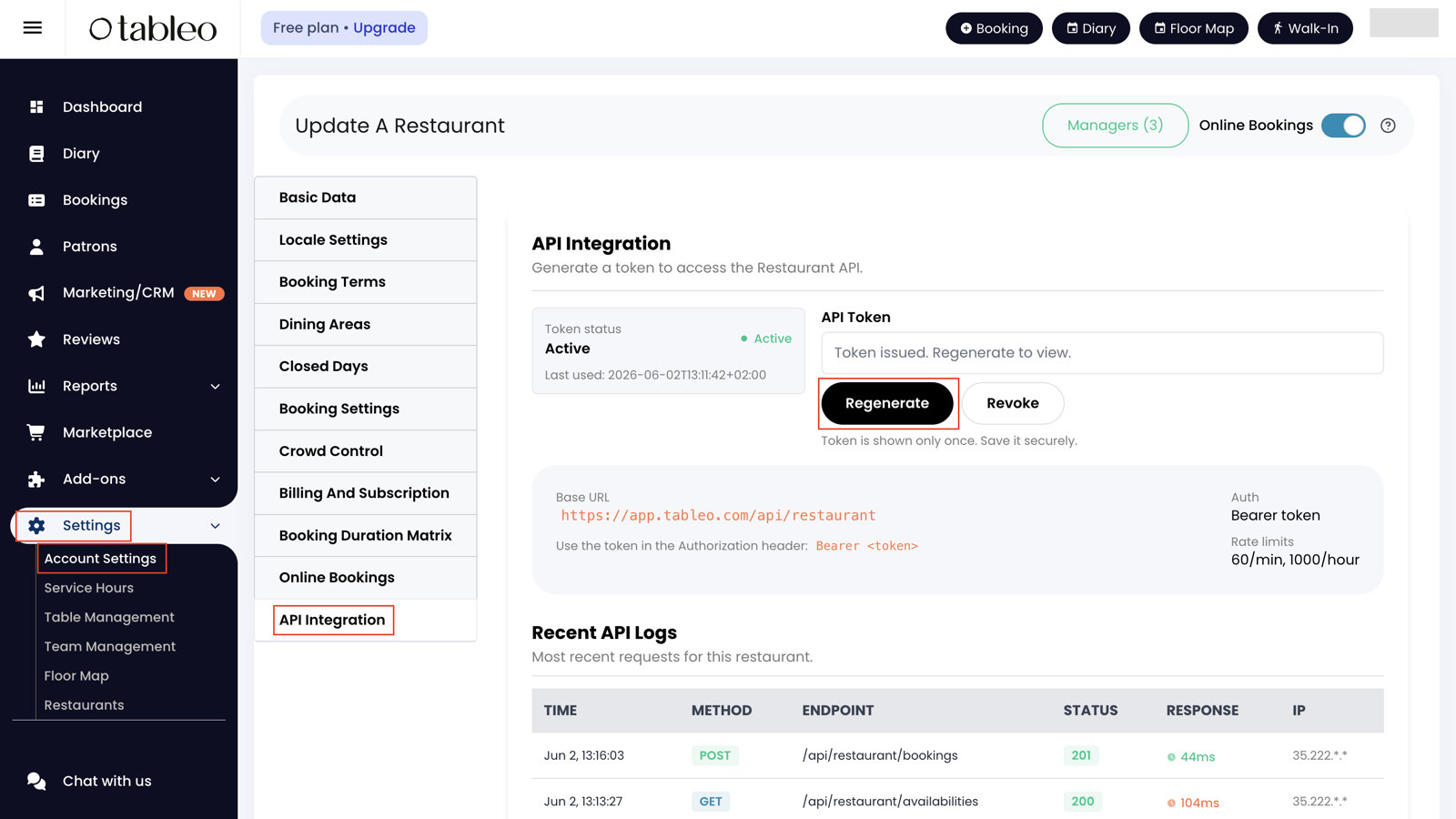
Figure S04. Tableo API Integration settings where the restaurant API token can be generated or replaced.
3. Add Tableo to the Newo agent
3.1 Add the Tableo module
- Open the restaurant project in Newo Builder.
- Open the agent that should handle Tableo reservations.
- Press 3 dots and click Create New Project.
- Enter TableoIntegration into the IDN and TITLE fields.
- Select module tableo_integration.
- Toggle Auto update enabled and click Create.
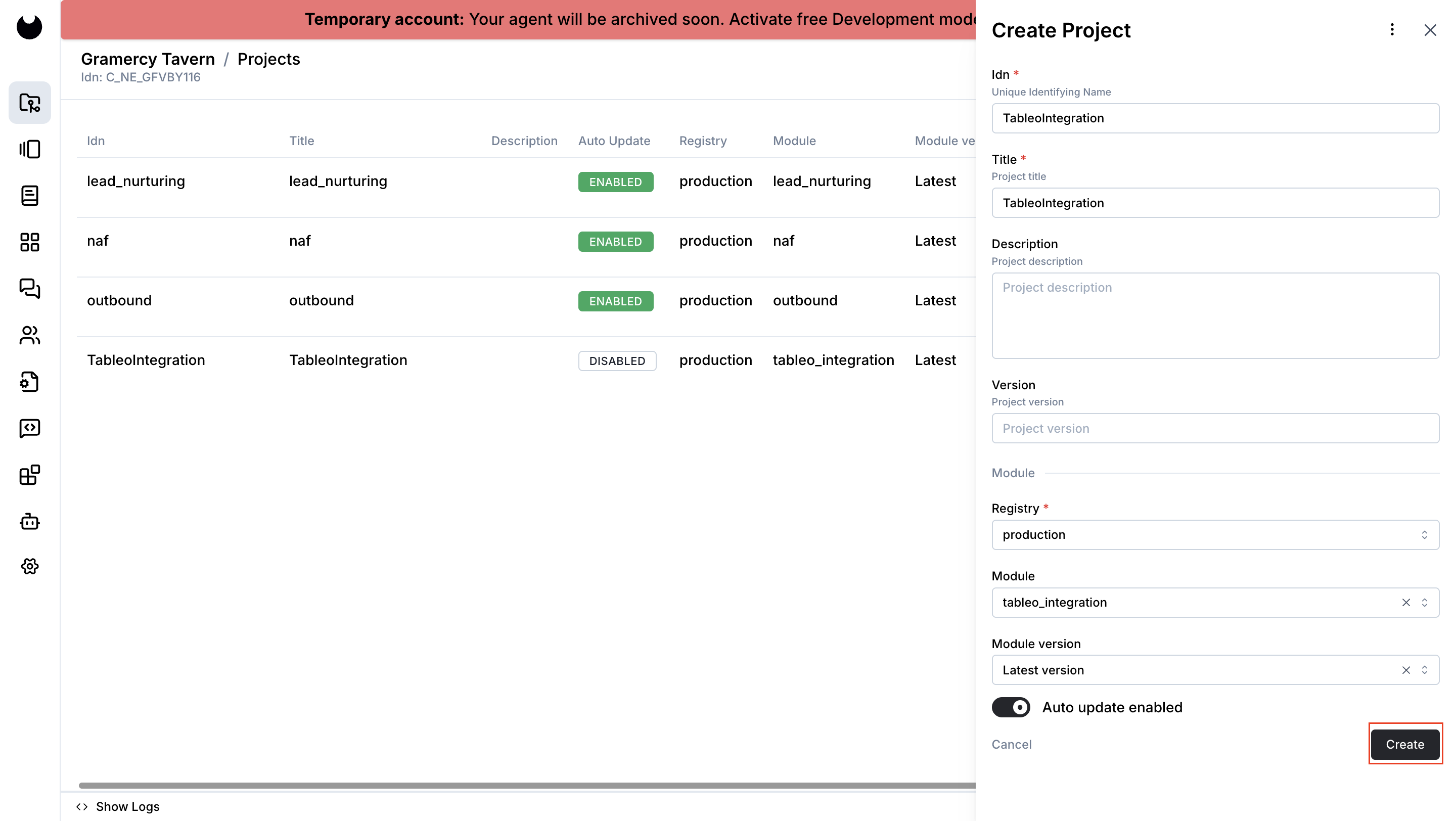
Figure S05. Creating the TableoIntegration module from the
tableo_integration registry module in Newo Builder.
After the module is added, the Module - TableoIntegration settings group becomes available in the project attributes.
3.2 Create the Tableo connector
- In Newo Builder, open the Integrations settings for the project.
- Scroll down until you see the Tableo Booking Integration connector.
- Click the settings icon, enter the Tableo Base URL in the Tableo API base URL field, and click Save. The Tableo API base URL can be found in the API Integration section of the Tableo admin panel.
- Click + sign to create a new connector.
- Enter title as Tableo, idn as tableo, and connector name as Tableo.
- Save the connector.
Get the Tableo Base API URL from the Tableo API or integration settings for the restaurant account. If the Tableo admin panel does not show it, ask the restaurant's Tableo account administrator, Tableo support, or the Tableo implementation contact for the API base URL that belongs to that restaurant/environment.
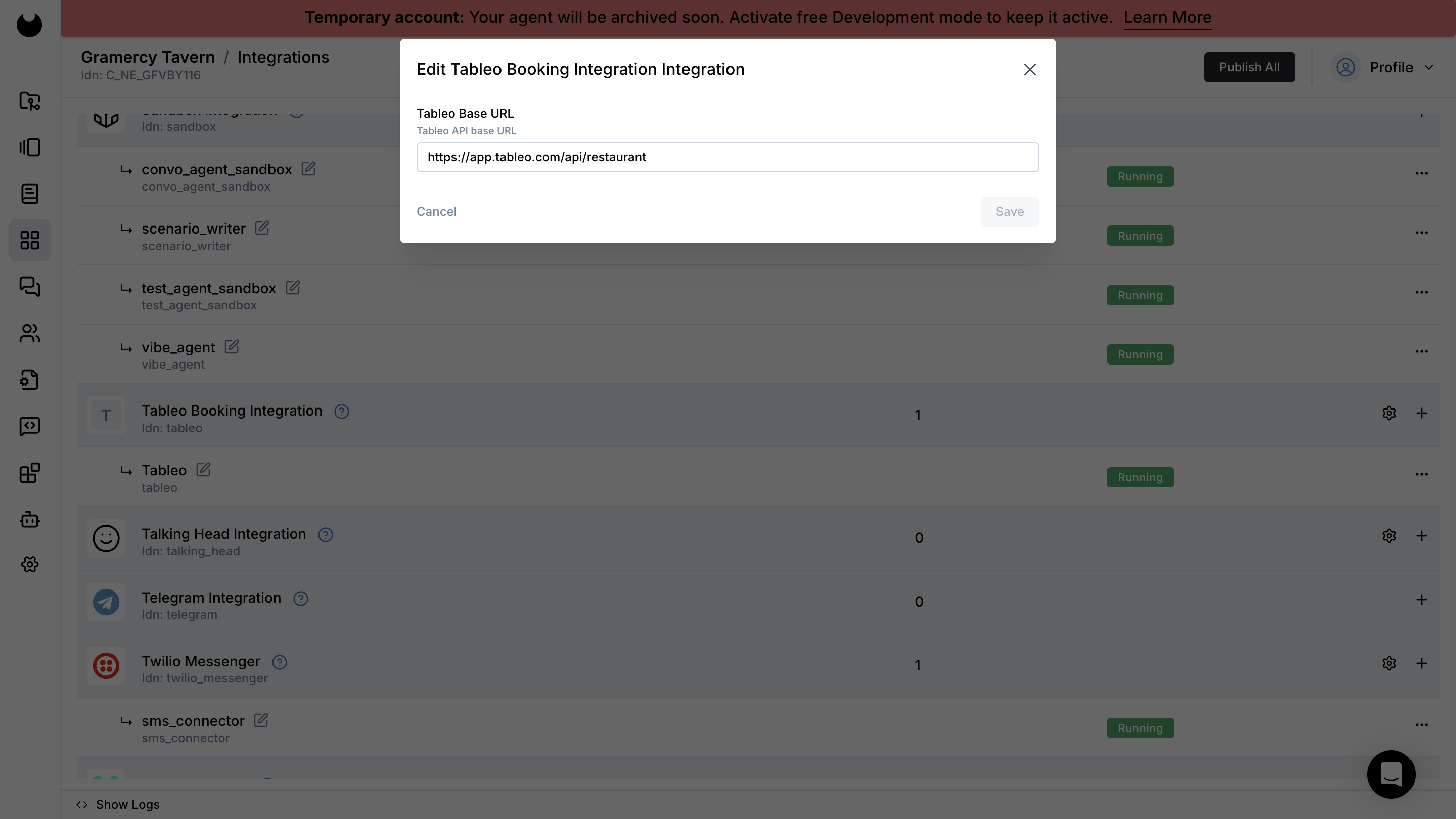
Figure S06. Tableo Booking Integration settings in Newo Builder where the Tableo Base URL is entered before creating the connector.
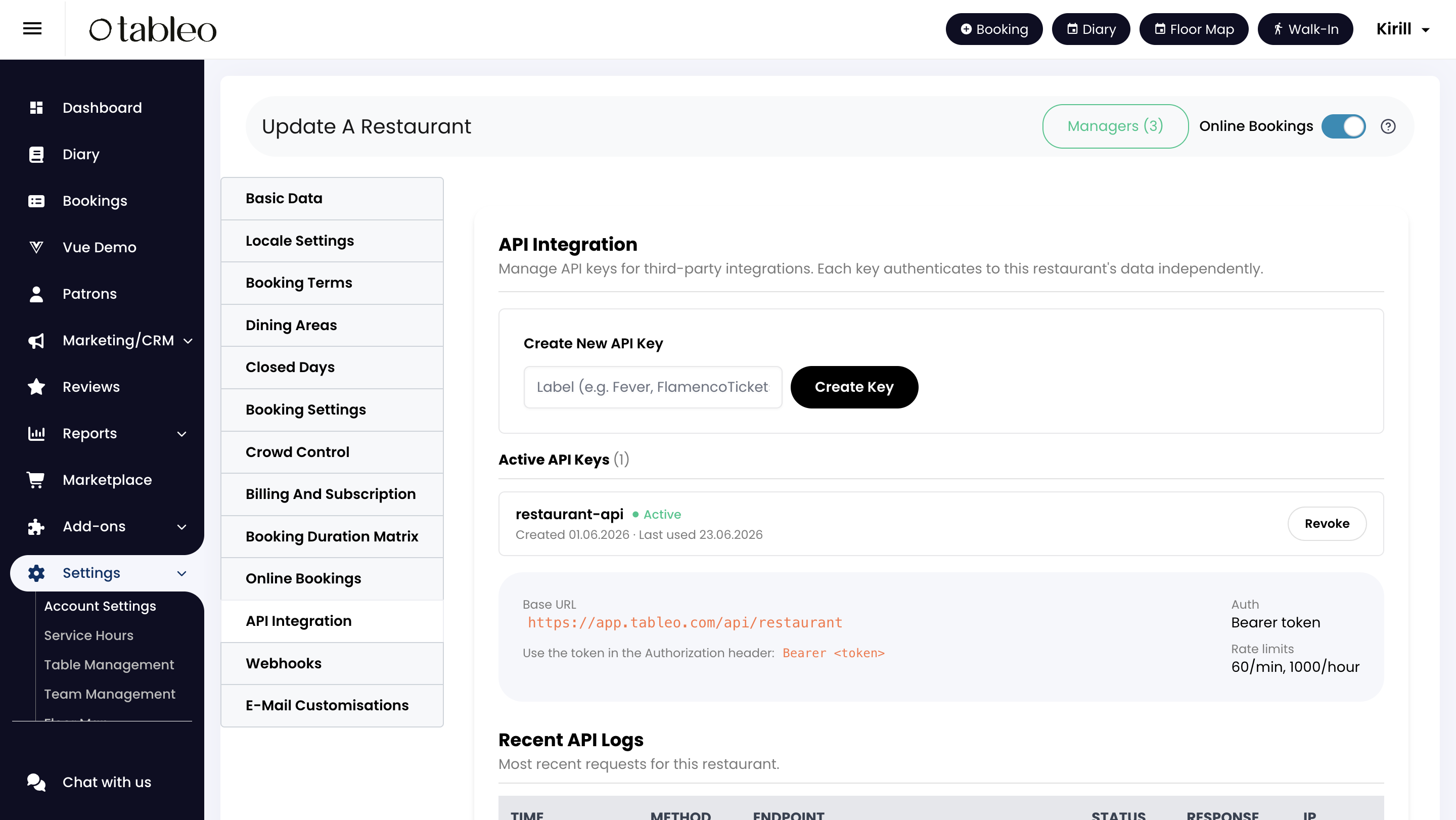
Figure S07. Tableo API Integration settings showing the restaurant Base URL and the API key area.
3.3 Configure the Tableo settings in Newo
- Open your project in Newo Builder.
- Go to Builder -> Attributes.
- Find the Module - TableoIntegration group.
- Set 01. Tableo Connector Name to the same connector name you created in the previous step.
- Paste the token into 02. Tableo API Token if it is not already stored on the connector.
- Leave these switches enabled for a normal setup:
| Setting | Purpose | Default |
|---|---|---|
| Enable Tableo Availability Check | Allows the agent to check live reservation slots. | On |
| Enable Tableo Booking | Allows the agent to create a confirmed Tableo reservation. | On |
| Tableo Booking Window | Number of days to check for available slots starting from the guest's requested reservation date. | 3 |
| Enable Tableo Booking Lookup | Allows upcoming reservation lookup by guest phone number. | On |
| Tableo Booking Lookup Days | Number of upcoming days to refresh after phone detection. | 7 |
| Enable Tableo Cancellation | Allows the agent to cancel an accepted Tableo reservation found in the guest profile. | On |
| Enable Tableo Rescheduling | Allows the agent to move an accepted reservation to a replacement slot. | On |
| Setup Tableo Conversation Scenarios | Adds Tableo booking, cancellation, and rescheduling guidance to the agent canvas. | On |
- Save the edited attributes.
- Click Publish All.
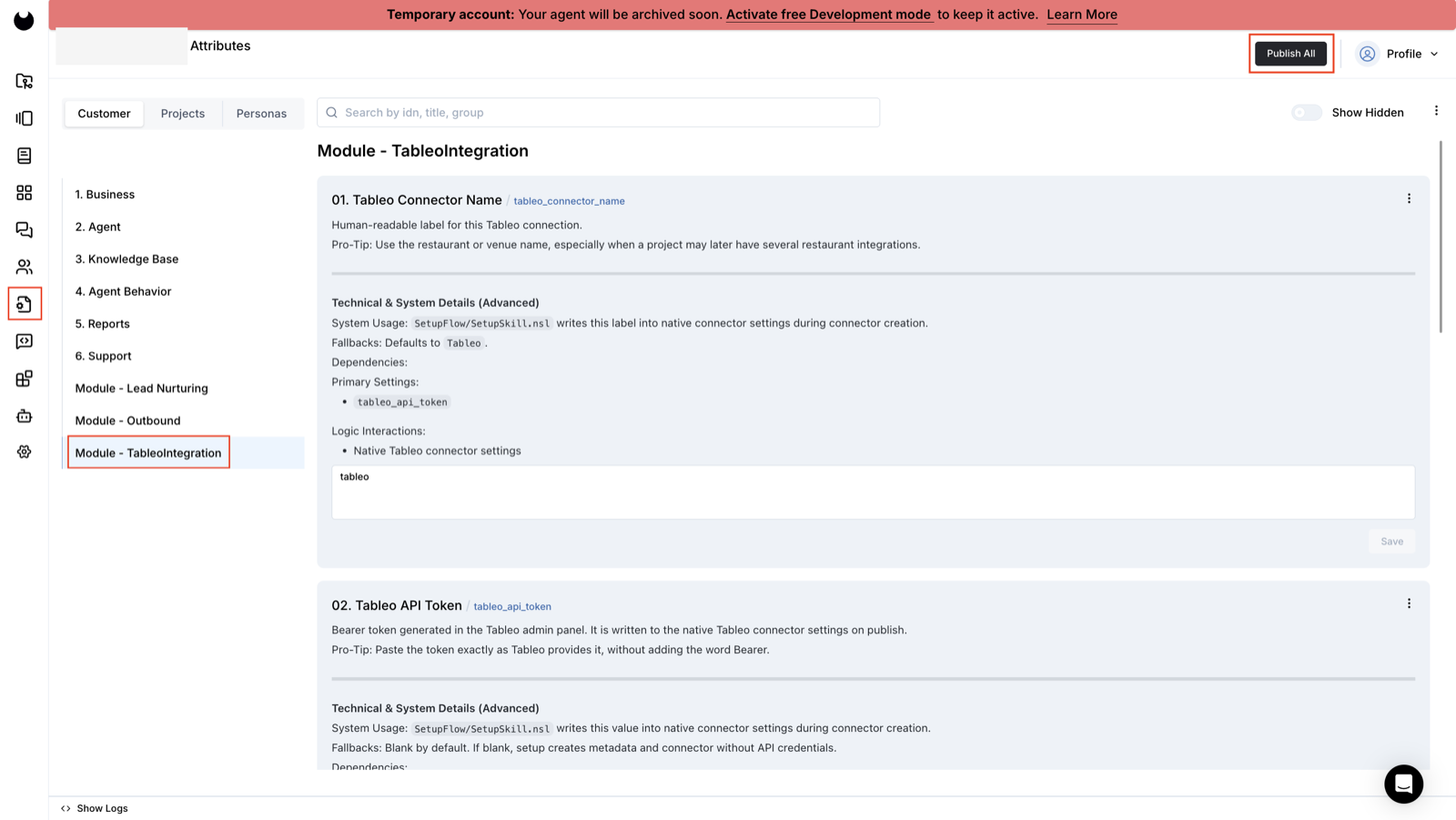
Figure S08. The Module - TableoIntegration attributes in Newo Builder. Save the connector settings, then click Publish All.
4. Hit Publish All
After Publish All, the integration:
- uses the configured Tableo connector for live Tableo requests;
- applies the restaurant API token to that connection when the token is provided in the Tableo settings;
- enables Tableo availability checks, booking creation, cancellation, and rescheduling;
- prepares guest reservation lookup by phone number;
- installs Tableo booking, cancellation, and rescheduling guidance on the agent canvas when Setup Tableo Conversation Scenarios is on;
- removes the default regular table-booking scenario that would otherwise compete with the Tableo booking scenario;
- ensures the shared Newo procedures for date/time, name, phone, and email collection are available to the agent.
There are no auto-populated dropdowns to select after publishing. Dining-area choices are loaded live whenever the agent checks availability.
How to verify:
- the Tableo connector is saved and active;
- the Tableo settings remain saved after refreshing Newo Builder;
- a test availability conversation returns live Tableo slots;
- a confirmed test reservation appears in the Tableo booking list.
How to test that everything works
Use a test guest and a quiet date before going live.
Test availability
- Start a test conversation.
- Ask: "Do you have a table for four people this Friday evening?"
- Confirm that the agent asks for any missing date or guest count.
- The agent should say: "Give me a moment to check available slots right now. I'll get back to you shortly."
- Confirm that the agent reads back real Tableo time slots and dining areas.
- Compare the returned options with the Tableo admin panel.
No reservation should be created during this check.
Test booking
- Continue from the availability test.
- Choose one returned time and one returned dining area.
- Provide a test first name, last name, email address, and phone
number with country code, such as
+35612345678. - Confirm the reservation when the agent asks.
- The agent should say: "I'm submitting your booking right now. Please give me a moment, and I'll get back to you shortly."
- Open Tableo and check that the reservation appears under the selected date, time, dining area, and guest details.
Test existing-reservation lookup
- Start a test conversation with a phone number that has an accepted Tableo reservation in the configured lookup window.
- Ask: "Can you check my reservation?"
- If the phone number is not already known, provide it when the agent asks.
- The agent should look up the matching accepted reservations and list the found date, time, and booking reference when available.
- If no reservation is found, provide the reservation date when the agent asks. The agent should run a date-specific lookup for the same phone number.
Test cancellation
- Start with a reservation stored in the guest profile, or ask the agent to look it up by phone number first.
- Ask the agent to cancel the reservation.
- Confirm the exact reservation when the agent asks.
- The agent should say: "I will cancel the selected reservation right now. Please give me a moment."
- Open Tableo and check that its status is cancelled.
Test rescheduling
- Start with a reservation stored in the guest profile, or ask the agent to look it up by phone number first.
- Ask the agent to move it to another date or time.
- Choose one replacement slot returned by a fresh availability check.
- Confirm the change.
- The agent should say: "Give me a moment, I will reschedule your booking right now."
- Open Tableo and check the updated date, time, and dining area.
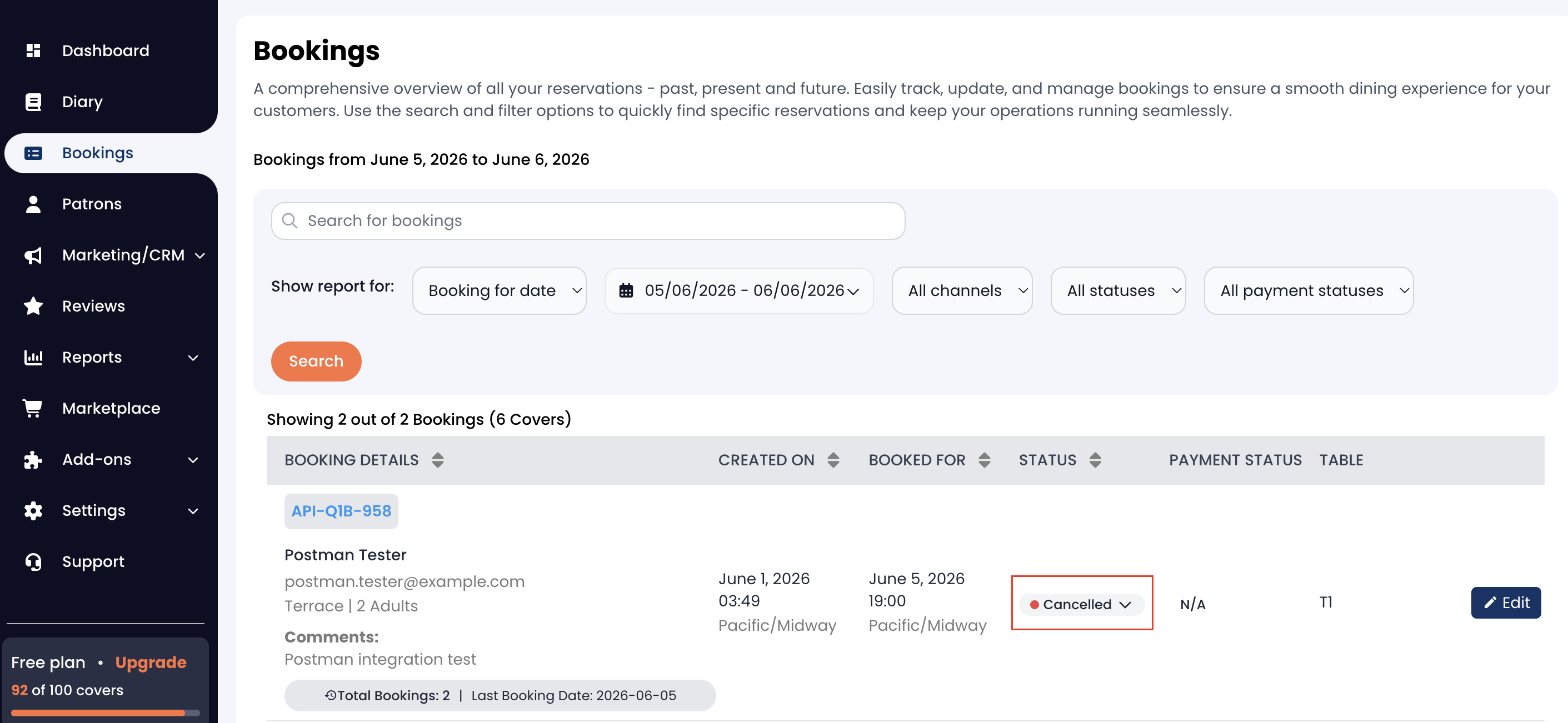
Figure S09. Tableo booking list showing a cancelled reservation after the agent processes the cancellation request.
Example dialogs
Example 1 - Availability and dining-area choice
Guest: Do you have a table for four this Friday at around 7 PM?
Agent: Give me a moment to check available slots right now. I'll get back to you shortly.
Agent: I have 7:00 PM available in Main Dining and Terrace. Which dining area would you prefer?
Example 2 - Booking
Guest: Terrace, please.
Agent: Great. May I have your first name, last name, email address, and phone number with country code?
Guest: Sophia Reyes, sophia.reyes@example.com, +35612345678.
Agent: I can book a table for four on Friday at 7:00 PM on the Terrace. Shall I confirm it?
Guest: Yes.
Agent: I'm submitting your booking right now. Please give me a moment, and I'll get back to you shortly.
Agent: Your reservation is confirmed.
Example 3 - Existing reservation lookup and cancellation
Guest: I need to cancel my booking.
Agent: Could you share the phone number associated with your booking?
Guest: +35612345678.
Agent: Give me a moment, I will look up your reservations now.
Agent: I found bookings for Friday at 12:00 PM and Friday at 2:00 PM. Which one would you like to cancel?
Guest: The 2 PM one.
Agent: I will cancel the selected reservation right now. Please give me a moment.
Example 4 - Rescheduling a reservation
Guest: Can you move my reservation to tomorrow evening?
Agent: I found your current reservation. What time would you prefer tomorrow?
Guest: Around 7 PM, terrace if possible.
Agent: Give me a moment to check available slots right now. I'll get back to you shortly.
Agent: I have 7:00 PM available on Terrace. Should I move your booking there?
Guest: Yes.
Agent: Give me a moment, I will reschedule your booking right now.
FAQ
Q. Why does the agent ask for the number of guests before checking availability?
Tableo availability is filtered for the exact party size. Asking first keeps the returned options relevant and avoids offering a slot intended for a different table size.
Q. Why does the agent ask the guest to choose a dining area?
Tableo requires the dining area when creating a booking. The agent loads the valid names during the latest availability check and uses the guest's selection.
Q. What phone format should guests provide?
Use the full phone number with country code and a leading +, such as
+35612345678.
Q. Does the integration search all Tableo reservations?
No. The automatic existing-reservation lookup is limited to the configured upcoming lookup window and the guest phone number. If the guest is trying to cancel or move a booking and nothing is found in that window, the agent can ask for the reservation date and run a date-specific lookup.
Q. Can the agent cancel or reschedule a Tableo reservation?
Yes, when the reservation is stored in the guest profile. That can happen after the agent creates the booking, after a phone-number lookup, or after a date-specific lookup. Rescheduling also requires a fresh availability check so the guest chooses a real replacement slot.
Q. Why does the agent ignore cancelled reservations during lookup?
The lookup keeps accepted reservations in the guest profile and filters out cancelled reservations, so the agent does not offer to cancel or move a booking that is already cancelled.
Q. What happens when the Tableo API token is rotated?
Paste the replacement token into 02. Tableo API Token, save the attribute, and click Publish All again.
Q. Can one Newo Tableo connection serve several restaurants?
Use one connection per restaurant. The Tableo token identifies the restaurant used for availability and booking.
Common errors and recovery
The agent returns no available slots
Likely cause: the selected date or party size has no configured Tableo slots, or the Tableo API token is no longer valid.
How to recover:
- Confirm that Tableo has availability for the requested date and exact party size.
- Confirm that 02. Tableo API Token contains the current token.
- Save any Newo changes and click Publish All.
- Retry the same availability question.
How to verify: the agent reads back time slots and dining areas that match the Tableo admin panel.
The agent says the selected dining area is not available
Likely cause: the booking attempt did not follow a recent availability check, or the guest chose a dining-area name that Tableo did not return.
How to recover:
- Ask the agent to check availability again.
- Choose one of the dining-area names the agent reads back.
- Confirm the reservation again.
How to verify: the reservation appears under the selected dining area in Tableo.
The agent asks for a phone number with country code
Likely cause: the guest supplied a domestic phone number without a
leading + and country code.
How to recover: provide the full international phone number, such
as +35612345678, and confirm the reservation again.
How to verify: the reservation appears in Tableo with the expected guest phone number.
Tableo rejects the booking with "Stripe Connect account linking is required"
Likely cause: the Tableo account requires additional account linking before it accepts the reservation.
How to recover:
- Open the Tableo admin panel and complete the required account linking step, or ask the Tableo account administrator to do it.
- Repeat the availability check.
- Submit the test reservation again.
How to verify: the reservation appears in the Tableo booking list without the linking error.
The token was replaced but the agent still cannot reach Tableo
Likely cause: the new token was not saved and published in Newo.
How to recover:
- Paste the new token into 02. Tableo API Token.
- Save the attribute.
- Click Publish All.
- Repeat the availability test.
How to verify: live slots are returned for a known date and party size.
The agent apologises but Newo does not show a detailed Tableo error
Likely cause: some Tableo-side failures currently return no detailed failure message to the conversation.
How to recover:
- Confirm the token, dining-area setup, availability, and account linking steps above.
- Retry once with the same test data.
- If the issue remains, share the time of the test, restaurant connector name, requested date, party size, and guest email with the implementation team so they can inspect the integration logs.
How to verify: repeat the same test and confirm that live slots or the new reservation now appear.
Limitations
- Existing-reservation refresh is window-limited. The background phone lookup loads only the configured number of upcoming days from the restaurant account.
- Date-specific lookup may be needed. If a directly-created Tableo reservation falls outside the configured lookup window, the agent must ask the guest for the reservation date before it can search that date.
- Cancellation and rescheduling require an accepted reservation. Cancelled reservations are filtered out of the active booking list.
- Dining-area choices come from the latest availability check. Ask the agent to refresh availability before booking if the options have changed.
- Some Tableo-side failures are silent. When the agent cannot complete a request and no detailed error appears, follow the recovery checklist above and provide the test timestamp to the implementation team.
Support handoff notes
When handing this deployment to support or a partner team, share:
- the restaurant represented by 01. Tableo Connector Name;
- whether the API token has been entered and tested;
- which dining areas and party sizes should be available;
- whether Tableo-side account linking is complete;
- which feature switches are enabled;
- the timestamp, requested date, party size, dining area, and guest email for any failed test reservation.
Do not send the full API token, guest phone number, or real guest data in a support message.
All settings reference
Every setting the integration adds to the Module - TableoIntegration group in Newo Builder:
| Name | Description | Required | Default | Hidden | Edit |
|---|---|---|---|---|---|
tableo_connector_name | Human-readable label for the restaurant connection. | Yes | Tableo | No | Safe |
tableo_api_token | Tableo restaurant API token used to authorise requests. | Yes | (empty) | No | Safe |
tableo_enable_availability_check | Allows the agent to check live reservation slots. | No | True | No | Safe |
tableo_enable_booking | Allows the agent to create Tableo reservations. | No | True | No | Safe |
tableo_booking_window | Number of days to check for available slots starting from the guest's requested reservation date. | No | 3 | No | Safe |
tableo_enable_booking_lookup | Allows upcoming guest reservation lookup when a phone number is detected or provided during cancellation/rescheduling. | No | True | No | Safe |
tableo_booking_lookup_days | Number of upcoming days to refresh after phone detection. | No | 7 | No | Safe |
tableo_enable_cancellation | Allows the agent to cancel an accepted Tableo reservation found in the guest profile. | No | True | No | Safe |
tableo_enable_reschedule | Allows the agent to move an accepted Tableo reservation found in the guest profile. | No | True | No | Safe |
tableo_setup_scenarios | Adds Tableo booking, cancellation, and rescheduling guidance to the agent canvas during Publish All. | No | True | No | Safe |
Changelog
v1.0.0 - Initial Tableo reservation support
- Added live availability checks filtered by date and party size.
- Added dining-area selection and Tableo booking creation.
- Added lookup of upcoming existing reservations by guest phone number.
- Added independent switches for availability, booking, and booking lookup.
- Added cancellation and rescheduling for accepted Tableo reservations found in the guest profile.
- Added announced phone/date booking lookup for cancellation and rescheduling flows.
- Added filtering so cancelled reservations are not offered as active bookings.