ServiceM8 Integration
Connects ServiceM8 with the Newo AI agent so customers can check availability, book a field-service job, look up an existing one, cancel, reschedule, or request a quote — entirely by voice or chat, no dispatcher required.
What the AI can do
- Check live availability. Open windows are pulled from ServiceM8 schedules so the agent can quote real options before committing to a booking.
- Book the job in ServiceM8. When the customer picks a slot and gives their details, the agent creates the company, job, schedule activity and job contact in one pass — your tradies see the work in the dispatch board immediately.
- Cancel an existing job. The agent looks the job up, reads the details back to the customer, and on confirmation marks the job Unsuccessful and removes the schedule entry.
- Reschedule an existing job. Once the customer confirms the new slot, the agent updates the schedule activity in place — no double-booking, no loose end.
- Look up a job's status and schedule. "When is the technician coming?" / "What's the status of my job?" — answered in seconds from the live ServiceM8 record.
- Draft a quote. When the customer asks for an estimate, the agent creates a Quote-status job in ServiceM8 so an estimator can finish it later.
- Hand off multi-site requests to a human. If the customer wants work at two or more separate addresses in one call, the agent transfers to your dispatcher.
Features at a glance
| Feature | Included |
|---|---|
| Quote available time slots from the staff schedule | ✅ |
| Create new field-service jobs | ✅ |
| Look up an existing job by number or client | ✅ |
| Cancel an existing job | ✅ |
| Reschedule an existing job in place | ✅ |
| Draft a Quote-status job from a customer request | ✅ |
| Auto-create the customer record in ServiceM8 during booking | ✅ |
| Reuse an existing ServiceM8 client when the name matches | ✅ |
| Auto-attach the job-level contact (name / phone / email) | ✅ |
| Block duplicate booking / cancel / reschedule within a session | ✅ |
| Refresh staff / categories / materials cache on session start | ✅ |
| Multi-site request — transfer to a human | ✅ |
| Pick a specific service team member per slot | ❌ (uses the configured default staff) |
| Take payments through ServiceM8 | ❌ (handled by your normal ServiceM8 flow) |
Scenarios
The integration ships with 3 editable scenarios on the canvas. Operators can tweak them in Newo Builder; the agent picks up the changes on the next Publish All.
What gets added on Publish All
The first Publish All adds the following intents and scenarios to your project library:
| Intent | Scenario |
|---|---|
| Field Service Job Request via Agent | Scheduling a Field Service Job via Agent |
| Field Service Job Cancellation via Agent | Canceling a Field Service Job via Agent |
| Field Service Job Lookup via Agent | Looking Up a Field Service Job Status via Agent |
These are a reference implementation. You can edit any of them in the canvas UI — change wording, add steps, translate, adjust the tone — and the agent will use your edited version on the next Publish All.
Updates do not overwrite your edits. Once you edit a scenario or intent in the canvas, future updates of this integration will NOT touch your edited copy. The trade-off: you also won't automatically receive the latest shipped defaults. If you want to pull in newer defaults later, delete your edited copy from the canvas and run Publish All — the original is restored from the integration's library, and you can re-apply your tweaks on top of the newer baseline.
Why trigger phrases matter
Each scenario contains an exact sentence the agent must say at a specific step — that sentence is the trigger phrase the integration listens for to fire the corresponding feature. If you rewrite a scenario, keep every trigger phrase intact — otherwise the feature stops working.
Scenario 5 — Scheduling a Field Service Job via Agent
Runs when the customer wants a new field-service job — plumbing, electrical, HVAC, cleaning, handyman, or any on-site work at their address.
- Ask the customer to describe the work and the preferred date; confirm or collect the service address.
- Trigger phrase for live availability: "Let me check what times are available for that, I will get back to you shortly."
- Read the loaded slots back grouped by date and ask the customer to pick one.
- Confirm the selected slot ("Would you like me to book the [work] for [date] at [time]?").
- Collect full name, phone, email and the service address if not already known.
- Trigger phrase for the booking: "Give me a moment, I will book your service job right now."
- Confirm the booking back to the customer with date, time window and job number; then move into Finish Conversation.
If the customer asks for two or more services at separate addresses, transfer to a human dispatcher (working hours) or relay a message (after hours).
Triggered by intent: Field Service Job Request via Agent.
Trigger phrases (do not edit):
- "Let me check what times are available for that, I will get back to you shortly." — fires the availability check.
- "Give me a moment, I will book your service job right now." — fires the booking.
What the agent reads to know the result:
- Available slots panel — the live schedule windows for the requested date; flips to In progress while loading, then to a list of date / start / end items, or to an error notice if the schedule could not be reached.
- Booking result panel — the outcome of the most recent booking attempt; on success it carries the job number, scheduled date, start time and the customer's name; on failure it flips to an error notice.
Safe customization (edit in the canvas UI):
- ✅ Reword greetings, confirmations, transition lines and the way slots are read back.
- ✅ Add data-collection steps (e.g. site-access notes, asset details).
- ✅ Translate the whole scenario or change the tone.
- ❌ Reword, translate, or shorten either trigger phrase listed above.
- ❌ Remove the steps where the agent says a trigger phrase.
Scenario 6 — Canceling a Field Service Job via Agent
Runs when the customer wants to cancel an existing job. If the customer wants to move the job to another day, switch to Scheduling a Field Service Job via Agent instead.
- Ask the customer for the job number, or for client name + date / address to identify it. Trigger phrase for the lookup: "Let me look up your job details now, one moment please."
- Present the job (work, scheduled date and time window, job number). If multiple jobs match, list them and ask which one to cancel.
- Reconfirm the job ("Are you sure you want to cancel this job?"). If the customer wants to reschedule instead, hand off to the booking scenario.
- Trigger phrase for the cancellation: "Give me a moment, I will cancel your job right now."
- Confirm the cancellation back to the customer; move into Finish Conversation.
If the lookup or cancellation fails, transfer to a human dispatcher (working hours) or relay a message (after hours).
Triggered by intent: Field Service Job Cancellation via Agent.
Trigger phrases (do not edit):
- "Let me look up your job details now, one moment please." — fires the job lookup.
- "Give me a moment, I will cancel your job right now." — fires the cancellation.
What the agent reads to know the result:
- Job lookup result panel — the live job record; on success it carries status, scheduled date, start time, description and address; on failure or empty result it flips to an error notice.
- Cancellation result panel — the outcome of the cancel call; In progress while loading, then a success notice with the job number, or an error notice on failure.
Safe customization:
- ✅ Reword the way the agent reads job details back.
- ✅ Add a "would you like to reschedule instead?" branch.
- ✅ Translate or restyle the whole scenario.
- ❌ Reword either trigger phrase listed above.
- ❌ Remove the steps where the agent says a trigger phrase.
Scenario 7 — Looking Up a Field Service Job Status via Agent
Runs when the customer asks "when is the technician coming?" / "what's the status of my job?".
- Ask the customer for the job number, or for client name + approximate date.
- Trigger phrase for the lookup: "Let me look up your job details now, one moment please."
- Read the job back: status (Quote / Work Order / Complete / Invoice / Unsuccessful), scheduled date and time window, assigned staff if available, work description.
- If the customer wants to cancel that job, hand off to Canceling a Field Service Job via Agent. If they want to reschedule, hand off to Scheduling a Field Service Job via Agent.
- Otherwise wrap up with Finish Conversation.
If the job cannot be located, transfer to a human dispatcher (working hours) or take a message (after hours).
Triggered by intent: Field Service Job Lookup via Agent.
Trigger phrases (do not edit):
- "Let me look up your job details now, one moment please." — fires the job lookup.
What the agent reads to know the result:
- Job lookup result panel — same panel as in the cancellation scenario; the agent paraphrases the status, schedule, description and address back to the customer.
Safe customization:
- ✅ Reword greetings and the way job details are summarised.
- ✅ Add follow-up steps (e.g. offer to send a confirmation by SMS).
- ❌ Reword the trigger phrase listed above.
- ❌ Remove the step where the agent says it.
Example dialogs
Example 1 — Booking the happy path
Customer: I have a leaking tap, can someone come tomorrow? Agent: Sure — could you confirm the address? Customer: 12 King Street, same as last time. Agent: Let me check what times are available for that, I will get back to you shortly. Agent: I have Wednesday morning 9 to 11 and Wednesday afternoon 1 to 3. Which works for you? Customer: Morning please. Agent: Got it. Could I take your full name, phone and email? Customer: Federico Garcia, +1 555 010 0123, fed@example.com. Agent: Give me a moment, I will book your service job right now. Agent: Booked. Job 1027, Wednesday 9-11, 12 King Street. Anything else I can help with?
Example 2 — Cancellation with disambiguation
Customer: Hi, I want to cancel my appointment. Agent: Let me look up your job details now, one moment please. Agent: I see two jobs on file: a leaking tap on Wednesday 9 AM and a hot water service on Friday 1 PM. Which one would you like to cancel? Customer: The Friday one please. Agent: Just to confirm — cancel the hot water service on Friday at 1 PM? Customer: Yes. Agent: Give me a moment, I will cancel your job right now. Agent: Cancelled. Anything else?
Example 3 — Status check, then hand-off
Customer: What's happening with my job 1014? Agent: Let me look up your job details now, one moment please. Agent: Job 1014 is a Work Order scheduled for Thursday 10–12 with Alex. Description: replace shower mixer. Address on file: 12 King Street. Customer: Could we move it to Friday morning? Agent: I can do that — let me check what's free. Let me check what times are available for that, I will get back to you shortly. …
Example 4 — Multi-site request transfers to a human
Customer: I need a plumber at my home and at my rental property, both this week. Agent: Two different sites in one call need our dispatcher — let me transfer you so they can schedule both jobs together.
Setup
Create the Newo project
If this project already exists in Newo Builder, skip this subsection and continue with the integration-specific settings below.
- In Newo Builder, open the projects list and click Create Project (or Create New Project from the top-right menu).

- Fill IDN and Title. The exact names do not matter; use any clear names your team will recognize.
- In Registry, choose the release channel:
- staging — the newest module fixes appear here first. Use it when you need the latest fix, but expect possible unfinished changes.
- production — the final stable version for live projects.
- In Module, select the module for this integration.
 5. Leave Module version on Latest version unless support tells you to pin a specific version, then click Create.
A step-by-step walkthrough is below. Most ServiceM8 accounts can be wired up in under five minutes.
1. Prepare your ServiceM8 account
Make sure the tradies who will own agent-created jobs already exist in ServiceM8 → Staff, and that any job categories you want to use are listed under ServiceM8 → Settings → Job Categories. The Newo integration auto-loads both lists after the first publish, so you'll pick the right entries from a dropdown — there's nothing to copy by hand.
2. Get your ServiceM8 API key
- In ServiceM8, open Settings → Developer → API Keys.
- Generate a new key (or copy an existing one).
- Copy the value verbatim — leading or trailing spaces will break authentication.
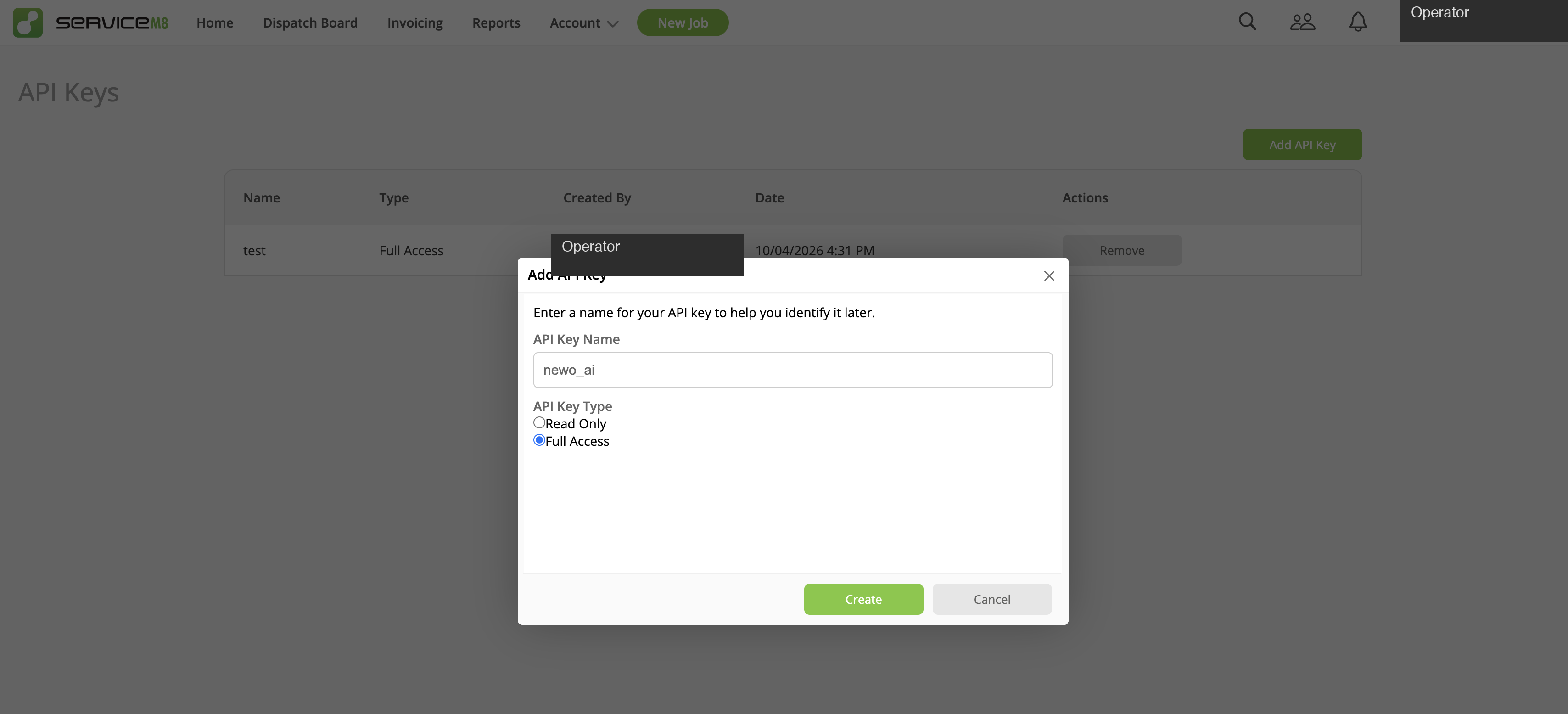
Important: Treat the API key like a password. If it is ever exposed, rotate it in ServiceM8 and re-paste in Newo before the next Publish All.
3. Configure in Newo
-
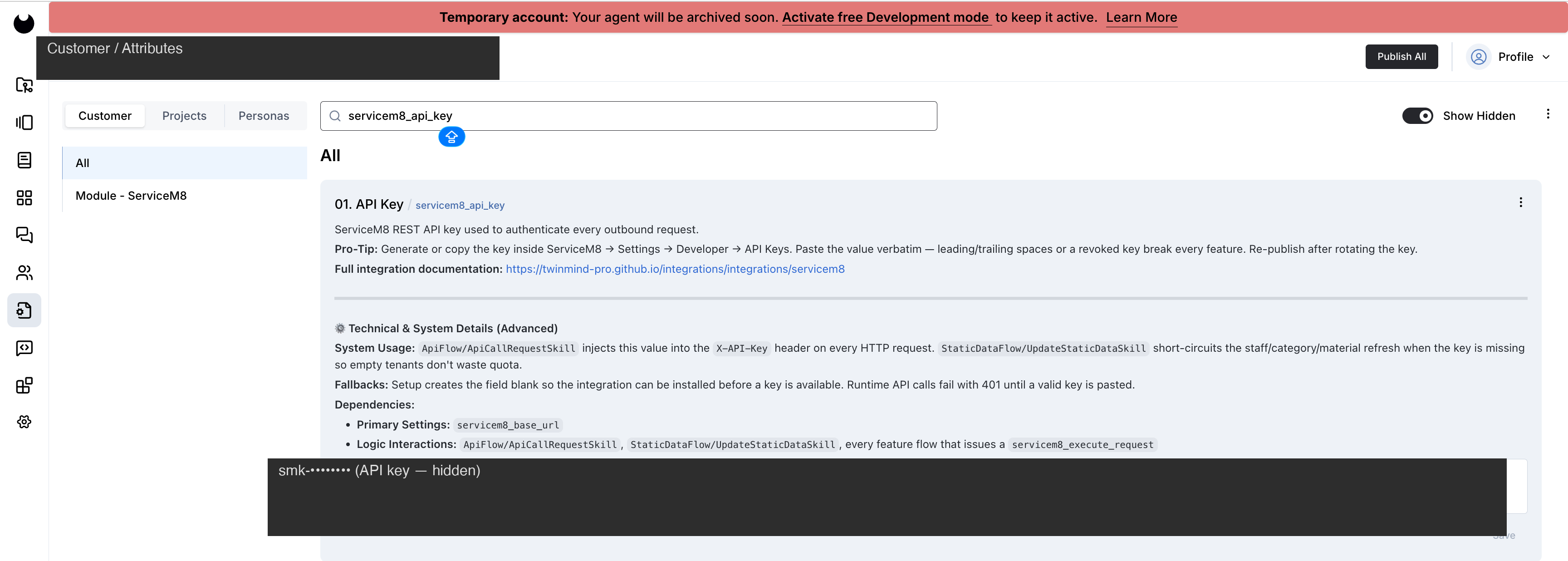
Open the project in Newo Builder and find the Module - ServiceM8 group of settings.
-
Paste the key into API Key.
-
After the first Publish All, Default Staff UUID becomes a dropdown populated with your ServiceM8 Staff list (formatted
uuid | first_name | last_name). Pick the right entry from the dropdown. On the very first publish — before the dropdown has been populated — leave it blank or paste the identifier manually; the next publish will switch it to a dropdown.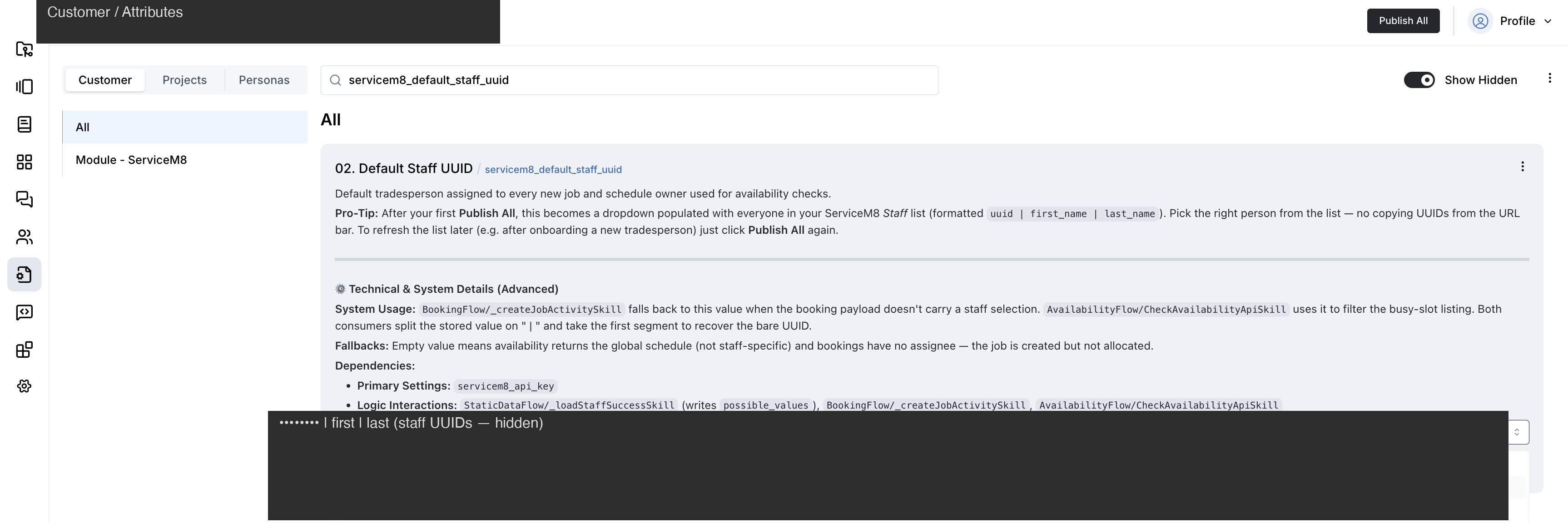
-
Same story for Default Job Category UUID — after the first publish it becomes a dropdown populated with your active Job Categories (formatted
uuid | name | colour). Leave blank to let ServiceM8 default to Uncategorised.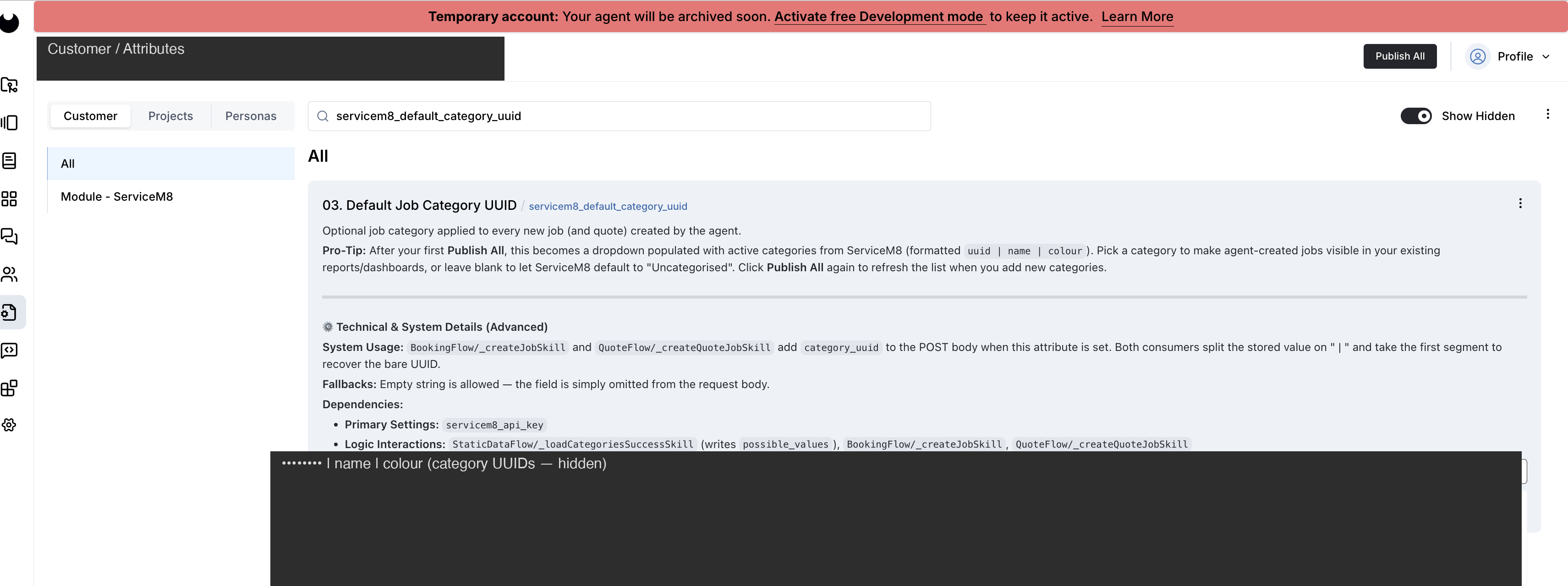
-
Set Default Activity Duration (minutes) to your typical service-call window (60 by default).
-
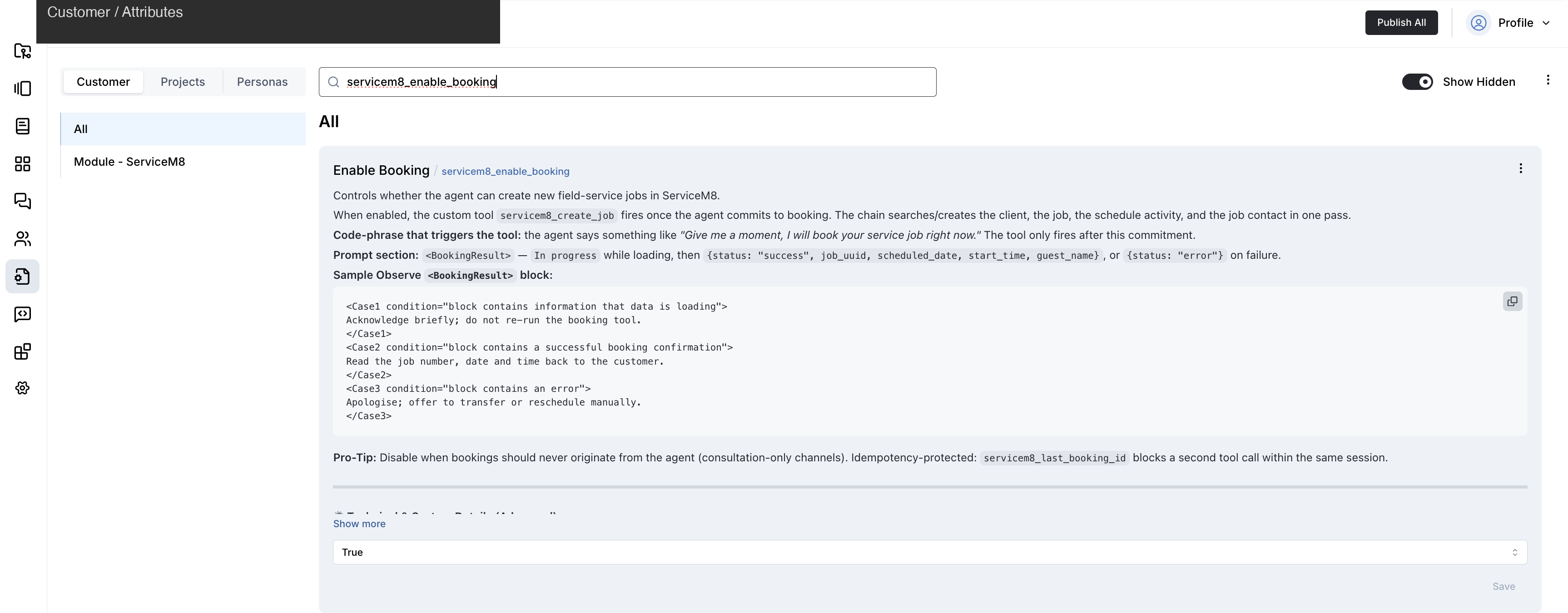
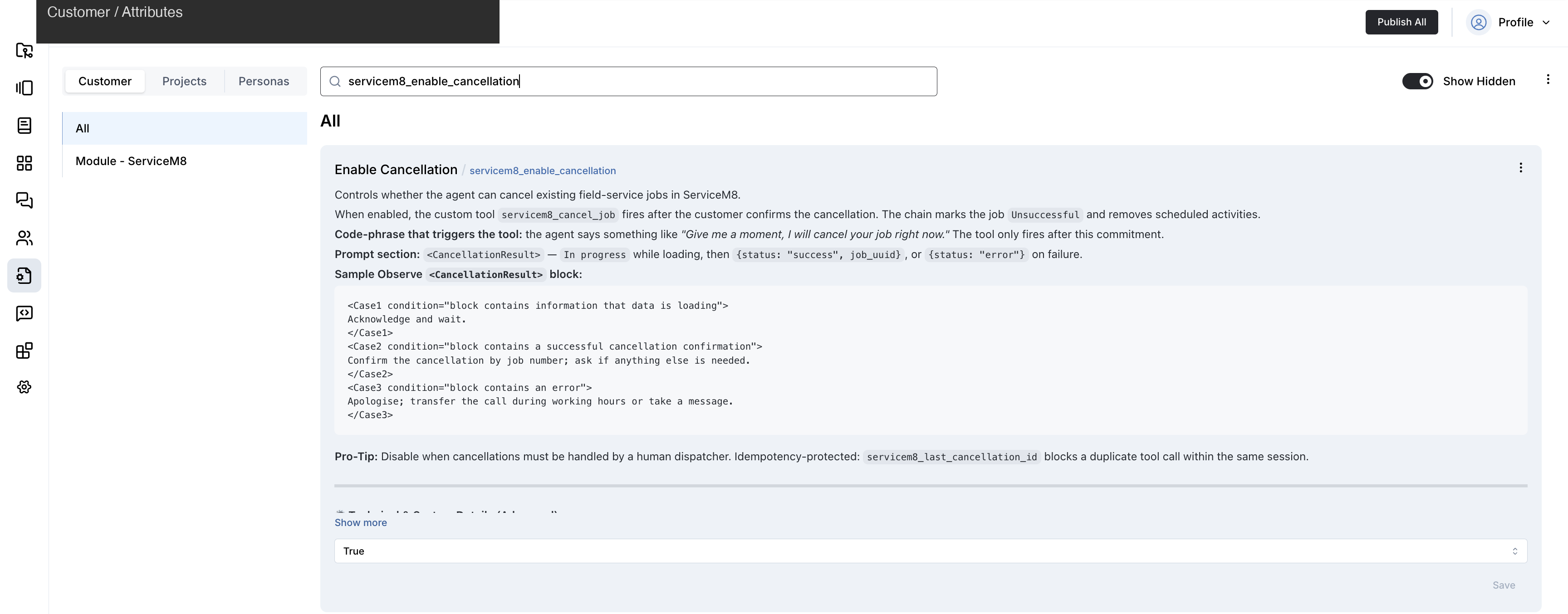
Review the feature switches — every feature ships with its own toggle, each carrying an inline description of what it does, the trigger phrase the agent listens for, and a sample of the data the agent reads back:
Setting (UI label) Purpose Default Enable Availability Check Lets the agent quote live time slots. on Enable Booking Lets the agent create new jobs in ServiceM8. on Enable Cancellation Lets the agent mark jobs as Unsuccessful. on Enable Reschedule Lets the agent move existing jobs to a new time. on Enable Job Lookup Lets the agent answer status / schedule questions. on Enable Quote Creation Lets the agent draft a Quote-status job. on Setup Canvas Scenarios Publishes the booking / cancellation / lookup canvas defaults. on 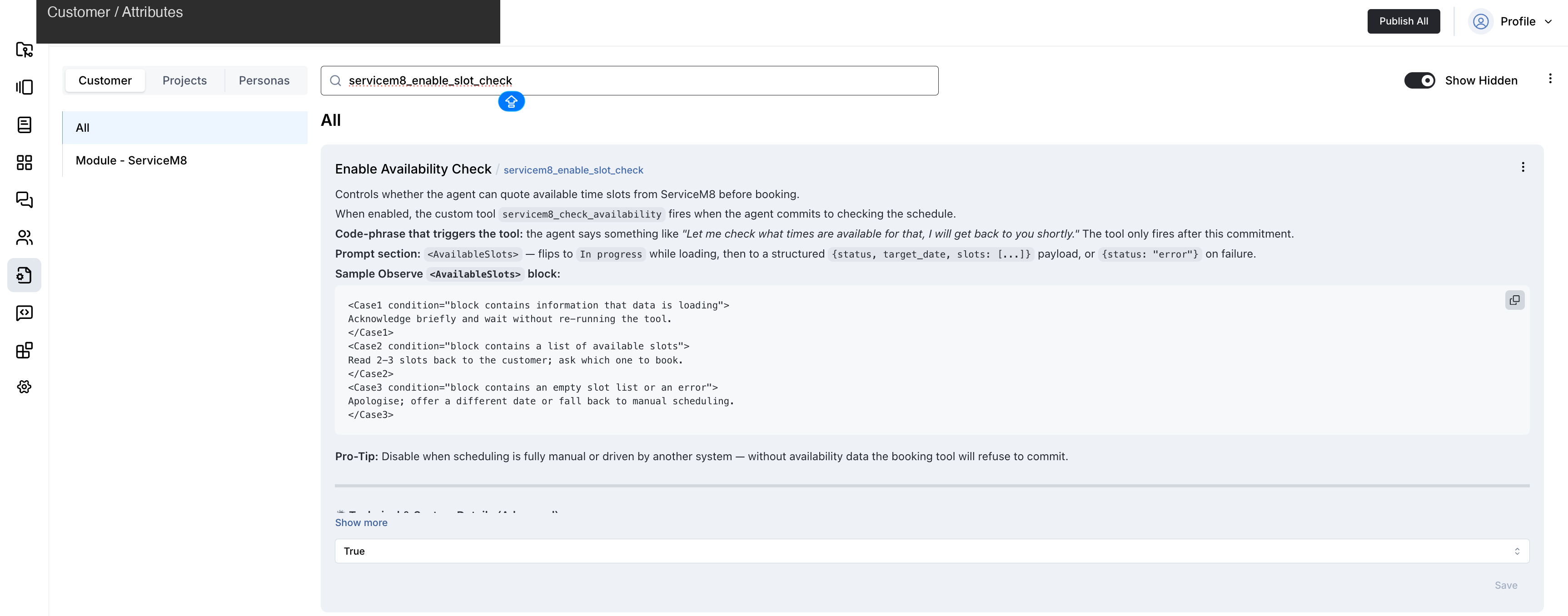
-
Click Publish All.
4. Hit Publish All
After Publish All, the integration takes care of the rest:
- Verifies your credentials and provisions the connector to ServiceM8.
- Registers the trigger phrases the agent will listen for.
- Publishes the canvas scenarios and intents — existing customisations are preserved.
- Refreshes the cached staff / categories / materials lists in the background so the agent has them on the very first conversation.
Place a test chat message or call to confirm.
Customizing the agent
The scenarios shipped with this integration are a reference implementation — fully editable in the Newo Builder UI. Common tweaks:
- Add more data-collection steps to the booking — collect access notes, asset details, or pet-on-site warnings before the booking trigger phrase. Keep the trigger phrase intact at its current position.
- Reword how the agent reads slots back — tighten or extend the slot summary in step 3 of the booking scenario; do not touch the availability trigger phrase in step 2.
- Translate the whole scenario — translate every step except the trigger phrases, which must remain in English. The integration listens for the literal English sentence.
- Soften the multi-site hand-off — change the wording the agent uses before the transfer; do not remove the transfer branch (the integration cannot handle multi-site requests in one job).
- Restore defaults / pull newer defaults after an integration update. If you break a scenario, or you want to pick up the latest shipped version after an integration update, delete your edited copy from the canvas and run Publish All — the original is restored from the integration's library, and you can re-apply your tweaks on top of the newer baseline.
Always preserve: every trigger phrase listed in the Scenarios section above. Reword anything else.
Reminder. Once you edit an intent or scenario, future updates of this integration will not overwrite your edited copy. Plan to revisit the Changelog section after each update and decide whether to merge new defaults into your version.
FAQ
Q. How does authentication work — does the key expire? The integration uses your ServiceM8 API key on every request. The key does not expire on its own. If you rotate the key in ServiceM8 (or revoke it), paste the new value into API Key and run Publish All — the agent picks it up on the next turn.
Q. The agent picked the wrong slot / staff member. How do I fix it? Set Default Staff UUID to the right tradesperson — the agent uses their schedule for availability and assigns new jobs to them. If you want the agent to ask the customer to pick a specific staff member, that's currently a manual canvas customisation; the shipped scenarios use the default staff.
Q. The customer cancelled by phone. Will the agent still recognise it next time? Yes — the cancellation marks the job as Unsuccessful in ServiceM8 and removes the scheduled activity. The next conversation that looks up the customer will not see it as an active booking.
Q. We have multiple ServiceM8 accounts. Can one Newo project serve all of them? No — one Newo project connects to one ServiceM8 account (one API Key). Spin up a separate Newo project per account.
Q. Can I prevent the agent from creating new clients in ServiceM8? Not directly. When the agent books a job for a phone number it has not seen in ServiceM8 yet, it auto-creates the client so the job has somewhere to land. Disable Enable Booking if you don't want the agent to create new records.
Q. How does the agent decide whether the customer is already in ServiceM8? By phone number — it looks up the customer's contact record by mobile and reuses the linked client if there is one. If the customer hasn't shared a phone number yet, the agent stops and asks for it before booking; without a phone the integration cannot deduplicate and would create a fresh client for every call.
Q. The agent stops short of saying "I will book your service job right now". What gives? That sentence is the booking trigger phrase. Without it the booking does not fire — the integration listens for it literally. Check the booking scenario in the canvas: if you reworded step 6 the trigger may have been lost. Restore the exact sentence and Publish All.
Q. How fresh is the staff / categories / materials list the agent uses? The cache rebuilds on every Publish All — click it any time you change staff, categories or materials in ServiceM8 and want the agent to see the new values. Between publishes the cache stays as it was after the last refresh.
Q. The agent created a duplicate booking. How is that prevented? Each session keeps a "last booking id" marker — once a booking succeeds, the booking trigger phrase is intentionally a no-op for the rest of that conversation. Same for cancellations and reschedules. End the session and the markers reset.
Limitations
- Single staff member per account. The shipped scenarios assign every new job to the Default Staff UUID — there is no in-conversation staff picker. Workaround: ask the customer for a preferred tradesperson in chat and let your dispatcher reassign in ServiceM8.
- One job per call. If the customer wants two or more services at separate addresses, the agent transfers to a human. Workaround: train the dispatcher to take both requests and create the second job manually.
- No reschedule via the existing-job-lookup flow. The lookup scenario hands off to the booking scenario for a reschedule, which creates a new job and cancels the old one separately. If you want a single-step reschedule, use the Enable Reschedule feature directly — but it requires the agent to have the original job identifier in scope first.
- No payments through the agent. Payment continues to be handled inside ServiceM8 by your normal flow (invoice → quote / payment).
- Multi-account: not supported. One Newo project serves one ServiceM8 account.
All settings reference
Every setting the integration adds to the Module - ServiceM8 group in Newo Builder. The table below is the complete inventory — operators typically only touch rows marked ✅ in the Edit column; rows marked ⚠️ are for admins only, and 🔒 rows are managed automatically by the integration.
Column meanings:
- Name — the technical identifier of the setting; it is what appears in API calls, logs, and advanced views. Operators do not type it — they use the UI label in Newo Builder.
- Description — what the setting controls.
- Required — must be filled in before Publish All for the integration to work.
- Default — value shipped with the integration.
- Hidden — hidden by default in Newo Builder (admin-only).
- Edit — whether it is safe to change:
- ✅ Safe — change as needed.
- ⚠️ Advanced — change only if you know what you are doing.
- 🔒 Auto-managed — never edit by hand; the integration writes this value.
| Name | Description | Required | Default | Hidden | Edit |
|---|---|---|---|---|---|
servicem8_api_key | ServiceM8 REST API key used to authenticate every outbound request. | Yes | (empty) | No | ✅ |
servicem8_default_staff_uuid | Identifier of the staff member used as the default assignee and the schedule owner for availability checks. | Yes | (empty) | No | ✅ |
servicem8_default_category_uuid | Optional identifier of a job category applied to every new job created by the agent. | No | (empty) | No | ✅ |
servicem8_activity_duration_minutes | Default length, in minutes, of a scheduled job activity. | No | 60 | No | ✅ |
servicem8_enable_slot_check | Lets the agent quote available time slots from ServiceM8 before booking. | No | on | No | ✅ |
servicem8_enable_booking | Lets the agent create new field-service jobs in ServiceM8. | No | on | No | ✅ |
servicem8_enable_cancellation | Lets the agent cancel existing field-service jobs in ServiceM8. | No | on | No | ✅ |
servicem8_enable_reschedule | Lets the agent move an existing job to a new date/time. | No | on | No | ✅ |
servicem8_enable_lookup | Lets the agent answer status / schedule questions for an existing job. | No | on | No | ✅ |
servicem8_enable_quote | Lets the agent draft a Quote-status job for the customer. | No | on | No | ✅ |
servicem8_setup_scenarios | Publishes the booking / cancellation / lookup canvas scenarios on every Publish All. | No | on | No | ✅ |
servicem8_base_url | Base URL for every ServiceM8 REST API call. | No | https://api.servicem8.com/api_1.0 | Yes | ⚠️ |
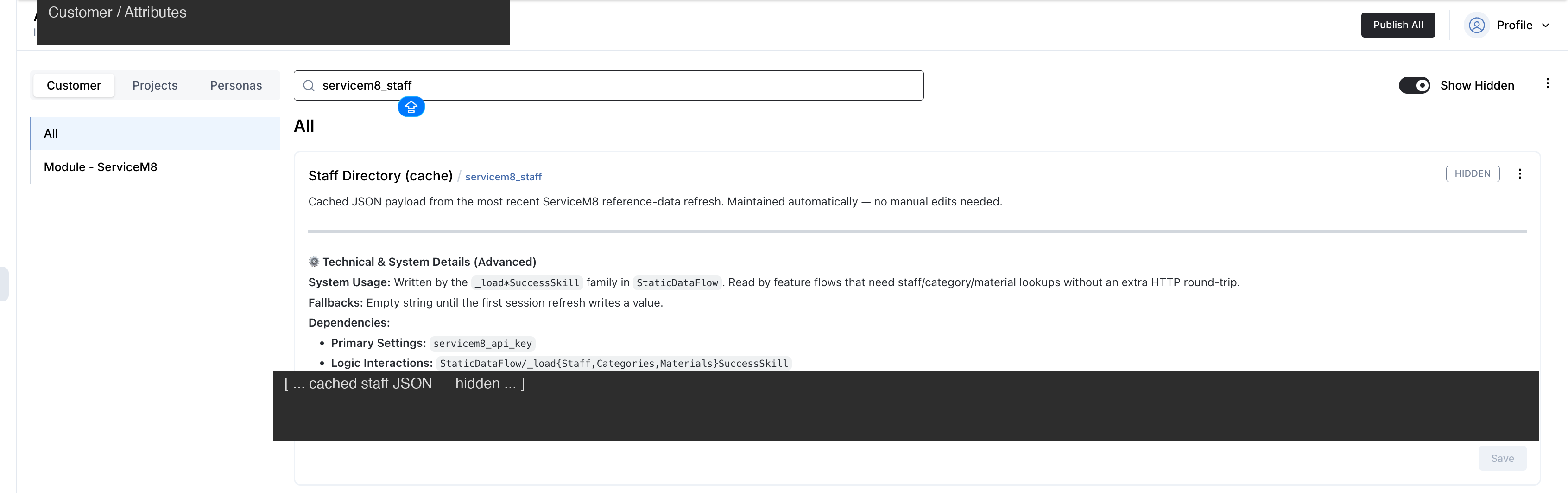
servicem8_staff | Cached staff list — refreshed automatically. | No | (empty) | Yes | 🔒 |
servicem8_categories | Cached job categories — refreshed automatically. | No | (empty) | Yes | 🔒 |
servicem8_materials | Cached materials list — refreshed automatically. | No | (empty) | Yes | 🔒 |
servicem8_setup_persona_id | Internal identifier for the setup persona used to dispatch background tasks. | No | (empty) | Yes | 🔒 |
Changelog
v1.0.1 — Phone-based client dedup, simpler refresh
- Phone-based client dedup. When the agent books a job, it now looks up the customer's contact record by mobile number in ServiceM8 and reuses the linked client. The previous full-text search occasionally bound new jobs to unrelated companies; that no longer happens.
- Phone is now required to book. If the customer hasn't shared a phone number, the agent stops the booking and asks for one — without a phone the integration cannot deduplicate.
- Static data refresh runs on every Publish All. The TTL gate and the two hidden timestamp/interval settings are gone. Click Publish All to force a fresh staff / categories / materials sync.
v1.0.0 — Architecture aligned with platform integration rules
- Custom tooling for every feature — the agent picks the right action from the trigger phrase rather than guessing from generic NAF tools.
- Three editable scenarios ship on the canvas: booking, cancellation and lookup. Reschedule and Quote run programmatically when the agent commits to those actions.
- Idempotency markers — once a booking, cancellation or reschedule succeeds in a session, the corresponding trigger phrase is intentionally a no-op for the rest of that conversation. Prevents duplicate creates.
- Job Contact is now created on every booking, populating the Job Contact panel in ServiceM8 with the customer's name, phone and email.
- Settings layout restructured: API Key / Default Staff UUID / Default Job Category UUID / Default Activity Duration come first; feature switches follow; technical fields are hidden by default.