Cloud 9 Integration
What the AI can do
Summary
Cloud 9 Integration connects Cloud 9 Ortho / Pedo / Dental (cloud practice management system) with Newo Platform.
It lets a Newo AI agent answer common front-desk calls for a Cloud 9 practice end-to-end:
- Identify the caller as an existing patient (or recognize a parent calling about a child).
- Pull up the patient's upcoming Cloud 9 appointments.
- Check live Cloud 9 availability for a new appointment, an emergency visit, or a replacement time during a reschedule.
- Create, reschedule, confirm, or cancel appointments directly in Cloud 9.
This integration is designed for dental and orthodontic clinics already running Cloud 9 who want an AI phone or chat agent to handle scheduling, recall, and post-appointment confirmation calls without involving the front desk.
Common use cases
- "I'd like to book a cleaning for my daughter." — Agent identifies the caller, links the child as a dependent, checks live Cloud 9 availability, and creates the appointment.
- "What time is my appointment on Friday?" — Agent looks up the patient's existing Cloud 9 appointments and reads them back.
- "I need to move my appointment to next week." — Agent finds the existing appointment, checks new openings, and reschedules in Cloud 9.
- "I'm calling to confirm tomorrow's appointment." — Agent confirms the appointment in Cloud 9.
- "Something came up — can you cancel my appointment?" — Agent cancels the appointment in Cloud 9.
- "I have a broken tooth, when can someone see me?" — Agent classifies the visit reason (emergency vs. recall vs. new-patient exam) using the operator-tuned Visit Reason Rules and offers matching availability.
- "My insurance is Aetna PPO, member 1234567." — Agent captures the caller's dental insurance details (whatever the caller volunteers — carrier, plan, member ID, group) and writes them into the Cloud 9 patient and appointment notes so the front desk can pre-verify coverage before the visit.
Features at a glance
| Feature | Supported | Notes |
|---|---|---|
| Patient Lookup | ✅ | Identify an existing patient by phone first, with name + date of birth fallback for returning patients calling from another number. |
| Existing Appointment Lookup | ✅ | Read out upcoming Cloud 9 appointments for the caller or a selected family member. |
| Live Availability | ✅ | Real Cloud 9 openings up to 7 days ahead (operator-configured Booking Window). |
| Create Appointments | ✅ | New booking from a Cloud 9 availability slot, including parent-and-child (mama) scenarios. |
| Reschedule Appointments | ✅ | Move an existing appointment to a new live slot. |
| Confirm Appointments | ✅ | Mark an existing appointment as confirmed. |
| Cancel Appointments | ✅ | Soft-cancel an appointment (idempotent — safe to re-run). |
| Visit Reason Classification | ✅ | Emergency / new patient / recall — rules are editable per clinic. |
| Visit Reason Ask | ✅ | Agent asks every caller "what brings you in today?" before checking availability, so the chosen Cloud 9 schedule view matches the actual reason (cleaning vs. exam vs. specific concern) instead of always defaulting to the same type. |
| Insurance Capture (notes) | ✅ | Agent asks every caller for dental insurance details (freeform — carrier, plan, member ID, group) and writes them into the Cloud 9 patient and appointment notes for front-desk pre-verification. Truncated to the Cloud 9 500-char note limit. |
| Custom Canvas Scenarios | ✅ | Default Cloud 9 scenarios for patient lookup, availability, booking, reschedule, confirm. |
| Multi-Location Tenants | ✅ | Single-location auto-pick; multi-location resolves the location from the caller's request. |
| Per-Feature Master Switches | ✅ | Turn each of the six actions on or off without touching scenarios. |
1.4 Real-World Scheduling Coverage
The Cloud 9 integration is designed for real front-desk conversations, including family-member scheduling and caller-identification edge cases that commonly happen in dental offices.
The integration separates caller identity from appointment target:
- Caller identity answers: who is calling, and whether that person has an existing Cloud 9 patient record?
- Appointment target answers: who is the appointment, cancellation, confirmation, lookup, or reschedule action for?
This distinction prevents the agent from booking, cancelling, confirming, or moving the wrong family member's appointment when one conversation mentions multiple patients.
Supported patient-identification and scheduling paths:
- Phone lookup found one patient — the agent treats the caller as an existing patient and uses the Cloud 9 profile as the source of truth.
- Phone lookup found no patient — the agent asks whether the caller is new or has visited before; it does not assume "new patient" automatically.
- Returning patient calling from a different phone — the agent asks for first name, last name, and date of birth, then runs a fallback lookup before deciding what to do.
- Phone lookup matched the wrong profile — if the caller says the matched profile is not them, the agent does not use that profile for booking.
- Multiple matches — the agent asks for a disambiguating detail such as date of birth before continuing.
- Existing patient booking for self — the agent books against the caller's existing patient record.
- Existing patient booking for an existing family member — the agent asks which family member the appointment is for and uses that existing patient record.
- Existing patient adding a new family member — the agent collects the new dependent's details, maps the relationship using the clinic's current Cloud 9 relationship vocabulary, creates the dependent record, and books the appointment.
- New patient booking for self — the agent collects required new-patient details, creates the Cloud 9 patient record, and books the selected slot.
- Booking for a patient under 18 — the agent derives age from the patient's complete date of birth using the clinic's local date. It confirms that the caller is the child's parent, legal guardian, or authorized representative, then asks whether the caller personally is new or existing at the clinic. For a new caller, it creates the responsible-party profile before the child record and appointment.
Relationship handling is intentionally caller-friendly: the caller can say "my son", "my daughter", "my child", "my brother", or similar natural wording. The agent maps that wording to the configured Cloud 9 relationship types. If it cannot map the relationship safely, it offers front-desk help or a callback instead of asking the caller for internal relationship labels or GUIDs.
Appointment-management safety cases
| Situation | Agent behavior |
|---|---|
| Caller asks for "tomorrow morning", "next week", or "after 3" | Resolves the request to concrete dates and times before checking availability. |
| Caller asks for a specific date and time | Offers that exact slot if available; otherwise offers nearby concrete alternatives. |
| Caller asks for earliest / ASAP | Offers the earliest live Cloud 9 slot visible for the resolved visit type. |
| Preferred provider is unavailable | Offers alternatives or office help instead of inventing availability. |
| No availability is returned | Offers another date/time search, front-desk transfer, or callback. |
| Selected slot disappears before booking | Runs a fresh availability search; does not claim the booking succeeded. |
| Caller provides insurance details | Saves the freeform insurance text in notes for office verification. |
| Caller is self-pay or does not know insurance details | Accepts the answer and continues. |
| Caller asks to cancel before appointments are loaded | Retrieves existing appointments first; does not cancel from memory. |
| Caller cancels a child's appointment | Retrieves that child's appointments and confirms the exact appointment before cancellation. |
| Caller first books Elizabeth, then asks to reschedule Vladimir | Uses the current request for Vladimir, not Elizabeth's old target state. |
| Visible appointment data belongs to another patient | Ignores the stale block and looks up appointments for the selected patient. |
| Selected patient has no upcoming appointments | Says no upcoming appointments are visible for that patient and asks whether it may be under another name. |
| Cloud 9 API returns an error | Does not expose technical details; offers retry, front-desk help, or callback. |
| Caller is frustrated or asks for a person | Offers front-desk transfer or collects callback details. |
| Previous conversation summary includes patient details | Treats it as history only; never uses it as the source of truth for phone, DOB, family members, or appointments. |
The safety model is:
- Identify first — every appointment-management action starts with caller identity and appointment-target selection.
- Use live Cloud 9 data — slots and existing appointments come from Cloud 9, not from memory or assumptions.
- Do not mutate without confirmation — booking, cancellation, confirmation, and reschedule actions require the exact patient and the exact slot or appointment before the API call.
Before You Start
Before installation:
- An active Cloud 9 subscription with API access enabled.
- Cloud 9 partner credentials for your tenant —
client_id,username,password. Request these from Cloud 9 support if you do not already have them. The partner credentials are separate from staff login credentials and are required for API access. - A clinic administrator account in builder.newo.ai with permission to create connectors and edit project attributes.
Setup
Create the Newo project
If this project already exists in Newo Builder, skip this subsection and continue with the integration-specific settings below.
- In Newo Builder, open the projects list and click Create Project (or Create New Project from the top-right menu).

- Fill IDN and Title. The exact names do not matter; use any clear names your team will recognize.
- In Registry, choose the release channel:
- staging — the newest module fixes appear here first. Use it when you need the latest fix, but expect possible unfinished changes.
- production — the final stable version for live projects.
- In Module, select the module for this integration.
 5. Leave Module version on Latest version unless support tells you to pin a specific version, then click Create.
3.1 Step 1 — Get Cloud 9 Partner Credentials
Contact your Cloud 9 account manager and request API partner credentials for your tenant. You will receive:
Cloud 9 ClientID(a per-tenant GUID)Partner UserNamePartner PasswordVendor UserName(the partner identifier Cloud 9 assigned to Newo, e.g.NEWO)
Keep these secure — they are tenant-wide credentials.
3.2 Step 2 — Install the Cloud 9 module in Newo
- Open builder.newo.ai.
- Click the three vertical dots next to the Publish ALL button.
- Click + Create New Project.
- Fill in:
- Idn:
Cloud9Integration - Title:
Cloud 9 Integration - Registry:
production - Module:
cloud9_integration - Module version:
Latest version - Auto update: enabled
- Idn:
- Confirm to create the project.
- In the row with Cloud9Integration, click the three vertical dots next to the Manage button and select Force Update Project. After the page refreshes, a version number should appear in the Version column.
3.3 Step 3 — Create the Cloud 9 Connector in Newo
- Open builder.newo.ai → Connectors.
- Click Add Connector and pick Cloud 9 from the list.
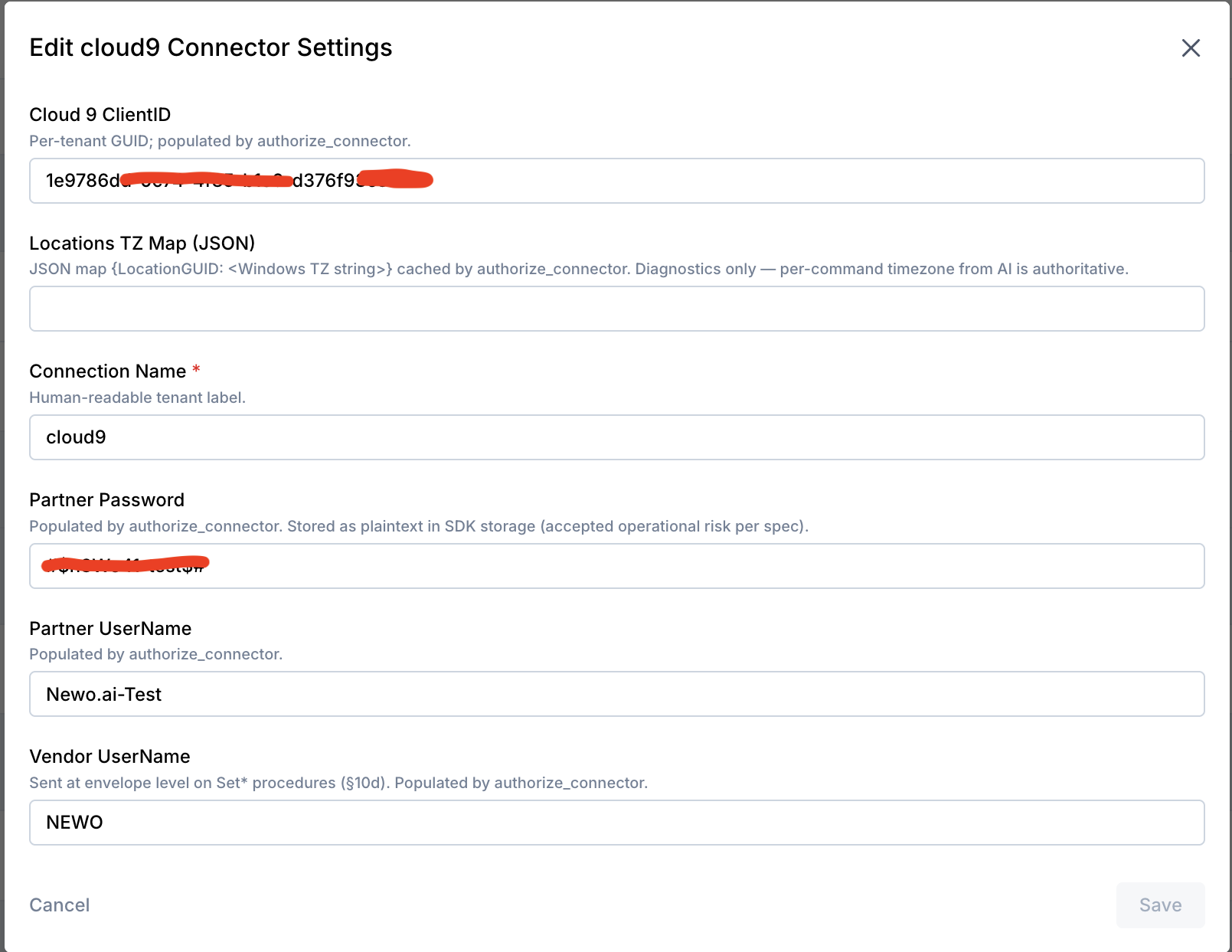
- Fill in the connector settings:
| Field | Where to get it |
|---|---|
| Cloud 9 ClientID | The per-tenant GUID from the partner credentials Cloud 9 issued in Step 1 |
| Connection Name | Any friendly label (e.g. Sunshine Dental — Cloud 9) |
| Partner UserName | From the partner credentials Cloud 9 issued in Step 1 |
| Partner Password | From the partner credentials Cloud 9 issued in Step 1 |
| Vendor UserName | The partner identifier Cloud 9 assigned to Newo (typically NEWO) |
| Locations TZ Map (JSON) | Leave blank — used for diagnostics only |
- Save. Newo validates the credentials against Cloud 9 immediately (a short test call). If anything is wrong, the form will surface the exact reason — usually a typo in
Cloud 9 ClientIDor a password that has expired.
3.4 Step 4 — Configure Feature Settings in Project Attributes
- Open builder.newo.ai → Project → Attributes and locate the Module - Cloud9 group.
- Review the operator-facing settings:
| Attribute | Required | What it controls |
|---|---|---|
Booking Window | ✅ | How many days ahead live availability searches. 1 through 7. Default 5. |
Visit Reason Rules | ⚠️ Recommended | Optional clinic-specific rules that help the AI classify the caller's reason and choose the right Cloud 9 schedule view. Leave blank only if the synced Cloud 9 schedule view names are already unambiguous. |
Patient Lookup | ❌ | Enables the "look up existing patient by name + DOB" feature. Default True. |
Existing Appointment Lookup | ❌ | Enables pulling up the patient's upcoming Cloud 9 appointments. Default True. |
Live Availability | ❌ | Enables the live Cloud 9 availability search. Default True. |
Create Appointments | ❌ | Lets the AI create new appointments from an offered slot. Default True. |
Reschedule Appointments | ❌ | Lets the AI move existing appointments to a new slot. Default True. |
Confirm Appointments | ❌ | Lets the AI confirm existing appointments. Default True. |
Cancel Appointments | ❌ | Lets the AI cancel existing appointments. Default True. |
Publish Default Canvas | ❌ | Auto-publishes the standard Cloud 9 scenarios to the Workflow Builder Canvas. Default True. |
- Adjust each feature toggle to match what this clinic actually wants the AI to do. Anything turned off here will not be promised to the caller — for example, if
Cancel Appointmentsis off, the scenarios will offer front-desk transfer instead.
Recommended — fill in Visit Reason Rules
Visit Reason Rules is optional, but it is strongly recommended for clinics with multiple schedule views. The AI uses this text during live availability search and booking to set the visit reason correctly and select the matching schedule view.
If this field is blank, the AI uses only the caller's wording and the synced Cloud 9 schedule view names. That can work when schedule views are simple, but it is less reliable when the clinic has separate emergency, new-patient, recall, pedo, ortho, or age-specific views.
Write short rules using the exact schedule view names used by this clinic. Do not include a rule for a view that does not exist in Cloud 9.
Example content to adapt:
Pain, swelling, trauma, broken tooth, infection, pus, or dry socket -> Emergency.
First-time patient without urgent symptoms -> New Patient Exam.
Cleaning, routine checkup, hygiene, prophy, six-month exam, or recall -> Recall / Adults.
Orthodontic consult, braces, aligners, retainer, or ortho recall -> Ortho Consult.

If this clinic uses age-specific recall views:
- Age 0-3 -> First Dental Home.
- Age 4-13 -> Recall / Pedo.
- Age 14-19 -> Recall / Teens.
- Age 20+ -> Recall / Adults.
Replace the names above with the clinic's actual Cloud 9 schedule view names after the first Publish All sync. If the clinic has only one schedule view, this field can stay blank.
Important — apply this after every attribute change: After you change any attribute value you must Save the attribute, then Publish the project, then refresh the page. After the refresh, click the Show hidden toggle twice (off → on) so the freshly populated hidden attributes (employees / locations / schedule views caches) become visible.
3.5 Step 5 — Publish
-
Click Publish All in builder.newo.ai.
-
On the first publish, the integration will:
- Verify the Cloud 9 connector is reachable.
- Refresh the practice's locations, employees, and schedule views from Cloud 9.
- Add the default Cloud 9 scenarios (Patient Lookup, Availability, Booking, Reschedule, Confirm, Cancel) to the Workflow Builder Canvas.
-
After the first successful publish, every following Publish All re-syncs locations / employees / schedule views and refreshes the Cloud 9 scenarios in place.
How to use the integration
Once the integration is connected and the project is published, no extra configuration is needed per call. When a caller reaches the AI:
- The AI greets the caller and asks how it can help.
- If the caller mentions an existing appointment or asks something patient-specific, the AI first identifies them by phone number. If no phone match is found and the caller says they are returning, the AI asks for name + date of birth and runs a fallback lookup.
- Depending on the caller's intent:
- New appointment → AI asks "what brings you in today?" to determine the reason for visit, classifies it using the Visit Reason Rules, checks live Cloud 9 availability, offers exact times from Cloud 9, and books the chosen slot.
- Reschedule → AI confirms which existing appointment is being moved, then checks live availability and updates Cloud 9.
- Confirm → AI confirms the appointment directly.
- Cancel → AI cancels the appointment.
- Before submitting any booking, the AI asks the caller once for dental insurance details (carrier, plan, member ID, group) and writes whatever they say into the Cloud 9 patient + appointment notes so the front desk can pre-verify coverage before the visit. Self-pay and no-insurance answers are accepted without insisting.
- Before booking, the AI requires a complete valid patient date of birth from the matched Cloud 9 record or the conversation. It uses the clinic's local date to determine whether the patient is under 18. A minor must have an authorized responsible party established before the child record and appointment.
- The AI never offers times that are not real Cloud 9 openings — every slot the caller hears comes back from a live availability check.
- If a feature is turned off in Project Attributes, the AI does not promise that action and offers front-desk help instead.
How to test that everything works
5.1 To test the integration
- Connector: Confirm the Cloud 9 connector shows as connected in builder.newo.ai → Connectors after step 3.2.
- Patient Lookup: Call from a phone number stored on an existing Cloud 9 patient record. The agent should pull up the patient record and acknowledge it.
- Existing Appointment Lookup: After identifying yourself, ask "Do I have any appointments coming up?". The agent should read back the patient's upcoming Cloud 9 appointments.
- Live Availability: Ask "Can I book a cleaning?". The agent should ask for the preferred date, then offer real Cloud 9 openings.
- Create Appointment: Pick one of the offered times. The agent should ask for your insurance details (e.g. "Aetna PPO, member 1234567") before submitting. Whatever you say should land in the Cloud 9 appointment note (and the patient note if you are a new patient). The agent should confirm the booking, and you should see the new appointment appear in Cloud 9 at the local time you requested (not 7+ hours off).
- Reschedule: Ask "Can you move my appointment to next week?". The agent should confirm which one, find new times, and update Cloud 9.
- Confirm: Ask "I'm calling to confirm my appointment.". The agent should confirm the matching appointment in Cloud 9.
- Cancel: Ask "Please cancel my appointment.". The agent should cancel it. Re-running the same cancel is safe.
- Emergency intent: Say "I have a broken tooth". The agent should classify this as an emergency (per the Visit Reason Rules) and search the appropriate Cloud 9 schedule view.
- Different phone number: Call from a phone number that is not on the patient record and say "I'm an existing patient calling from another number." The agent should ask for name and date of birth, then use the matched Cloud 9 profile if one is found.
- Existing family member: After caller identification, say "I want to book this for my daughter [name]." If that child is already listed in Cloud 9, the agent should use the existing child record and not ask for duplicate new-patient details.
- New family member: After caller identification, say "I want to book this for my new son [name]." The agent should collect the new dependent's details and relationship wording, then create the dependent under the responsible party if the relationship can be mapped.
- New caller and new child: From a phone number that is not attached to a patient, say "I want to book my daughter; she is a new patient." The agent should first ask whether you are her parent, legal guardian, or authorized representative. After a clear yes, it should separately ask whether you personally are new or existing at the clinic. If you are new, it should explain that it will collect your responsible-party details first, then the child's details. After final confirmation, verify that Cloud 9 contains the responsible-party profile, the linked child record, and the child's appointment.
- Stale family context: Book or discuss one family member first, then ask to look up or reschedule another family member's appointment. The agent should switch to the newly named family member and not reuse the previous target patient.
- Minor detected from DOB: Start a booking without calling the patient a child, then provide a date of birth that makes the patient 17 on the clinic's local date. The agent should keep that patient as the appointment target and establish the authorized responsible party before continuing. A patient turning exactly 18 that day should remain on the adult path.
5.2 If no action occurs
- Confirm the Cloud 9 connector status is "connected" — re-enter the credentials if it failed validation.
- Re-publish after any change to feature toggles, Booking Window, or Visit Reason Rules.
- Verify that the caller's phone number matches the Cloud 9 patient record. For fallback lookup, verify the caller's first name, last name, and date of birth match exactly what is stored in Cloud 9.
- If availability returns nothing, increase the Booking Window (up to 7 days) or check that the requested visit type maps to a Cloud 9 schedule view via Visit Reason Rules.
- If a multi-location practice resolves to the wrong location, make sure the caller mentions which office in the conversation.
FAQ
Q: Does the integration modify Cloud 9 data? A: Yes — it creates, reschedules, confirms, and cancels appointments on the operator's behalf, and links new dependents to existing patients when the caller is booking on behalf of a child. It never modifies clinical notes or financial data.
Q: Are cancellations reversible? A: Cloud 9 cancellations are soft-deletes. The appointment record stays in Cloud 9 with a cancelled status and can be re-instated by the front desk.
Q: What if the patient has the same name as another patient? A: Date of birth is required for identification. If two patients share the exact name and date of birth, the AI will surface that to the caller and offer front-desk help instead of guessing.
Q: Can the AI book for a parent calling about a child? A: Yes. The AI first asks the caller to confirm that they are the child's parent, legal guardian, or authorized representative, then separately establishes whether the caller is new or existing at the clinic. For an existing caller, it links the new child to the matched responsible-party profile. For a new caller and new child, it creates the caller's responsible-party profile first, then the linked child record, and finally the child's appointment.
Q: I changed Visit Reason Rules — do I need to re-publish? A: Yes. Click Publish All after editing any operator attribute to make the new behavior take effect.
Q: What should I put in Visit Reason Rules? A: Add short clinic-specific mappings from caller wording to the clinic's real Cloud 9 schedule view names. Focus on emergency wording, new-patient exams, recall / cleaning wording, orthodontic wording, and any age-specific recall views the clinic actually uses. If the field is blank, the AI still works from caller wording and synced schedule view names, but filling it in makes visit reason classification more reliable.
Q: I added new locations / providers in Cloud 9 — when will the agent see them? A: The next Publish All re-syncs locations, employees, and schedule views from Cloud 9. The agent also refreshes these caches periodically during normal operation.
Q: Can I turn off a feature without removing scenarios? A: Yes. Toggle the feature in Project Attributes and re-publish. The scenarios stay on the canvas, but the AI will not promise the disabled action — it will offer front-desk help instead.
Q: Which Cloud 9 versions are supported? A: The standard Cloud 9 API (Ortho / Pedo / Dental). Contact us if your tenant runs on a custom Cloud 9 deployment.
Q: How is insurance information captured? A: The agent asks every caller once for their dental insurance details — carrier, plan, member ID, group — as a single freeform answer. Whatever the caller says is written into the Cloud 9 patient note (when creating a new patient) and the appointment note so the front desk can pre-verify coverage before the visit. The integration does not validate the insurance plan against any list — that remains a front-desk task. Notes are truncated to Cloud 9's 500-character limit; insurance text takes priority over any other free-form visit note when the limit is reached.
Q: Why does the agent ask for date of birth even when I tell it I'm a new patient? A: Date of birth is required when creating a Cloud 9 patient record and for determining whether the patient is under 18. The integration blocks the booking if DOB is missing or invalid. For an existing patient, it uses the date of birth already stored in the matched Cloud 9 record.
Q: How does the agent decide that a responsible party is required? A: It calculates the patient's age from the complete date of birth using the clinic's current local date. A patient younger than 18 must be booked through a parent, legal guardian, or authorized representative. A patient who is exactly 18 follows the normal adult booking path.
Q: Why is the booking time sometimes off by several hours?
A: It shouldn't be. The integration converts Cloud 9 availability slots from UTC to the clinic's local timezone (set in the project's Business Time Zone) before sending the booking to Cloud 9, so the appointment lands at the caller's stated local time. If you ever see a time shifted by an exact timezone offset (e.g. 7 hours for US Pacific), double-check the Business Time Zone project attribute is set to a valid IANA name (e.g. America/Los_Angeles, not PST).
Changelog
v2.1.5 — Safer parent-and-child booking
- The booking scenario now confirms the caller's authority and the caller's own clinic status in separate turns before collecting child details.
- When both the caller and child are new, the integration creates the responsible-party profile first, then the linked child record, and finally the child's appointment.
- A dependent booking cannot reach Cloud 9 until the caller explicitly confirms they are the parent, legal guardian, or authorized representative.
- A complete DOB is validated against the clinic's local date; patients under 18 are routed through the responsible-party-first flow, while patients who are exactly 18 remain on the adult path.